


Updated September 16, 2025
Your latest A/B test showed a 20% drop in replies. Was it the copy, the offer, or did half your emails land in spam? For marketing ops managers running multi-inbox campaigns, that uncertainty breaks experiments. Before you start another complex audit, use these seven quick wins to fix inbox placement.
TL;DR:
To boost cold email deliverability at multi-inbox scale, do this:Set up SPF, DKIM, and DMARC on every sending domain.Warm every inbox and ramp volume gradually.Cap daily sends per inbox and increase by 20–50% only when metrics stay healthy. Start at 10–25/day in week one.Vary content with spin syntax to avoid duplicate “fingerprints.”Verify lists before every send to keep hard bounces under 2–3%.Use a custom tracking domain via CNAME instead of a shared tracker.Run ongoing inbox placement tests and watch spam rates in Postmaster Tools.
Selection criteria for these quick wins
- High impact on sender reputation or inbox placement.
- Low to medium effort with clear time-to-value.
- Safe for multi-inbox orchestration and valid A/B testing.
1. Nail your technical setup (SPF, DKIM, DMARC)
- Impact: High
- Owner: Ops/IT with Marketing Ops
- Time-to-value: 24–48 hours for DNS propagation
What to do now
- Publish SPF and DKIM for every sending domain or subdomain. Google recommends using both because “DKIM+SPF sends a stronger signal” that the email came from you in the Gmail sender guidelines, and the DMARC overview explains how policy and reporting work together to protect your domain identity and give you feedback. See the setup steps in the Google Workspace admin help on DKIM and the DMARC overview.
- Align your From domain with SPF or DKIM so DMARC passes, and monitor Gmail Postmaster spam rate. Gmail sender guidelines require authentication for all senders, DMARC for bulk mail, and note that user-reported spam rates above 0.3% hurt reputation. Target 0.1% or less and never cross 0.3%.
Acceptance checks
- SPF, DKIM, and DMARC all pass in seed tests.
- Gmail Postmaster Tools shows authentication success and spam rate under 0.1%.
Why it works
- Authentication and alignment reduce impersonation risk and raise trust with mailbox providers. DMARC couples policy with reporting so you can fix issues early. Read the DMARC overview to see how alignment and reporting work.
2. Automate inbox warmup across all accounts
- Impact: High
- Owner: Marketing Ops
- Time-to-value: Immediate progress. 14–30 days for full effect
What to do now
- Warm every new inbox and any domain you have not mailed from recently. Warmup means starting with very small volumes and positive engagement, then increasing gradually. Industry guidance from the Mailgun IP warmup guide recommends stepwise volume increases around 20% rather than big jumps. Keep warmup active in the background while production sends run so reputation signals stay steady.
Why it works
- Providers are suspicious of new senders and sudden volume spikes. Warming builds a history of authenticated, engaged mail before you scale. See the Mailgun IP warmup guide for a clear ramp pattern.
How Instantly helps
- Instantly includes unlimited warmup on outreach tiers and runs automated warmup among real inboxes. You can control settings like weekday-only, read emulation, and gradual daily increases in the app and the help center. For deeper context, see the deliverability solutions overview on Instantly, and our help article on read emulation.
- For a practical walkthrough of the warmup and deliverability controls, watch the Instantly video How to avoid cold emails going to spam FAST on YouTube.
Customer proof
"Best service - Best support ... This is our go-to platform to warm up email addresses, and we recommend it to all our clients." - Loïc S. on a G2 review
3. Set strict daily sending limits and ramp slowly
- Impact: Medium-high
- Owner: Marketing Ops
- Time-to-value: Immediate
What to do now
- For a new inbox, cap at 10–25 per day in week one, max of 30 emails per inbox total. Increase by 20–50% per week only if bounces, spam reports, and placement stay healthy.
- Split total campaign volume across many inboxes, avoid time-window spikes, and keep a steady daily cadence. Gmail’s sender requirements also emphasize gradual ramp and consistency.
- Operate well below hard limits during ramp. Microsoft 365 documents a cap of about 10,000 recipients per mailbox per day for Exchange Online, which is far above healthy warmup ranges.
Acceptance checks
- No day-over-day volume spikes above 50% per inbox.
- Inbox placement stable across Gmail and Microsoft seed addresses using an inbox placement test
4. Use spin syntax for unique email footprints
- Impact: Medium
- Owner: Marketing Ops and a copywriter
- Time-to-value: Immediate
What to do now
- Create light variations for subject, greeting, and one or two sentences in each step. Example spintax: Subject “Quick idea for {{company}}” | “Idea for {{company}}” | “{{company}} + a quick idea”. Keep it natural and brief.
- Rotate a handful of clean variants across inboxes.
Why it works
- Large anti-spam systems use content fingerprinting. If many messages are materially identical, they can be classified together. Variation reduces the risk that one content fingerprint hurts a whole batch, as discussed in the Cloudmark reputation white paper.
See also
- For a quick, practical explanation of copy variation and other placement levers, watch the Instantly video How to avoid cold emails going to spam on YouTube.
5. Verify every email list before every campaign
- Impact: High
- Owner: Marketing Ops
- Time-to-value: Immediate
What to do now
- Run list verification to remove invalid, disposable, and role addresses. Suppress hard bounces from prior sends. Keep total bounce rate under 2–3% for cold campaigns. Campaign Monitor’s bounce rate guide and independent deliverability references both cite this range as a practical ceiling for cold outreach.
- Re-verify any list older than 30 days or sourced from events. See our blog post on how to verify email addresses.
Why it works
- Hard bounces are a strong negative signal of poor data hygiene. Consistently low bounce rates protect sender reputation and inbox placement.
- For a hands-on workflow, see Instantly’s guide on how to verify email addresses, then use your in-app verifier prior to launch.
Customer proof
"The warmup feature boosts the sending reputation and lead verification makes sure only leads have been used for emails and bounce rates are significantly dropped." - Talha M. on a G2 review
6. Add a custom tracking domain
- Impact: Medium-high
- Owner: Ops/IT with Marketing Ops
- Time-to-value: 24–48 hours for DNS propagation
What to do now
- Set a branded CNAME, such as clicks.yourdomain.com, for link and open tracking. The domain verification guide covers the CNAME and DNS steps in detail, including typical 24–48 hour propagation windows.
- Use HTTPS on the tracker and keep tracking on your brand subdomain to avoid shared-domain reputation drag. Mailgun’s docs explain HTTPS tracking links and how message tracking works at the domain level.
Why it works
- Shared tracking domains concentrate risk across many senders. A dedicated subdomain aligns the visible links with your From domain and protects your reputation.
Customer proof
"Setting up all my domains was straightforward. Instantly made the process easy and seamless." - Verified User in Commercial Real Estate on a G2 review
7. Monitor inbox placement proactively
- Impact: High
- Owner: Marketing Ops
- Time-to-value: Immediate
What to do now
- Add a seed test before or alongside each new campaign variant to see where messages land across Gmail, Microsoft, Yahoo, and others. A practical inbox placement test tutorial from GlockApps shows how to read Primary vs Promotions vs Spam so you can act before bad placement hurts results.
- Watch Gmail Postmaster spam rate daily. Keep it under 0.1% and never reach 0.3% or more, per Gmail’s spam rate guidance.
- For a compact video walkthrough of the metrics that matter, watch Instantly’s The Ultimate Guide to Cold Email Deliverability in 2025 on YouTube.
How Instantly helps
- Instantly’s automated Inbox Placement runs recurring tests, flags spam triggers, checks blacklists, and can auto-pause a mailbox if placement drops under your threshold. For teams building dashboards, the Inbox Placement API exposes detailed analytics.
Summary table: the seven quick wins
| Tactic | Estimated impact | Owner | Time-to-value |
|---|---|---|---|
| SPF, DKIM, DMARC | High. Authentication pass, DMARC reporting, lower spam classification | Ops/IT + MOPS | 24–48 hours |
| Automated warmup | High. Safer ramp and improved placement trend | MOPS | Immediate. 14–30 days to full effect |
| Strict caps + slow ramp | Medium-high. Prevents spikes that trigger filters | MOPS | Immediate |
| Spin syntax | Medium. Reduces duplicate content fingerprints | MOPS/Copywriter | Immediate |
| Verify every list | High. Hard bounces stay <2–3% | MOPS | Immediate |
| Custom tracking domain | Medium-high. Aligns links with brand, isolates risk | Ops/IT + MOPS | 24–48 hours |
| Placement monitoring | High. Catches issues before they break tests | MOPS | Immediate |
Scorecard and safe ranges to keep experiments valid
- Authentication pass rate near 100% on SPF/DKIM, with DMARC passing on aligned identifiers. See Gmail’s DKIM setup guidance.
- Gmail spam rate at or below 0.1% in Postmaster Tools, never 0.3% or higher, per Gmail’s spam rate guidance.
- Hard bounces under 2–3% after verification.
- Controlled ramp of 10–25 per day in week one per inbox, then 20–50% weekly increases only if placement and complaints stay healthy. Max of 30 emails per day per inbox.
Common pitfalls and quick fixes
- Sudden spam placement at one ISP
- Why: Volume spike, weak alignment, or content fingerprint.
- Fix: Reduce per-inbox send cap for 48 hours, retest with seed lists, review DMARC alignment and copy variance.
- Bounce rate above 3%
- Why: Stale or unverified data.
- Fix: Re-verify, purge hard bounces, and re-launch at a lower cap.
- Complaint rate rising
- Why: Targeting or frequency.
- Fix: Tighten ICP filters, add one-click unsubscribe, cut volume.
Make these wins automatic with Instantly.ai
You can execute all seven inside Instantly:
- Unlimited warmup across unlimited inboxes to support safe scale, covered in the Instantly deliverability solutions.
- Automated Inbox Placement tests with alerts and auto-pauses to protect reputation, and a 4.2M+ private warmup network.
- Unibox reply management to triage responses across every account in one place.
- Advanced ramp protection on Light Speed via SISR for dedicated or private IP rotation.
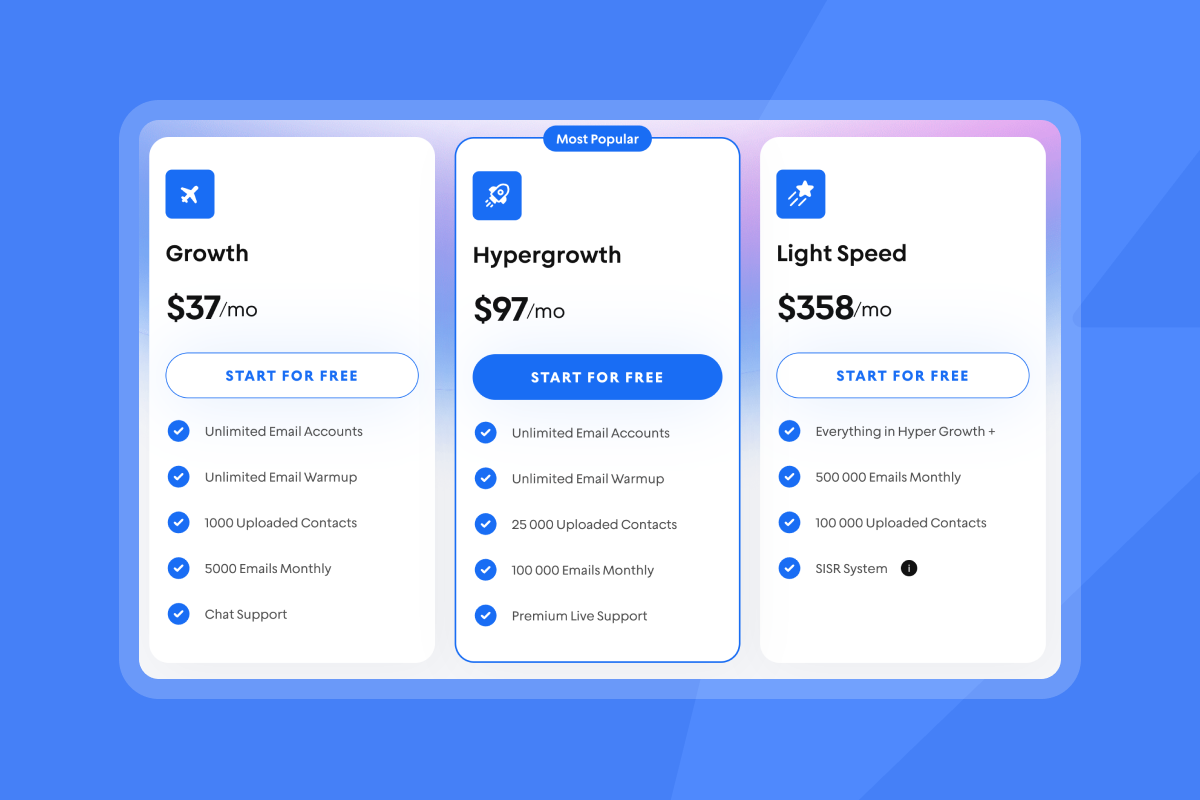
Start your free trial to put this checklist on rails.
FAQs
- How many emails should a new inbox send per day?
Start at 10–25 per day in week one, then increase by 20–50% weekly only if spam rate, bounces, and placement stay healthy. Gmail’s sender requirements emphasize gradual ramp and consistent volume. - Do I need DMARC if I send under 5,000/day?
Bulk senders must have DMARC, and all senders benefit from it. DMARC ties SPF/DKIM to your From domain and gives reports to fix issues. - What is a healthy bounce rate for cold email?
Keep total bounces under 2–3% after verification. If you exceed 5%, pause, re-verify, and relaunch at a lower cap. - What spam complaint rate is acceptable?
Aim for 0.1% or less in Gmail Postmaster Tools and avoid ever reaching 0.3% or higher, per Gmail’s spam rate guidance. - Does a custom tracking domain really help?
Yes. Branded CNAME tracking aligns links with your domain and avoids shared-domain risk. Plan for 24–48 hours of DNS propagation for domain verification.


