


An AOL SMTP server lets you send email from your @aol.com address using modern email clients and automation tools while AOL handles delivery behind the scenes.
You’ll use smtp.aol.com with secure ports (587 or 465), enable authentication, and often generate an app-specific password. Pair SMTP with IMAP or POP, depending on whether you want synced inboxes or local downloads.
Everyone knows Gmail, Yahoo, Apple Mail, and Outlook. Most of your prospects probably use one of those email service providers. But AOL precedes all of them. It’s one of the most reliable ESPs, offering services since the 1990s.
While AOL’s user base is smaller today (roughly 1.5 million), its email infrastructure remains stable and resilient. The downside is the interface. AOL webmail feels dated, and most people would rather work from Gmail, Outlook, or an automation tool they already use.
That’s where setting up an AOL SMTP server comes in. It lets you keep your @aol.com address while sending email from modern apps, without managing a server yourself. But first, it helps to understand the basics of how AOL SMTP works.
What is an AOL SMTP Server?
An AOL SMTP server lets you use AOL’s email infrastructure inside other email platforms or email automation tools. Instead of sending messages only from AOL’s webmail, you can plug your @aol.com account into Gmail, Outlook, Apple Mail, or lightweight email tools and still have AOL handle the delivery in the background.
In practice, this means:
- Your emails are still sent from your AOL address, but through a different app.
- AOL’s servers, spam filtering, and delivery rules are still doing the heavy lifting.
- You continue to use your existing AOL inbox, but you can read and send emails from the interface you prefer.
Behind the scenes, this all runs on AOL Mail, a web-based email service provider (ESP) owned by Yahoo Inc. AOL Mail offers:
- Email attachment limit: up to 25 MB per message
- Mailbox size: effectively unlimited storage for typical users
- Supported protocols: POP3, IMAP, and SMTP
- Account linking: the ability to connect other email accounts (like Gmail or Outlook/Hotmail) to your AOL Mail inbox
When you “set up an AOL SMTP server,” you're not building your own server from scratch. You are securely connecting your app, website, or email client to AOL Mail’s existing infrastructure, allowing it to send messages on behalf of your @aol.com address.
Is Setting Up an AOL SMTP Server Worth It?
Even if you’re not using AOL for marketing or sales, there’s still a lot of value in setting up an AOL SMTP server. Here are some of the benefits you could get:
Use Your AOL Address in Any Email App
Connect smtp.aol.com to desktop clients like Outlook, Apple Mail, or Thunderbird so you’re not stuck in the webmail interface. Everything still sends from yourname@aol.com, just through the app you actually use.
Send Email from Other Tools Using Your AOL Inbox
Contact forms, small scripts, or apps that require SMTP (such as a home server, simple CRM, or notification system) can send mail through your AOL account, eliminating the need for a separate provider.
Keep a Long-Time Address Active and Consistent
If you’ve had your AOL email for years and people still know you by that address, using AOL’s SMTP lets you keep sending from it while upgrading the way you manage and read those emails.
Simple Setup Without Managing Your Own Server
You don’t have to maintain IPs, logs, or a full email infrastructure. AOL handles the heavy lifting, and you just plug in the SMTP settings where needed.
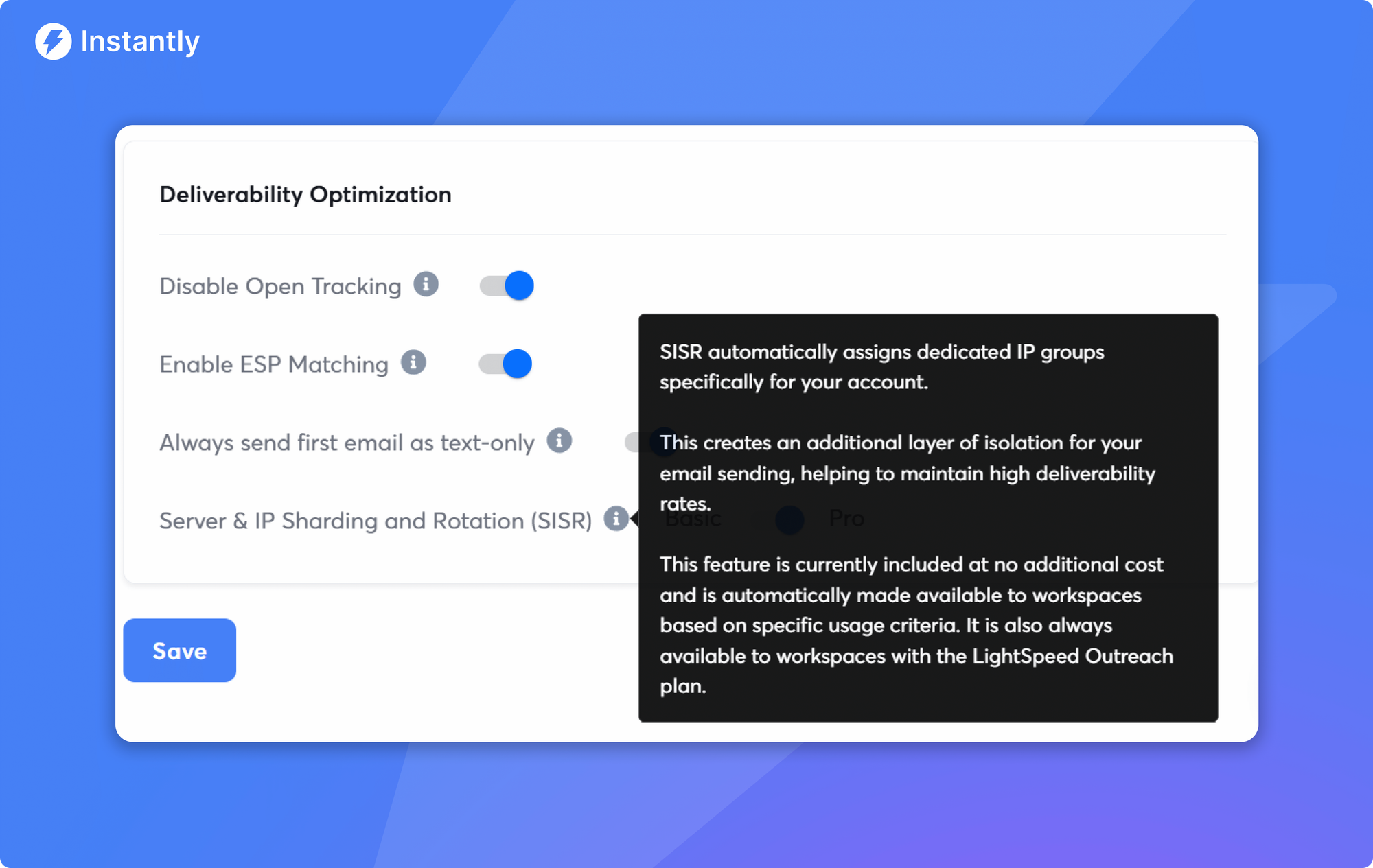
But if you want a hands-off approach to an email server with the highest possible deliverability, Instantly has the SISR (Server and IP Sharding Rotation) System.
Low-Stakes Way to Learn How SMTP Works
If you’re just starting to experiment with email clients or scripts, using AOL’s SMTP can be a basic, low-maintenance way to understand authentication, ports, and encryption before you move on to more advanced setups.
AOL SMTP Server Settings
If you want to send an email from your @aol.com address through another app or email tool, you’ll need to plug in AOL’s SMTP settings. These tell your email client how to log in to AOL and which server to use when sending messages.
Here are the standard AOL SMTP settings:
AOL SMTP Configuration Settings
| Setting | Value |
|---|---|
| SMTP server (host) | smtp.aol.com |
| Port (TLS/STARTTLS) | 587 |
| Port (SSL) | 465 |
| Encryption | TLS or SSL (required) |
| Authentication | Required |
| Username | Your full AOL email address (for example, yourname@aol.com) |
| Password | Your AOL account password or an app-specific password (if 2FA is on) |
To connect an app or email client, you usually just:
- Add a new email account or “outgoing mail (SMTP)” profile.
- Enter your AOL email and password.
- Paste in smtp.aol.com with port 587 (TLS) or 465 (SSL).
- Ensure that authentication is enabled and encryption is turned on.
Once these settings are saved, your tool doesn’t send emails directly. It logs in to AOL’s SMTP server using those credentials and asks AOL to deliver the message on your behalf.
What Are the AOL POP Settings?
If you want to download your AOL emails into another app (like Outlook, Apple Mail, Thunderbird, or a simple email client) and store messages locally, you’ll use POP. POP (Post Office Protocol) pulls mail from AOL’s servers into your device.
Here are the standard AOL POP settings:
AOL POP Configuration Settings
| Setting | Value |
|---|---|
| POP server | pop.aol.com |
| Port | 995 |
| Encryption | SSL (required) |
| Authentication | Required |
| Username | Your full AOL email address (for example, yourname@aol.com) |
| Password | Your AOL account password or an app-specific password (if 2FA is on) |
To connect via POP in an email client, you’ll need to:
- Add a new email account and choose POP as the incoming mail option.
- Enter your AOL email address and password.
- Use pop.aol.com as the incoming server with port 995 and SSL enabled.
- Ensure that “server requires authentication” (or similar wording) is enabled.
Once this is set up, your email app will periodically connect to AOL, download new messages from your inbox, and (depending on your settings) may delete them from the server after downloading.
If you want to keep a copy in AOL webmail, look for an option like “Leave a copy of messages on the server” in your client and make sure it’s enabled.
What Are the AOL IMAP Settings?
If you want to sync your AOL Mail across multiple devices (phone, laptop, tablet, webmail) and keep everything up to date everywhere, you’ll want to use IMAP instead of POP.
IMAP (Internet Message Access Protocol) keeps your email on AOL’s servers and mirrors the same folders and read/unread status across all your apps.
Here are the standard AOL IMAP settings:
AOL IMAP Configuration Settings
| Setting | Value |
|---|---|
| IMAP server | imap.aol.com |
| Port | 993 |
| Encryption | SSL (required) |
| Authentication | Required |
| Username | Your full AOL email address (for example, yourname@aol.com) |
| Password | Your AOL account password or an app-specific password (if you use two-factor authentication) |
To connect an email client using IMAP, you’ll usually:
- Add a new email account and choose IMAP as the incoming mail type.
- Enter your @aol.com address and password.
- Use imap.aol.com as the incoming server, port 993, with SSL enabled.
- Ensure that authentication is enabled so the client logs in with your AOL credentials.
With IMAP set up, any action you take in one place (like reading, deleting, or moving a message to a folder) is reflected everywhere else. That makes IMAP the better choice if you’re using AOL Mail on multiple devices and want everything to stay in sync.
How to Configure AOL SMTP Server Settings?
Most modern email providers allow you to use AOL SMTP, Office 365, and other SMTP servers if you have 2-step verification and App Password enabled. Here’s what you need to do:
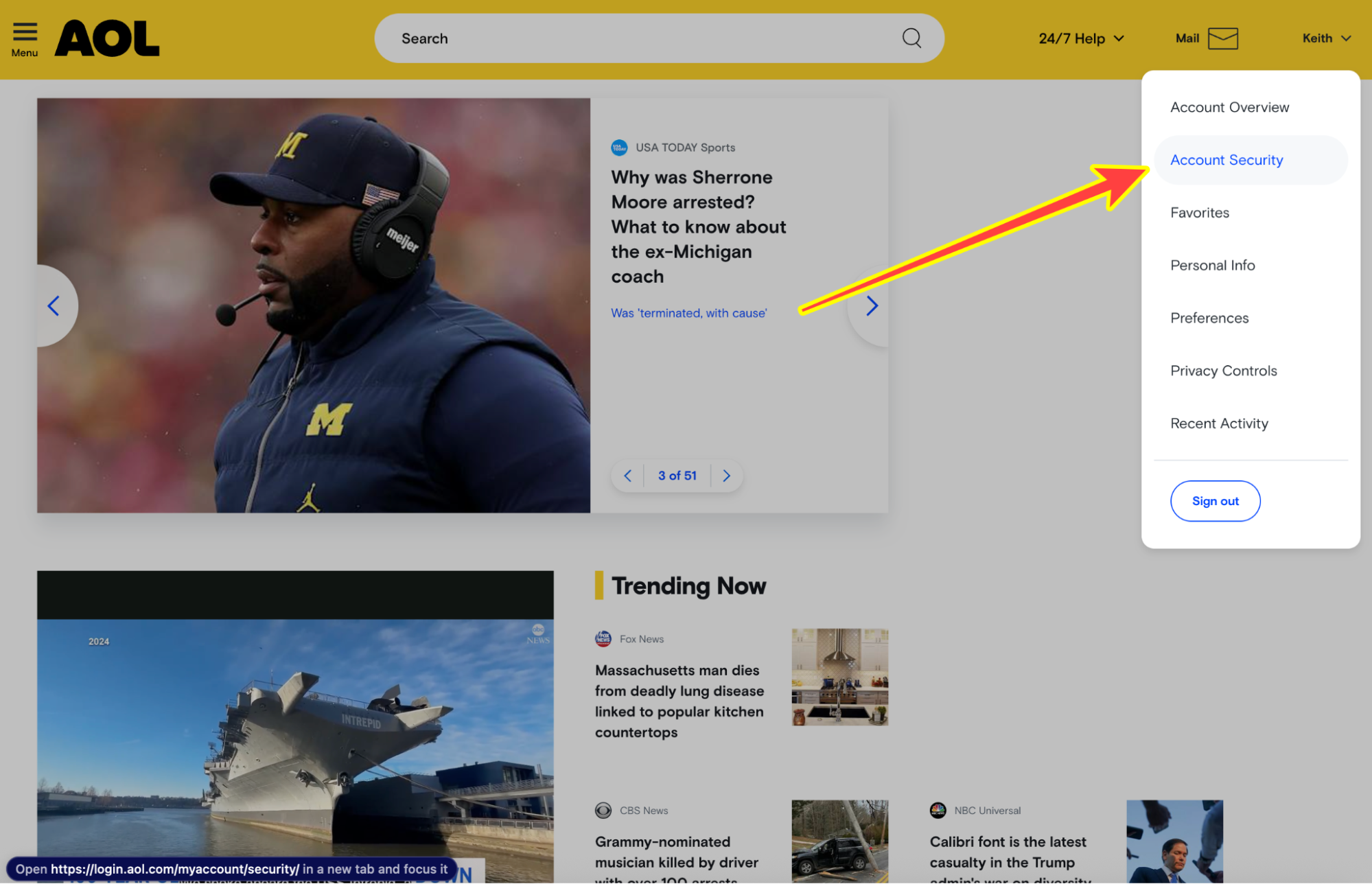
Go to your AOL email account. Find your profile icon in the top right corner and click on Account Security. Scroll down until you see the 2-Step Verification and the App Password settings on the left side.
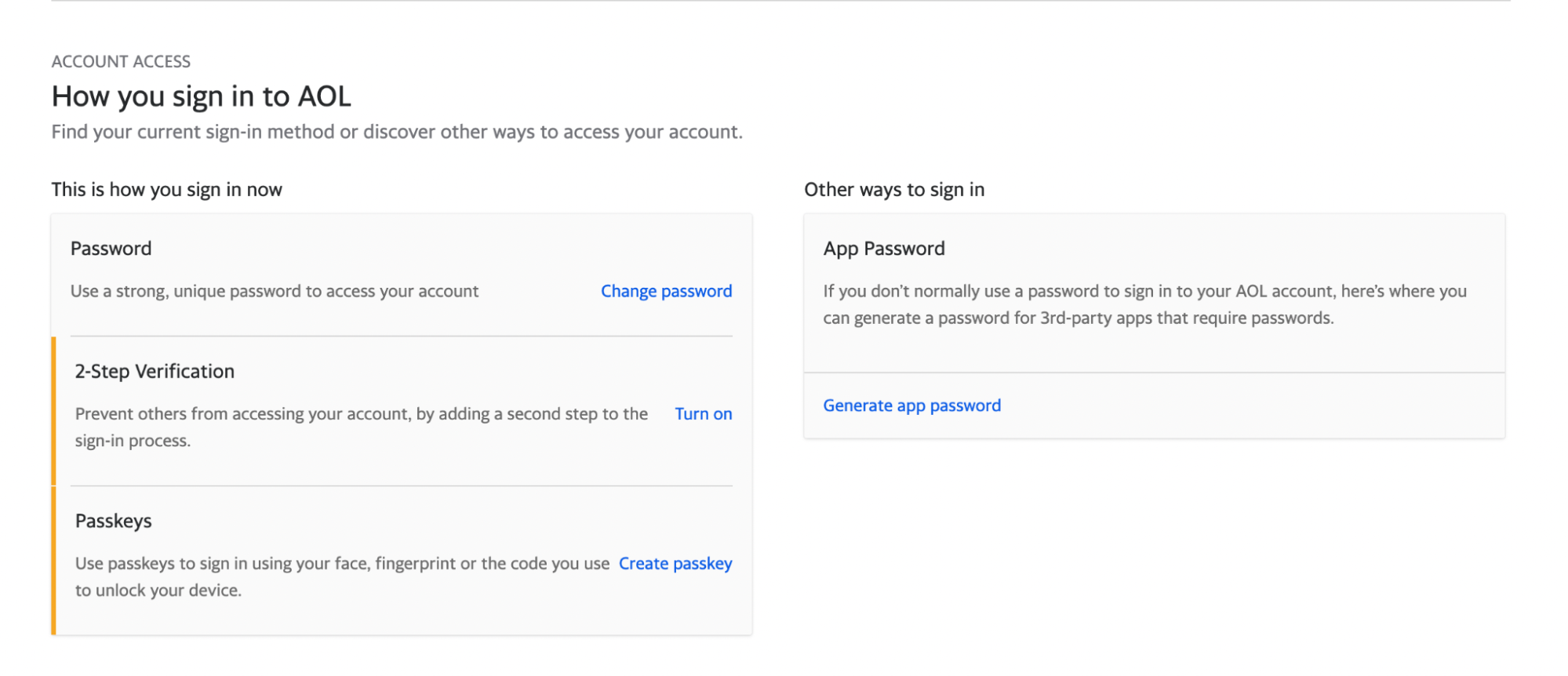
From here, simply choose the 2-step verification method that’s most convenient and secure for you (for example, phone number, authenticator app, or security key). Then, click on "Generate app password" to obtain the password you need to connect AOL to third-party email apps.
It’s also important to note that once you’ve generated your App Password, you won’t be able to view it again. So, remember to keep it stored safely.
Configuring AOL SMTP Server for Gmail

Gmail is the most widely used email provider. If you want to use Gmail to send and receive emails on behalf of your AOL account, here are the steps you need to take:
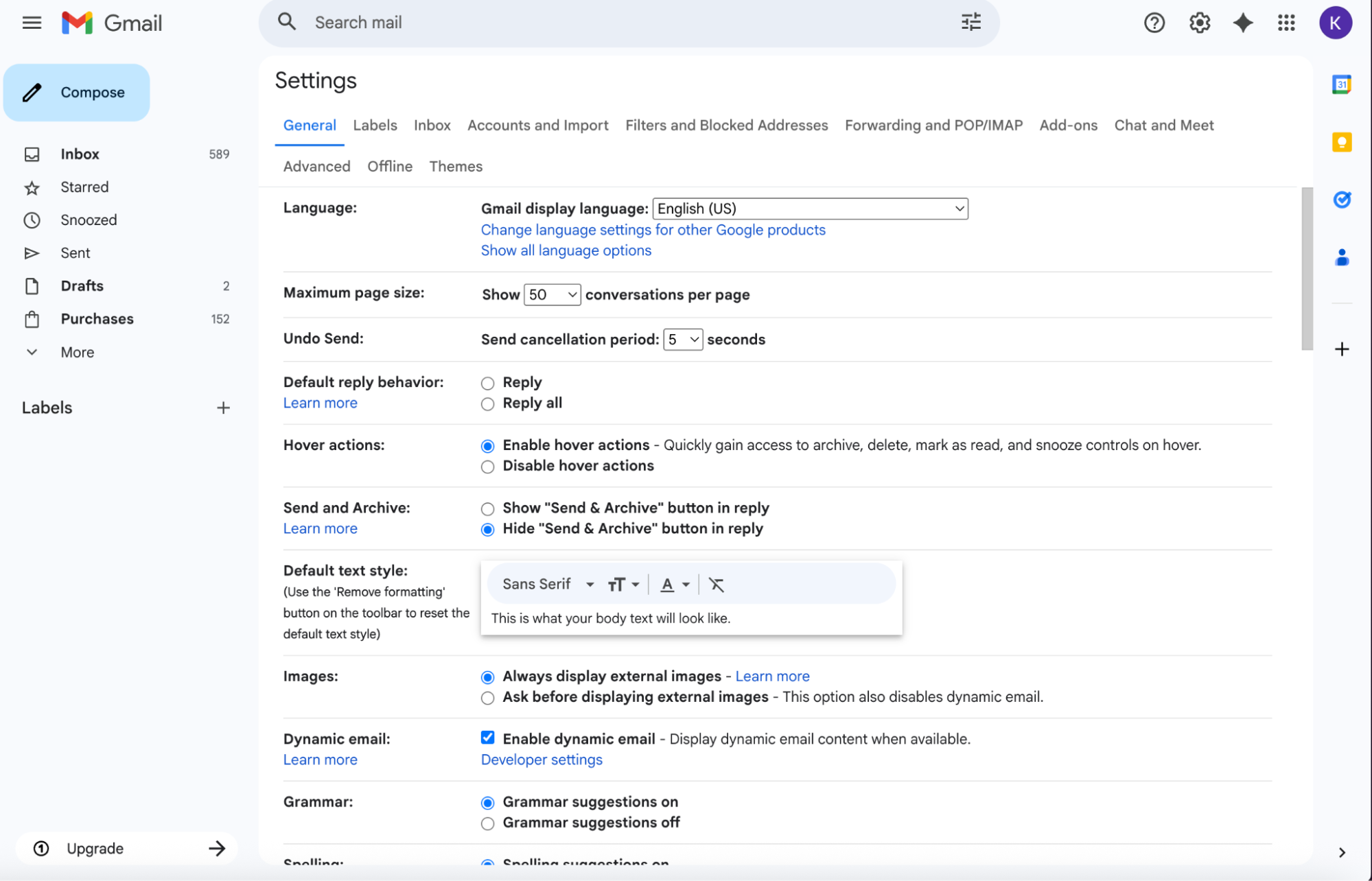
Go to your Gmail account, click on the gear icon on the top right corner beside your profile icon, and click on “See all settings.” This will open an expanded settings options where you can set up the AOL SMTP, POP, and IMAP settings.
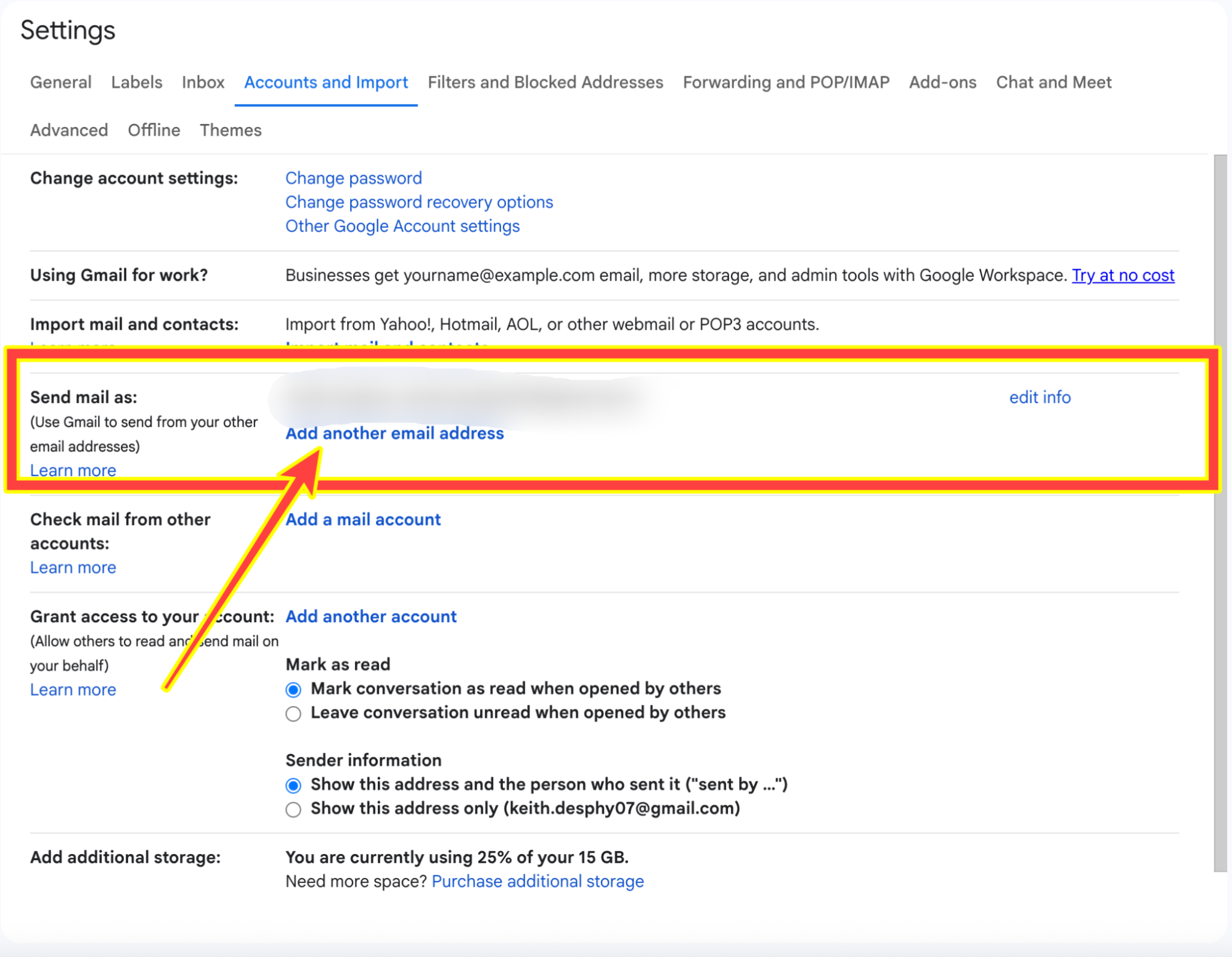
Next, go to the Accounts and Import tab. Find the “Send mail as” option at the bottom and click “Add another email address.” After clicking, a new window will open.

Enter the name and email address of your AOL account. Next, add your generated App Password and the SMTP settings for AOL.
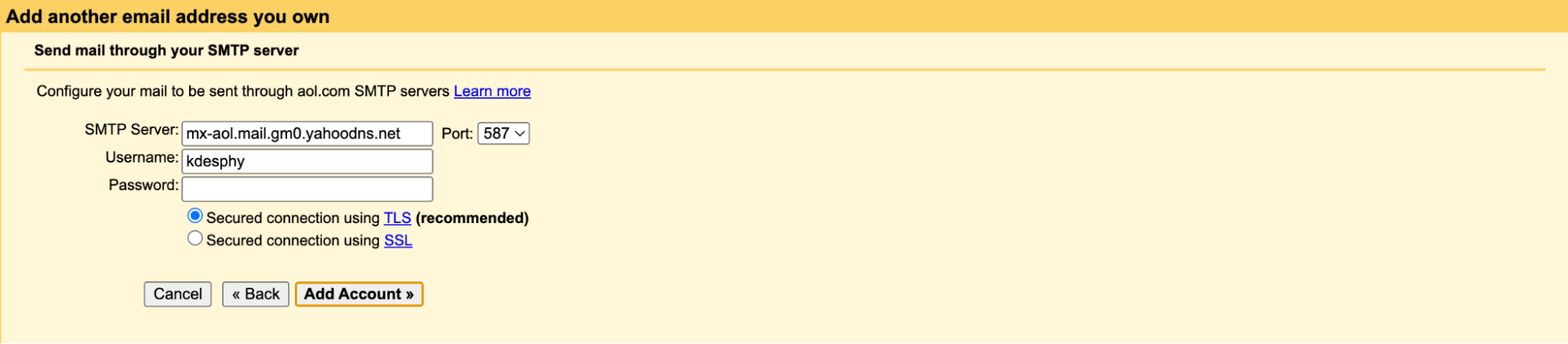
After clicking “Add Account,” you’ll get a verification code in your AOL inbox. Follow the instructions to complete the verification process. Then, you’ll be able to send emails from your Gmail account using AOL’s SMTP settings.
How to Add AOL SMTP Server to Email Automation Tools
If you want to use an email automation tool to send and receive emails from AOL, you’ll need to use one that allows IMAP or SMTP.
For this example, let’s use Instantly to add the AOL account. The process is the same as long as you can add accounts through IMAP and SMTP.
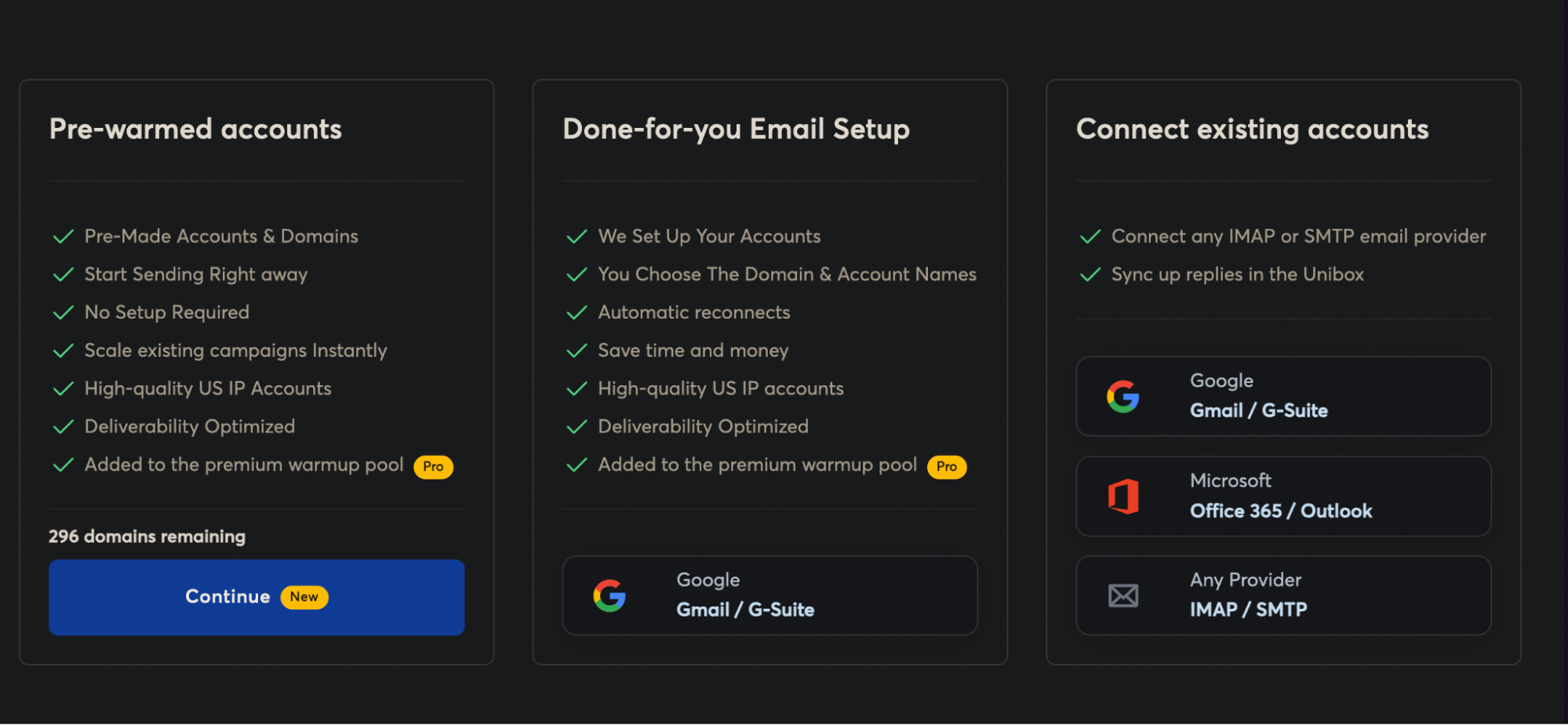
On Instantly, click on the Email Accounts tab on the left side. It will direct you to a window where you can select the account you want to add. Then click on “Connect existing accounts.”
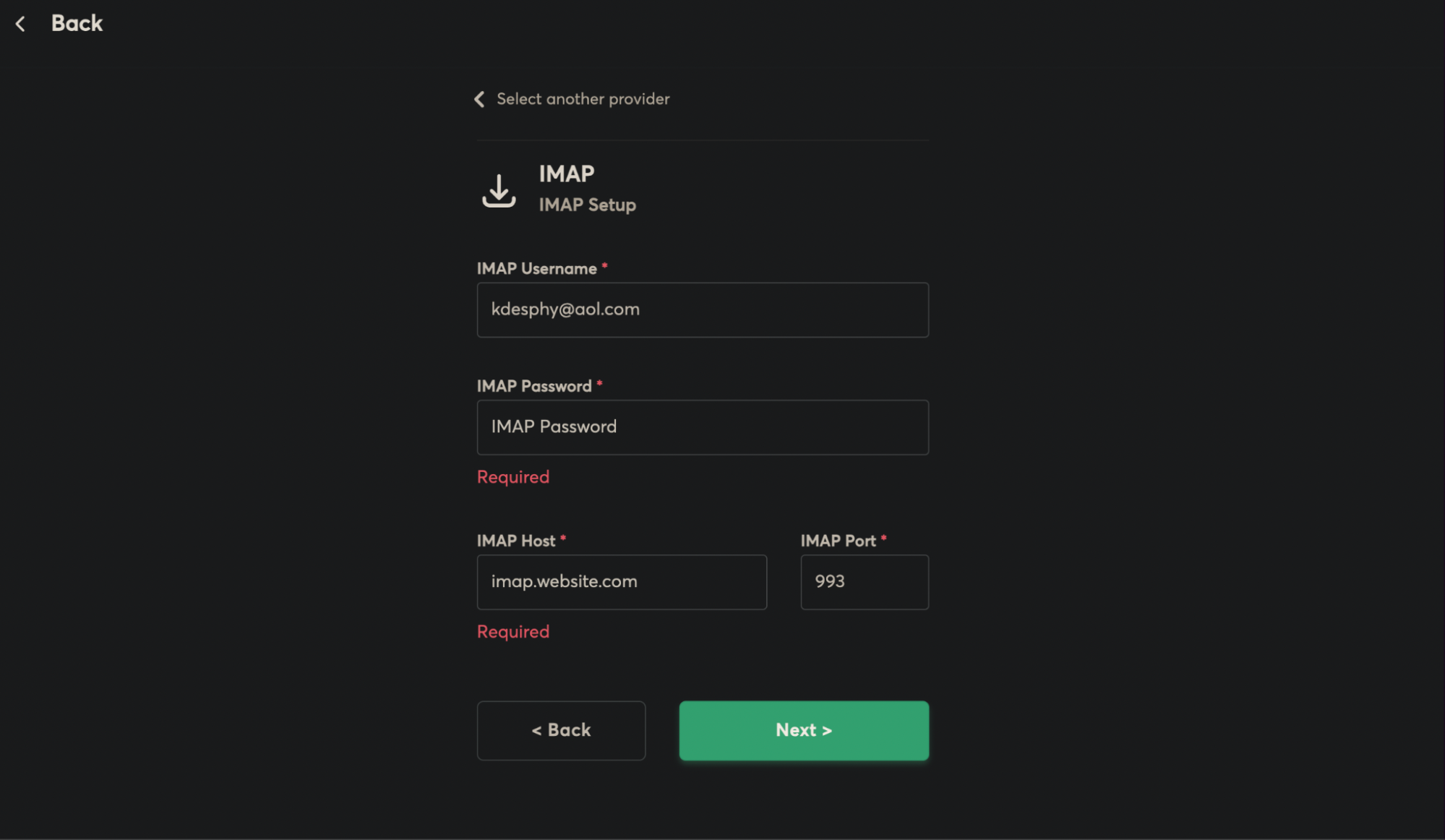
Then, simply enter your IMAP settings. Since we enabled 2FA and generated an App Password for AOL, that’s what you should enter when asked for the IMAP Password. For the IMAP Host, enter: imap.aol.com.
Troubleshooting Your AOL SMTP Server Configuration
If your AOL SMTP setup is not working, it usually comes down to a few common issues: wrong server details, password problems, or security settings on your AOL/Yahoo account. Use this checklist to debug your configuration.
Double-Check Your SMTP Details
If you encounter any issues, the first place to start troubleshooting is with your SMTP details. Ensure all the basics are correct:
- SMTP server: smtp.aol.com
- Port: 587 (TLS) or 465 (SSL)
- Encryption: TLS or SSL is required
- Authentication: Must be enabled
- Username: Your full AOL email address
- Password: Your AOL account password or app-specific password (if you use 2FA)
Even a small typo in the server name, port, or email address can cause “cannot connect” or “authentication failed” errors. If everything checks out, the issue might be your SMTP authentication.
Make Sure SMTP Authentication is Enabled
Most email clients and tools have a checkbox like:
- “My outgoing server (SMTP) requires authentication”
- “Use same settings as incoming mail server”
This needs to be turned on. If it is off, AOL will reject your messages because the app is trying to send without logging in correctly.
Check Encryption and Ports
Mismatched ports and encryption settings can block the connection entirely. As a quick guide:
- Use port 587 with TLS
- Or port 465 with SSL
If your client has options like “None,” “STARTTLS,” or “SSL/TLS,” pick the one that matches the port you chose. Avoid “no encryption,” since AOL requires a secure connection.
Test with a Simple Email
The best way to confirm there aren’t any issues is to test your SMTP settings by sending an email from your AOL account using a third-party email platform. Send a small test email to your own AOL address, then:
- Verify that it is sent without errors and arrives in your inbox.
- If your client shows a specific error message, note the exact wording.
Messages like “cannot connect to server,” “authentication failed,” or “SSL handshake failed” usually point back to one of the issues above: server name, port, encryption, or password.
With Instantly, you can also test if your emails land in the primary inbox, spam, or promotions tab. This is especially important if you want to create a campaign that’s specifically tailored for AOL accounts.
Key Takeaways
Having an AOL SMTP server configured in your email service provider lets you use AOL’s email infrastructure. That means your emails are still sent from your @aol.com address, while you manage everything from the app or platform you prefer, without having to run your own mail server.
To recap, here’s how you configure your AOL SMTP server:
- Gather your AOL SMTP details:
- Server: smtp.aol.com
- Port: 587 (TLS) or 465 (SSL)
- Encryption: TLS/SSL required
- Username: your full AOL email address
- Password: your AOL password or app-specific password (if you use 2FA)
- Open your email client or ESP and add a new email account or SMTP sender profile.
- Enter the AOL SMTP settings and ensure that “server requires authentication” is enabled, using your AOL login credentials.
- Send a test email to confirm that messages are sent successfully and appear as coming from your AOL address.
If you want to use AOL SMTP with a cold email automation platform for targeted campaigns, Instantly is built for you. Start your free trial.


