


Updated March 30, 2026
TL;DR: A robust email-to-CRM integration is not just about syncing contacts. It's about building a bi-directional data pipeline that automates administrative busywork so reps focus on closing. This guide covers native integrations (HubSpot, Salesforce, Pipedrive), third-party connectors (Zapier, Make), and webhooks for custom workflows. You'll learn how to connect Instantly to your CRM, map custom fields for accurate reporting, and set governance rules that prevent your system of record from becoming a graveyard of bad leads.
Your sales reps spend only 30% of their time actively selling, with the remaining 70% consumed by administrative tasks, data entry, and internal meetings. The root cause is a systems problem: when your cold email tool and CRM don't talk to each other, every reply becomes a manual handoff, every interested lead requires three copy-paste steps, and your pipeline data sits days behind reality.
What is an email sequence data pipeline?
A data pipeline in this context is the flow of information from your cold email tool into your CRM and calendar, then back again when a rep updates a record. Think of it as a three-layer system that moves specific types of data based on rules you control.
Layer one: Identity data. Name, email, company, job title, and any custom enrichment fields like revenue or employee count. This layer answers "who is this person?"
Layer two: Activity data. Sent timestamps, opened status, replied flag, and clicked links. This layer answers "what did they do with our message?"
Layer three: Outcome data. Meeting booked, marked as interested, bounced, unsubscribed, or out-of-office. This layer answers "what's the next step for this lead?"
Why does this distinction matter? You'll create most integration errors when you sync all three layers at once without filters. You end up with 10,000 "opened email" tasks cluttering your CRM, false positives from email scanners counted as engagement, and "out of office" auto-replies creating duplicate contact records. The key to a clean pipeline is choosing what flows and when. Instantly's native HubSpot and Salesforce integrations let you import lists into campaigns and push qualified leads back into your CRM based on triggers you define.
Why integrated data flow matters for sales leaders
Poor data quality costs organizations an average of $12.9 million per year, and when your email tool and CRM are disconnected, that cost shows up as lost deals, missed follow-ups, and forecasts you can't trust.
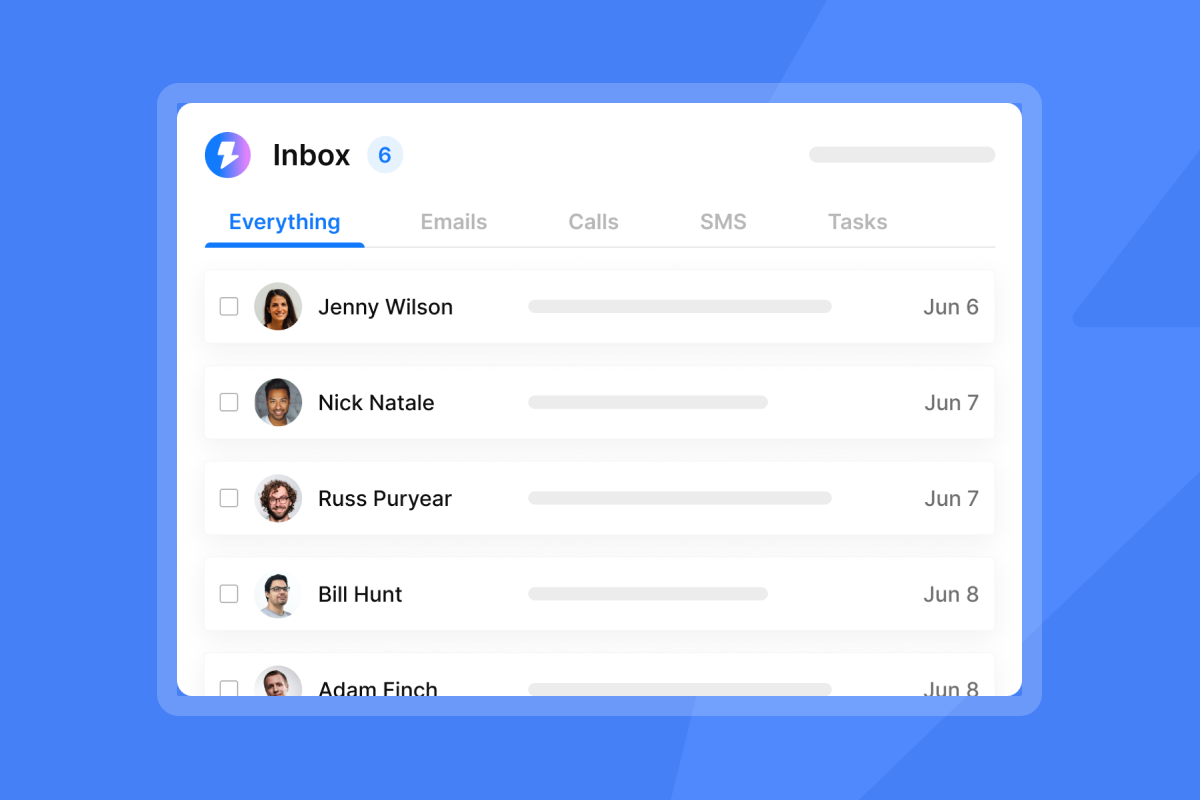
Pipeline health depends on real-time data. When a lead replies "yes, let's talk next week," that signal needs to hit your CRM within minutes, not hours. Manual entry introduces lag. One G2 user noted that Instantly's Unibox feature consolidates replies from all connected inboxes, streamlining the handoff process. Smooth integration means your forecast reflects what's happening right now.
Rep productivity suffers under manual workflows. 71% of sales reps say they spend too much time on data entry, and every "interested" lead that requires copy-paste from an inbox to Salesforce is a tax on velocity.
Automation removes that friction. As one Trustpilot reviewer put it:
"Instantly.ai has really changed the way I handle email outreach... The analytics and response tracking provide clear insights, and the CRM integration removes most of the manual work." - Outreach on Trustpilot
Data hygiene protects sender reputation. Your CRM often holds "do not contact" lists, bounced addresses, and unsubscribe flags. Pulling that data back into your email tool before you launch a campaign prevents deliverability damage. Instantly's verification and duplicate management keep your lists clean before they enter the pipeline.
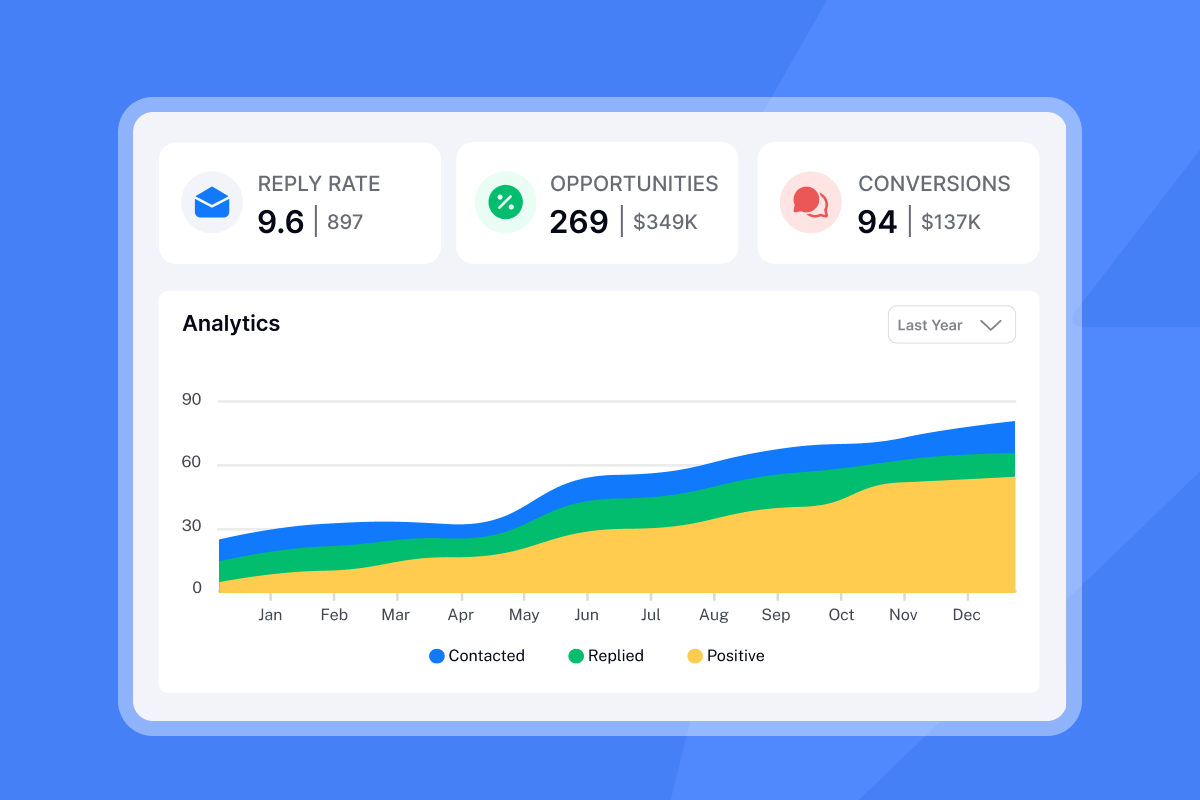
Accurate attribution requires unified data. If your dashboard says campaign A generated 15 replies but your CRM only shows 8 opportunities, someone is making decisions on bad math. Integration eliminates that gap. The goal is one source of truth that both systems update.
How to structure your integration workflows
The best integrations are selective. They sync what matters and ignore what doesn't. Here's how to design the logic.
Syncing engagement data
What to sync:
- Replies: Any time a lead responds, create a task or update the contact record.
- Meetings booked: Push calendar events to both the email tool (to pause the sequence) and the CRM (to log the outcome).
- Interested tags: When a rep marks a lead "Interested" in Instantly's Unibox, trigger an opportunity or deal creation.
What to skip:
- Opens: Email scanners and privacy tools generate false positives. Opens are useful inside your email tool for internal analysis but rarely worth syncing to the CRM.
- Out-of-office replies: Instantly's OOO Resume feature automatically pauses sequences when it detects an auto-reply. No need to clutter your CRM with these.
Automating the "Interested" handoff
This is the highest-value workflow. When a rep reviews replies in Instantly's Unibox and marks a lead "Interested," the system should:
- Stop the sequence for that contact so no more follow-ups send.
- Create a new deal in your CRM with the relevant fields pre-filled.
- Assign the lead to the appropriate rep based on territory or round-robin rules.
- Log the email thread as an activity so context is preserved.
You can build this using Zapier's "Lead marked as Interested" trigger or via native Salesforce and HubSpot sync through OutboundSync. The result is the same: qualified leads move to the CRM without manual work.
Calendar integration
When a lead books a meeting through Calendly, Cal.com, or a similar scheduler, you must ensure two things happen immediately. First, the booking must stop the email sequence so the lead doesn't receive a follow-up asking for a meeting they already scheduled. Second, the event must appear in your CRM with the correct account and contact linkage. Watch this setup walkthrough to see how teams configure Instantly with calendar tools for automated booking handoffs.
Comparing integration methods: Native vs. API vs. Connectors
Not all integration paths are equal. The right choice depends on your team size, technical resources, and the complexity of your workflows.
Method | Speed | Customization | Best For |
|---|---|---|---|
Native (HubSpot, Salesforce, Pipedrive) | Real-time | Low (pre-set triggers) | Teams wanting plug-and-play sync with major CRMs |
Zapier/Make | 1-15 min delay | Medium (conditional logic) | Teams needing custom filters like "only sync if company size > 50" |
Webhooks/API | Real-time | High (full control) | High-volume teams with dev resources for custom pipelines |
Native integrations like Instantly's direct HubSpot, Salesforce, and Pipedrive connectors are the fastest path to basic two-way sync. The trade-off is flexibility: you get pre-defined triggers but can't add complex conditional logic without third-party tools.
Third-party connectors (Zapier, Make.com, n8n) let you build multi-step workflows with conditional logic. For example, "When a lead replies in Instantly, check if their company has more than 50 employees. If yes, create a high-priority deal in Salesforce and notify the account owner in Slack." Zapier's free plan checks for new data every 15 minutes, while paid plans drop that to 1-2 minutes. This AI-powered workflow tutorial demonstrates how to combine Instantly, n8n, and Apify for advanced automation.
Webhooks and APIs give real-time, granular control but require developer time. One constraint: Salesforce Professional and Enterprise editions cap API calls at 1,000 per user per 24 hours. If you're syncing thousands of activities daily, webhooks or batch processes are safer. Instantly's API v2 supports programmatic email replies and data extraction for custom integrations.
Step-by-step: Connecting Instantly to your CRM
Here's the exact process for setting up a native integration with Salesforce, HubSpot, or Pipedrive. The steps are similar across platforms.
Prerequisites
Before you start, gather:
- Admin access to both Instantly and your CRM
- API keys or OAuth tokens (generated in your CRM's settings)
- A list of custom fields you want to sync (job title, company size, industry)
- Defined lead statuses so you know which tags in Instantly map to which stages in your CRM
Step 1: Map fields and configure triggers
Field mapping causes most sync errors. Instantly's default fields are Email (mandatory), First Name, Last Name, and Company Name. The system uploads any additional column as a custom variable using the syntax {{VariableName}}.
In your CRM, check the exact field names. Salesforce might call it "Title" while HubSpot calls it "Job Title." If the names don't match, the sync will fail or create blank records. Open the CRM import settings in Instantly and manually map each column to the corresponding CRM field.
Example mapping:
- Instantly
{{FirstName}}→ SalesforceFirst Name - Instantly
{{Company}}→ SalesforceAccount Name - Instantly
{{JobTitle}}→ SalesforceTitle - Instantly
{{Industry}}→ SalesforceIndustry(picklist)
Watch for field type mismatches. Text values sent to number fields, incorrect date formats (MM/DD/YYYY vs DD/MM/YYYY), and free-text entries mapped to restricted picklists break syncs.
Step 2: Set up event triggers
Decide which events in Instantly should push data to your CRM. Common triggers include:
- Lead replies: Create a task in Salesforce assigned to the rep.
- Lead marked as Interested: Create a new opportunity at the "Qualification" stage.
- Meeting booked: Update the contact record and log the calendar event.
For Pipedrive, use the Zapier trigger "Lead is marked as interested in Instantly" → "Create Lead in Pipedrive." For HubSpot and Close CRM, similar workflows handle the handoff.
Step 3: Test the flow
Run a dummy lead through the entire pipeline before going live:
- Add a test contact (use your own email address) to an Instantly campaign.
- Send yourself an email and reply from the test inbox.
- Mark the lead as "Interested" in Instantly's Unibox.
- Check your CRM to confirm a new contact or deal appeared with the correct fields populated.
- Verify the sequence stopped for that contact so no additional follow-ups send.
If any step fails, check the API error logs in both systems. Common issues include missing required fields (like "Last Name" in Salesforce) or permission errors if the API key lacks write access.
Step 4: Use manual push for granular control
Instantly's Unibox includes a "Push to CRM" button for leads you want to sync selectively rather than automatically. This is useful during onboarding when you're testing workflows or when a lead doesn't fit your standard criteria but deserves manual follow-up. One G2 reviewer highlighted that the platform's integration with HubSpot allows easy import and export of lists, giving teams flexibility in how they manage data flow.
Governance and data hygiene checklist
Integration without governance creates more problems than it solves. Use these rules to keep your pipeline clean:
- Security and privacy: Only sync fields you need. HubSpot sets contacts from external integrations as non-marketing by default to avoid GDPR violations. Verify your integration respects consent flags and does not overwrite opt-out statuses.
- Duplicate management: Both Salesforce and HubSpot deduplicate records by email address, but API integrations without deduplication checks will override this and push duplicates through. Use "upsert" operations that search for existing emails before creating new contacts.
- Verification before sync: Run email verification inside Instantly before pushing data to your CRM. A 5% bounce rate damages sender reputation and pollutes your CRM with invalid records.
- Monthly audit routine: Set a recurring reminder to check API error logs in both systems. Look for failed syncs, field mapping errors, or API rate limit warnings. Salesforce's monitoring tools show API usage by integration.
Measuring success: KPIs for integrated systems
Once your pipeline is live, track these metrics to confirm it's working as designed.
Time to lead: Measure the delay from "reply received in Instantly" to "task created in CRM." Native integrations typically update in real-time, while Zapier's free plan may take up to 15 minutes. If delays consistently exceed your SLA, upgrade your connector plan or switch methods.
Data accuracy rate: Audit 50 random contacts synced in the last week. What percentage have all required fields populated correctly? Set your own target based on business needs, then investigate any patterns of missing or incorrect data.
Attribution tracking: Tag each Instantly campaign with a unique identifier (like {{CampaignName}} as a custom variable). When you sync to your CRM, that tag should populate a "Lead Source" or "Campaign" field so you can measure which sequences generate the most pipeline.
Manual entry volume: Count the number of leads your reps manually add to the CRM each week. If that number isn't dropping after integration goes live, your triggers are missing edge cases or reps don't trust the automation. Interview your team to find gaps.
Common pitfalls and troubleshooting
Even well-designed integrations hit snags. Here are the most frequent issues and fixes.
API limits hit during high-volume sends. Batch your sync jobs or switch to webhooks that push data only for specific events like "Interested." This Pipedrive automation guide shows how to structure workflows that respect API caps.
Field type mismatches cause silent failures. Text values sent to number fields or incorrect date formats are common culprits. Check your CRM's field definitions and ensure Instantly custom variables match the expected format.
Over-syncing clutters your CRM. Tighten your triggers to sync only high-intent actions like replies, meetings, and interested tags. Instantly's campaign options let you control which events generate sync triggers.
Integration breaks after a CRM update. Subscribe to your CRM's developer changelog and test your integration after each platform release. Instantly's help center publishes updates when integration changes are required.
Ready to stop losing leads in the handoff? Start your free Instantly trial and set up your first CRM integration using the steps above. For advanced workflows, explore our Zapier integration library or watch this CRM integration walkthrough to see the entire system in action.
Frequently asked questions
Does Instantly work with my CRM if it's not HubSpot, Salesforce, or Pipedrive?
Yes, via Zapier (8,000+ apps), Make.com, or webhooks. Any CRM with an API can connect.
What happens if I update a contact in my CRM after it synced from Instantly?
Most native integrations are one-way (Instantly → CRM). For bi-directional sync where CRM updates flow back to Instantly, use OutboundSync or custom webhooks.
Can I sync only certain campaigns to my CRM and exclude others?
Yes. Configure triggers per campaign in Instantly or use Zapier filters to match specific campaign names before syncing.
How do I prevent test emails from syncing to my production CRM?
Use a separate Instantly workspace for testing or add a filter in your Zapier workflow that excludes contacts with "@test.com" email domains.
Will this integration slow down my campaigns?
No. The sync happens in the background and does not affect send speed or deliverability.
Key terms glossary
Native integration: Pre-built connection between two platforms maintained by the vendors. Faster setup but less customization than API or connector methods.
API (Application Programming Interface): A set of rules that lets software systems communicate. APIs use a request-response pattern where your app asks for data and the other system replies.
Webhook: Event-driven data delivery. When something happens (like a reply), the webhook automatically sends data to your system without needing to ask.
Field mapping: The process of linking data columns in one system (like Instantly's {{JobTitle}}) to the correct field in another system (like Salesforce's "Title").
Bi-directional sync: Data flows both ways. Changes in your CRM update Instantly, and changes in Instantly update your CRM, keeping both systems aligned.
Upsert operation: A database action that either updates an existing record (if found) or inserts a new one (if not found), preventing duplicates.


