


Updated March 16, 2026
TL;DR: Most email tracking guides tell you to install a plugin. For Mac-based sales teams, that's the wrong advice. Apple's Mail Privacy Protection (MPP) inflates open rates by pre-loading tracking pixels through Apple's own proxy servers, making open data unreliable. Local plugins regularly consume 2-7 GB of RAM and push CPU usage to 80-90%. Cloud-based platforms like Instantly solve both problems by handling all tracking server-side via SMTP/IMAP, with nothing running on your Mac. The result is accurate engagement data, no performance drag, and one dashboard your whole team uses consistently.
You're probably reading this because a browser extension crashed mid-send, or your Apple Mail app is consuming 6 GB of RAM just to track opens. Most guides recommend installing another plugin. That advice compounds the problem. When you move tracking logic to a cloud platform that connects via SMTP, your Mac stays fast, your data stays accurate, and your team runs one process instead of five fragmented workflows.
Why email tracking is difficult on macOS
The impact of Apple Mail Privacy Protection (MPP)
Apple introduced Mail Privacy Protection in 2021, and it fundamentally changed how open-rate data worksfor anyone using Apple Mail. Technically, Apple routes emails through a proxy server that pre-loads all images, including tracking pixels, before delivering the message to the recipient's device. According to Apple's own Mail Privacy Protection documentation, this process hides the recipient's IP address and prevents senders from knowing whether an email was actually opened.
The pipeline risk is direct. As Paubox explains in their MPP analysis, if 100% of your list uses Apple Mail with MPP enabled, you record a 100% open rate even if no one ever reads your message. Apple devices accounted for roughly 52% of all email opens as of the MPP rollout, meaning this distortion affects roughly half your list. Any sequence that triggers follow-ups based on open activity is firing on phantom data.
Extension fatigue and system performance
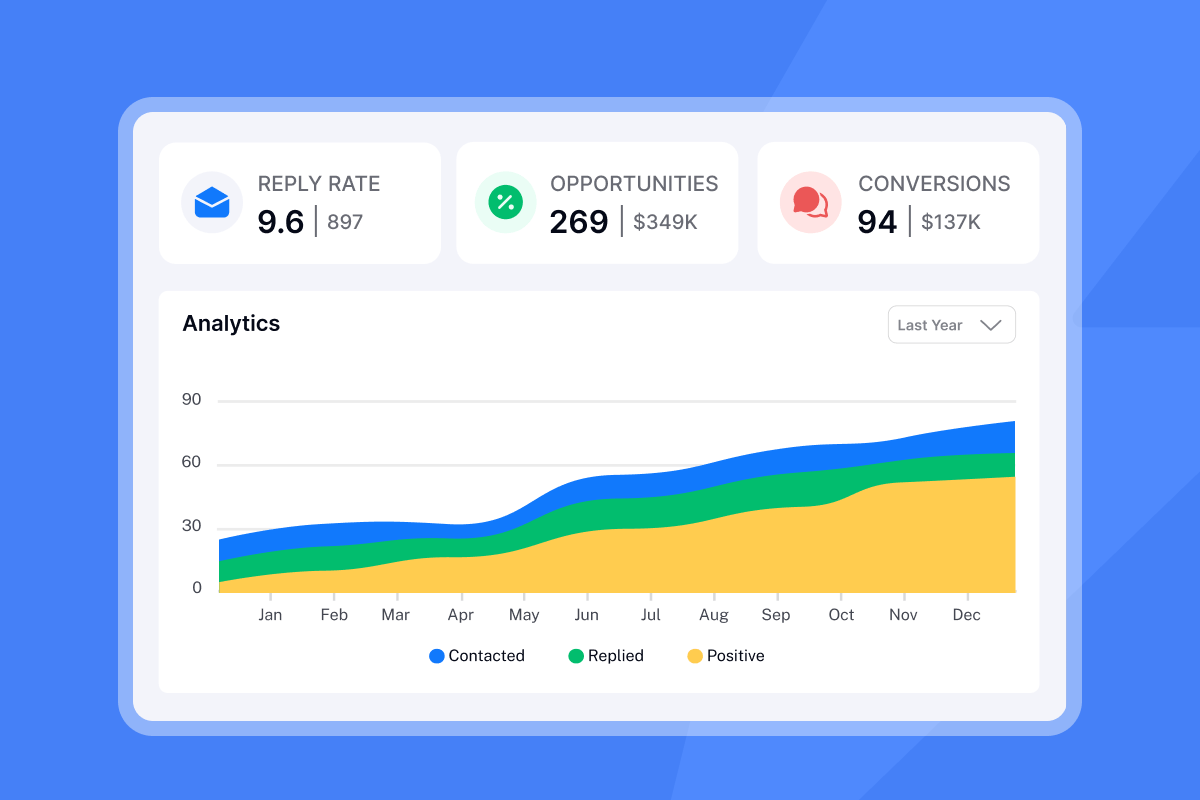
Local plugins and browser extensions will consume 2-7 GB of your Mac's RAM during normal sending hours, with CPU usage hitting 80-90%. One documented case on the Mac performance guide describes Apple Mail producing "half-second to a second or longer pauses while typing a short email," with searches taking up to 30 seconds and pinning a full CPU core at 100%. A separate report covering high CPU on macOS Catalina describes Mail "happening more and more frequently, often causing the computer to freeze."
The data architecture problem hurts just as much. When you run tracking inside a local plugin, that data stays locked in the plugin. It doesn't sync to your CRM, it doesn't give you team-level reporting, and when a rep leaves, their tracking history leaves with them.
Types of email tracking software for Mac
You have three tracking architectures to choose from. Each creates different tradeoffs in performance, data consistency, and team scalability.
Native Apple Mail plugins
Native plugins install directly into the Apple Mail application and add tracking inside the familiar compose window. For individual users, the integration feels natural, but the tradeoffs become visible at team scale.
- Integrated UI: Works within Mail's existing interface without switching apps.
- macOS update fragility: Apple regularly updates Mail's plugin architecture, and third-party plugins often break on major OS releases, sometimes for weeks until the vendor patches.
- Single-user focus: Most native plugins price per seat, making them expensive to standardize across a rep team.
- No centralized reporting: Each rep's data lives in their own Mail app, not in a shared dashboard you can audit or export to a CRM.
Browser extensions (Chrome/Safari)
Browser extensions for Gmail or Outlook are the most common starting point because setup takes under two minutes. The extension modifies the webmail interface and injects tracking pixels automatically when you send.
At team scale, you hit these limits:
- Browser-only coverage: Tracking only fires when reps send from the browser. Emails sent from Mail.app or a mobile client skip the pixel entirely.
- Resource drain: Running Chrome with a tracking extension alongside Gmail accelerates the memory and CPU issues described above.
- No admin controls: You can't enforce standard tracking settings or review rep-level data from a central account.
- Privacy exposure: Browser extensions request broad permissions that create compliance exposure under GDPR and CCPA, particularly when multiple vendor extensions share access to the same mailbox.
Cloud-based sending platforms
Cloud-based platforms like Instantly connect to your email accounts via SMTP (Simple Mail Transfer Protocol, the standard for delivering email between servers) and IMAP (Internet Message Access Protocol, which syncs email state across devices). All sending and tracking happen on the platform's servers, not on your Mac.
Cloud-based SMTP infrastructure provides 99.9% uptime and removes the need to monitor server resources locally, meaning zero performance impact on your Mac. According to a Cerkl overview of cloud-based email tools, cloud-based services support distributed teams working across different devices without any local installations required.
Top email tracking solutions for Mac users
Here's a direct comparison of the three most common approaches Mac-based sales teams evaluate:
Tool | Type | Local resource usage | Best for | Pricing model |
|---|---|---|---|---|
Instantly | Cloud (SMTP/IMAP) | None (cloud-based) | Sales teams, agencies | Flat-fee platform |
Mailbutler | Native Apple Mail plugin | Local resources required | Individual Mac users | Per-seat subscription |
HubSpot Sales | Browser extension (Chrome) | Local resources required | CRM-heavy workflows | Per-seat (limited free tier) |
Instantly: Best for scalable sales teams
Instantly runs all sending and tracking on our servers via SMTP/IMAP backed by a 4.2m+ account deliverability network, so nothing installs on your Mac and you get zero performance hit. Our Growth plan starts at $47/month (or $37.60/month on annual billing) and includes unlimited email accounts and warmup. Hypergrowth runs $97/month and adds the Unibox (a unified inbox for managing replies across all accounts), A/Z testing, API/webhook integrations, and team access features. For a 10-rep team, you pay $77-97/month total instead of $500-1,000/month on per-seat tools.
"the fact that emails actually land in main inboxes as well as the unibox with its alerts that allow my team to focus only on positive replies - this saves so much time and human labor." - Idan S. on G2
For a full feature and deliverability overview, the Instantly AI email review (2025) walks through the key capabilities in detail.

Mailbutler: Best for individual Apple Mail users
Mailbutler plugs directly into Apple Mail and adds tracking, scheduling, and follow-up reminders inside the Mail interface. If you're a solo user who prefers Apple Mail and doesn't need shared reporting, it handles the core use case.
The limitations show at team scale. There's no centralized admin dashboard for standardizing tracking settings across reps, data export to most CRMs requires manual work, and plugin compatibility breaks after major macOS updates. Per-seat pricing compounds quickly once you're managing five or more reps.
HubSpot Sales: Best for CRM-heavy workflows
HubSpot's Sales extension for Chrome adds open and click tracking to Gmail in the browser, with automatic sync to the HubSpot CRM. If your team runs deep on HubSpot and needs native CRM attribution, the extension handles the basic use case. The free tier limits tracking notifications to 200 per month, and team-level analytics require a paid Sales Hub seat per rep, so costs scale with headcount the same way any per-seat tool does.
How to set up tracking without performance loss
This walkthrough uses Instantly to demonstrate the cloud-based approach. Everything happens in a browser and your DNS settings, with nothing installed on your Mac.
Prerequisites:
- Domain access: A sending domain (yourcompany.com or a dedicated outreach subdomain)
- Instantly account: Growth plan or above
- DNS access: Ability to add CNAME records via GoDaddy, Cloudflare, or Google Domains
- Email credentials: Google Workspace or Microsoft 365 account
Step 1: Connect your inbox and configure a custom tracking domain
Instantly uses OAuth for Google and Microsoft accounts, so setup doesn't involve storing raw passwords.
- Log into your Instantly dashboard and click Add New under Email Accounts.
- Select Connect existing accounts and choose Google or Office 365/Outlook.
- Follow the OAuth prompts and grant the requested permissions.
- Your account appears in the dashboard. Instantly now sends and tracks via SMTP, not a local plugin.
Once connected, configure your custom tracking domain (CTD). A CTD replaces Instantly's shared tracking URL with a subdomain on your own domain, such as inst.yourdomain.com. This step is non-optional for any serious outbound program. When you use a shared tracking domain, your deliverability depends on the reputation of every sender on that same domain, and one bad actor can push your emails into spam folders even if your list is clean.
Using different domains for sending and tracking in the same email also raises flags with ESPs because it matches phishing patterns. The fix is straightforward:
- Add DNS record: Log into your domain registrar and add a CNAME record with hostname
instpointing to Instantly's tracking server (the exact value appears in your account settings). - Enable in Instantly: Go to Email Accounts, select your account, scroll to Custom tracking domain, check enable, and enter
inst.yourdomain.com. - Verify: Click Check Status. DNS propagation takes 24-72 hours. When complete, your dashboard shows CNAME Verified.
The Google Domains CTD setup walkthrough in Instantly's help center includes registrar-specific instructions for the most common DNS providers. After connecting, configure warmup settings using the Instantly quick-start guide and use the warmup email filter guide to keep warmup emails out of your main inbox during the 30-day ramp period.
Common pitfall: Many teams skip the CTD because the campaign looks ready to go. Skipping it is the fastest path to deliverability problems, regardless of how clean your list is.
Step 2: Test tracking with a seed list
Before running a full campaign, verify that opens and clicks record correctly by testing against accounts you control.
- Create a small test campaign with 3-5 seed email addresses. Use personal Gmail or test accounts on non-Apple devices to avoid MPP interference with your test data.
- Send the sequence and open the emails from the seed addresses.
- Check the Instantly analytics dashboard within 15 minutes. Opens and click events should appear against each address.
- If tracking doesn't fire, the open tracking troubleshooting guide covers the most common causes and fixes.
Success metrics: Target a reply rate at or above 5% and bounces below 2%. If bounces exceed 2%, pause the campaign, re-verify your list, and restart at a lower send cap (30 emails per inbox per day maximum during ramp).
For team deployments, the Ultimate Guide to Cold Email Deliverability walks through warmup ramp plans and health dashboard monitoring that keep deliverability stable as you add inboxes. Before connecting new inboxes to live sequences, the warmup setup walkthrough shows how to configure them correctly and avoid the most common mistakes.
Privacy, ethics, and the future of tracking
Email tracking processes personal data, and the regulatory framework is clear on what that requires. Under GDPR, email tracking processes personal data requiring explicit, informed consent before implementation. That consent must be freely given, specific, informed, and revocable at any time. Under CCPA, California residents have California data privacy rights to access and delete their data, and businesses must provide clear mechanisms to exercise those rights.
A practical compliance checklist for sales teams:
- Document consent records with timestamps, source, and scope for every contact, because GDPR requires proof of compliance, not just a claim of it.
- Include a clear unsubscribe link in every outbound email (required under CAN-SPAM for commercial email in the US).
- Limit tracking to the data you actually act on. If you're not using IP-level location data to make decisions, don't collect it.
MPP forced a shift that actually makes sales teams more effective. The 5.3% industry click-to-open rate and cold sequence reply rate benchmark of 8.5% are the numbers that matter now. Reply rate, click rate, and meetings booked generate auditable pipeline. Microsoft's analysis of evolving email metrics confirms the category is moving toward reply sentiment analysis and conversion attribution, giving you data that connects directly to revenue.

What this means for your team
If you're a solo operator using Apple Mail, a native plugin gives you integrated tracking without switching apps. Performance tradeoffs stay manageable at single-user scale.
If you lead a sales team, plugins create the brittle, inconsistent processes that break during your busiest quarter. One macOS update takes your entire team offline. One rep who skips extension setup creates gaps in your CRM data. And one Apple privacy change, as 2021 demonstrated, makes your entire open-rate reporting unreliable overnight.
We track at the server level across our 4.2m+ account deliverability network, which means consistent data whether your reps run Mac, Windows, or Linux, whether they use Apple Mail or Gmail, and whether Apple ships another privacy update next quarter. Instantly's flat-fee model gives your entire team unlimited accounts, warmup, and centralized analytics for $47-97/month. New domains need a 30-day warmup ramp, and after that your reps focus on replies and meetings instead of tool maintenance.
Try Instantly free and move your team off local plugins in one afternoon.Use the custom tracking domain walkthrough above to get consistent engagement data without the Mac performance tax.
FAQs
Does Instantly work with Apple Mail on Mac without a plugin?
Yes. Instantly connects via SMTP/IMAP so it works with Apple Mail, Gmail, and Outlook on Mac with no local plugin required. Tracking happens server-side, so macOS updates don't affect it.
Does Apple Mail Privacy Protection affect Instantly's tracking accuracy?
MPP inflates pixel-based open rates by pre-loading tracking images through Apple's proxy servers. Instantly's analytics also surface reply rates, click data, and meeting conversions, and MPP doesn't touch those. Focus on the metrics that matter for pipeline qualification.
How do I set up a custom tracking domain in Instantly?
Add a CNAME record with hostname inst at your domain registrar, enable the custom tracking domain in your Instantly account settings, and enter inst.yourdomain.com. DNS propagation takes 24-72 hours, after which your dashboard shows CNAME Verified.
How many email accounts can one Instantly team use?
Every Instantly Outreach plan gives you unlimited email accounts and warmup across Growth ($47/month), Hypergrowth ($97/month), and Light Speed ($358/month). There are no per-seat or per-inbox fees.
What reply rate should I target as a baseline?
Target 5% or above as your reply rate floor. If reply rate drops below that, improve list hygiene, reduce daily throughput for one week, and test two to three subject line variants before scaling back up.
Key terms glossary
SMTP (Simple Mail Transfer Protocol): The protocol that delivers email messages from one mail server to another. Connecting via SMTP means sends go through your account's mail server, not a local desktop app.
IMAP (Internet Message Access Protocol): The protocol that syncs email stored on a server across multiple devices. IMAP keeps your inbox state consistent whether you access it from your Mac, your phone, or the Instantly dashboard.
Pixel tracking: A method of embedding a 1x1 invisible image in an email. When the recipient opens the email, the image loads from a remote server and logs the open event. Apple MPP pre-loads the image through its own proxy before the recipient views the message, breaking the accuracy of this method.
Mail Privacy Protection (MPP): Apple's privacy feature, introduced in 2021, that routes email images through a proxy server to hide the recipient's IP address and prevent open-tracking pixels from firing accurately. It affects all users with Apple Mail and MPP enabled.
Custom tracking domain (CTD): A CNAME record on your own domain (e.g., inst.yourdomain.com) that replaces the platform's shared tracking URL. It isolates your sender reputation from other senders and keeps sending and tracking domains consistent, which reduces spam filter risk.
Sender reputation: A score assigned by email service providers based on your sending behavior, bounce rate, spam complaint rate, and domain history. It directly determines whether your emails land in the primary inbox or the spam folder.


