.svg)
%20(1).svg)


Updated December 08, 2025
TL;DR: Stop attaching video files to your cold emails. Attachments trigger spam filters through size limits (20-25MB), ISP throttling, security flags, and poor text-to-media ratios. The fix: host your video on YouTube, Loom, or Google Drive, then send a text-heavy email with a linked thumbnail. Warm your sending domains for 14-30 days before launching, then maintain warmup activity during active campaigns. Use Inbox Placement tests to verify Primary inbox delivery before scaling.
Video outreach can drive 3x higher reply rates than text-only emails when it reaches the inbox, according to 2023 engagement benchmarks. Every cold email outreach system that incorporates video needs to treat deliverability as the foundation, a great video pitch is worthless if it never reaches the primary inbox because of attachment size triggers or cold domain reputation. The problem is getting there. Most sales teams attach the video file directly to the email. This single decision tanks deliverability, burns sender reputation, and guarantees your pitch never reaches your prospect.
This guide explains seven technical triggers that send video emails to spam, then shows you three methods to fix them. You'll see how to turn video outreach into a repeatable, measurable system instead of a deliverability disaster. Instantly connects your accounts to 4.2M+ real inboxes to build sender reputation over 14-30 days, with Inbox Placement testing showing you where your video template lands before you send to real prospects.
Why video attachments destroy deliverability
Email providers treat large attachments as threats, not features. Here are seven specific ways video files trigger spam filters and what each one costs you in inbox placement.
Reason 1: The 20MB hard cap blocks delivery entirely
Email providers enforce strict attachment limits. Gmail caps attachments at 25MB, while Outlook typically allows 20MB. Exceed that limit and your email bounces back entirely, never reaching the recipient's server.
A 30-second screen recording in 1080p can hit 50-100MB. When you attach that file, the receiving server rejects it before any spam filter runs. Your sending domain logs a hard bounce. Keep bounces below 1% to maintain clean sender reputation. Anything above 5% flags your domain as risky to most ESPs.
Reason 2: ISP throttling flags bulk patterns
Large emails take longer to process than text messages. When you send 50 video attachments in an hour, the receiving server sees a sudden spike in data volume. ISPs throttle these patterns and route messages to junk folders to protect their infrastructure.
Reason 3: Security filters flag unknown file types
Email security systems treat .mp4, .mov, and .avi files from unknown senders as potential malware. Corporate email filters often quarantine or block attachments from senders outside their contact list. Video files are large binary blobs that are harder to scan quickly, so filters flag them as suspicious by default.
Reason 4: Mobile clients block large files
Most emails are opened on mobile devices, where carriers and apps block large attachments by default to save data and battery. When your prospect opens your email on their phone, a 40MB video never loads. They see a broken attachment icon and delete the message.
Reason 5: Low text-to-media ratio triggers spam scores
Spam filters analyze the balance between text and rich media. An email that is 95% video file with one line of text looks like a spam pattern. Filters expect substantive text content to accompany images or media. Aim for 100-150 words of text to balance a video thumbnail or link.
Reason 6: Storage quotas cause bounces
Many corporate email accounts have storage limits. A single 50MB video can consume significant inbox space. When a prospect's inbox is full, your email bounces back, generating another hard bounce that damages reputation. Recipients also mark senders who fill their inboxes as spam.
Reason 7: Sending from a cold domain with heavy content
Deliverability depends on sender reputation. If you launch a video campaign from a domain with no sending history or only 3-5 days of warmup, ESPs treat your emails as suspicious. Adding large attachments to that cold sending pattern guarantees spam placement.
Proper warmup takes 14-30 days. Start at 5 sends per day, ramp to 15, then 30. During this period, receiving servers observe your behavior and build trust. Use a warmup network that exchanges emails between real accounts to create positive engagement signals (opens, replies, Primary inbox placement). This process is non-negotiable for scaled video outreach. See the checklist below for step-by-step warmup setup.
"I love Instantly's deliverability tools, which are the best I've encountered. Having used Salesloft, Apollo, and other tools, Instantly gives me the highest reply rate by far." - G2 customer review
For the complete infrastructure checklist on SPF, DKIM, DMARC configuration, warmup ramp schedules, and inbox placement monitoring that protects your domains throughout any video campaign, see this email deliverability guide.
Method 1: Cloud storage links (the quick fix)
Cloud storage services let you upload a video once and share a link. This keeps your email under 10KB and bypasses attachment limits entirely.
How to use cloud links
Upload your video to Google Drive, Dropbox, or OneDrive. Right-click the file, select "Get shareable link," and change permissions to "Anyone with the link can view." Copy the URL and paste it into your email body. Recipients click the link and stream the video without downloading.
WeTransfer is designed for large file transfers, allowing up to 3GB per transfer on the free plan (with a 10-transfer monthly limit). Generate a link and paste it into your email.
- Team governance tip: Create a shared Drive folder for all sales videos. Use a naming convention (ClientName_Date_Topic.mp4) so reps can find and reuse approved content. This prevents duplicate uploads and maintains brand consistency.
- Pros: Free, fast setup, bypasses the 20MB limit, works across all email clients.
- Cons: No analytics on views or watch time, links can expire, no branding options, no CRM integration.
Use cloud storage for small campaigns or one-to-one emails. For scaled campaigns with tracking, move to a hosting platform. Instantly supports one off personalized video links for all campaigns of any size.
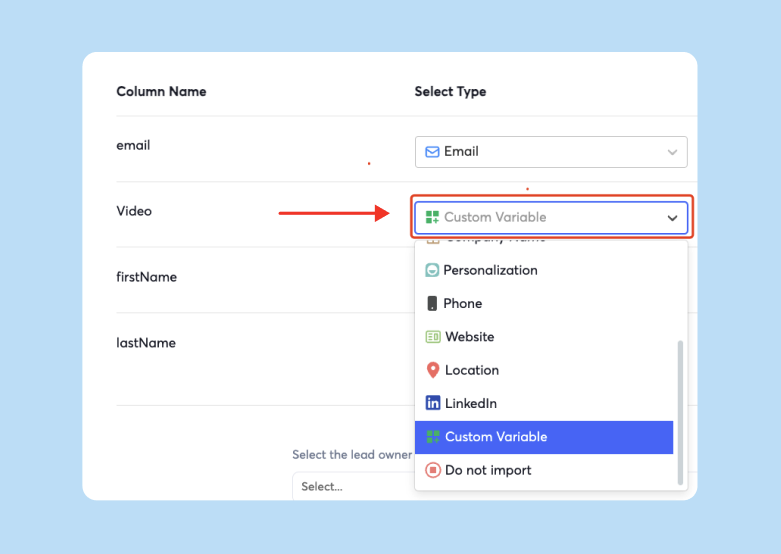
Method 2: Video hosting platforms (the sales pro fix)
Hosting platforms like YouTube, Vimeo, and Loom provide fast streaming, engagement analytics, and thumbnail customization. This is the method professional sales teams use.
YouTube and Vimeo for branded content
Upload your video to YouTube (free, unlimited storage) or Vimeo (more privacy control). Both generate an embed link you paste into your email. More importantly, they let you create custom thumbnail images.
Instead of attaching the video, include a static thumbnail image with a play button overlay. Hyperlink the image to the video URL. When recipients click, their browser opens the video. Your email remains under 50KB because it only contains text and a small image file.
Including the word "video" in your subject line increases open rates. The thumbnail provides a visual cue that drives higher click-through rates.
For data-backed formats and structural patterns behind subject lines that get replies in cold outreach contexts, including video-specific subject line variants, see the full cold email subject line research guide.
Loom and Vidyard for sales outreach
Loom and Vidyard are built for sales. Record quick screen-and-camera videos, generate shareable links, and track who watches. Vidyard offers deep CRM integrations with Salesforce and HubSpot.
Both platforms provide view analytics. See which prospects watched, how long, and whether they replayed sections. Use this to prioritize follow-ups: >75% watch time = immediate call; 25-75% = nurture sequence; <25% = adjust messaging or disqualify.
Watch how to bulk upload personalized loom videos to Instantly below:
The thumbnail-plus-link strategy
Build this in five steps:
- Record and upload your video to YouTube, Loom, or Vimeo.
- Capture a thumbnail (a still image from the video or custom design).
- Add a play button overlay to make it clear the image is clickable.
- Upload the thumbnail to your email platform's image library or a CDN. Ensure the file is under 50KB (use JPEG format at 80% quality).
- Hyperlink the thumbnail to your video URL in the email.
This method keeps your email lightweight, provides a clear call-to-action, and ensures compatibility across all email clients. Most clients block embedded video playback, so a linked thumbnail is the most reliable method.
- Pros: View tracking, custom thumbnails, fast streaming, CRM integrations, unlimited storage.
- Cons: Requires account setup, some features require paid tiers, relies on third-party uptime.
For sales teams running campaigns at scale, video hosting platforms are the only viable option. They provide the tracking and reporting you need to measure ROI.
"I find Instantly incredibly beneficial for sorting all my email issues, especially with client outreach. Previously, when I used other software, my emails often ended up in the spam box, which was a major hassle." - G2 customer review
Method 3: Compression (the last resort)
If you must attach a video (for example, a demo that needs to stay private), compression tools can reduce file size to fit email limits. This is not ideal, but it's better than sending an uncompressed 200MB file.
Using compression tools
Handbrake is a free video compressor for Mac and Windows. Import your video, select "Fast 720p30," and export. This typically reduces file size by 50-70%. Online tools like Compresto work well for quick compression.
Key settings: drop resolution to 720p, use 24-30fps frame rate, export as H.264 MP4, and target 2-4 Mbps bitrate. Handbrake's documentation provides full presets. Keep the final file under 15MB to stay below the 20MB limit.
ZIP files can compress further (10-20% additional reduction) but add friction. Recipients must download, extract, and potentially enter a password. This extra step lowers engagement.
Warning: Quality loss and persistent spam risk
Compression degrades quality. You'll see pixelation and blurry text if you compress too aggressively. More importantly, compression doesn't fix deliverability. A 15MB attachment is still a red flag for spam filters. You're making the file small enough to deliver technically, not safe to send at scale.
Use compression only for one-off emails to warm contacts. For cold outreach or scaled campaigns, always use Method 1 or Method 2.
Comparison: Which method is right for your team?
Choose based on campaign volume, tracking needs, and technical resources.
| Method | Pros | Cons | Best For |
|---|---|---|---|
| Cloud Storage (Drive, Dropbox) | Free, fast setup, no attachment limit | No analytics, links expire, no branding | Solo reps, warm prospects, <50 sends/week |
| Video Hosting (YouTube, Loom, Vimeo) | View tracking, CRM integration, custom thumbnails, unlimited storage | Requires account setup, some paid tiers | SDR/AE teams, sequences, >100 sends/week |
| Compression (Handbrake, ZIP) | Keeps file offline, no third-party login | Quality loss, still risks spam, manual process | Existing contacts only, NDAs, rare use |
For most sales leaders, Method 2 provides the tracking and scalability needed to measure ROI. Method 1 works for small teams with low volume. Method 3 is a last resort for edge cases.
The principle is the same: never attach the full video file. Always send a link. Keep the email under 50KB. Balance the link with 100-150 words of text. Ensure your sending domain is warmed before launching.
The sales leader's checklist for video outreach
Use this eight-step checklist to build a repeatable video email process that scales without burning sender reputation.
- Host externally, never attach. Upload your video to YouTube, Loom, Vimeo, Google Drive, or Dropbox. Copy the shareable link. Never send the video file as an attachment.
- Use a static thumbnail with a play button overlay. Create a compelling thumbnail that represents your video. Add a play button graphic to make it clear the image is clickable. Keep the image under 50KB.
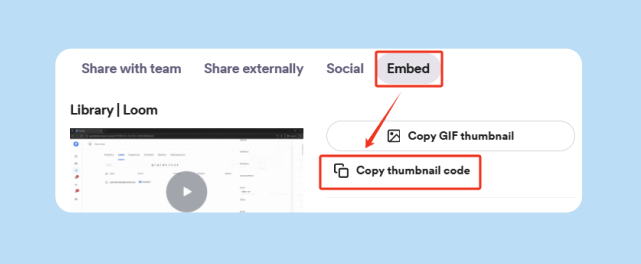
- Hyperlink the thumbnail to the hosted video URL. Insert the thumbnail image in your email editor and hyperlink it to your video URL. Test the link to ensure it opens correctly.
- Write 100-150 words of email copy. Include a brief intro (2-3 sentences), why the prospect should watch (1-2 sentences), and a clear call-to-action (1 sentence). This balances the visual thumbnail and prevents image-heavy spam flags.
- Warm up your sending domain for 14-30 days as described in Reason 7 above. Instantly's warmup feature automates this process across a 4.2M-account network.
- Use Spintax in anchor text and intro sentences for high-volume sends. If you're sending the same video to hundreds of prospects, rotate variations to avoid bulk detection. Example:
{I recorded|I put together|Here's} a quick {demo|walkthrough|overview} for you.Instantly's Spintax feature automates this.
- Run Inbox Placement tests before launching. Test where your email template lands (Primary, Promotions, or Spam) across Gmail, Outlook, and Yahoo. Adjust your copy, link density, or warmup strategy based on results.
- Monitor bounce rates and pause if health dips. Keep bounces below 1%. If bounces exceed 3%, pause the campaign, re-verify contacts, and restart at lower throughput.
"I've been using Instantly for my outreach and I'm genuinely impressed. The platform is fast, intuitive, and delivers exactly what it promises. Setting up campaigns and managing deliverability became so much easier compared to other tools I used before." - Trustpilot review
Follow this checklist for every video campaign. Treat deliverability as a system, not a one-time setup. A great video is useless if it never reaches the inbox. For a complete framework on tracking bounce rate trends, spam complaint attribution, and reply rate by campaign step, see this email metrics tracking guide
How Instantly supports scaled video outreach
Video campaigns require warmed domains, placement testing, and send-time variation. Instantly's warmup network connects your accounts to 4.2M+ real inboxes to build sender reputation over 14-30 days. Inbox Placement testing shows you where your video template lands before you send to prospects.
Don't let your video pitch die in spam. Host your video externally, keep your emails text-heavy, and warm your domains before sending.
Start a free trial to access these features and unlimited email accounts on flat-fee pricing. For more on protecting sender reputation while scaling, read our guide on how AI boosts cold email deliverability.
FAQs
Can I embed a video directly in an email so it plays inside the inbox?
No. Most email clients block embedded video playback for security reasons. Use a linked thumbnail image instead.
What is the file size limit for Gmail vs Outlook?
Gmail allows attachments up to 25MB. Outlook allows 20MB for most accounts. Both limits include the total size of all attachments combined.
Does sending a YouTube link hurt deliverability?
One or two links in a 150-word email are safe if your domain is warmed. Three or more links can trigger bulk-mail filters. Warm up for 14-30 days before sending link-heavy campaigns.
How long should I warm up a domain before sending video emails?
14-30 days. Follow the ramp plan in Reason 7. Instantly automates warmup across 4.2M+ accounts.
Key Terminology
Email attachment size limit: The maximum file size an email provider allows in a single message. Typically 20-25MB for Gmail and Outlook. Exceeding this limit causes a hard bounce.
Cloud storage: Services like Google Drive or Dropbox that host files externally and provide shareable links, allowing you to send large files without attaching them to emails.
File transfer service: Tools like WeTransfer designed for one-off sending of large files, often with time-limited links (7-30 days).
Hard Bounce: An email permanently rejected by the receiving server due to an invalid address, full inbox, or blocked attachment. High bounce rates damage sender reputation.
Throughput: The number of emails sent over a specific time period. High throughput (e.g., 500 sends in one hour) with large attachments or heavy link density triggers spam filters. For video campaigns, cap throughput at 30 sends per inbox per day to maintain deliverability.
Sender reputation: A score assigned by ISPs based on sending history, bounce rates, spam complaints, and engagement. Low reputation results in spam placement.
Warmup: The process of gradually increasing email send volume from a new domain to build trust with ISPs, typically taking 14-30 days.
SPF, DKIM, DMARC: Email authentication protocols that verify a sender's legitimacy. Properly configured authentication improves deliverability.



