


Updated November 23, 2025
TL;DR: You can send basic personalized mass emails for free using Outlook mail merge with Word and Excel. Set up simple merge fields, insert recipient names, and send through Outlook without paying for dedicated software. However, these manual methods lack the scale, deliverability tracking, automated warmup, and analytics you need to protect sender reputation and book meetings consistently. For professional outreach that converts replies into pipeline, Instantly provides unlimited email accounts, built-in warmup, AI reply handling, and comprehensive deliverability monitoring on a flat-fee model.
You don't need expensive software to personalize mass emails. If you run an agency testing a new client vertical or you're a founder validating your first outreach motion, you can use Microsoft Outlook's mail merge functionality to handle basic personalization for free. We cover this in detail in our learn best practices for b2b email campaigns guide. You already own Word, Excel, and Outlook.
Here's the catch. You can handle 20 to 50 carefully targeted sends with Outlook mail merge, but the method breaks down fast when you need to protect deliverability, automate follow-ups, track replies, or scale across multiple client domains. This guide walks you through three free Outlook hacks, then shows you exactly where the manual approach hits a wall and why agencies move to a platform like Instantly.
Why personalized mass emails matter for agencies
The impact of personalization on reply rates
You already know generic blasts kill engagement and trigger spam filters. Even simple personalization like inserting a recipient's first name or company can lift your open rates. When your clients measure success by booked meetings, not sends, you need every edge you can get.
The challenge of scaling personalization for clients
You can't scale manual personalization. Copying names into 100 emails by hand takes hours and invites typos. Learn more in our cold email methodology guide. Outlook mail merge automates the insertion step, but it does nothing to protect your domain reputation when you ramp volume. For a deeper look at how agencies handle cold email reply management at scale, you need systems that classify replies, route conversations, and pause campaigns when deliverability dips.
Instantly enables you to personalize emails, reliably at scale. Watch how this works in practice below:
Outlook Mail Merge Hack 1: Using Microsoft Word and Excel
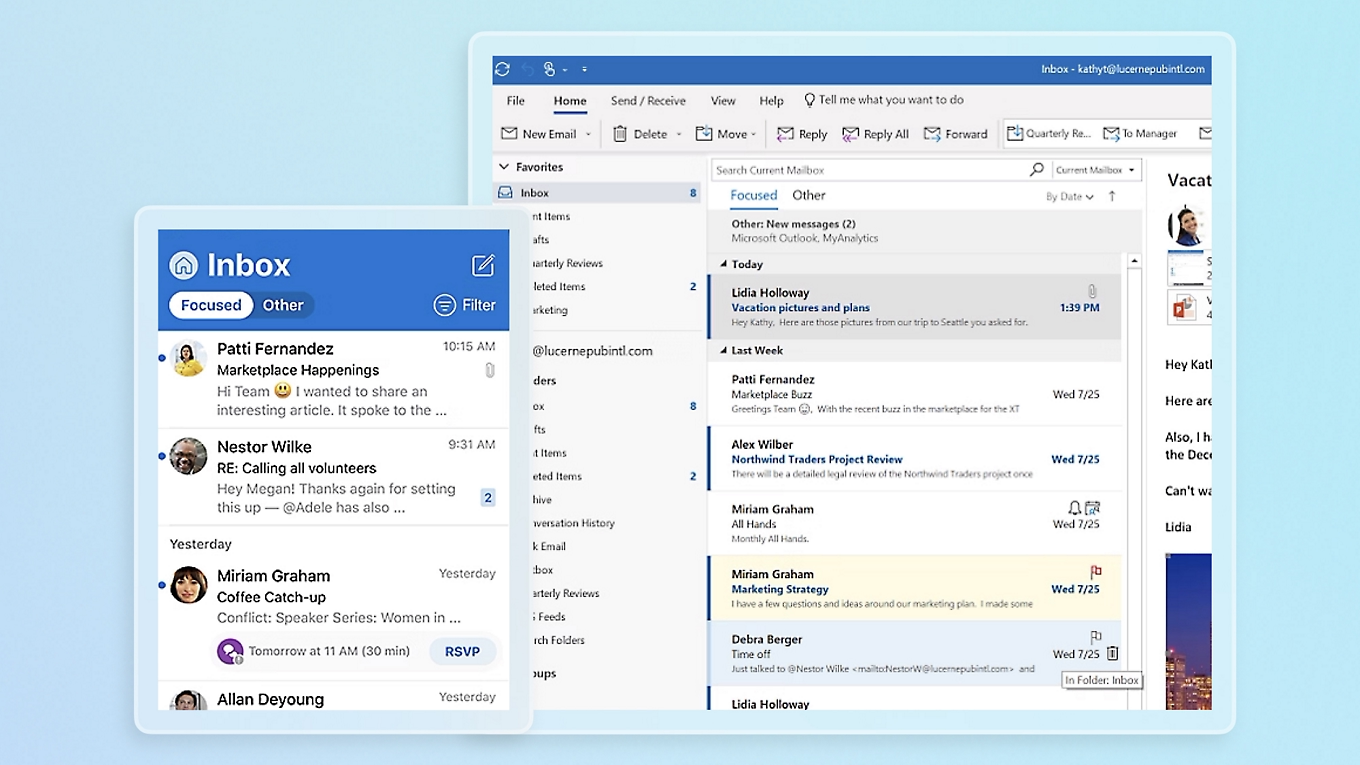
This is the most common free method. You store recipient data in an Excel spreadsheet, draft your email template in Word, insert merge fields, and send through Outlook.
Step-by-step guide to setting up your data
- Open Excel and create a new workbook.
- Add column headers in row 1: First_Name, Last_Name, Email_Address, Company_Name.
- Fill in recipient data below the headers, one row per contact.
- Format critical columns as text and save. Select columns with ZIP codes or phone numbers, right-click, choose Format Cells, and set to Text. This prevents Excel from dropping leading zeros. Save the file as .xlsx and close Excel to avoid locking issues.
How to create your personalized email template in Word
- Open Microsoft Word and start a blank document.
- Go to the Mailings tab, click "Start Mail Merge," then choose "E-mail messages".
- Click "Select Recipients", then "Use an Existing List". Browse to your Excel file and select it.
- Write your email body. Example: "Hi, I noticed your team at [Company] is hiring. We help agencies like yours book 15+ demos per month."
- Insert merge fields by clicking "Insert Merge Field" on the Mailings tab. Place
<<First_Name>>after "Hi," and<<Company_Name>>where you reference the company. - Preview results by clicking "Preview Results" to see how emails will look. Use arrow buttons to scroll through recipients and catch any formatting errors before sending.
Sending your mail merge through Outlook
- Click "Finish & Merge" on the Mailings tab, then select "Send E-mail Messages".
- In the dialog box, choose "Email_Address" in the "To" field dropdown, type your subject line, and select HTML format.
- Click OK. Word processes the merge and routes emails to your Outlook Outbox.
- Check your Sent Items folder to confirm delivery.
This method works for small lists. The problem? You won't know who opened, who replied, or when to follow up unless you manually check your inbox.
Instantly's AI Copilot can generate campaigns end to end for you, making personalization at scale possible:

Outlook Mail Merge Hack 2: Leveraging Outlook's Quick Steps
Quick Steps automate repetitive email actions but don't handle true mail merge personalization. Think of them as macros for common tasks.
Setting up Quick Steps for semi-automated sends
Open Outlook, go to the Home tab, and click "Create New Quick Step." Choose an action like "New Message," configure a template with default text or subject line, then save. Quick Steps don't pull data from Excel or insert recipient-specific fields. They simply apply a saved action.
Personalizing emails with Quick Parts
Quick Parts store reusable text snippets like salutation blocks or compliance footers. Draft the text in an email, select it, go to Insert > Quick Parts > Save Selection. You still type each recipient's name manually. For more on how to craft follow-ups that convert, you need sequence logic and A/B testing, which Quick Steps cannot provide.
Outlook Mail Merge Hack 3: VBA Scripting for Advanced Personalization
You can write custom scripts inside Outlook using Visual Basic for Applications (VBA) to automate email creation and personalization. This is the most advanced free method, but it requires coding knowledge.
Understanding the basics of VBA for Outlook
VBA scripts run inside the Outlook application. You access the editor by pressing Alt+F11 in Outlook. From there, you write macros that read data from Excel, loop through rows, and compose emails with dynamic content.
Sample VBA script for dynamic content
Here's a simplified example that opens an Excel file, loops through rows, and sends one email per row:
Sub SendPersonalizedEmails()
    Dim xlApp As Object, xlWB As Object, xlSheet As Object
    Dim OutApp As Object, OutMail As Object
    Dim i As Long, LastRow As Long

    ' Create Outlook application once (not in loop)
    Set OutApp = CreateObject("Outlook.Application")

    ' Open Excel
    Set xlApp = CreateObject("Excel.Application")
    Set xlWB = xlApp.Workbooks.Open("C:\contacts.xlsx")
    Set xlSheet = xlWB.Sheets(1)

    ' Find last row with data
    LastRow = xlSheet.Cells(xlSheet.Rows.Count, 1).End(-4162).Row

    ' Loop through rows
    For i = 2 To LastRow
        Set OutMail = OutApp.CreateItem(0)
        With OutMail
            .To = xlSheet.Cells(i, 3).Value
            .Subject = "Personalized Offer"
            .Body = "Hi " & xlSheet.Cells(i, 1).Value & _
                    ", your company " & xlSheet.Cells(i, 4).Value & " qualifies."
            .Send  ' Use .Display instead of .Send for testing
        End With
        Set OutMail = Nothing
    Next i

    ' Clean up
    xlWB.Close False
    xlApp.Quit
    Set xlSheet = Nothing
    Set xlWB = Nothing
    Set xlApp = Nothing
    Set OutApp = Nothing
End Sub
Press Alt+F11 in Outlook, insert a new module, paste the script, update file paths, and run with F5. If it fails, check for typos and verify Excel is closed. Test with a small batch of three to five contacts before scaling.
The hidden costs and limitations of Outlook mail merge for agencies
Outlook mail merge looks free, but it carries real costs once you scale.
Deliverability risks and sender reputation damage
When you send 200 cold emails from a fresh inbox, mailbox providers flag your domain as spam. See our improve cold email strategy for more replies guide for a full breakdown. Outlook gives you no built-in warmup or domain health monitoring. Sender reputation is cumulative, and one bad campaign can blacklist your client's domain for weeks.
Professional cold email platforms like Instantly include automated email warmup and a deliverability network that mimics real human engagement, building trust with Gmail, Outlook, and other providers before you send your first campaign. Our start a successful drip email campaign guide walks through this step by step.
Watch how Instantly ensures you have top tier deliverability in 2025:
"Instantly has become the backbone of our outbound system. What stands out most is the deliverability and domain health performance..." - Luisa R. on G2
Lack of tracking and analytics
Word mail merge sends emails and forgets them. You won't see open rates, click tracking, or reply analytics. You can't A/B test subject lines or measure which variant books more meetings. When you bill clients on performance, this is a deal-breaker.
Instantly provides comprehensive campaign analytics showing opens, replies, bounce rates, and inbox placement by provider.
Time-consuming manual processes and setup
Every mail merge requires manual steps: export contacts, format Excel, reconnect Word, preview, send, then repeat for the next campaign. You can't schedule sends for optimal time zones or automate follow-ups if the first email gets no reply.
"The automated warm-up, unlimited email sending, and smart campaign management saved me hours every week." - User on Trustpilot
Scalability challenges and mailbox limits
Microsoft imposes sending limits on Outlook accounts. For free Outlook.com accounts, the limit is 300 recipients per day. For Microsoft 365, you get higher limits but still face throttling if you exceed safe cold email thresholds.
You should never scale past 30 emails per inbox per day for cold outreach to maintain sender reputation. Outlook mail merge offers no way to rotate sends across multiple domains or stagger timing to mimic human behavior.
No automated follow-ups or reply handling
One-and-done emails rarely convert. Most meetings come from the second or third follow-up. Outlook mail merge can't schedule a follow-up three days later if the recipient doesn't reply. You either send manually or lose the lead.
Instantly's AI Reply Agent handles follow-ups and can respond to common questions in under 5 minutes, freeing your team to focus on live conversations.
Outlook mail merge vs Instantly: key differences
| Feature | Outlook Mail Merge | Instantly |
|---|---|---|
| Cost | Free (included with Microsoft 365) | Flat fee, unlimited accounts |
| Daily send limit | 300 max (free accounts), 30 safe for cold email | Scalable across unlimited inboxes |
| Warmup | None | Built-in automated warmup |
| Deliverability tracking | None | Inbox Placement tests, health monitoring |
| Reply tracking | Manual inbox checking | Unified inbox with analytics |
| Follow-up automation | None | Automated sequences with cadence logic |
| A/B testing | None | Subject lines, copy variants, send times |
How Instantly solves Outlook's mail merge limitations for agencies
Outlook mail merge is a starting point, not a solution. Here's how Instantly transforms free hacks into scalable, safe, and measurable outreach.
Unlimited email accounts and built-in warmup
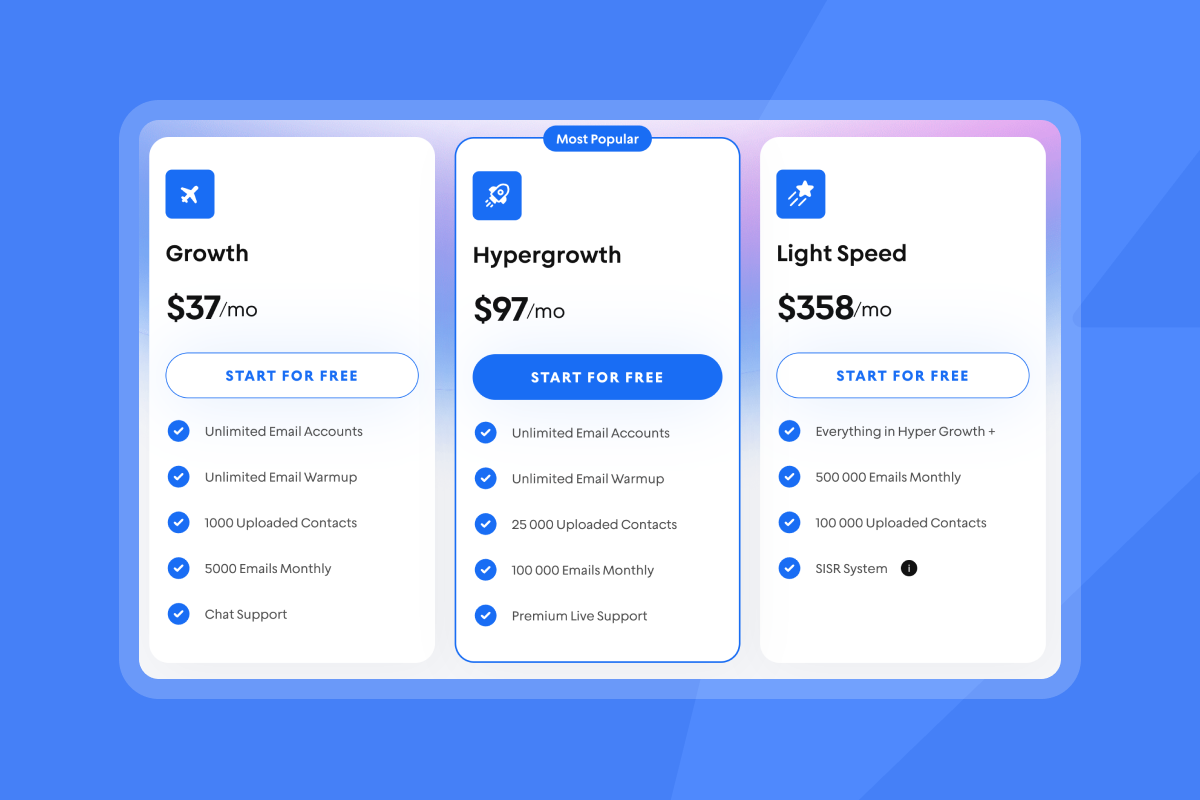
Instantly's flat-fee pricing includes unlimited email accounts and automated warmup on every plan. No per-seat costs that kill your margins as you scale. You connect as many domains as you need, warm them for 30 days using the private deliverability network, and ramp sends from 5 to 15 to 30 per inbox per day.
"Instantly is super intuitive, easy to set up, and makes it simple to manage multiple domains and inboxes at scale." - Shaiel P. on G2
Advanced deliverability features
Instantly offers Inbox Placement tests that show exactly where your emails land across Gmail, Outlook, Yahoo, and other providers. If health dips, automated rules pause the campaign and alert you before damage spreads. Advanced plans include dedicated IP pools and server rotation for maximum deliverability protection.
Automated personalization and sequences
Instantly's sequence builder supports spin syntax, custom merge fields, and A/B testing for subject lines and body copy. You insert First_Name, Company_Name, or any custom field from your uploaded list, and the platform rotates variants to avoid spam pattern detection. Follow-up logic is built in. If a recipient doesn't reply within three days, the system sends Step 2 automatically.
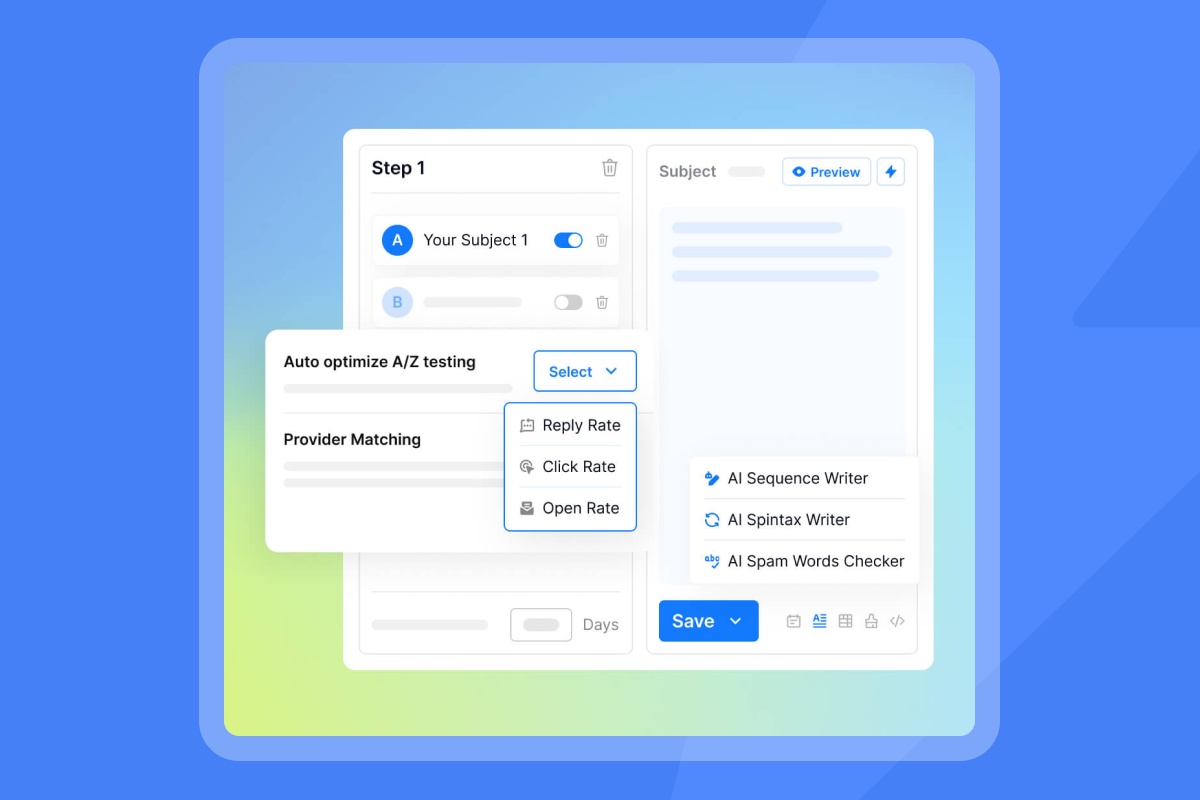
For a full tutorial, watch how to run A/Z tests at scale with Instantly below:
Unified inbox and AI Reply Agent
Managing replies across 20 client inboxes is chaos in Outlook. Instantly's Unibox centralizes all replies in one dashboard. Tag conversations, assign them to team members, and track status from lead to booked meeting. The AI Reply Agent can auto-respond to common questions, handle objections, and even book calendar slots.
Comprehensive analytics and reporting
Instantly tracks every send, open, reply, and bounce. You see which subject lines convert, which send windows work best, and which sequences book meetings. Export reports for clients or use the data to refine your next campaign. For agencies measuring cost per meeting and reply rates, this visibility is non-negotiable.
For a detailed review of how Instantly stacks up, see Instantly.ai Full Tutorial & Review.
Outlook mail merge checklist
Before you send your next campaign using Outlook mail merge, run through this checklist:
- Format Excel columns as text to preserve leading zeros
- Close Excel before connecting Word to prevent lock errors
- Preview results in Word before sending
- Test with 3 to 5 recipients first
- Never exceed 30 sends per inbox per day
- Track replies manually or move to a dedicated platform
Ready to scale your personalized outreach?
Outlook mail merge is a useful hack when you're testing your message on a small list. It costs nothing and uses tools you already own. But when you need to protect a client's domain, track who replied, or automate follow-ups, the free approach breaks down.
You can't risk burning client domains or losing pipeline to manual processes. Try Instantly for free and experience unlimited accounts, built-in warmup, AI reply handling, and the analytics that turn cold emails into predictable pipeline.
FAQs
Can I send personalized emails to thousands for free?
Technically yes, but not safely. Outlook mail merge can insert names and send hundreds of emails, but you'll damage sender reputation without warmup, domain rotation, and deliverability monitoring.
What are the risks of using Outlook for mass emails?
Main risks include domain blacklisting, spam folder placement, mailbox suspension, no tracking, and no follow-up automation. Outlook limits daily sends to 300 recipients for free accounts, and exceeding safe thresholds (30 per day per inbox) triggers provider penalties.
How does Instantly improve email deliverability?
Instantly uses a multi-million account deliverability network to warm inboxes, automated Inbox Placement tests, domain health monitoring, and server rotation to ensure primary inbox placement and protect sender reputation at scale.
Key Terms Glossary
Mail Merge: A Microsoft Office feature that combines a data source (Excel or Outlook contacts) with a Word template to generate personalized documents or emails automatically.
Sender Reputation: A score assigned by mailbox providers based on sending behavior, bounce rates, spam complaints, and engagement. Low reputation sends emails to spam.
Deliverability: The percentage of sent emails that reach the primary inbox. High deliverability requires warmup, list hygiene, and reputation management.
Warmup: The process of gradually increasing email send volume from a new inbox to build trust with mailbox providers before launching cold campaigns.
Primary Inbox: The main inbox folder in Gmail, Outlook, and other email clients, as opposed to Promotions, Social, or Spam folders.


