


Updated January 31, 2026
TL;DR: Finding company emails is step one. Verification is step two. Launching without burning your domain is step three. This 15-step workflow moves you from raw ICP definition to a live campaign with 5%+ reply rates by placing quality gates at every stage. Most teams fail because they skip verification. Keep bounce rates below 2% to protect sender reputation. I recommend tools with waterfall enrichment and built-in verification (like Instantly SuperSearch) to reduce tool sprawl and safeguard deliverability. Copy this checklist and use it as your internal SOP.
A burned domain costs more than lost emails. It costs lost deals, lost client trust, and weeks of recovery. The root cause is almost always bad data that slipped through without verification.
Finding a corporate email address takes seconds. Finding a valid email that does not destroy your sender reputation takes discipline. Any solid cold email guide for agencies treats the finding-to-verification gap as the single highest-leverage quality control point in the entire outreach workflow. I have seen agencies burn six-figure deals because they skipped verification on a single campaign.
This guide gives you the exact 15-step process top agencies use to build lists that convert without torching their infrastructure. You will learn what a B2B email finder actually does, how to vet every contact before it touches your sending tool, and which platforms fit different use cases. By the end, you will have a copy-ready checklist and a clear recommendation for your stack. The best cold email software for agencies closes this gap by combining database finding, waterfall verification, and sending in one platform, so every contact that reaches your campaign has passed a quality gate.
What is a B2B company email finder?
A B2B company email finder is software that locates professional email addresses associated with a target company or contact. These tools pull data from public sources, proprietary databases, and web scraping to match names and job titles to verified corporate addresses.
How email finders work
Most finders use one of two methods:
- Database matching: The tool searches a pre-built index of contacts, often enriched with firmographic data like company size, industry, and tech stack.
- Pattern prediction: The tool guesses the email format (e.g., firstname.lastname@company.com) and validates it against live mail servers.
Neither method guarantees accuracy on its own, which is why I never send to a list straight out of a finder. According to industry benchmarks, solid email finders hit 70-90% accuracy. GDPR-compliant tools that add verification layers can reach 95-98% accuracy.
The gap most teams ignore
"Finding" is not the same as "verifying." A found email might be outdated, misspelled, or routed to a catch-all server that accepts everything but delivers nothing. Without a verification step, you send to addresses that bounce, and bounces above 2% trigger spam filters. This is why the workflow below separates finding (Step 6) from verification (Steps 7-8). Skip either and you risk your domain.
The 15-step email finding and verification workflow
Treat this as a linear process. Do not skip steps. Each phase builds on the last, and cutting corners at the top compounds errors downstream.
Phase 1: Define and source (Steps 1-5)
This phase locks in your target before you touch any data.
1. Define the ICP (Industry, Role, Location)
Write down the exact profile you want to reach. I see teams go too broad here and waste credits on irrelevant contacts. Include:
- Industry vertical (e.g., B2B SaaS, HR Tech, FinTech)
- Job titles (e.g., VP of Sales, Head of Growth, Founder)
- Company size (e.g., 50-200 employees)
- Geography (e.g., US, UK, DACH)
Granular filters prevent wasted credits. Instantly SuperSearch lets you drill down by job title, company size, tech stack, industry, location, and more. Apollo offers similar depth with filters for seniority level, department, company revenue, funding stage, and recent job changes.
2. Calculate volume needs
Reverse-engineer from revenue goals. If you need 10 meetings to close one deal and you expect a 5% meeting-set rate from replies, you need roughly 200 replies. At a 5% reply rate, that means 4,000 emails. Build a buffer for bounces and list decay. Target extra verified contacts based on your historical data quality.
3. Select the data source
You have two main options:
- Lead database: Tools like Instantly SuperSearch (450M+ contacts) or Apollo (210M+ contacts) offer built-in filters and enrichment.
- LinkedIn scraping + enrichment: Export contacts from LinkedIn Sales Navigator, then run them through a finder/verifier.
For agencies managing multiple clients, a database with waterfall enrichment saves time. Instantly's SuperSearch taps 5+ providers to maximize discovery rates.
4. Filter for data freshness
Old data bounces. Check for a "Last Updated" or "Last Verified" field before exporting. If the platform does not show this, ask support or assume the data needs re-verification.
5. Export the raw list
Download your filtered contacts as a .CSV. Include all personalization fields you will use later: first name, company name, city, industry, and any custom variables.
Phase 2: Find and verify (Steps 6-10)
This phase separates good data from dangerous data.
6. Run the search (the "finding" step)
If you started with a database like SuperSearch, the finding already happened. If you started with names only, run them through your finder tool now.
For a detailed walkthrough, watch this full Instantly tutorial covering the entire search-to-send flow.
7. The verification gate
This is the most critical step, and I have seen more campaigns fail here than anywhere else. Verification checks whether an email address can receive mail. The process involves three stages:
| Stage | What It Checks | What You Learn |
|---|---|---|
| Syntax check | Proper format (prefix + @ + domain + TLD) | You catch typos and malformed addresses |
| Domain/MX record check | Mail server exists and is configured | You confirm the domain can receive email |
| SMTP check (mailbox ping) | Server accepts mail for that address | You validate the specific inbox exists |
Tools that skip the SMTP check leave you exposed. The SMTP handshake is what separates "probably valid" from "actually deliverable."
8. Discard "Risky" or "Unknown" emails
Verification returns one of three results:
- Valid: Server confirms the inbox exists. Safe to send.
- Invalid: Server rejects the address. Do not send.
- Unknown/Risky: Server does not confirm or deny (often a catch-all). Proceed with caution.
Catch-all servers accept all incoming mail regardless of whether a specific inbox exists. Emails to catch-all addresses are less likely to be opened. My recommendation: exclude catch-alls from high-volume campaigns and test them in small batches only.
For a benchmarked comparison of how accurately the major email verification tools handle catch-all detection and SMTP validation in real-world conditions, see the 2026 accuracy score breakdown.
9. Enrich for personalization
Add variables that make your copy feel human. In my campaigns, mentioning a prospect's city or recent company news increases reply rates noticeably. Pull these fields:
- Company name and website
- City or region
- Industry vertical
- Recent funding or news (if available)
SuperSearch includes AI-powered enrichment that pulls these fields automatically. If your tool does not, use a separate enrichment service and merge the data.
For a technical breakdown of how waterfall enrichment across multiple providers maximizes personalization field coverage while minimizing bounce risk, see the email API enrichment guide.
10. Format for upload
Clean your .CSV before importing:
- Remove duplicates
- Standardize column headers (e.g., "first_name" not "First Name")
- Strip extra whitespace
- Ensure UTF-8 encoding to avoid character errors
This step prevents upload failures and deduplication issues inside your sending tool.
Phase 3: Clean and launch (Steps 11-15)
This phase moves verified contacts into your campaign with proper safeguards.
11. Import to your sending tool
Upload the cleaned .CSV to Instantly (or your platform of choice). The only mandatory field is the email address. First name, company, and custom variables are optional but recommended for personalization. Map fields correctly to ensure your spin syntax works.
"Setting up new domains and inboxes, as well as rotating them, is incredibly straightforward, which helps me increase my sending volume while maintaining good deliverability." - Verified User on G2
12. Final duplicate check
Run the built-in deduplication. Even with a clean export, duplicates sneak in when merging lists from multiple sources. Sending the same person two emails from two sequences looks sloppy and triggers spam complaints.
13. Assign to warmed inboxes
Distribute leads across inboxes that have completed warmup. For Instantly users, the platform handles inbox rotation automatically, balancing load to protect sender reputation.
New domains need 2-4 weeks of warmup before scaling. The guide below covers the full ramp-up process.
14. Set daily limits
Think of daily limits like traffic lights. Green to send, red to pause. Running a red causes collisions (high bounces, spam flags).
Safe daily limits by domain age:
| Domain Age | Daily Limit per Inbox |
|---|---|
| Week 1 | 5-10 emails |
| Week 2 | 10-15 emails |
| Week 3 | 20-25 emails |
| Week 4+ | 30 emails max |
These limits exist because email providers (Gmail, Outlook) track sending patterns. A sudden volume spike from a new domain looks like spam. Ramp slowly and your sender reputation stays clean. Rush it and you land in spam folders for months. Instantly's agency pricing guide advises 30 emails per inbox per day as a safe ceiling for warmed domains.
15. Launch and monitor bounce rate
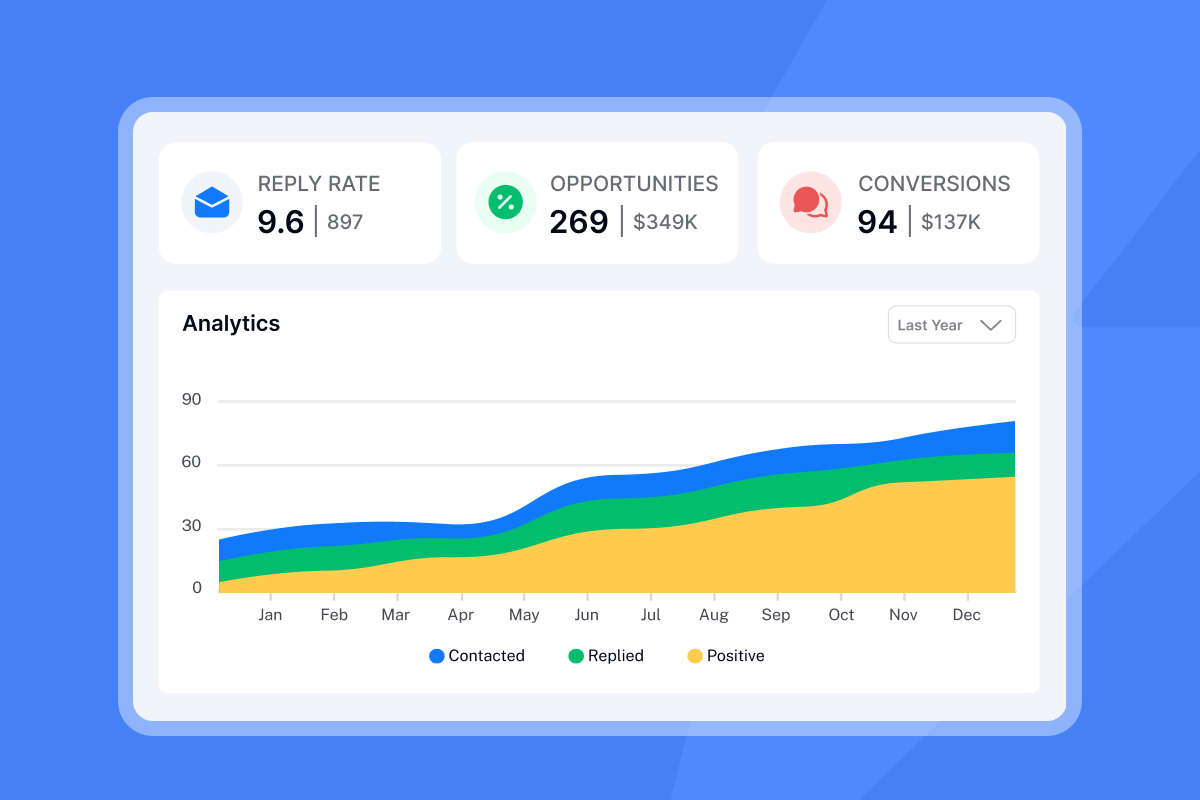
Go live and watch your metrics. The acceptable bounce rate threshold is under 2%. Here is how to interpret results:
| Bounce Rate | Status | Action |
|---|---|---|
| Under 1% | Ideal | Your list hygiene is strong |
| 1-2% | Acceptable | Monitor closely |
| 2-5% | Warning | Pause and re-verify your list |
| Over 5% | Critical | Stop sending immediately |
If bounces spike, I pause the campaign immediately, export the bounce list, cross-reference it with my original source, and re-verify the entire remaining list before restarting at half the daily volume for 3-5 days. If bounce rates start climbing despite clean lists, check your authentication and warmup configuration. See this email deliverability guide for the full infrastructure checklist before pausing and re-verifying.
📋 15-Step email finding checklist (copy-ready)
Copy this checklist into your project management tool or print it for your team. Check off each step before moving to the next phase.
Phase 1: Define and Source
- Step 1: Write ICP criteria (Industry, Role, Size, Location)
- Step 2: Calculate volume from revenue goals
- Step 3: Select data source (database vs LinkedIn scraping)
- Step 4: Filter for data freshness (Last Updated field)
- Step 5: Export raw .CSV with all personalization fields
Phase 2: Find and Verify
- Step 6: Run search query in finder tool
- Step 7: Run full verification (syntax, MX, SMTP check)
- Step 8: Remove all Risky and Unknown results
- Step 9: Enrich with company name, city, industry, news
- Step 10: Clean .CSV (dedupe, headers, encoding)
Phase 3: Clean and Launch
- Step 11: Import .CSV to sending tool, map fields
- Step 12: Run final duplicate check across all lists
- Step 13: Assign leads to warmed inboxes (rotation)
- Step 14: Set daily limits by domain age (5-30 per inbox)
- Step 15: Launch campaign and monitor bounce rate (stay under 1%)
Target Metrics:
- Bounce rate: Under 1% (acceptable under 2%)
- Reply rate: 5%+ target
- Daily limit: 30 emails per inbox max after 4-week warmup
Top 5 company email finder tools compared
Different tools fit different use cases. Here is how the leading options stack up.
| Tool | Pricing Model | Database Size | Verification Included? | Best For |
|---|---|---|---|---|
| Instantly SuperSearch | $47/mo + credits (1-2 per email found) | 450M+ contacts | Yes (waterfall) | Agencies needing scale plus sending |
| Apollo | $49-59/user/mo + 5K-10K credits | 210M+ contacts, 35M+ companies | Yes | Teams wanting CRM plus data |
| Hunter | $34-49/mo + 500-5K credits | Domain-focused | Yes | Single-domain lookups |
| Snov.io | $39/mo + 1K credits | Multi-source | Yes | Integrated CRM plus drip |
| Anymail Finder | €26/mo + 400 credits (pay for valid only) | Varies | Yes | Budget-conscious small batches |
Instantly SuperSearch
USP: Unlimited sending accounts on a flat fee, plus a 450M+ database with waterfall enrichment.
Instantly prices SuperSearch on a clear credit model. Expect 1-2 credits to find a verified work email, 0.25 credits to verify an existing email, and 0.5 credits for optional enrichment. Outreach plans start at $47/month with unlimited accounts and warmup.
Pros:
- No per-seat tax as your team grows
- Finding, verification, warmup, and sending in one platform
- Waterfall enrichment across 5+ providers increases discovery rates
Cons:
- Credit usage scales with data operations (finding, verification, enrichment)
- Best value at higher volumes (under 500 contacts per month, a pay-per-valid tool may cost less)
"I really value how Instantly helps me find leads effectively by allowing me to search based on specific titles, locations, and industries, which makes it incredibly user-friendly for targeted lead finding." - adnan k on G2
USP: Deep data with buying intent signals and native CRM.
Apollo combines 210M+ contacts and 35M+ companies with outreach automation. Pricing starts at $49-$59 per user per month depending on billing cycle. Credits vary by plan: Free users get 100, Basic gets 5,000, Professional gets 10,000.
Pros:
- Intent data and technographics
- Strong CRM integrations
- Good for SDR teams already using Salesforce
Cons:
- Per-seat model penalizes scaling
- Seat reductions not allowed mid-term
- Sending limits tighter than dedicated outreach tools
For agencies, the per-seat model is often the deal-breaker. Adding five inboxes means adding five seats at $50+ each, even though those inboxes do not need full CRM access. I see this cost structure work better for single-team sales orgs than multi-client agencies.
Hunter
USP: Domain search specialist with unified credits.
Hunter excels at finding all emails at a specific company domain. Starter plans cost $49/month (or $34/month annually). The platform now uses unified credits for searches, verification, and enrichment.
Pros:
- Clean UI for single-domain research
- Verification built in
- Free tier (25 searches/month)
Cons:
- Less suited for bulk prospecting across industries
- No sending infrastructure
Hunter excels when you are researching a handful of target accounts and need to map out the entire team. For bulk prospecting across 50+ companies, a broader database like SuperSearch or Apollo saves time.
Snov.io
USP: Integrated finder, verifier, CRM, and drip campaigns.
Snov.io bundles everything in one ecosystem. Starter plans begin at $39/month for 1,000 credits and 5,000 recipients. The platform includes domain search, email verifier, drip campaigns, warmup, and CRM.
Pros:
- All-in-one for solopreneurs
- Native warmup engine
- Competitive pricing at lower volumes
Cons:
- Credits deplete quickly at scale
- Interface can feel cluttered
Snov.io works well for solopreneurs or small teams running 2-3 campaigns at once. The interface can feel cluttered because it tries to do everything, but that also means fewer integrations to manage.
Anymail Finder
USP: "Pay only for valid emails" model.
Anymail Finder charges only for verified addresses. If the tool cannot find a valid email, the search is free. Pricing starts at €26/month for 400 credits. LinkedIn URL lookups cost 2 credits.
Pros:
- No wasted spend on bad data
- 97%+ deliverability guarantee on valid results
- Good for testing small batches
Cons:
- Smaller database than enterprise options
- No outreach or warmup features
I recommend Anymail Finder for teams testing new markets or verticals where you want to validate contact quality before committing to a larger database subscription.
How to choose the right email finder for your stack
Match the tool to your operating model.
If you run an agency:
I recommend avoiding per-seat taxes entirely. A platform like Instantly lets you scale sending accounts without multiplying software costs. The flat-fee unlimited accounts model keeps margins predictable as you add clients. I have seen agencies cut their tool spend by 40% after consolidating from Apollo plus separate warmup and verification services.
"Instantly allows me to scale my cold email efforts without having to struggle with the tool itself." - Verified User on G2
If you are a solo SDR or founder:
In my experience, a Chrome extension (Hunter, Snov.io) works well for early-stage prospecting under 500 contacts per month. Start small, verify everything, and graduate to a database when volume justifies the cost.
If you need CRM-first workflows:
Apollo's native Salesforce/HubSpot integrations reduce manual data entry. But weigh the per-seat cost against your team size. For a five-person SDR team, you are looking at $250-300/month on Basic plans before credits.
My evaluation criteria checklist:
- Accuracy guarantees: Does the tool publish deliverability rates?
- Verification included: Or do you pay extra?
- Integration depth: Native CRM sync or Zapier/Make?
- Pricing model: Per seat, per credit, or flat fee?
For a deeper comparison of Instantly and Apollo, this side-by-side breakdown video covers the key differences.
Legal and ethical considerations for email scraping
Cold email is legal in B2B contexts, but you must follow the rules.
GDPR requirements
Under GDPR, you can contact business professionals without explicit consent if you have a documented "legitimate interest." Recital 47 of the GDPR states that "processing of personal data for direct marketing purposes may be regarded as a legitimate interest."
To stay compliant:
- Inform recipients how you obtained their email
- Explain why you are contacting them
- Include an unsubscribe link in every email
- Honor opt-out requests within one calendar month
In practice, I include a single sentence in the first email: "I found your contact info via [source] because [reason relevant to their role]." This satisfies disclosure requirements and adds context that improves reply rates.
CCPA requirements
CCPA applies to California residents. As of January 2023, the B2B exemption expired, meaning personal information of business contacts is now covered. You must disclose data collection practices and provide a clear opt-out mechanism.
Ethical boundaries
- Never scrape personal emails (Gmail, Yahoo, Hotmail) for B2B outreach
- Stick to corporate domains only
- Do not purchase lists from unknown vendors without verification
- Respect opt-outs immediately
Using business domains exclusively reduces legal risk and improves deliverability since corporate servers are more forgiving than consumer providers.
Integrating email finders with your CRM
A clean data flow prevents duplicate entries and lost context.
Recommended workflow
- Find and verify in your email finder (SuperSearch, Apollo, etc.)
- Push to CRM (HubSpot, Salesforce) via native integration or Zapier. Map custom fields carefully: "company_size" in your finder needs to match "Company Size" in your CRM or you will create duplicates.
- Sync to sending tool (Instantly) for outreach
- Log replies and meetings back to CRM for attribution. I set up a two-way sync so replied leads get tagged "Engaged" in both systems.
Instantly supports HubSpot and Salesforce integrations via OutboundSync for bidirectional data flow. You can also use Zapier to push Google Sheets leads directly into campaigns.
"We manage multiple sender domains, sequences, and integrations (Google Sheets + Zapier) without issues." - Abdulrahman Nashaat Abdulrahma on G2
For automation-heavy setups, this cold email outreach tutorial shows how to build custom workflows.
Putting it all together
Quality data plus strict verification equals meetings. Follow these 15 steps in order, verify at every gate, and your bounce rates will stay under 1% while your reply rates climb.
Stop paying per-seat for data or juggling five disconnected tools. Try Instantly free and access 450M+ contacts with waterfall enrichment, built-in verification, unlimited sending accounts, unlimited team seats, and warmup in one platform. Scale clients without scaling software costs.
FAQs
How accurate are email finders?
Most solid tools hit 70-90% accuracy, while GDPR-compliant finders with advanced verification reach 95-98%. Always verify before sending.
Is it legal to use email finders for cold outreach?
Yes, for B2B contacts on corporate domains. GDPR allows cold email under "legitimate interest" if you disclose how you obtained the address and provide an opt-out.
What is a catch-all email?
A catch-all server accepts all incoming mail to a domain regardless of whether a specific inbox exists. Emails to catch-all addresses are less likely to be opened, so test in small batches or exclude them.
What bounce rate should I aim for?
Under 1% is ideal. Under 2% is acceptable. Above 5% signals a data quality emergency.
How many emails can I send per inbox per day?
For new domains, start at 5-10 and ramp to 30 per inbox per day over 3-4 weeks. Never increase volume too aggressively in a single day.
Key terms glossary
B2B email finder: Software that locates professional email addresses for business contacts using databases, web scraping, or pattern prediction.
Email verification: The process of checking whether an email address can receive mail, typically via syntax check, domain/MX record check, and SMTP ping.
Bounce rate: The percentage of sent emails that fail to deliver. Hard bounces indicate invalid addresses.
Catch-all server: A mail server configured to accept all incoming email to a domain, regardless of whether the specific inbox exists.
Waterfall enrichment: A method that queries multiple data providers in sequence (e.g., Provider A, then B, then C) to maximize the chance of finding a valid email. Increases discovery rates compared to single-provider tools.
Sender reputation: A score assigned by email providers based on your sending history, bounce rates, spam complaints, and engagement. Low reputation triggers spam filtering.


