


TL;DR: Setting up your GoDaddy email correctly protects sender reputation and ensures inbox placement. Three critical mistakes damage deliverability: incorrect DNS authentication (SPF, DKIM, DMARC), skipping email warmup, and poor list hygiene. This guide provides step-by-step instructions to configure GoDaddy email properly, implement safe warmup, and maintain healthy sending. Instantly automates warmup, monitors placement, and provides infrastructure to scale outreach safely across unlimited accounts.
Updated November 23, 2025
Setting up a professional email with your GoDaddy domain seems straightforward. For more detail, see cold email prospecting for sales success. Log in, create an inbox, start sending. But three configuration mistakes silently kill sender reputation before your first campaign launches, sending outreach straight to spam:
- Incorrect DNS authentication (SPF, DKIM, DMARC)
- Skipping email warmup
- Poor list hygiene
Agency operators managing client campaigns know that reply rates and meetings booked only matter if emails reach the primary inbox. Read our full guide on high converting business email templates. This guide reveals setup mistakes that sabotage deliverability and provides actionable steps to configure GoDaddy email for optimal performance from day one.
Why your GoDaddy email setup impacts sender reputation

What is sender reputation?
Sender reputation is a score ISPs assign to your email-sending domain and IP address based on sending behavior. This score determines whether emails land in the primary inbox, promotions tab, or spam folder. Think of it as a credit score for email, ranging from 0 to 100, with scores above 80 indicating good standing.
ISPs like Gmail, Microsoft, and Yahoo track bounce rates, spam complaints, engagement rates, and email authentication. A single misconfiguration starts a downward spiral where poor placement leads to low engagement, further damaging your score.
How GoDaddy email setup affects deliverability
Initial GoDaddy configuration establishes the foundation for all future sending. Missing or incorrect DNS records like SPF, DKIM, and DMARC tell receiving servers your emails might be spoofed or malicious, triggering immediate spam filtering.
The warmup phase matters equally. Sending cold from a brand new inbox without gradually building volume signals potential spam behavior. Combined with poor list hygiene and inconsistent sending, these mistakes damage reputation before you book your first meeting.
Watch this deep dive on deliverability in 2025 below. We break this down further in converting sales prospecting email examples:
Mistake 1: Incorrect or missing DNS records (SPF, DKIM, DMARC)
What are SPF, DKIM, and DMARC?
Email authentication protocols verify your emails are legitimate and unaltered in transit.
- SPF (Sender Policy Framework) specifies which mail servers are authorized to send emails on behalf of your domain. Receiving servers check your SPF record to confirm the sending server is approved.
- DKIM (DomainKeys Identified Mail) adds a digital signature to each outgoing email, letting recipient servers verify the message was truly sent by your domain and has not been altered.
- DMARC (Domain-based Message Authentication, Reporting, and Conformance) builds on SPF and DKIM by telling receiving servers what to do when email fails authentication. It also provides reports on authentication failures.
| Record Type | Correct Example | Incorrect Example | Why It Fails |
|---|---|---|---|
| SPF | v=spf1 include:spf.protection.outlook.com -all |
spf1 include:spf.protection.outlook.com |
Missing v= prefix and -all qualifier |
| DKIM | Name: selector1._domainkey Value: v=DKIM1; k=rsa; p=MIGfMA0GCS... |
Two separate TXT records with same selector | Multiple records invalidate DKIM |
| DMARC | v=DMARC1; p=none; rua=mailto:dmarc@domain.com |
v=DMARC1; p=reject (no monitoring) |
Blocks legitimate mail before monitoring |
How to check your current DNS records
Verify existing DNS configuration before making changes:
- Log in to your GoDaddy account and navigate to Domain Portfolio
- Select the domain you want to check
- Click DNS to view current records including TXT records for SPF, DKIM, DMARC
- Use MXToolbox to verify what receiving servers see
- Run tests with email authentication validators to check all three protocols
Step-by-step: Setting up SPF for GoDaddy email
- Log into your GoDaddy Domain Portfolio and access DNS management
- Click Add New Record and select TXT as record type
- Enter
@in the Name or Host field - Add your SPF string in Value field:
v=spf1 include:spf.protection.outlook.com -all - Save the record
Critical rule: you can only have one SPF record per domain. If you use multiple email services, merge all authorized servers into a single SPF record.
DNS changes typically propagate within a few hours, though GoDaddy states it can take up to 48 hours.
Step-by-step: Setting up DKIM for GoDaddy email
- Retrieve DKIM keys from your email admin panel (Plesk, cPanel, or Microsoft 365 admin center)
- In GoDaddy DNS settings, add a new TXT or CNAME record
- Enter the selector in Name field (e.g.,
selector1._domainkey) - Add the DKIM public key in Value field
- Enable DKIM signing in your email service provider settings
According to GoDaddy's DKIM setup guide, some services like Microsoft 365 automatically configure these records when activated.
Step-by-step: Setting up DMARC for GoDaddy email
- In GoDaddy DNS management, add a new TXT record
- Enter
_dmarcin the Name field - Add your policy in Value field:
v=DMARC1; p=none; rua=mailto:dmarc@yourdomain.com - Save the record
The p=none policy monitors but does not block emails that fail authentication, recommended for starting. After 30 days of monitoring with zero unauthorized sending and 95%+ authentication pass rate, escalate to p=quarantine. Wait another 30 days before moving to p=reject.
For a visual walk through check out this tutorial below:
Mistake 2: Skipping email warmup for new GoDaddy inboxes
Why email warmup is critical for new domains
Email warmup gradually increases sending volume from a new inbox over 2-4 weeks to build positive sending history. When you create a brand new GoDaddy email, it has zero reputation. ISPs view sudden high-volume sending as a red flag for spam.
The warmup period establishes engagement patterns, authentication history, and consistent behavior that signals legitimate sending. During warmup, you send small volumes to engaged recipients likely to open and reply, building positive signals that increase reputation.
Proper warmup means the difference between 90%+ inbox placement and immediate spam delivery. For brand new domains, 4 weeks is safer than 2 weeks, especially when planning to scale to higher volumes.
The risks of sending cold from a new GoDaddy email
Sending cold outreach at full volume immediately triggers multiple red flags. See our cold email strategies guide for a full breakdown. ISPs see a new domain with no history suddenly blasting hundreds of emails per day. This pattern matches spam bot behavior, leading to immediate filtering or blocks.
Without warmup, emails lack engagement signals proving legitimacy. Low open rates, zero replies, and high bounce rates compound quickly, creating a negative feedback loop. Recovery can take months and might require abandoning the domain entirely.
For agencies, burning a client domain means potentially losing that client and purchasing new domains, adding cost and delay. Using secondary domains for cold outreach protects your primary brand.
How to warm up your GoDaddy email safely
Start with automated warmup services that simulate natural email conversations between your inbox and a network of other inboxes. These send emails from your account, receive replies, open messages, move them out of spam, and mark them important.
Instantly's automated warmup uses a private deliverability network of 4.2M+ accounts to warm new inboxes automatically. The system gradually increases volume while monitoring placement and reputation signals.
Manual warmup involves sending small volumes to engaged contacts who will open and reply. Week one: 5 emails per day. Week two: 15 per day. Week three: 25 per day. Week four: 30 per day per inbox maximum.
Never scale past 30 emails per inbox per day to maintain deliverability.

Checklist: GoDaddy Email Warmup Plan
Week 0 (Pre-warmup):
- Configure SPF, DKIM, and DMARC records correctly before sending
Week 1:
- Send 5 emails per day per inbox to highly engaged contacts
- Maintain bounce rate at or below 1%
Week 2:
- Increase to 15 emails per day
- Monitor inbox placement using testing tools
Week 3:
- Scale to 25 emails per day
- Keep spam complaints below 0.1%
Week 4:
- Reach 30 emails per day maximum
- Verify 80%+ inbox placement before production
Daily monitoring:
- Check bounce rates, spam complaints, and engagement metrics
- Pause if health metrics deteriorate
Pre-launch testing:
- Use inbox placement testing to verify delivery across major providers
Done-for-you email accounts come pre-warmed and authenticated, eliminating the 2-4 week wait.
Mistake 3: Inconsistent sending practices and poor list hygiene
The impact of sudden volume spikes
Sudden spikes in sending volume trigger spam filters, even for established domains. If you normally send 30 emails per day and suddenly blast 500, ISPs interpret this as potential account compromise. Consistent, predictable patterns build trust, while erratic volume signals risk.
For agencies running multiple campaigns, maintaining steady throughput across inboxes prevents reputation swings. Ramp volume gradually over days rather than jumping immediately to new targets.
Watch how Instantly gets you verified leads data on demand with Supersearch:
Why list hygiene matters for GoDaddy email
Poor list hygiene damages sender reputation fast. Sending to invalid addresses generates hard bounces. Sending to abandoned accounts hits spam traps. Sending to unengaged contacts generates low open rates and spam complaints.
Bounce rates above 2% are red flags triggering filtering or blocks. Spam trap hits prove you acquired addresses without permission or failed to remove inactive contacts.
For GoDaddy users, proper list hygiene includes verifying addresses before import, removing hard bounces immediately, monitoring engagement and removing unengaged contacts, and re-verifying lists quarterly.
Best practices for consistent sending and list management
Verify before you send: Use email verification services to check addresses before campaigns, removing invalid, duplicate, or risky addresses.
Monitor engagement metrics: Track open rates, reply rates, and bounce rates. Pause sequences when bounce rates exceed 2% or inbox placement drops below 80%.
Remove bounces immediately: Hard bounces should be removed automatically. Persistent soft bounces (3+ failures) should also be removed.
Maintain consistent daily volume: Send similar volumes each business day. Distribute sends across send windows (8:30-10:30 AM local time) rather than batch sending.
Clean your list quarterly: Re-verify all addresses every 90 days. Remove contacts who have not engaged in 6+ months after re-engagement attempts.
Use double opt-in: For new subscribers, require confirmation to verify addresses and ensure genuine interest.
Step-by-step: How to create a professional email address with GoDaddy
1. Choose your GoDaddy email plan
GoDaddy offers several email options: Workspace Email (Professional Email) with 50 GB storage, Microsoft 365 Email Essentials with Office apps, and Email Plus with 100 GB storage. For agency operators managing client inboxes, Workspace Email provides domain-based addresses with standard IMAP/SMTP access for basic needs.
Most hosting plans include professional email for the first year.
2. Access your GoDaddy account and email dashboard
Log in and navigate to My Products. Click Email & Office to view email services. Click Manage or Sign In next to your email service to access the management interface.
3. Create your email address and password
In the management interface, click Set Up or Add User. Enter the desired email prefix and create a strong password (minimum 12 characters, mix of uppercase, lowercase, numbers, symbols).
Use professional naming conventions (firstname@domain.com) rather than generic addresses (info123@domain.com) to improve credibility.
4. Configure your email client (Outlook, Gmail, etc.)
For GoDaddy Workspace Email, use these settings:
Incoming Mail (IMAP):
- Server:
imap.secureserver.net - Port:
993 - Security: SSL/TLS
- Username: Your full email address
- Password: Your email password
Outgoing Mail (SMTP):
- Server:
smtpout.secureserver.net - Port:
465(SSL/TLS) or587(STARTTLS) - Security: SSL/TLS or STARTTLS
- Username: Your full email address
- Password: Your email password
Enable SMTP authentication using the same credentials. Detailed server settings are available in GoDaddy's help center.
5. Verify your setup and send a test email
Send a test email to another address you control. Check that it arrives in the inbox (not spam). Reply to verify you receive the response. Inspect email headers to confirm SPF and DKIM pass.
If the test lands in spam, review DNS authentication records and SMTP settings for errors.
For a complete video walkthrough, watch our guide an how-to guide on avoiding your emails going to spam.
How Instantly helps protect and scale your GoDaddy email deliverability
Automated warmup for new inboxes
Instantly's built-in warmup feature automatically handles the 2-4 week process for new GoDaddy inboxes. The system connects accounts to a private deliverability network of 4.2M+ email addresses and runs 24/7 in the background.
For agency operators managing 50+ client inboxes, automated warmup eliminates hundreds of hours of manual coordination while ensuring consistent reputation building across every account.
Inbox placement tests and reputation monitoring
Instantly's Inbox Placement testing shows exactly where emails land across Gmail, Outlook, Yahoo, and other providers. Run tests before launching campaigns to verify authentication works and warmup was effective.
Automated Rules & Alerts let you pause campaigns automatically when health metrics deteriorate beyond safe thresholds (bounce rate above 2%, inbox placement below 80%). This prevents small issues from escalating into reputation crises.
Unlimited accounts for safe scaling
Instantly's flat-fee pricing with unlimited email accounts removes per-seat penalties that make scaling expensive. For agencies managing 10-150+ sending inboxes, this model lets you distribute volume safely (30 emails per inbox per day across 50 inboxes = 1,500 emails daily) rather than overloading few inboxes.
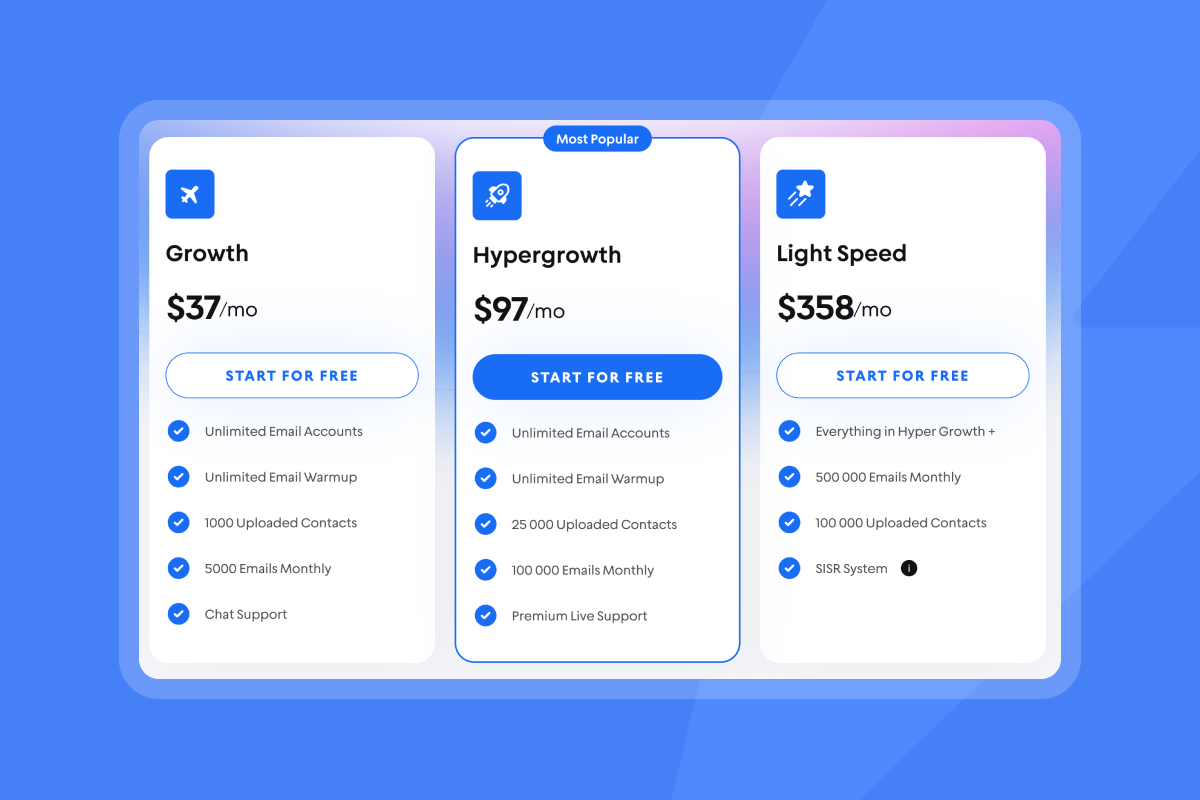
The platform includes SISR (Server & IP Sharding & Rotation) on Light Speed plans, providing dedicated IP pools that protect deliverability at scale.
Protect your sender reputation from day one
Your GoDaddy email setup is the foundation for all future outreach. Incorrect DNS authentication, skipped warmup, and poor list hygiene create deliverability problems taking months to fix and potentially forcing domain abandonment.
Following the step-by-step instructions in this guide ensures GoDaddy inboxes are configured correctly, warmed safely, and maintained with practices protecting sender reputation. For agency operators, deliverability requires ongoing monitoring, testing, and adjustment as you scale campaigns.
Ready to ensure your GoDaddy emails always land? Start a free 14 day trial - set up your account following the authentication and warmup steps in this guide, then explore Instantly's deliverability tools to automate warmup, monitor sender reputation, and scale outreach safely across unlimited accounts. Start your free trial today (no card required).
FAQs:
How long should I warm up a new GoDaddy email before sending cold outreach?
Warm new GoDaddy inboxes for 2-4 weeks minimum. See how our cold email platform helps streamline this process. For brand new domains, 4 weeks is safer to build positive sending history.
What is the maximum number of emails I should send per day from one GoDaddy inbox?
Never exceed 30 emails per inbox per day. Scale by adding more inboxes rather than increasing volume per inbox.
Can I use my GoDaddy email with Gmail or Outlook?
Yes, configure your email client with GoDaddy's IMAP (imap.secureserver.net:993) and SMTP (smtpout.secureserver.net:465) settings.
What should my bounce rate be for GoDaddy email?
Keep bounce rates at or below 1% ideally. Rates above 2% trigger spam filters and damage sender reputation.
How do I know if my SPF, DKIM, and DMARC are set up correctly?
Use DNS lookup tools like MXToolbox to verify records are published correctly and send test emails to check authentication headers.
Key Terms Glossary
Sender Reputation: A score (0-100) ISPs assign to your domain and IP based on authentication, engagement, bounces, and complaints. Scores above 80 indicate good deliverability.
SPF (Sender Policy Framework): A DNS TXT record listing authorized mail servers for your domain. Prevents spoofing and improves deliverability.
DKIM (DomainKeys Identified Mail): A digital signature added to outgoing emails verifying sender identity and message integrity.
DMARC: A protocol using SPF and DKIM to detect spoofing and provide reports on authentication failures.
Email Warmup: Gradually increasing sending volume from a new inbox over 2-4 weeks to build positive sender reputation with ISPs.
List Hygiene: Regular cleaning of email lists to remove invalid, inactive, and unengaged contacts, protecting deliverability.
Bounce Rate: Percentage of emails failing to deliver. Rates above 1-2% damage sender reputation.


