


Updated January 31, 2026
TL;DR: Agencies managing 50+ inboxes pay $1,200 to $5,000 per month for per-seat tracking tools like Mixmax or HubSpot. Instantly charges a flat $97/month for unlimited accounts. You get centralized open and click analytics, custom tracking domains that protect sender reputation, and a Unified Inbox that shows tracking data alongside every reply. Stop renting per-seat infrastructure. Build a system that scales with your client roster.
For agencies running cold email outreach at scale, the tracking infrastructure is just as important as the copy, fragmented per-seat tools create data silos and margin erosion that compound with every new client. You juggle browser profiles, pay per-seat fees that compound monthly, and risk deliverability because every email carries a shared tracking pixel that spam filters recognize. Instantly replaces that mess with server-side tracking across unlimited sending accounts for one flat fee. This guide covers the flat-fee economics, the setup with custom tracking domains, and the dashboard filters that turn raw opens and clicks into client reports.
Why Per-Seat Email Tracking Kills Agency Margins
Traditional tracking tools charge per user or per inbox. Compare the monthly cost when tracking 50 client inboxes across four common tools.
| Tool | Pricing Model | Cost for 50 Inboxes |
|---|---|---|
| Instantly Hypergrowth | Flat fee (unlimited accounts) | $97/month |
| Per-seat trackers | Per seat ($9 to $24/user) | $450 to $1,200/month |
| HubSpot Sales Hub Professional | Per seat ($100/user) | $5,000/month |
Instantly saves agencies $353 to $4,903 per month compared to per-seat alternatives, a 78% to 98% reduction. That gap widens as you add clients.
Free plans look attractive until you read the fine print. Free versions add branded signatures like "Sent with Mailsuite" to every email, which looks unprofessional in client outreach. Free tiers also lack activity dashboards and detailed tracking across multiple accounts. Instantly, the cold email platform built for agency economics, replaces per-seat tracking mess with server-side analytics across unlimited sending accounts for one predictable monthly fee.
"I built my entire client acquisition system through instantly.ai & also sell the product as a service to my clients which is my entire business model." - Joshua Blacklidge on Trustpilot
The real cost of per-seat tools is not just the invoice. It is the hours lost logging into different Chrome profiles, the mental overhead of context-switching, and the margin erosion that forces you to raise prices or cut corners. For a full ROI analysis showing how flat-fee versus per-seat economics affect agency margins at different inbox counts and sending volumes, see the email API pricing guide with a complete cost calculator.
How Instantly's Flat-Fee Tracking Works for Unlimited Accounts
Instantly uses server-side tracking rather than browser extension injection. When you send a campaign, Instantly embeds a tracking pixel in each email. When a recipient's email client loads images, the pixel fires and registers an open event in your analytics dashboard.
This approach differs from Chrome extensions, which require the extension to be installed and active in your browser to inject tracking pixels locally. Instantly manages campaigns at scale and integrates directly with Gmail, Google Workspace, Outlook, and custom SMTP providers.
You get unlimited email accounts at one flat price, whether you connect 10 or 1,000 inboxes. Track Gmail, Outlook, Yahoo, and SMTP accounts in one dashboard. View open rates, click rates, and replies without spreadsheet consolidation. Custom tracking domains white-label the tracking pixel to protect deliverability. This server-side approach scales across all major email providers.
Watch the tutorial to see the platform in action. For the complete infrastructure checklist on authentication, warmup, and inbox placement monitoring that work alongside custom tracking domains, see this email deliverability guide.
"I really like the analytics dashboard, which gives me clear insights into opens, clicks, and replies so I can adjust my campaigns quickly." - Shiv C. on G2
Step-By-Step: Setting Up Email Tracking in Instantly
1. Connect Your Gmail, Outlook, or SMTP Accounts
Navigate to the Email Accounts dashboard and click Add Account. You can connect Gmail, Google Workspace, Outlook, or any SMTP provider. Upload a CSV with account credentials to bulk-import dozens of domains in one session.
The Getting started with Email Accounts dashboard guide covers the full process. After you connect accounts, enable inbox rotation to distribute sends across multiple accounts. This protects individual inbox health and increases throughput without triggering spam filters.
2. Configure Custom Tracking Domains (CNAME)
This step matters most for deliverability. Without a custom tracking domain, your emails use a shared tracking pixel that other users also rely on. If a spammer's emails get that shared domain blacklisted, your deliverability suffers.
A custom tracking domain isolates your reputation from other users. You control the subdomain, and spam filters see consistent branding between your sending domain and tracking URL. Setting up a branded tracking domain protects you from being adversely affected by another user's actions.
Setup steps:
- Create the CNAME record: Log into your domain registrar (GoDaddy, Namecheap, Cloudflare). Add a new CNAME record with these values:
- Type: CNAME
- Host: Use a subdomain like "inst" or "tracking"
- Value:
prox.itrackly.com
- Wait for propagation: CNAME records can take 24 to 72 hours to propagate fully. Continue with account warmup while you wait, then verify the domain before launching campaigns.
- Enable in Instantly: Go to the Email Accounts dashboard, click on the email account, navigate to Settings, and enable the custom tracking domain option. Enter your subdomain (e.g., inst.yourdomain.com) and click Check Status.
- Verify: If your CNAME record is correct, the verification should show "prox.itrackly.com" in the Canonical Name field. If verification fails, double-check the Host value matches your subdomain and the Value points to prox.itrackly.com, then wait another 12 hours for propagation.
The Custom Tracking Domain help article provides registrar-specific instructions. For GoDaddy users, see the dedicated GoDaddy guide.
3. Enable Open and Click Tracking in Campaigns
When building a campaign, navigate to the Options section. You will see toggles for "Track Opens" and "Track Link Clicks."
Track Opens: Embeds a tracking pixel to record when recipients open your email. Enable this for most campaigns unless you are testing text-only emails for deliverability optimization. Learn more about open tracking mechanics.
Track Link Clicks: Wraps links in a redirect URL to record clicks. The Link Clicks Tracker help article explains how click tracking works.
The Campaign Options page covers additional settings like send windows, daily limits, and stop-on-reply triggers.
Analyzing Campaign Performance: The Agency Dashboard
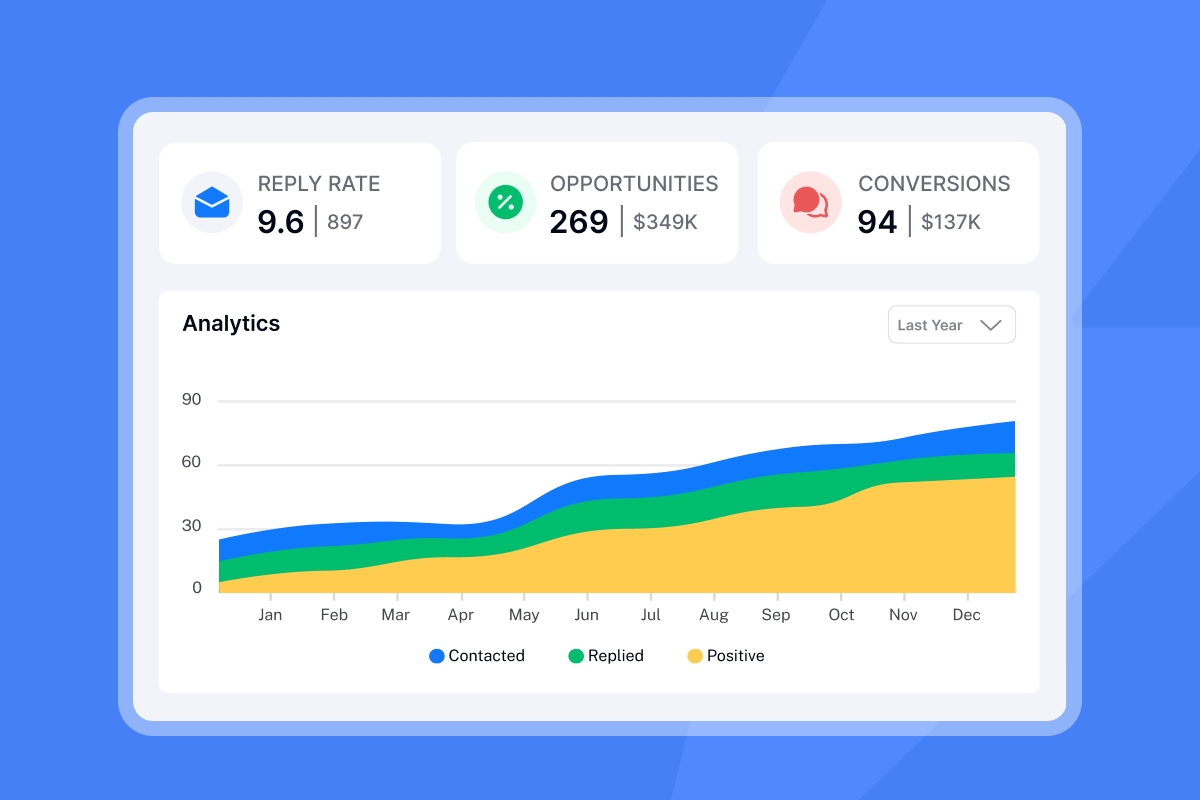
Navigate to the Analytics tab from the left sidebar. You will see the following metrics at a glance:
- Open Rate: Percentage of recipients who opened your email
- Click Rate: Number of leads who clicked at least one link
- Reply Rate: Number of leads who replied to at least one email
- Opportunities: Track positive replies and attach monetary values to calculate campaign revenue
Use the Campaign dropdown at the top of the Analytics tab to filter by specific campaign, or the Account filter to isolate data from one client domain. Click the Export button in the top-right corner of the Analytics view to download a CSV, or use the Zapier integration to push metrics into your BI dashboard.
"The most helpful part is the detailed reporting. It shows clear data like open rates, replies, and bounce rates, which I can easily use for analysis and integrate with other BI dashboards." - Anjali T. on G2
The Analytics help article explains how to customize which metrics appear using the gear icon. You can also exclude auto-replies (like out-of-office messages) from your reply rate calculations.
Unified Inbox Integration
Tracking data flows directly into Instantly's Unified Inbox. When a lead replies, you see their open and click history in the side panel. This context helps your team craft better follow-ups without switching tools.
"The Unibox feature is a great touch. It helps me manage replies in one place without switching tools." - Shiv C. on G2
You can filter by campaign or account to focus on specific client workspaces. The 'Instantly AI Beginners Guide' provides a visual walkthrough of Unibox features.
Does Email Tracking Hurt Deliverability? (And How to Fix It)
Yes, tracking pixels can trigger spam filters when you use shared tracking domains that spam filters recognize and flag. The risk is highest for new sending domains without established reputation.
Here is why custom tracking domains matter for deliverability:
- Reputation isolation: Your tracking subdomain only carries your sending reputation, not the reputation of every other user on a shared domain.
- Domain alignment: Spam filters check whether the tracking URL matches your sending domain. Mismatches raise red flags.
- Blacklist protection: If another user gets a shared tracking domain blacklisted, your emails suffer collateral damage. A custom domain removes this risk.
The Instantly blog explains: "By having your own custom tracking domain, you will be able to boost your sender reputation and deliverability, avoid spam filters by having matching domains in your emails, and not be associated with other users' sending habits and potential spammers."
Set up SPF, DMARC, and DKIM records before launching campaigns. These authentication records prove you own your sending domain and reduce the chance of emails landing in spam.
Instantly vs. Chrome Extensions: Which Is Right For Agencies?
| Feature | Chrome Extensions | Instantly |
|---|---|---|
| Pricing model | Per seat ($9 to $24/user/month) | Flat fee ($97/month for Hypergrowth) |
| Account limits | One per user seat | Unlimited email accounts |
| Deliverability safety | Shared tracking domain (free tier) | Custom tracking domain included |
| Reporting | Individual account reports | Centralized campaign dashboard |
| Unified Inbox | Not available | Built-in, with tracking context |
| Best for | Individuals sending <10 tracked emails/day | Agencies sending 100+ emails/day across multiple accounts |
Chrome extensions work for salespeople sending a handful of tracked emails per day. They add friction when you manage outreach across multiple client domains.
"Warmup, domain rotation, inbox tracking, and campaign logic all feel like they're designed by operators who actually run outbound at scale." - Luisa R on G2
For a broader benchmark of how the leading email tracking services compare on accuracy, deliverability protection, and agency scalability, see the full comparison covering five providers.
Best Practices for Tracking Metrics Without Triggering Spam Filters
Tip 1: Skip Click Tracking in the First Cold Email
Click tracking wraps links in redirect URLs. Some spam filters flag this, especially in first-touch emails. Enable click tracking only in follow-up sequences where you have established initial engagement. The Delivery Optimization Tool help article covers additional text-only sending strategies.
Tip 2: Use Text-Only Emails Periodically
HTML emails with tracking pixels, images, and links give spam filters more signals to analyze. Sending occasional text-only emails resets your reputation and improves overall deliverability. Email deliverability experts recommend you always use a custom tracking domain and avoid overusing links in your message.
Tip 3: Monitor Open Rate Trends
A good open rate for cold email is above 60%. Average rates fall between 40% and 60%. If your open rate drops below 30%, pause the campaign and investigate.
Common causes of low open rates include:
- Poor list hygiene: Keep bounce rate below 1%. Verify emails before sending to reduce bounces.
- Weak subject lines: A/B test at least two variants per campaign. Avoid spam trigger words like "free," "guarantee," or excessive punctuation.
- Sending reputation damage: Check your domain health score in the Warmup tab. If it drops below 80%, pause campaigns and extend warmup by 7 days.
The What to do if your Open Rate is low guide provides a detailed troubleshooting checklist.
Tip 4: Warm Up New Inboxes Before Tracking
New inboxes lack sending history. Adding tracking pixels to cold emails from fresh accounts increases spam risk. Use Instantly's built-in warmup feature for 14 to 30 days before launching tracked campaigns.
"Deliverability tools that actually move the needle: warmup, inbox rotation, and smart sending windows help us land in Primary instead of Promotions/Spam." - Anthony on G2
Scale Requires a System, Not a Plugin
Per-seat tracking tools punish agency growth. Every new client inbox adds to your software bill. Every new Chrome profile adds to your context-switching overhead.
Instantly flips that model. You pay once, connect unlimited accounts, and track everything from a centralized dashboard. Custom tracking domains protect your sender reputation. The Unified Inbox shows tracking data alongside every reply.
The agencies booking consistent meetings at scale are not the ones with the fanciest tools. They are the ones with repeatable systems that grow without compounding costs. Set up custom tracking domains this week. Connect your first client accounts. Filter analytics by campaign and export your first report.
Start your free trial and apply the setup checklist above to your first 10 inboxes today.
Frequently asked questions
Is Instantly email tracking free?
All paid plans include tracking. The Growth plan starts at $47/month, and the Hypergrowth plan at $97/month gives you unlimited email accounts with full tracking capabilities.
Can I track emails sent from Outlook with Instantly?
Yes. Instantly supports Gmail, Google Workspace, Outlook, and custom SMTP providers. Tracking works across all connected accounts.
How do I activate email tracking in Gmail with Instantly?
Connect your Gmail account in the Email Accounts dashboard, set up a custom tracking domain via CNAME, then enable "Track Opens" in your campaign settings.
Does tracking affect my sender reputation?
It can if you use a shared tracking domain. Set up a custom tracking domain (CNAME to prox.itrackly.com) to isolate your reputation from other users.
What is a good open rate for cold email campaigns?
Recent cold email statistics show 40% to 60% as average and 60%+ as good. Top performers consistently hit 70% to 88%.
Key terms glossary
Open rate: The percentage of recipients who opened your email, measured by tracking pixel loads.
CTR (Click-through rate): The percentage of recipients who clicked a link in your email.
Custom tracking domain: A unique subdomain (like inst.yourdomain.com) that hosts your tracking pixel, separating your reputation from shared public domains.
Unified Inbox: Instantly's centralized dashboard for managing replies from all connected email accounts, with tracking context visible per lead.
CNAME record: A DNS record type that maps a subdomain to another domain. Instantly uses CNAME records to point your custom tracking domain (like inst.yourdomain.com) to the tracking server (prox.itrackly.com).


