


Updated April 13, 2026
TL;DR: Proposal email deliverability depends on three things: proper authentication (SPF, DKIM, DMARC), a disciplined 30-day domain warmup, and clean copy that avoids spam triggers. Skip any one of these and your proposals go to spam no matter how good the pitch is. Set up authentication first, warm your domain before sending any high-value outreach, keep daily sends at or below 30 per inbox, and run an automated inbox placement test before every major campaign. Instantly's built-in warmup and inbox placement tools handle the infrastructure so you can focus on the pitch.
The best proposal copy in the world cannot help you if your domain reputation is poor. Your prospect never saw your pitch because it landed in their spam folder. That gap between sending and seeing costs deals every day, and the root cause is technical: your domain lacks trust with inbox providers.
This guide covers the exact technical setup, warmup strategy, and copy rules you need to keep your business proposals in the primary inbox consistently.
Why proposal emails land in spam (and what's at stake)
Revenue lost to spam folders
Email deliverability tracks whether a mailbox provider accepts your email at the server level. Inbox placement goes one step further and measures whether that accepted email lands in the primary inbox or gets filtered to junk. A message can pass deliverability checks and still miss the primary inbox entirely, so your prospect never sees it.
The numbers matter for founder-led sales. Industry data shows that roughly 1 in 5 cold emails miss the inbox due to spam filtering, bounce issues, and deliverability failures. For a startup running on limited pipeline, that ratio translates directly into missed deals and longer runways.
How Gmail and Outlook filter high-value emails
Gmail and Outlook use a layered evaluation system. According to Google's overview of spam filters, the process starts with authentication checks for SPF, DKIM, and DMARC. Then filters score sender reputation, content patterns, and user engagement signals like opens, replies, and spam reports.
Proposal-themed emails also face a specific filter challenge because phishing attackers frequently impersonate RFP emails to harvest credentials. Inky's analysis of RFP phishing scams documents campaigns where a fake "Request for Proposal" PDF redirects to a credential-harvesting site on click. Because legitimate proposal emails closely resemble these attack patterns, inbox providers apply stricter scrutiny to them. Authenticate your domain before sending a single proposal.
Email authentication: SPF, DKIM, and DMARC setup
How each protocol secures your email
Authentication proves to inbox providers that your email came from you and that no one altered it in transit. Valimail's breakdown of all three protocols explains it simply: SPF authorizes which servers can send from your domain, DKIM cryptographically signs the message to prove it arrived unaltered, and DMARC checks that the visible "From" address aligns with both and tells the provider what to do if it doesn't.
Microsoft's email authentication documentation confirms that missing any one of these allows attackers to slip through the gaps, which means your legitimate emails get flagged in the same sweep.
How to configure SPF, DKIM, and DMARC
For all three records, log in to your domain host (GoDaddy, Namecheap, Cloudflare, etc.) and navigate to DNS Management. Add TXT records with these values:
- SPF: Name set to
@, value:v=spf1 include:_spf.google.com ~all(Google Workspace). For Microsoft 365, usev=spf1 include:spf.protection.outlook.com -all— the-allis a hard fail (rejecting unauthorized senders outright) rather than the~allsoft fail used above; Microsoft's official documentation specifies-allas the recommended enforcement policy when DKIM and DMARC are also configured. Instantly's SPF and DMARC guide for Microsoft 365 covers the full configuration with screenshots. - DKIM: In your Google Admin console, go to Apps > Google Workspace > Gmail > Authenticate email. Select your domain, click "Generate New Record," and set the key length to 2048. Add the generated TXT record to DNS with Name set to
google._domainkey, then click "Start authentication" in the Admin console. - DMARC: Add a TXT record with Name
_dmarcand value:v=DMARC1; p=none; rua=mailto:dmarc-reports@yourdomain.com; pct=100. Start withp=noneto monitor without enforcing, then move top=quarantineonce you confirm all legitimate senders are passing.
For GoDaddy-hosted domains, Instantly's Google Workspace setup guide combines all three records into a single walkthrough. Verify your setup using MXToolbox before any send. The full DNS and domain forwarding checklist lives in Instantly's complete DNS setup guide.
Redsift's DMARC configuration guide goes deeper on tuning DMARC policy once your reports start coming in.
Domain warmup for new and young domains
Why warmup protects new domains
Warmup is like pre-race stretching. Skip it and you risk a strain (a spam block that can take weeks to reverse). A brand-new domain has no sending history, and inbox providers have zero reason to trust it. Warmup builds that history gradually so Gmail and Outlook learn to treat your emails as legitimate before you send anything high-value.
Step-by-step domain warmup plan
Stick to this schedule for any new domain or inbox, based on Instantly's 30-day warmup and hygiene system:
- Days 1-5: 5-10 emails per day, sent to internal contacts or team members with high engagement.
- Days 6-7: 10-20 emails per day, increasing only if bounce rates stay under 1% and open rates exceed 40%.
- Days 8-14: 20-40 emails per day in gradual increments, reaching 20-40 by day 14, pausing increases if bounce rate crosses 1%.
- Days 15-21: 40-60 emails per day, increasing only if bounce rates remain under 1% and engagement stays strong.
- Days 22-30: 60-100 emails per day, reaching full target volume by the end of week four only if all metrics continue to hold.
Consistency matters here, because missing days or surging unexpectedly resets the trust signals you've built.
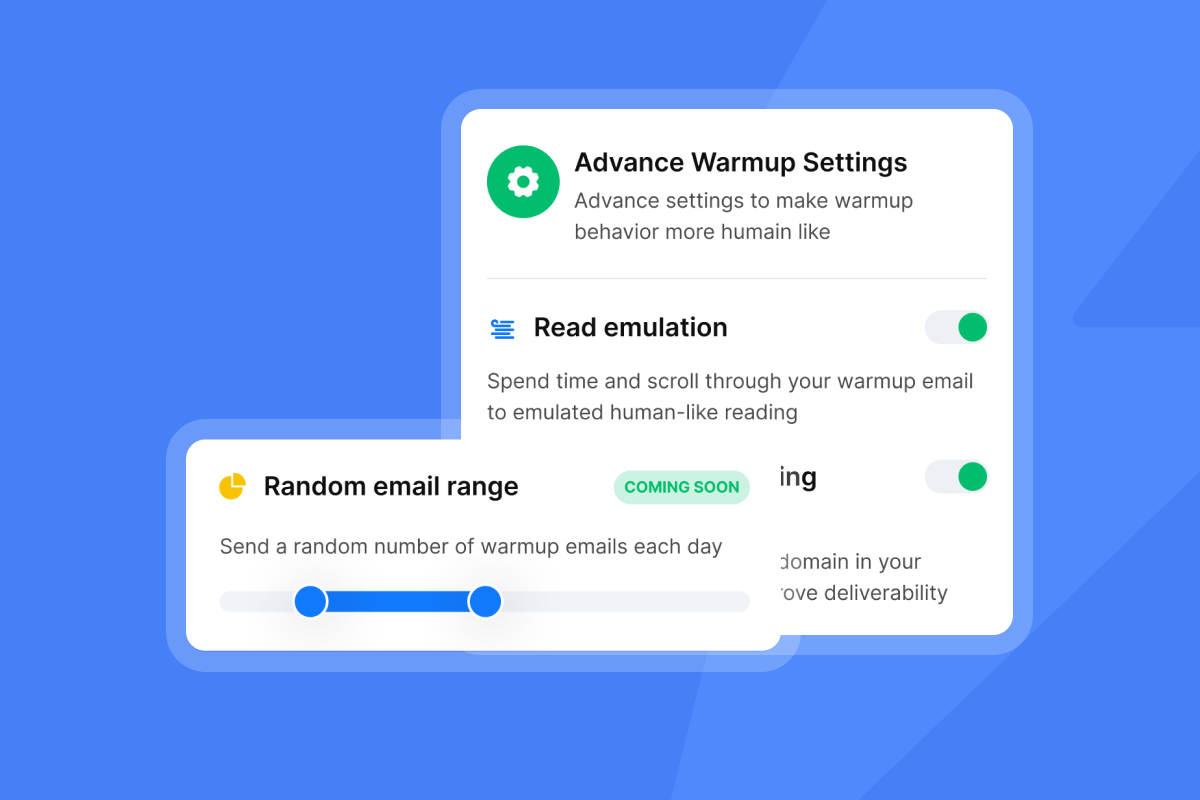
How Instantly helps: Instantly's email warmup feature automates this process across a deliverability network of 4.2 million accounts. Every account in that network sends and receives warmup emails with genuine engagement signals, which builds your reputation at Gmail and Outlook's actual scoring systems, not simulated ones.
"The warm-up system helps maintain deliverability when sending higher volumes. It is especially useful for testing messaging, running A/B experiments, and managing several email accounts from one dashboard." - ivar s. on G2
For a visual setup walkthrough, Patrick Walsh's warmup tutorial covers the Instantly warmup configuration from start to first send.
Volume and red flags to watch
Cap proposal-specific sends at 30 emails per inbox per day as your hard limit. If you need more total volume, add more inboxes rather than pushing one account past this ceiling. Instantly's guide on scaling with secondary sending domains explains how to do this without cannibalizing your primary domain's reputation.
Stop and investigate immediately if you see any of these signals:
- Bounce rate above 5%: At this threshold, sender reputation starts to deteriorate.
- Open rates below 30%: Dial back volume and check list quality before continuing.
- Spam complaint rate approaching 0.1%: Keep your rate well below this target. Google and Yahoo enforce a hard limit of 0.3%, but sustained rates above 0.1% put you on a path toward aggressive filtering.
- Emails landing in spam during warmup: Run a seed list test and pause outreach until placement improves.
Avoiding spam triggers in conversion-focused copy
Spam-trigger words and body rules
Your subject line is the first filter checkpoint. Avoid these categories in both subjects and body copy:
- Urgency words: "Act now," "urgent," "limited time," "last chance," "offer expires."
- Financial promises: "Earn," "investment," "income," "instant cash," "get paid."
- Too-good-to-be-true phrasing: "Free," "guaranteed," "risk-free," "no cost," "promise you."
For proposals, specific project names in subjects tend to perform better than generic labels like "Business Proposal" or "RFP." For example, "Proposal for [Company's] Q3 content workflow" reads more targeted and personal than a generic subject line.
Keep the email body clean:
- No ALL CAPS words or multiple exclamation marks.
- No oversized fonts or non-standard HTML formatting.
- One clear ask per email. Multiple asks look like broadcast marketing, not a targeted proposal.
Avoid repeatedly using trigger words across your sequence. Instantly's cold email deliverability guide covers the full content evaluation stack in video format.
Write clear CTAs without spam triggers
Your CTA needs to feel like a natural next step, not a conversion tactic. Write it as a direct request with low friction:
- "Does Tuesday at 2pm work for a 20-minute call to walk through this?"
- "Reply and I'll send the full proposal PDF directly."
These read like professional correspondence. They ask for one specific action without urgency formatting that triggers filters.
Run pre-flight inbox placement tests
Before sending a proposal campaign to real prospects, run an inbox placement test to see exactly where your email lands across Gmail, Outlook, and other providers. The process is straightforward: send your draft email to a seed network of test accounts and receive a report showing the percentage that land in the primary inbox versus spam.
How Instantly helps: Instantly's automated inbox placement tests run this process automatically and surface results directly in your dashboard. You catch a deliverability problem before it burns your list, not after.
Optimizing links and images for primary inbox
Link rules for proposal emails
Spam filters evaluate every link in your proposal email. Keep your proposal email to one or two links maximum, because multiple external links in a single email match common phishing patterns and raise filter flags.
Follow these rules for every proposal you send:
- Descriptive anchor text: Write "View the proposal for [Project Name]" instead of "click here" or "see our offer."
- No link shorteners: Shortened URLs mask the destination and may trigger phishing filters depending on the provider, as many corporate filters block shortened links entirely.
- Test every link before sending. Broken links flag as suspicious behavior to inbox providers.
Custom tracking for primary inbox placement
Track opens and clicks through a custom tracking domain to protect your reputation from shared infrastructure risk. Instantly's email warmup guide notes that if your email platform's shared tracking domain gets damaged by another user's spam activity, your emails suffer the same consequences. A custom tracking domain (such as click.yourdomain.com) isolates your reputation entirely.
How Instantly helps: Instantly's guide to avoiding spam filters explains how to configure a custom tracking domain directly in the platform so all click data appears to originate from your domain.
Image sizing and when to go plain text
Keep your proposal email at 80% text and 20% images maximum. Gitnux's cold email statistics show image-only emails carry a significantly higher spam complaint rate. Gmail also clips emails larger than 102KB, which hides your content and breaks the reading experience. Compress all images and use descriptive alt text on every one.
For follow-up steps in a proposal sequence, plain text almost always performs better. If an HTML email is landing in spam, test the same copy in plain text to isolate whether the issue is content or formatting. Instantly's cold email follow-up strategy guide covers when to switch formats across a multi-step sequence.
Guaranteeing inbox placement with sender trust
Monitor sender reputation and domain health
Check these free tools at least weekly during any active campaign:
- Google Postmaster Tools (postmaster.google.com): Shows your spam rate and compliance status at Gmail, plus SPF/DKIM/DMARC failure rates and encryption success. As of late 2025, Google retired the old domain reputation tiers and now surfaces Compliance Status and Spam Rate dashboards directly.
- Microsoft SNDS (postmaster.outlook.com): Shows how Outlook.com and Microsoft consumer email services are receiving your traffic and flags potential issues before they become blocks.
- MXToolbox at mxtoolbox.com: Scans your domain and sending IPs against public blacklists. Run this before any new campaign and immediately if open rates drop suddenly.
Fix sudden deliverability drops fast
If your inbox placement drops unexpectedly, follow these steps in order:
- Stop all outbound sends immediately. Continuing to send while flagged compounds the problem.
- Identify the blacklist using MXToolbox and follow the specific delisting process for Spamhaus, Barracuda, or whichever list you're on.
- Fix the root cause first. Let warmup run for at least three to four weeks with clean engagement (opens above 35%, bounces under 1%) before reintroducing any cold outreach.
- Resume slowly. Start at 5-10 emails per day and monitor daily before ramping again.
Diversifying sending algorithms and rotating IPs reduces your exposure to IP-level blocks.
Clean recipient lists before every send
High bounce rates are the most direct path to a damaged sender reputation. Repeatedly sending to unengaged contacts is the primary cause of reputation decline, and even a legitimate opt-in list can damage your domain if it's old and uncleaned. Verify every contact list with an email verification service before sending any proposal campaign, and remove any contact who hasn't engaged in 90 days or more.
Instantly's SuperSearch lead database uses waterfall enrichment across five providers to verify contacts before they hit your campaign, which reduces bounce risk from the data layer up.
Sending proposals at the right time and volume
When can you send proposal emails?
You can start small-scale outreach (10-20 emails per day) after 14 days of warmup if bounce rates stay under 1% and open rates exceed 35%, according to Instantly's 30-day warmup system. Full volume at 30 emails per inbox per day requires the complete four-week ramp.
On follow-up timing, research from Instantly's follow-up strategy content shows 42% of all replies come from follow-up steps, not the initial email. Shorter sales cycles often benefit from a two to three day follow-up window, while complex deals with multiple stakeholders may require five to seven days to give decision-makers time to review internally.
Optimal daily volume and when to use a dedicated domain
Cap at 30 emails per inbox per day as the hard limit for any domain under six months old. If you need more total volume, use multiple sending accounts rather than pushing a single inbox past its safe ceiling. Instantly's flat-fee pricing starts at $47/month and includes unlimited email accounts and warmup across all plans, so you add inboxes to increase volume without paying per-seat fees.
"The unlimited email accounts, warm-up features, and simple campaign setup make it easy to run high-volume, personalized outreach while maintaining good deliverability." - Vasim T. on G2
Use a dedicated sending domain (such as sales.yourdomain.com) when your outreach volume is high enough to risk your primary domain's reputation. Separating transactional mail from outreach reputation means a deliverability issue in one stream doesn't affect the other. A dedicated domain still requires a full 30-day warmup before you send real proposals from it. Instantly's guide on secondary sending domains explains how to implement this without compounding operational complexity.
For a complete picture of what cold email deliverability looks like in 2026, Instantly's ultimate deliverability guide and the 1 million cold email analysis are worth watching before you build out your campaign structure.
Authentication, warmup, clean copy, and pre-flight testing separate founders who book meetings from those who send proposals into a spam folder no one ever opens. Get the infrastructure right first, then focus on the pitch.
Run a free automated inbox placement test and start warming your sending domain today. Try Instantly free and use the built-in warmup system to build the sender reputation your proposals need.
FAQs
How long does it take to warm up a new email domain?
A full warmup takes 30 days minimum. You can start small-scale outreach (10-20 emails per day) after 14 days if your bounce rate stays under 1% and open rates exceed 35%, but full volume at 30 emails per inbox per day requires the complete four-week ramp.
What is the maximum number of emails I should send per day from one inbox?
Cap at 30 emails per inbox per day for domains under six months old. If you need more volume, add additional inboxes rather than pushing one account past this limit.
How do I check if my domain is blacklisted?
Run a free blacklist scan at MXToolbox. Check both MXToolbox and Google Postmaster Tools before any new campaign and immediately if open rates drop or bounces spike suddenly.
Do I need SPF, DKIM, and DMARC if I only send a handful of proposals?
Yes. All three protocols protect your domain from spoofing and signal trust to inbox providers. Missing even one allows Gmail and Outlook to flag your messages as potential phishing. Google and Yahoo now enforce these as sending requirements for domains sending 5,000 or more messages per day, and other providers are aligning to the same standard.
What bounce rate damages my sender reputation?
A bounce rate above 5% starts damaging sender reputation. If you hit this threshold, pause sends, clean your list, and restart at reduced volume before any further outreach.
Read Next
- 30-Day Warmup & Hygiene System
- How to Write Cold Emails That Get Replies
- Cold Email Follow-Up Strategies That Book Meetings
Key terms glossary
Email deliverability: Whether a mailbox provider accepts your email at the server level. A high deliverability rate means your emails are not being rejected or blocked outright.
Inbox placement: Where an accepted email lands after delivery. Inbox placement measures whether your email reaches the primary inbox versus the spam or junk folder.
SPF (Sender Policy Framework): A DNS TXT record that specifies which servers are authorized to send email on behalf of your domain. It prevents other servers from spoofing your domain address.
DKIM (DomainKeys Identified Mail): A cryptographic signature added to your outgoing emails that proves the message content was not altered in transit. The signature is verified against a public key stored in your DNS.
DMARC (Domain-based Message Authentication, Reporting and Conformance): A policy layer that checks whether SPF and DKIM align with the visible "From" address and tells inbox providers what to do (monitor, quarantine, or reject) when they don't.
Sender reputation: The score inbox providers assign to your sending domain and IP based on your sending history, bounce rates, spam complaint rates, and engagement signals.
Domain warmup: The process of gradually increasing email send volume from a new domain over 30 days to build sending history and earn trust with inbox providers before running full campaigns. Skipping warmup often results in immediate spam folder placement and reputational damage that takes weeks to reverse.
Inbox placement test (seed testing): A pre-send test that sends your draft email to a network of test accounts across providers (Gmail, Outlook, Yahoo) to measure what percentage land in the primary inbox versus spam.
Custom tracking domain: A branded subdomain (such as click.yourdomain.com) that handles open and click tracking, isolating your domain reputation from shared platform tracking infrastructure.
Bounce rate: The percentage of emails in a campaign that fail to deliver. A rate above 5% signals list quality problems and begins damaging sender reputation at inbox providers.


