


Updated February 24, 2026
TL;DR: Reminder emails reduce meeting no-shows by 30-50%, speed invoice payments, and keep deals moving. This guide provides 15+ field-tested templates for meetings, payments, proposals, events, and deadlines, plus the automation framework to send them at scale using Instantly. Copy the templates, build a sequence, and reduce no-shows by 30-50% while you focus on live conversations.
Writing reminder emails from scratch wastes decision capital. Agonizing over tone, timing, and whether you sound pushy can lead to dead air. Meanwhile, prospects forget, calendars fill, and revenue leaks. Every cold emailing guide worth following treats follow-up as a system, not an afterthought, The Ebbinghaus forgetting curve is exactly why reminders are non-negotiable. The Ebbinghaus forgetting curve explains why. People forget 50% of new information within an hour and 70% within 24 hours. Your prospect booked a demo two weeks ago with good intentions, but life happened. A well-timed reminder refreshes memory before it fades completely, helping them stay organized without forcing them to manage the project for you.
This guide gives you the templates and the system to execute them. I break down the psychology of high-converting reminders, provide 15+ copy-paste examples for every scenario, and show you how to automate the entire process using Instantly so you never have to remember to send a reminder again.
Why reminder emails matter for revenue and retention
Studies consistently show that sending reminders reduces no-shows by 30-50%, with a weighted mean relative reduction in non-attendance of 34% from baseline rates. Industry data on appointment reminders confirms that reminder systems reduce no-shows by 38% on average across business contexts.
Being polite by not sending a reminder is actually selfish. It forces your prospect to manage the project for you. A well-timed reminder helps them stay organized and demonstrates that you respect their time enough to make showing up easy. Research on reminder effectiveness shows that reminders significantly improve participation and punctuality in professional settings.
Reminders are not nagging. They are service. The worst thing you can do for your show rates is skip the reminder entirely. A B2B cold email tool with automated sequence scheduling ensures every reminder fires at the right interval so you never have to rely on memory or manual calendar alerts.
The anatomy of a high-converting reminder email
Every high-performing reminder email has five core components that work together to drive action without creating friction.
Subject line: Keep it short and reference the previous context. Use "Re: Meeting tomorrow" or "Quick reminder: Payment due Friday" to trigger recognition.
The hook: Acknowledge the busy nature of the recipient. Start with "I know your calendar is packed" or "Quick reminder since things move fast" to show empathy before asking for action. This diffuses the natural resistance people feel when they see a reminder.
The value: Reiterate why the meeting, payment, or action benefits them. Do not just say "We have a meeting." Say "Looking forward to walking you through the ROI model we discussed."
The CTA: One clear link or action. No friction. Use a calendar link, a payment portal, or a single question.
Timing: Send your main reminder 24-48 hours before the meeting to confirm attendance, then send a short follow-up 1 hour before with the meeting link.
Scenario | First Reminder | Second Reminder | Third Reminder |
|---|---|---|---|
Meeting (online) | 24 hours before | 1 hour before | 15 minutes before |
Meeting (in-person) | 24 hours before | Morning of | (skip third) |
Payment due | 7-10 days before the due date | Due date (morning) | 3 days overdue |
Proposal follow-up | 3 days after send | 7 days after send | 14 days (break-up) |
Webinar | 1 week before | 1 day before | 1 hour before |
"I appreciate the ability to conduct outreach seamlessly using consistent email templates in autopilot mode, ensuring efficient and streamlined communication." - adnan k. on G2
Consistency matters. When you automate reminders, you guarantee that every prospect gets the same high-quality follow-up at the exact right moment, without relying on your memory or calendar alerts.
If you're unsure how to open without sounding generic or pushy, see the breakdown of how to start an email with openers that signal empathy before making any ask.
15+ Reminder email templates for every scenario
Copy these templates directly into your sequences. Replace the variables with your own data using Instantly's format: {{firstName}}, {{companyName}}, etc. Each template is designed for a specific psychological trigger and timing window.
Meeting confirmation and reminder templates
Before you copy these templates, adjust them based on meeting format. For in-person meetings, include location details and parking information in the 24-hour reminder. For online meetings, focus on the join link and any pre-meeting prep. Send the 10-minute reminder only for high-value calls where you expect prospects might lose track of time.
Template: 24-hour meeting reminder (gentle nudge)

Subject: Re: Our meeting tomorrow at {{meetingTime}}

Hi {{firstName}},

Quick reminder that we are meeting tomorrow at {{meetingTime}} to discuss {{specificTopic}}.

I will walk you through {{specificOutcome}} and answer any questions you have about {{painPoint}}.

Here is the meeting link: {{meetingLink}}

Looking forward to it.

{{sendingAccountFirstName}}
Template: 1-hour meeting reminder (urgent logistics)

Subject: Starting in 1 hour: {{meetingTopic}}

{{firstName}},

We are meeting in about an hour at {{meetingTime}}.

Join here: {{meetingLink}}

See you soon.

{{sendingAccountFirstName}}
Template: 10-minute meeting reminder (link-focused)

Subject: We are live in 10 minutes

{{firstName}},

Join now: {{meetingLink}}
Research on meeting reminders shows that limiting reminders to 2-3 per meeting prevents overwhelming recipients while still driving attendance. Always enable "Stop on Reply" in your sequence to avoid sending reminders to someone who already confirmed or canceled.
Payment and invoice reminder templates
Payment reminders follow a multi-step escalation. Send 2–3 pre-due reminders starting 7–14 days before the due date with a helpful tone, then follow up with post-due reminders at escalating intervals: a friendly reminder at 3–7 days past due, a politely urgent follow-up 7–10 days later, and a firm final notice 7–10 days after that. Each stage should increase in urgency and directness. Most customers respond within the first three reminders, so keep early messages friendly and assume good intent.
Template: 3 days before due date (helpful)

Subject: Friendly reminder: Invoice {{invoiceNumber}} due {{dueDate}}

Hi {{firstName}},

Quick heads up that invoice {{invoiceNumber}} for {{amount}} is due on {{dueDate}}.

You can pay here: {{paymentLink}}

Let me know if you need a copy of the invoice or have any questions.

{{sendingAccountFirstName}}
Template: On due date (transactional)

Subject: Invoice {{invoiceNumber}} due today

{{firstName}},

Invoice {{invoiceNumber}} for {{amount}} is due today.

Pay here: {{paymentLink}}

Thanks.

{{sendingAccountFirstName}}
Template: 3 days overdue (firm but polite)

Subject: Invoice {{invoiceNumber}} is now 3 days past due

Hi {{firstName}},

Invoice {{invoiceNumber}} for {{amount}} was due on {{dueDate}} and is now 3 days overdue.

Can you confirm when payment will be processed? If there is an issue with the invoice, let me know and I will sort it out.

Pay here: {{paymentLink}}

{{sendingAccountFirstName}}
Template: 14 days overdue (escalation)

Subject: Final reminder: Invoice {{invoiceNumber}} is 14 days overdue

{{firstName}},

Invoice {{invoiceNumber}} for {{amount}} is now 14 days past due.

We need to receive payment by {{finalDeadline}} to avoid late fees and service interruption.

Pay here: {{paymentLink}}

If you have questions or need to discuss a payment plan, reply to this email or call me at {{phoneNumber}}.

{{sendingAccountFirstName}}
Best practices for payment reminders emphasize including the original invoice number, amount due, due date, and a direct payment link. Your tone should escalate gradually as the invoice gets older. Start friendly, become more professional, and only get firm after multiple attempts with no response. For situations requiring more formal escalation language, see these formal email examples to calibrate tone appropriately when the relationship calls for a more professional approach.
Proposal and contract follow-up templates
Three distinct psychological approaches work for proposal follow-up emails: the simple bump, the value-driven objection handler, and the scarcity-based closer.
Template: Proposal bump ("Did you see this?")

Subject: Re: Proposal for {{projectName}}

{{firstName}},

I know your calendar is packed. Just wanted to bump this in case it got buried.

Here is the proposal again: {{proposalLink}}

Any thoughts?

{{sendingAccountFirstName}}
Template: Proposal objection handler ("Any questions?")

Subject: Questions about the {{projectName}} proposal?

Hi {{firstName}},

I wanted to follow up on the proposal I sent last week.

Do you have any questions about {{specificSection}} or the timeline? Happy to jump on a quick call to talk through anything.

Proposal link: {{proposalLink}}

{{sendingAccountFirstName}}
Template: Proposal break-up email ("Closing the file")

Subject: Should I close the file on {{projectName}}?

{{firstName}},

I have not heard back on the proposal for {{projectName}}, so I am guessing now is not the right time.

Should I close the file, or is there something I can adjust to make this work?

Either way, no hard feelings. Let me know.

{{sendingAccountFirstName}}
Research on effective follow-up shows that persistence pays off. Sending even one follow-up email can increase your response rate by 22 percent. However, the key is how you follow up. Rather than asking why someone hasn't responded, which objection-handling experts like Gong.io advise against, focus on providing additional value, including a clear call-to-action, and showing empathy.
If a prospect goes cold after your break-up email, don't close the file permanently. Keep re-engagement email templates ready for when timing shifts and they're ready to revisit the conversation.
Event and webinar reminder templates
Standard webinar reminder timing follows a three-step sequence: send reminders 1 week, 1 day, and 1 hour before the online event starts. For in-person events, include reminders 2 weeks, 3 days, and the morning of the event.
Template: Event registration confirmation

Subject: You are registered for {{eventName}} on {{eventDate}}

Hi {{firstName}},

You are all set for {{eventName}} on {{eventDate}} at {{eventTime}}.

Add to calendar: {{calendarLink}}

Join link: {{eventLink}}

See you there.

{{sendingAccountFirstName}}
Template: 1 day before event (anticipation builder)

Subject: Tomorrow: {{eventName}} at {{eventTime}}

{{firstName}},

Quick reminder that {{eventName}} is tomorrow at {{eventTime}}.

We will cover {{topicOne}}, {{topicTwo}}, and {{topicThree}}.

Join link: {{eventLink}}

{{sendingAccountFirstName}}
Template: "We are live" (urgency)

Subject: {{eventName}} is starting now

{{firstName}},

We are live. Join here: {{eventLink}}
Best practices for event reminders emphasize confirming the attendee's spot immediately after registration and providing essential details like the date, time, and an "Add to Calendar" button. The day-before reminder re-engages attendees by sharing valuable content and building anticipation. The hour-before reminder includes final key details like the event link or room number.
Deadline and project milestone templates
Effective deadline reminders include a reference to the original request, a specific deadline framed as a polite request using phrases like "Could you share your thoughts by Friday afternoon?", a clear description of the deliverable, an impact statement, and an easy action path.
Template: Content or asset request reminder

Subject: Quick reminder: {{assetName}} needed by {{deadline}}

Hi {{firstName}},

Just checking in on the {{assetName}} we discussed last week.

We need it by {{deadline}} to stay on track for {{projectMilestone}}. If you need more time, let me know and we can adjust the schedule.

Reply with the file or any questions.

{{sendingAccountFirstName}}
Template: Approval deadline reminder

Subject: {{projectName}} approval needed by {{deadline}}

{{firstName}},

Can you approve the {{deliverableName}} by {{deadline}}?

Here is the link: {{approvalLink}}

If you have feedback or need changes, let me know ASAP so we can keep the project moving.

{{sendingAccountFirstName}}
Research on deadline reminders suggests mentioning that the timeline may need to be adjusted if they do not proceed, creating just enough urgency to move things along.
How to automate reminder sequences with Instantly
Manual reminders fail at scale. You forget to send them, you send them too early or too late, and you waste time copying and pasting. Automating sequences with Instantly ensures consistent follow-up without human error.
Factor | Manual Reminders | Automated Sequences (Instantly) |
|---|---|---|
Time per reminder | 3-5 minutes (compose, send, track) | Minutes to Hours |
Consistency | Varies by mood, calendar, memory | Identical timing and copy every time |
Error rate | High (wrong time, missed sends) | Near-zero (stop-on-reply prevents double-sends) |
Scalability | Breaks after 20-30 contacts | Scales to 10,000+ contacts per campaign |
Here is how to build a multi-step reminder sequence in five steps.
Step 1: Create a campaign. Go to the Campaigns dashboard and click on the "+ Add New" button on the top right, then type in the name of your campaign. Click the blue CONTINUE button to move to the next step. Name it something specific like "Meeting Reminders Q1 2026" so you can track performance later.
Step 2: Upload leads. Add your contacts manually, upload a CSV, or connect sequences via Zapier or the API from your CRM. When you upload your CSV, Instantly will automatically detect columns and attribute variables like first Name, last Name, company Name, and email.
Step 3: Build the sequence. In your Sequence Editor, paste one of the templates from this guide into the Email body section, or browse 600+ pre-built templates sorted by category like Meeting Follow-Up or Invoice Reminders. Add follow-up steps by clicking Add step and specify how many days to wait between each email. For a meeting reminder, set up three steps: one at 24 hours before, one at 1 hour before, and one at 10 minutes before.
Step 4: Use Spin Syntax. The exact spintax format is: {{RANDOM | option1 | option2 | option3}}. For example: {{RANDOM | Hi | Hello | Hey}} {{firstName}}, I would love to {{RANDOM | learn | hear | find out}} more about the way you {{RANDOM | handle | manage | deal with}} sales at {{companyName}}. This keeps templates fresh and improves deliverability because each email looks slightly different to spam filters.
Step 5: Activate "Stop on Reply." Enable this feature to halt the sequence when a prospect responds. You do not want to send a reminder to someone who already confirmed or canceled. This prevents awkward double-sends and keeps your communication professional.
To preview how your email will appear in the lead's inbox, send a test email before launching the campaign.
"The platform's email campaign setup is very user-friendly, offering multiple customization options, which I regularly utilize to fine-tune my campaigns." - Rohith C. on G2
Instantly also offers an OOO Resume feature that automatically pauses sequences when it detects an out-of-office reply, then resumes when the prospect returns. This reduces manual triage and keeps your sequences running smoothly.
Measuring success: Metrics that matter
You cannot improve what you do not measure. Track these four metrics to understand what is working and where to optimize.
Open rate: Are your subject lines working? Use benchmarks to gauge whether your subject lines need optimization. Emails with personalized subject lines increase open rates from 16.67% to 35.69%, more than doubling performance.
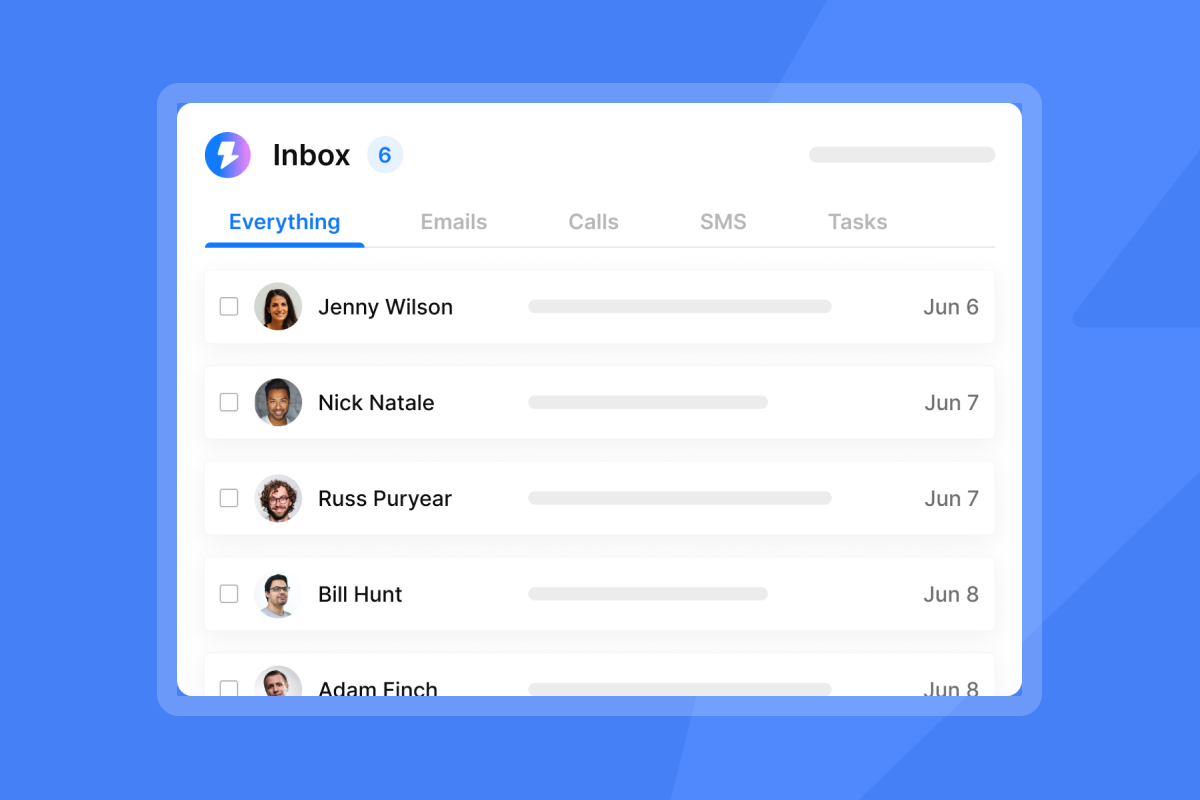
Reply rate: Is the tone right? If reply rates are below 5%, your copy may be too formal, too vague, or missing a clear CTA. Use Instantly's Unibox to centralize replies from all accounts and set follow-up reminders so you never lose track of a conversation.
No-show rate or payment speed: The ultimate outcome metrics. If no-shows drop from 40% to 20% after you add reminders, you just doubled effective capacity. If average payment time drops from 21 days to 14 days, you improved cash flow by a week.
A/Z testing: To test different subject lines and email body copies, use the A/Z testing feature to create variants by clicking on "Add variant" to create a new version of the sequence. When you enable auto-optimize A/Z test, the algorithm analyzes variants automatically to determine which version performs best based on a defined winning metric (reply rate, click rate, or open rate), then automatically deactivates other less effective versions. Go to Campaign Options, Advanced Options, Auto optimize A/Z testing, select the winning metric, then click Save. Instantly supports up to 26 variants in one step, so you can test aggressively.
Advanced strategies for higher reply rates
Once you master the basics, these three strategies will help you scale results.
Multi-channel reminders: Combine email with other channels to increase visibility. If you are on Hyper CRM, you can add calling or SMS steps to your sequence. LinkedIn integration is possible via Zapier, allowing you to send a LinkedIn message or connection request as part of your reminder flow. For high-value meetings, a LinkedIn message the day before can cut no-shows even further.
AI personalization: Use Instantly's personalized lines feature to add a custom line based on the prospect's website, recent news, or LinkedIn activity. Insert the {{Personalization}} variable or custom variable into your email body to dynamically insert details like Country or Industry for each contact. Personalization increases unique click rates by 41% when you use the recipient's first name or company-specific details.
"I enjoy the built-in AI enrichment feature, which is amazing for lead enrichment." - Harvey S on G2
Segmentation: Send different reminders to VIP clients versus standard tier. High-value clients get more personal copy and shorter wait times. Lower-tier clients get efficient, automated sequences. Use Instantly's campaign options to set different sending windows, daily limits, and follow-up cadences based on lead segment.
Templates save time, automation saves deals
You now have 15+ field-tested reminder templates for meetings, payments, proposals, events, and deadlines, plus the exact steps to automate them in Instantly. Copy these templates into an Instantly campaign, build your sequence in under 10 minutes, and let the system handle follow-up while you focus on live conversations.
Start your free trial at Instantly and automate your reminders today. Your prospects will thank you for the clarity, and your calendar will thank you for the consistency.
FAQs
How many reminder emails should I send? For meetings and events, limit to 2-3 reminders (24 hours, 1 hour, 10 minutes). For payments, send 3-4 escalating reminders (before due, on due, +3 days, +14 days). For proposals, send a maximum of 3 follow-ups over 14 days before sending a break-up email.
What is the best subject line for a reminder? Use "Re: [original topic]" or "Quick reminder: [specific action]" to trigger recognition and keep it under 50 characters for mobile readability.
How do I politely remind someone to pay? Start with a friendly tone 3 days before due date, become transactional on due date, then escalate gradually at +3, +7, and +14 days overdue.
Can I automate reminders without sounding like a robot? Yes, use spin syntax to vary copy, add personalization variables like {{firstName}} and {{companyName}}, and enable "Stop on Reply" to halt sequences when prospects respond.
When should I send a meeting reminder? Send your main reminder 24-48 hours before to confirm attendance, then a short follow-up 1 hour before with the meeting link.
What is the optimal time gap for payment reminders? Send reminders at 3-7 days before due date, 0-3 days after due, 7-14 days overdue, and 14-30 days overdue before formal escalation.
Key terms glossary
Sequence: An automated series of emails sent based on time triggers, allowing you to send reminders without manual effort.
Spin Syntax: A method of varying text within an email using the format {{RANDOM | option1 | option2}} to improve deliverability and avoid spam filters.
Dynamic Variable: A placeholder like {{firstName}} or {{companyName}} that automatically fills with prospect data from your uploaded CSV or CRM.
Unibox: A centralized inbox in Instantly to manage replies from all accounts, making it easy to triage responses and set follow-up reminders.
Stop on Reply: A feature that automatically halts a sequence when a prospect responds, preventing awkward double-sends and keeping communication professional.
A/Z testing: A feature in Instantly that lets you test up to 26 variants of an email (subject line, body copy, or both) to determine which version drives the highest open rate, reply rate, or click rate.


