.svg)
%20(1).svg)


TL;DR: Integrate LinkedIn Sales Navigator directly with your CRM, such as HubSpot, to create a unified and efficient sales workflow. By following the step-by-step instructions for each CRM, you can ensure data consistency and simplify processes. Instantly works seamlessly with this setup, enabling smooth data flow for multi-channel outreach campaigns. This approach helps your team hit targets more effectively by reducing manual data entry and improving overall data accuracy.
Updated October 22, 2025.
Why integrate LinkedIn Sales Navigator with your CRM?
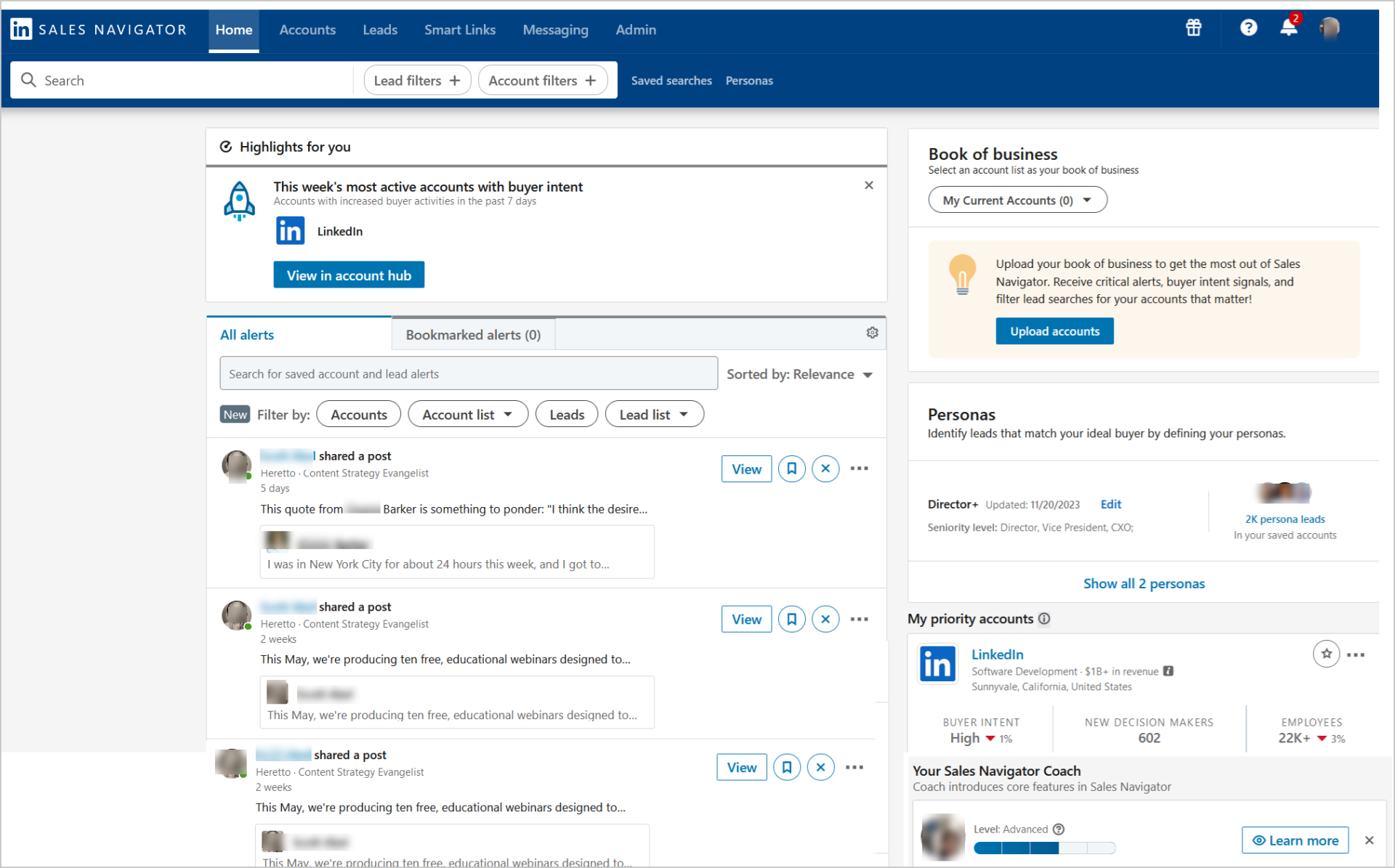
Data silos between LinkedIn Sales Navigator and your CRM slow down your sales team and hurt pipeline health. Manual data entry wastes hours each week and introduces errors that damage prospect relationships.
Remove data silos and improve data accuracy
Direct CRM integration with LinkedIn Sales Navigator creates a single source of truth for prospect data. When you save a lead in Sales Navigator, their profile information, company details, and recent activity flow directly into your CRM.
This automated sync reduces manual data entry and improves data accuracy. Your team sees current job titles, company changes, and professional milestones without hunting across platforms.
The integration matches LinkedIn profiles to existing CRM records using email addresses and profile URLs. This prevents duplicate entries and keeps contact information fresh.
Simplify sales workflows and save rep time
Manual data entry consumes significant portions of a sales rep's day. CRM integration with Sales Navigator returns those hours to actual selling.
Your team can view LinkedIn insights, send InMails, and log activities directly from CRM contact records. No tab switching, no duplicate logging, no lost context.
Activity writeback automatically captures InMails, connection requests, and messages as tasks in your CRM. This gives sales leaders visibility into outreach volume and response rates without asking reps to manually log every interaction.
"I love that Instantly just works and does the basics exceptionally well, focusing on the 'simple things that actually matter'. The interface is intuitive, making the setup process smooth and straightforward. I appreciate the integration with HubSpot." - Chico C. on G2
How to integrate LinkedIn Sales Navigator with Instantly
Sales Navigator and Instantly can be connected in an indirect way or via export:
- Export leads from Sales Navigator using third-party tools, import them into Instantly via CSV, verify emails, and launch campaigns.
- Or make LinkedIn as part of a multi-channel approach using Instantly's CRM in a click using this guide.
- Or if you're using a third party CRM e.g. HubSpot, connect these to Instantly via OutboundSync in just a couple of clicks and then those respective CRMs can be linked to Sales Navigator, unifying all of your data.
- For more customised automated workflows, integrate Sales Navigator (or your scraping tool) with Instantly via Zapier or Make.com. This allows triggering actions like adding new leads from a saved Sales Navigator search to an Instantly campaign, routing positive replies, or updating CRM records.
We'll walk through each of these methods below, one by one.
How to integrate LinkedIn Sales Navigator with HubSpot
Instantly integrates natively with HubSpot to power the Sales Navigator workflow. Professional Edition may require API Access and Chatter, which can add cost.
You also need a LinkedIn Sales Navigator Advanced or Advanced Plus account. The Core plan does not support CRM sync.
Step-by-step HubSpot integration
Start by installing the LinkedIn Sales Navigator application from the Salesforce AppExchange.
- Log in to Salesforce with System Administrator permissions
- Navigate to the Salesforce AppExchange
- Search for "LinkedIn Sales Navigator"
- Click "Get It Now" or "Try It Free"
- Choose your installation type (Install for All Users, Admins Only, or Specific Profiles)
- Click "Install" and agree to terms and conditions
- Grant third-party access when prompted
Salesforce sends an email when installation completes. Then authenticate your accounts.
- Go to Sales Navigator and click your profile icon
- Navigate to "Admin Settings" and scroll to "CRM Settings"
- Click "Change" next to CRM Settings
- Select "HubSpot" as your CRM
- Click "Enable Integration" or "Login"
- Log in to the LinkedIn account tied to your Sales Navigator subscription
- Follow authentication prompts and accept the data sharing agreement
Next, configure sync settings and data mapping.
- In Sales Navigator CRM Settings, click "Configure Settings"
- Set "Auto-Save Controls" to define when Salesforce imports accounts and leads
- Map custom fields between Salesforce and Sales Navigator
- Define sync frequency (hourly, daily) and duplicate handling rules
- Toggle "Activity Writeback" to log InMails, notes, and calls as Salesforce tasks
- Access Admin Settings and enable "Create Contacts" under "Exported to CRM"
- Add Sales Navigator components to lead, contact, opportunity, and account page layouts
Allow up to 48 hours for initial data sync. Test with sample records before rolling out to your full team.
For additional guidance on how Instantly fits into this process, review Instantly's API and webhooks guide for advanced sync configurations or our OutboundSync tutorial.
Key features and data synchronization
The HubSpot integration syncs bidirectionally. Data flows from Salesforce to Sales Navigator once during initial setup and then daily. Sales Navigator activities write back to Salesforce every 2-5 minutes.
Data imported from Salesforce to Sales Navigator:
- Accounts, contacts, and leads associated with open opportunities
- Records assigned to Sales Navigator users
- Custom fields you mapped during configuration
Data pushed from Sales Navigator to Salesforce:
- LinkedIn profile information and company details
- InMails, connection requests, and messages (as tasks)
- Profile views and engagement activity
- Job change alerts for contacts
The integration uses LinkedIn profile URLs as unique identifiers to match records and prevent duplicates. Standard fields map automatically, while custom fields require manual configuration.
How to integrate LinkedIn Sales Navigator with HubSpot
HubSpot users need an assigned Sales Hub Professional or Enterprise seat to access the Sales Navigator integration. You also need a LinkedIn Sales Navigator Advanced Plus account.
Each HubSpot user must connect their individual LinkedIn Sales Navigator account. The integration is user-specific, not org-wide.
Step-by-step HubSpot integration
Install the LinkedIn Sales Navigator app from the HubSpot App Marketplace.
- Log in to HubSpot
- Click the "Marketplace" icon (shopping bag) in top navigation
- Select "App Marketplace"
- Search for "LinkedIn Sales Navigator" or "LinkedIn CRM Sync"
- Click the app listing, then "Install app" in the upper right
- Review the authorization pop-up
- Click "Install" to grant permission
After installation, connect your LinkedIn Sales Navigator account.
- HubSpot prompts you to log in to LinkedIn Sales Navigator
- Enter your LinkedIn credentials
- Authorize HubSpot to access Sales Navigator data
- If you have multiple Sales Navigator contracts, choose one
- Select your CRM environment (Production or Sandbox)
- Review requirements and click "Accept & Continue"
- Complete the CRM Sync setup process
HubSpot redirects you back to configure data sync settings.
- Navigate to Settings (gear icon) in top navigation
- Go to "Integrations" > "Connected Apps"
- Click "LinkedIn CRM Sync"
- Click "Start all syncs" in the upper right to begin syncing contacts, companies, deals, and owners
- Configure activity writeback in Sales Navigator admin settings to log InMails and messages automatically
- Review field mapping between LinkedIn and HubSpot to ensure data accuracy
Watch this HubSpot and Instantly walkthrough for additional setup guidance.
Key features and data synchronization
The HubSpot integration provides bidirectional sync between HubSpot and Sales Navigator. Data updates flow both directions to keep records fresh.
HubSpot contact and company data pushed to Sales Navigator:
- New contacts and companies added to HubSpot
- Updates to existing contact information
- Deal associations and pipeline stage changes
Sales Navigator data pulled into HubSpot:
- LinkedIn profile details (job title, company, employment history)
- Company insights (size, industry, location)
- Recent LinkedIn activity and posts
- Mutual connections and shared interests
The integration enriches existing HubSpot records with LinkedIn data and alerts you when records become outdated. You can view LinkedIn profiles directly within HubSpot contact and company records.
The LinkedIn Sales Navigator card appears in the right panel of HubSpot records. From there, you can send InMails, save contacts to Sales Navigator lists, and access lead recommendations.
Consider using Instantly's CRM integration alongside Sales Navigator to handle email outreach while keeping LinkedIn data fresh in HubSpot.

How Instantly works with your integrated sales stack
LinkedIn Sales Navigator provides prospect intelligence. Your CRM manages relationships and pipeline. Instantly connects the two with automated, personalized email outreach that increases volume without breaking deliverability.
Instantly's platform handles the technical complexity of sending thousands of emails per day while keeping primary inbox placement. You get unlimited email accounts, built-in warmup, and a deliverability network of 4.2M+ accounts that keeps sender reputation healthy.
Centralize multi-channel outreach with Unibox
Unibox consolidates replies from all your email accounts into a single interface. Your reps see every response, regardless of which sending account was used.
This removes the tab-switching problem. Instead of checking 10+ inboxes, reps work from one unified view. They can tag replies, assign conversations, and update deal stages without leaving the interface.
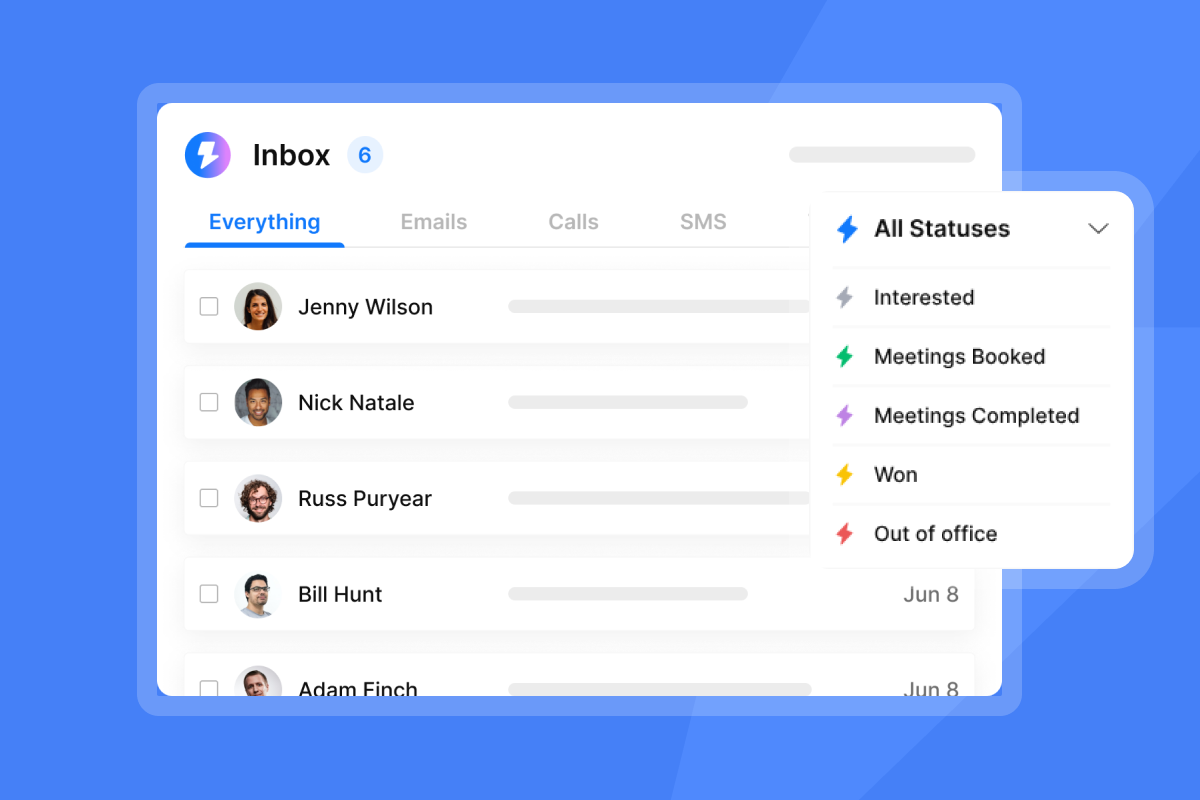
Unibox integrates with HubSpot through OutboundSync for bidirectional data flow. When a reply comes in, it creates or updates a CRM record and logs the activity timeline. When a deal stage changes in your CRM, Unibox reflects that status.
"I like that instantly can handle large scale email campaigns without worrying about deliverability. The automation for inbox rotation, warm up and sending limits makes outreach very smooth and saves a lot of manual work. The most helpful part is the detailed reporting." - Anjali T. on G2
Keep data consistent from CRM to email campaigns
Instantly pulls contact data from your CRM via native integration, Zapier, Make, or CSV export. This creates a clean pipeline from Sales Navigator prospecting to email outreach.
Here's the typical flow:
- Identify prospects in LinkedIn Sales Navigator using buyer intent signals
- Save leads to Sales Navigator, which syncs to your CRM (HubSpot)
- CRM triggers a workflow that pushes qualified leads to Instantly
- Instantly verifies email addresses, personalizes copy, and launches sequences
- Replies flow back to Unibox and sync to CRM activity timelines
This automated handoff reduces manual data entry. Your team spends time on conversations, not copying contact details between tools.
Field mapping ensures consistency. When you set up Instantly's CRM integration, you define how LinkedIn and CRM fields map to Instantly variables. This prevents personalization errors and keeps data formats standard. You can also leverage Instantly's CRM as your source of truth, see it in action in this walkthrough:
Increase outreach with unlimited accounts and deliverability tools
- Instantly's unlimited email accounts model means you can increase sending volume without per-seat costs. Add 10, 50, or 100 sending accounts on a flat monthly fee.
- The platform automatically rotates sending across accounts to distribute volume and protect sender reputation. If one domain encounters issues, others continue sending without interruption.
- Built-in warmup gradually increases send volume for new accounts. This builds sender reputation before launching cold outreach. Instantly's private deliverability network exchanges real emails between user accounts to build engagement history.
- Light Speed plans include SISR (Server & IP Sharding & Rotation) with dedicated IP pools. This provides larger teams additional deliverability control and isolation from shared IP reputation issues.
- Inbox Placement tests provide automated deliverability monitoring. You see where your emails land (primary inbox, promotions tab, or spam) across Gmail, Outlook, and other providers. If placement drops, you get alerts to investigate and fix issues before they damage campaign performance.
Watch this Instantly tutorial to see the warmup features in action.
AI agents handle replies and routine tasks
- Instantly's AI agents cut manual workload by handling routine tasks and replies. Copilot helps with lead research, campaign creation, and analytics summaries. AI Reply Agent drafts and sends responses to common prospect questions.
- AI Reply Agent responds to leads with human-quality messages. You can run it in Human-in-the-Loop mode (agent drafts, you approve) or Autopilot mode (agent sends automatically based on your rules).
- The agent integrates with Slack for review and approval workflows. When a high-priority reply comes in, your team gets a notification with the drafted response. One click approves and sends.
- Copilot Tasks run on a recurring schedule. Set up tasks like "source 50 new leads matching our ICP from SuperSearch every Monday" or "audit follow-up sequences weekly and flag campaigns below 3% reply rate." Copilot handles execution and reports results.
- This automation layer bridges the gap between LinkedIn prospecting and email execution. Your team focuses on live conversations and closing deals while AI handles data enrichment, personalization, and initial replies.
"The platform is super intuitive, easy to set up, and makes it simple to manage multiple domains and inboxes at scale. Deliverability is great and the analytics give us exactly what we need to optimize campaigns quickly." - Shaiel P. on G2
Best practices for data sync and workflow automation
Clean data and standardized processes determine whether your integrated stack delivers results or creates new problems. Follow these practices to maintain data quality and prevent common sync issues.
Maintain data hygiene and deduplication
- Run deduplication before connecting Sales Navigator to your CRM. Start with high-confidence matches using exact email addresses, then apply fuzzy matching on name and company.
- Use LinkedIn profile URLs as unique identifiers. Sales Navigator and most CRM integrations rely on these URLs to match records accurately and prevent duplicate entries.
- Enable automated deduplication in your CRM. Configure rules that alert users or prevent duplicate creation during data import. This stops problems at the source rather than cleaning them up later.
- Review duplicate detection quarterly. Check for records that slipped through automated rules due to inconsistent formatting (e.g., "VP Sales" vs. "Vice President of Sales"). Merge duplicates and update your matching rules.
- Set up validation rules for critical fields. Require LinkedIn profile URLs for key accounts. Enforce standard formats for phone numbers and job titles. This consistency improves match rates and reduces sync errors.
Instantly verifies email addresses before adding contacts to campaigns, cutting bounce rates. The platform flags invalid emails, role addresses (info@, sales@), and disposable domains to protect your sender reputation and maintain clean data.
Monitor deliverability and domain health
- Track bounce rates, spam complaints, and unsubscribe rates weekly. Keep bounces at or below 2%. If they spike above this threshold, pause sending, re-verify your list, and investigate the cause.
- Monitor sender reputation using tools like Google Postmaster Tools, Microsoft SNDS, and Instantly's Inbox Placement tests. A drop in reputation often precedes deliverability crashes by 1-2 weeks.
- Ramp new sending accounts gradually. Start low and increase volume incrementally over several weeks. Instantly's warmup automates this ramp, but manual sending should follow similar pacing
- Use separate domains for cold outreach vs. transactional email. Protect your primary business domain by sending cold campaigns from secondary domains. This isolates reputation risk.
- Review email content for spam triggers before launching campaigns. Avoid excessive capitalization, urgent language, and suspicious links. Test messages with mail-tester.com to identify potential issues.
- Set up alerts for critical deliverability metrics. Get notified when bounce rate exceeds 2%, when inbox placement drops below 80%, or when a sending account gets blocked by a major provider.
For comprehensive deliverability strategy, watch this video on email deliverability rules.
Troubleshooting common integration issues
Even properly configured integrations encounter problems. Here are the most common issues and how to resolve them quickly.
Data discrepancies
Symptom:
LinkedIn data in your CRM doesn't match current LinkedIn profiles. Job titles, companies, or contact information are outdated.
Causes:
Sync delays, prospects changing roles, or field mapping errors.
Solution:
Check sync logs in your CRM's integration settings to verify when the last successful sync occurred. For Sales Navigator Enterprise users, enable Data Validation to automatically flag outdated records when contacts change companies.
Verify field mappings between Sales Navigator and your CRM. Mismatched field types (text vs. picklist) or name differences cause silent failures. Re-map affected fields and trigger a manual sync to update records.
Connection errors
Symptom:
Error messages like "An Error Occurred. Please Try Again" or "code 412 error" when attempting to use the integration. Features suddenly stop working.
Causes:
Lost authentication, expired API credentials, or Sales Navigator subscription changes.
Solution:
Log out of LinkedIn and close all browser windows. Remove the Sales Navigator integration from your CRM's connected apps settings. Re-add and re-authenticate using your current LinkedIn credentials.
Clear your browser cache and cookies, then try reconnecting. Many connection errors stem from cached authentication tokens that no longer match server-side credentials.
Check that CRM sync is enabled in Sales Navigator settings. Navigate to Admin > Admin Settings > CRM Settings > Connect to CRM and verify the connection is active. Toggle it off and back on if necessary.
User permissions
Symptom:
Integration works for some users but not others. Error messages about insufficient permissions or inability to retrieve CRM data.
Causes:
Missing CRM permissions, LinkedIn administrator roles not properly configured, or email address mismatches between systems.
Solution:
Verify that the user's email address in your CRM exactly matches their LinkedIn account email. Even small differences (like +tag email aliases) prevent proper matching and sync.
Review CRM user permissions. For Salesforce, ensure users have read/write access to the relevant objects (Leads, Contacts, Accounts, Opportunities). For HubSpot, confirm they have an assigned Sales Hub seat.
Check Sales Navigator administrator roles. In Sales Navigator Admin Settings, confirm the user has the appropriate team member license and that their account is active.
Build a defensible sales process
A unified sales stack with LinkedIn Sales Navigator, your CRM, and Instantly creates a defensible process that increases reliability.
Your prospecting starts with buyer intent signals in Sales Navigator. Clean data flows automatically to your CRM. Verified contacts move to personalized email sequences in Instantly. Replies land in Unibox for fast response. Activity syncs back to CRM for accurate reporting.
The integration manages three critical jobs.
- It removes data silos between prospecting and outreach tools. You maintain one source of truth in your CRM while accessing specialized capabilities in Sales Navigator and Instantly.
- It makes processes consistent across your team. Everyone follows the same workflow, uses the same templates, and logs activities consistently. This makes ramp time faster and reduces the variance between your best and average performers.
- It safeguards your domain reputation through systematic deliverability management. Instantly's warmup, health monitoring, and inbox rotation keep you in the primary inbox even as you increase volume.
Start with your highest-volume use case. If you run outbound campaigns to 500+ prospects per month, integrate Sales Navigator with your CRM first, then add Instantly for email execution. If you're scaling an agency across multiple clients, begin with Instantly's unlimited accounts and layer in Sales Navigator for prospecting.
Try Instantly for free, run a 30-day pilot with 5-10 reps before full deployment. Measure time saved on data entry, reply rates, meetings booked, and data accuracy. Use those metrics to build your business case for the full team.
FAQs
What data syncs between Sales Navigator and CRM?
LinkedIn profile details, company information, job titles, employment history, and contact details flow from Sales Navigator to your CRM. Activity data like InMails, connection requests, and messages sync back as CRM tasks, typically every 2-5 minutes. HubSpot support bidirectional sync. Custom field mapping determines which additional data points sync based on your configuration.
Can Instantly integrate directly with Sales Navigator?
Instantly integrates with your CRM (HubSpot), which connects to Sales Navigator. This three-tool architecture creates a clean data pipeline by prospecting in Sales Navigator, qualifying in CRM, and executing outreach in Instantly. You can also use automation platforms like Zapier or Make to build custom workflows that pull Sales Navigator lead lists into Instantly campaigns based on specific triggers or conditions.
How does Instantly help with data hygiene?
Instantly verifies email addresses before adding contacts to campaigns, cutting bounce rates. The platform flags invalid emails, role addresses (info@, sales@), and disposable domains. Built-in deduplication prevents sending multiple emails to the same contact across different campaigns. Integration with your CRM ensures contact data stays synchronized, and AI agents can automatically update records when prospects reply with corrected information.
What subscription tiers are required for integration?
For Sales Navigator, you need an Advanced (Team) or Advanced Plus (Enterprise) plan. Core plans do not support CRM sync. For Salesforce, Professional Edition or higher is required. HubSpot requires Sales Hub Professional or Enterprise. Instantly offers integrations across all plan tiers, starting with the Growth plan at $37/month.
How long does initial data sync take?
Initial sync between Sales Navigator and your CRM typically completes within 24-48 hours. The first sync imports all qualifying records (accounts, contacts, leads associated with open opportunities). Subsequent daily syncs process only changes and new records, pulling updates every 12 hours. Activity writeback happens in near real-time (2-5 minutes) for most CRM platforms.
Can I sync Sales Navigator with multiple CRMs simultaneously?
No. Sales Navigator connects to one CRM platform at a time per user account. If your organization uses multiple CRMs, you must choose which one to sync with Sales Navigator. However, you can use iPaaS tools like Zapier or Make to create custom workflows that push Sales Navigator data to multiple destinations, though this requires additional configuration and subscription costs.
Key terminology
CRM: Customer Relationship Management system. Software that manages prospect and customer interactions, tracks deals, and stores contact information. Examples include HubSpot.
LinkedIn Sales Navigator: LinkedIn's premium sales tool that provides advanced search, lead recommendations, and buyer intent signals. Offers CRM integration features on Advanced and Advanced Plus plans.
Instantly Unibox: Centralized inbox that consolidates replies from all connected email accounts into a single interface. Includes tagging, assignment, and CRM sync capabilities for managing high-volume email outreach.
SISR: Server & IP Sharding & Rotation. Instantly's Light Speed feature that uses dedicated IP pools and intelligent rotation to increase deliverability for high-volume senders. Isolates sender reputation by spreading volume across multiple servers and IPs.
Activity writeback: Automatic logging of Sales Navigator activities (InMails, messages, connection requests) as tasks or activities in your CRM. Removes manual entry and maintains complete activity history.
Field mapping: Configuration that associates data fields between two systems (e.g., LinkedIn "Company" field maps to Salesforce "Account Name"). Proper mapping ensures data flows correctly and maintains consistency across platforms.



