


Updated December 08, 2025
TL;DR: Most sales teams fail at video email because they treat it like file transfer. Files over 20MB bounce and trigger spam filters. Host your video on Loom or Vidyard, insert a clickable thumbnail in your email, and send through a deliverability engine like Instantly. Track replies and booked meetings, not just views. Run A/B tests (video vs. text) to find what works and prove ROI. The goal is not video for video's sake. The goal is meetings.
Most email providers cap attachments at 20 to 25MB to protect their servers and users. Large files trigger spam filters, hurt your sender reputation, and tank your deliverability. If you are attaching video files directly, you are not doing sales. You are doing file transfer, and you are likely invisible to your prospects.
The path to measurable video ROI starts with fixing this technical mistake. Then you build a testing framework to prove whether video actually moves the needle for your team. I'll walk you through both the technical fix and the testing framework.
Why you can't (and shouldn't) attach video files
The 20MB wall and what it does to deliverability
Gmail caps attachments at 25MB while Outlook sets the limit at 20MB. If your video file exceeds these thresholds, the email will not send. The message bounces back to you, or it fails silently and your prospect never receives it.
- Even if your file is under the limit, spam filters treat large attachments as red flags, and ISPs view heavy emails with suspicion.
- Large attachments slow down inbox processing and look like bulk content that spammers send, causing your pitch to land in spam or Promotions instead of the Primary Inbox.
- ISPs assign your domain a sender reputation score based on your sending behavior.
- Every bounce, spam complaint, and bulk mailing behavior lowers that score.
Video emails can boost engagement when delivered properly, but only if the email actually reaches the inbox. Attaching files puts that at risk.
For sales leaders managing a team and protecting domain health across multiple reps, this is not a minor issue. A single campaign with bad attachments can damage your domain reputation for weeks. We built email warmup and automated inbox placement testing to prevent this kind of damage. You cannot scale video outreach if you are burning domains.
What happens to your sender reputation when you attach large files
Large attachments do more than bounce. They increase the total email size, which slows processing on the recipient's server. ISPs interpret this as low-quality mail. Your domain gets flagged. Future emails from that domain, even clean ones, start landing in spam.
Bounce rate is a critical health metric. If your bounce rate passes 1 percent, pause the campaign and fix your list. Attaching video files that are too large drives bounces up artificially. You lose the ability to differentiate between bad data and bad email design.
The fix is simple: don't attach the video. Host it and link to it. This keeps your email size small, your deliverability high, and your tracking intact.
How to send videos too large for email (3 methods)
You have a video that is 50MB. You need to get it in front of a prospect. Use one of these three methods, ranked by how well they work for sales.
Method 1: Cloud storage links (Google Drive, Dropbox, WeTransfer)
Upload your video to Google Drive, Dropbox, or WeTransfer. Copy the shareable link and paste it into your email. This works for one-off transfers or internal file sharing where trust is already established.
The downside: the link looks generic, you get no tracking, and you don't know if the prospect clicked, watched, or ignored it. For cold outreach, this is a non-starter.
Method 2: Compression (Handbrake, ZIP)
Use a tool like Handbrake to reduce the video file size below 20MB, then attach the compressed file. Compression often reduces video quality, and even a smaller file still adds weight to the email, which can hurt deliverability. You get no tracking.
This method works for internal team reviews or situations where you must attach the file directly. Skip it for cold sales.
Method 3: The sales pro method (Hosted thumbnails with video platforms)
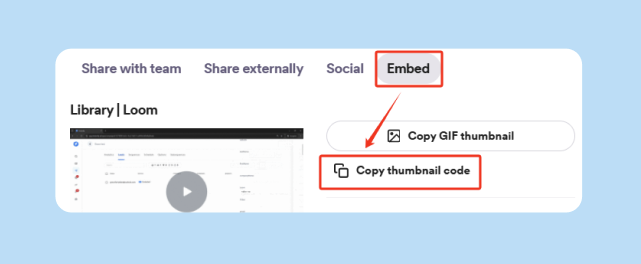
Host your video on Loom, Vidyard, or Sendspark. Grab the shareable link. Create a static image or animated GIF that shows a preview of the video with a play button overlay. Insert that image into your email and hyperlink it to the hosted video. Send the email through Instantly to ensure deliverability and track engagement.
- Pros: Small email size. High deliverability. Full tracking (clicks, views, watch time). Professional appearance. Scalable across campaigns.
- Cons: Requires a video hosting platform (most have free tiers). Adds one extra step compared to attaching.
- Best for: Cold outreach, follow-ups, and any scenario where you need to prove ROI.
This is the method that top performers use because it protects domain health and provides the data you need to optimize. Instantly enables you to embed personalized urls dynamically with optimized thumbnails.
"I love Instantly's deliverability tools, which are the best I've encountered. Having used Salesloft, Apollo, and other tools, Instantly gives me the highest reply rate by far." - Josh G. on G2
Comparison: File transfer vs. video sales platforms
| Method | Max Size | Deliverability Risk | Tracking | Best For |
|---|---|---|---|---|
| Direct Attachment | 20-25MB | High (bounces, spam filters) | None | Not recommended for sales |
| Cloud Link (Drive, Dropbox) | No hard limit | Low | Minimal (link clicks only) | Internal sharing, warm leads |
| Compression (Handbrake, ZIP) | Under 20MB | Medium (still adds weight) | None | File archiving, not outreach |
| Hosted Thumbnail (Loom + Instantly) | No limit on video | Very Low (small email size) | Full (clicks, views, watch time) | Cold outreach, follow-ups, campaigns |
The hosted thumbnail method is the only one that scales. It keeps your email light, protects your sender reputation, and gives you the analytics to prove whether video is worth the effort.
The ROI framework: Measuring what matters
Video is not a silver bullet. Treat it as a variable to test. The ROI of video email comes from replies and booked meetings, not from video views or open rates. Here is how to measure it correctly.
Step 1: Define your cost of investment
Calculate the total cost of running a video email campaign. Include video production time, hosting platform fees (if any), email sending platform costs, and staff time to manage the campaign.
For a simple in-house video, this might be:
- Video production time (2 hours at $50/hour = $100)
- Hosting platform (Loom free tier = $0)
- Instantly Outreach plan ($37/month)
- Campaign management (3 hours at $50/hour = $150)
Total: $287
If you are using our SuperSearch lead database to source verified contacts, factor in the credit cost. If you are running our AI Reply Agent to handle initial responses, add 5 credits per AI reply. Watch how SuperSearch works end to end below to help you get targeted ICP leads data.
Step 2: Track the full funnel from send to meeting
Start with the campaign send. Track these metrics in order:
- Emails sent: Total number of emails delivered (not bounced).
- Reply rate: Percentage of recipients who reply. In my experience managing thousands of campaigns, personalized video emails consistently outperform generic text when targeting visual learners and decision-makers who value face-to-face connection.
- Qualified replies: Replies that express interest or ask a question (not unsubscribes or "not interested").
- Meetings booked: Qualified replies that turn into scheduled demos or calls.
- Opportunities created: Meetings that turn into pipeline.
- Revenue closed: Deals won from this campaign.
Track this in your CRM. We integrate with HubSpot and Salesforce to ensure that every reply and meeting is attributed correctly. If you are using Unibox, all replies land in one place and you can tag them by outcome.
Step 3: Calculate ROI using the standard formula
ROI = [(Gain from Investment - Cost of Investment) / Cost of Investment] x 100
Example: You send a video campaign to 500 prospects. It costs $287 (from Step 1). The campaign generates 25 replies, 5 meetings, and 2 closed deals. Each deal is worth $3,000.
- Total revenue: 2 deals x $3,000 = $6,000
- ROI: [($6,000 - $287) / $287] x 100 = 1,991%
This is a strong result. Now compare it to a text-only campaign. If the text campaign costs $150 (no video production time) and generates 10 replies, 2 meetings, and 1 deal ($3,000), the ROI is:
- ROI (text): [($3,000 - $150) / $150] x 100 = 1,900%
In this example, video has a higher absolute return, but the difference is not dramatic. The key is to run this comparison in your own campaigns with your own audience. Don't assume video always wins. Test it. Once you've proven direct ROI, you can layer in softer measures like brand sentiment or customer lifetime value.
Step-by-step: Launching a video campaign in Instantly
Here is how to run a video email campaign that you can measure and scale.
Step 1: Record and host your video
Record a 30 to 60 second video. Keep it short, aim for under 90 seconds. Use Loom (free for up to 25 videos) or Vidyard (free tier available). Upload the video and grab the shareable link.
Our team created a detailed walkthrough on structuring video for cold outreach on YouTube. Focus on one specific problem the prospect has and one clear ask (a 15-minute call).
Step 2: Create a clickable thumbnail
Take a screenshot of the video's opening frame or use Loom's auto-generated thumbnail. Add a play button icon if the platform does not include one. Save this as a PNG or JPEG (under 100KB to keep email size low).
Alternatively, create a short animated GIF (2 to 3 seconds) that shows movement from the video. This can increase click-through rates compared to a static image. Several free tools let you create GIFs from video files.
See our full guide on how to do this at scale.
Step 3: Insert the thumbnail into your Instantly campaign
- Log into Instantly and create a new campaign or add a step to an existing sequence.
- In the email editor, click the image icon to upload your thumbnail.
- Highlight the image and click the link icon. Paste your Loom or Vidyard link.
- Write your email copy around the video. Example: "I recorded a quick video (30 seconds) to show you how [specific outcome]. Worth a watch: [linked thumbnail]."
We support HTML and image insertion natively. If you need help, our Help Center has step-by-step guides with screenshots.
Step 4: Set up A/B testing (video vs. text)
Use our A/Z testing feature to compare your video email against a text-only control. Split your list into two groups:
- Group A: Receives the email with the video thumbnail.
- Group B: Receives the same email with text copy that summarizes what the video says.
Send both campaigns on the same day, at the same time, to contacts with similar attributes (job title, company size, industry). Track reply rate and meeting rate for each group. This is how you prove whether video is worth the effort.
Our guide on A/B testing cold emails shows how systematic testing can boost conversion rates. Apply the same rigor to testing video.
Step 5: Warm up your domain and monitor deliverability
Before you send, warm up your domain. Our email warmup gradually increases send volume and engages with a network of millions of accounts to build sender reputation. Run warmup for at least 14 days before launching a new campaign.
Use Inbox Placement testing to check where your emails land (Primary, Promotions, or Spam) across Gmail, Outlook, and other providers. If placement drops below 80 percent Primary, pause and troubleshoot. Check your list hygiene, review your email copy for spam triggers, and confirm your DNS records (SPF, DKIM, DMARC) are correct.
Step 6: Track replies and meetings in Unibox
All replies from your video campaign flow into our Unibox. Tag each reply as "Qualified," "Not Interested," or "Out of Office." For qualified replies, book a meeting directly from the interface or hand off to your CRM using our integrations.
Track the ratio of qualified replies to meetings booked. If you're getting replies but no meetings, check your follow-up copy or your offer, not the video.
"Instantly has transformed my outreach process. The platform is intuitive, has a ton of cool features and delivers great results. Customer support is pretty reliable." - Jon M. on G2
Stop guessing. Start measuring.
Video email is not magic. It is a tactic that works for some audiences and not for others. The only way to know if it drives ROI for your team is to test it systematically.
Host your videos, insert clickable thumbnails, send through a deliverability engine like Instantly, and track replies and meetings. Run A/B tests to compare video against text. Measure the full funnel from send to closed deal. Protect your domain health with warmup and inbox placement testing.
The sales leaders who win with video are not the ones with the fanciest production. They are the ones who treat video as a variable to optimize, not a trend to follow.
Ready to test video email? We built Instantly to protect deliverability and track every metric that matters. Start your free trial and use the hosted thumbnail method to run your first A/B test this week.
FAQs
Can you email video files directly?
Technically yes, but only if the file is under 20 to 25MB. It is not recommended for cold outreach because large files hurt deliverability and sender reputation.
How do I send a YouTube video in an email?
Copy the YouTube URL, create a thumbnail image with a play button, insert the image in your email, and hyperlink it to the YouTube URL. Do not embed the YouTube player directly in the email as most email clients block it.
What is the best way to send large video files via email?
Host the video on Loom, Vidyard, or a similar platform. Insert a clickable thumbnail in your email that links to the hosted video. This keeps email size low and provides tracking.
How do I know if prospects are watching my video?
Use a video hosting platform like Loom or Vidyard that provides view analytics. Track the percentage of the video watched and how many unique viewers clicked through from your email.
Does including video in cold emails improve reply rates?
It depends on your audience and your offer. The only way to know for your campaigns is to run an A/B test comparing video to text and measure qualified replies and meetings booked.
What is a good reply rate for video email campaigns?
A reply rate of 5 to 10 percent is solid for cold outreach. Above 10 percent is strong. Track qualified replies (interest expressed) separately from total replies (including unsubscribes and out-of-office messages).
Key terms glossary
Email attachment size limit: The maximum file size that an email provider will accept for attachments. Gmail allows 25MB, Outlook allows 20MB.
Cloud storage: Services like Google Drive, Dropbox, or WeTransfer that let you upload large files and share them via a link.
File transfer service: Tools like WeTransfer or Dropbox Transfer designed specifically for sending large files that exceed email attachment limits.
Video compression: The process of reducing a video file's size by lowering resolution, bitrate, or frame rate. This often reduces quality.
Sender reputation: A score assigned by ISPs to your email domain based on your sending behavior. High bounce rates, spam complaints, and suspicious patterns (like large attachments) lower your score.
Deliverability: The ability of your email to reach the recipient's Primary Inbox rather than landing in spam or being blocked entirely.
Hosted thumbnail: A small image (screenshot or GIF) of a video that is hyperlinked to the full video hosted on a platform like Loom or Vidyard. This method keeps email size low and provides tracking.


