


Zoho email IMAP allows your inbox to stay synced across email clients, devices, and outbound tools. Setting it up takes minutes, but using the right servers, enabling authentication, managing folders, and handling app passwords correctly is vital.
IMAP is the better choice over POP3 for multi-device workflows, reply tracking, and outreach tools. Once configured properly, Zoho Mail works reliably far beyond Zoho’s own interface.
Zoho Mail is a solid alternative to Google and Microsoft. It’s reliable, affordable, and refreshingly straightforward.
But the moment you want to use Zoho outside its own interface, whether that’s in Outlook, a mobile app, or a cold email platform, you’ll run into one requirement: IMAP. Without it, your inbox stays locked inside Zoho.
The setup itself isn’t complicated, but the details matter. A wrong app password or a disabled setting is enough to break the connection. This guide walks through Zoho email IMAP from start to finish, covering setup, server settings, sync options, and the most common issues people run into along the way.
How Do You Enable IMAP Access in Zoho Mail?
Before you can connect Zoho to any external email client, you need to turn on IMAP access from within your Zoho account. It's not enabled by default.
The good news? The setup only takes a minute.
- Log in to your Zoho Mail account
- Go to Settings
- Navigate to Mail Accounts and click your primary email address
- Scroll to the IMAP section and check the IMAP Access checkbox
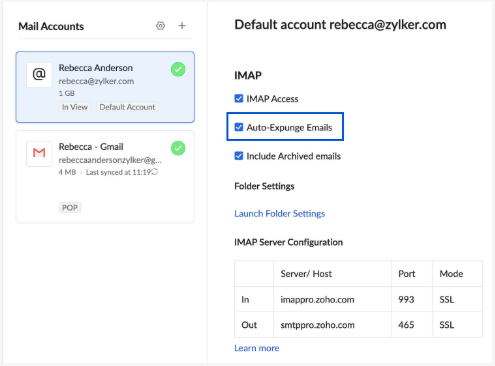
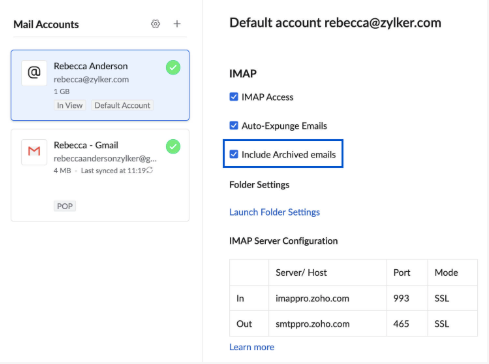
- Optionally, enable Auto-Expunge and Include Archived Emails based on your preferences
- Click Save
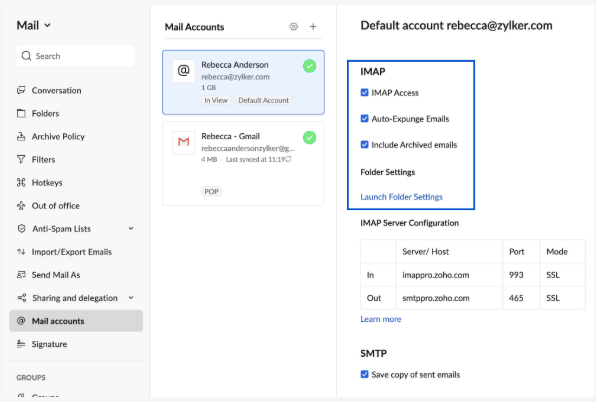
One thing worth noting here: If you're part of an organization, your admin may have disabled IMAP access through email policies. Check with them if you don't see the option.
What Are the Zoho Mail IMAP Server Settings?
Once IMAP is enabled, you'll need the correct server details to configure your email client. This is where a lot of people get tripped up, and it usually comes down to one thing: Zoho uses different servers depending on your account type.
For personal users (username@zoho.com or username@zohomail.com):
- Incoming Server: imap.zoho.com
- Port: 993
- SSL: Yes
- Username: your full email address
For organizations/paid users (you@yourcompanydomain.com):
- Incoming Server: imappro.zoho.com
- Port: 993
- SSL: Yes
- Username: your full email address
Using the wrong server for your account type is one of the most common reasons IMAP connections fail. And it's an easy mistake to make if you're just copying settings from a random tutorial.
One other detail worth knowing: Zoho operates multiple datacenters across regions (US, EU, India, Australia), so your exact server address may vary. If you're unsure which applies to you, Zoho makes this easy to check. Log in to your Zoho Mail account, go to Settings > Mail Accounts, and you'll see your exact server configuration based on your account type and datacenter.
What Are the Zoho Mail SMTP Settings?
IMAP handles incoming email. But receiving emails is only useful if you can reply to them. For that, you'll need SMTP settings.
For personal users:
- Outgoing Server: smtp.zoho.com
- Port: 465 (SSL) or 587 (TLS)
- Authentication: Yes
- Username: your full email address
For organizations/paid users:
- Outgoing Server: smtppro.zoho.com
- Port: 465 (SSL) or 587 (TLS)
- Authentication: Yes
- Username: your full email address
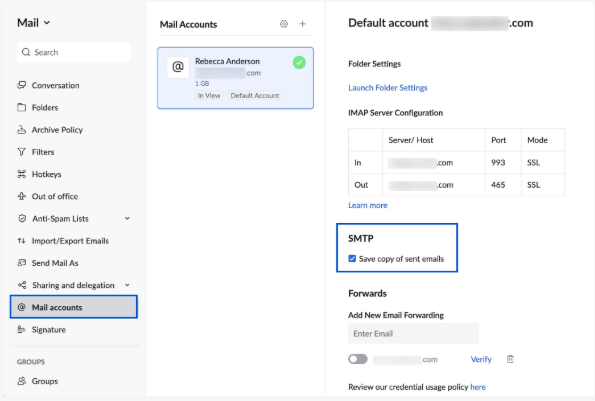
One thing that catches people off guard: Zoho requires authentication for all outgoing mail. If you skip that setting, your emails won't send.
If you're connecting Zoho to a cold email platform like Instantly, you'll typically enter both IMAP and SMTP settings together during account setup. Having them side by side here should make that process a lot smoother.
How Do You Choose Which Folders Sync via IMAP?
If you have a large mailbox with dozens of folders, syncing everything can slow down your email client. The good news is Zoho lets you choose exactly which folders you want available through IMAP.
To configure folder settings:
- Log in to Zoho Mail and go to Settings
- Navigate to Mail Accounts and click your primary email address
- Under the IMAP section, click Launch folder settings
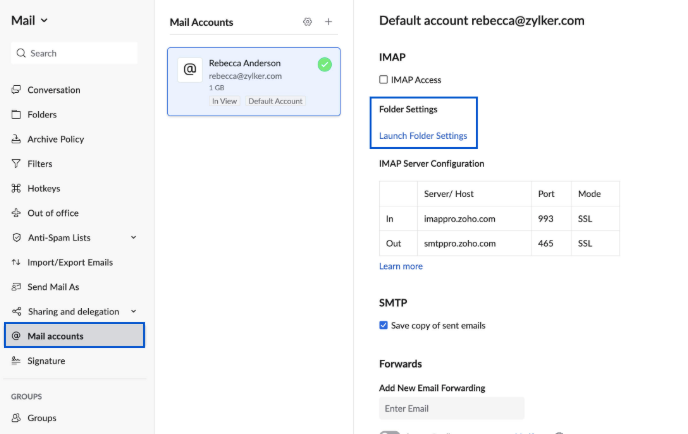
- Select the folders you want to sync with your IMAP client
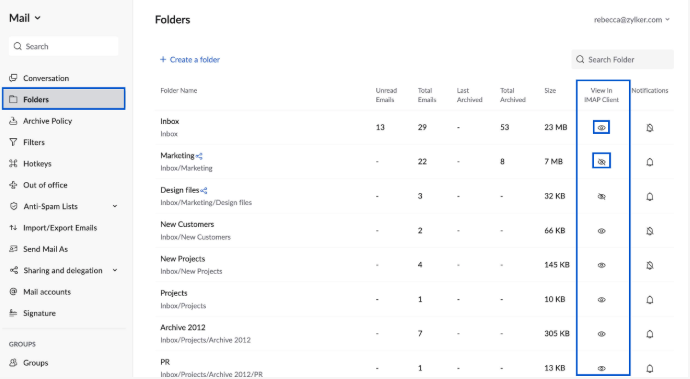
- Save your changes
Only the folders you select here will appear in your connected email clients. This is useful if you want to keep things lightweight or exclude folders you don't need on mobile.
And if you're managing multiple accounts or shared folders, worth noting: folders that have been shared with you can also be viewed from IMAP clients on both desktop and mobile.
What Does Auto-Expunge Do in Zoho IMAP?
When you delete or move an email in your IMAP client, Zoho needs to know whether to apply that change to the server immediately or wait until you manually trigger it.
That's what Auto-Expunge controls.
To configure it:
- Log in to Zoho Mail and go to Settings
- Navigate to Mail Accounts and click your primary email address
- In the IMAP section, find the expunge options
- Check Auto-Expunge Mails to sync deletions and moves immediately
- Leave it unchecked if you prefer to manually expunge from your email client
- Click Save
Should You Include Archived Emails in IMAP?
Zoho gives you the option to include archived emails when accessing your account via IMAP. If enabled, archived messages will appear in their original folders when you connect through an external client.
So, should you turn it on?
It depends on how you use archiving. If you archive emails regularly and still want access to them from Outlook, Thunderbird, or your mobile app, enabling this makes sense. If you prefer to keep archived emails tucked away and out of sight, leave it off.
To enable it:
- Go to Settings > Mail Accounts in Zoho Mail
- Click your primary email address
- In the IMAP section, check Include Archived Emails
- Save your changes
Should You Use IMAP or POP3 for Zoho Mail?
Zoho supports both IMAP and POP3, so you do have a choice. But for most users, IMAP is the better option.
The difference comes down to how each protocol handles your emails. IMAP syncs your mailbox across all connected devices and apps. When you read, delete, or move an email on one device, those changes reflect everywhere. POP3, on the other hand, downloads emails to a single device and typically removes them from the server unless you change the default settings.
If you only check email from one computer and want local copies stored on that machine, POP3 can work. But if you access your email from multiple places, or if you're connecting Zoho to a tool that needs to track replies and conversations, IMAP is the way to go.
Thinking on this, IMAP really does make more sense for how most of us work today. We're checking email on our phones, our laptops, and sometimes through third-party apps, all in the same day. Having everything stay in sync just removes one more thing to worry about.
Common Zoho IMAP Issues and How to Fix Them
Even with the right settings in place, IMAP setup doesn't always go smoothly. Before you start troubleshooting random fixes, it helps to know the most common issues and what's actually causing them.
Your login keeps failing even though the password is correct. If you've triple-checked your password and it's still not working, two-factor authentication is likely the culprit. Zoho won't accept your regular password for IMAP when 2FA is enabled. You'll need to generate an app-specific password from your Zoho security settings and use that instead.
You're a federated sign-in user. If you log into Zoho using Google, Facebook, or another external provider, you may not have a dedicated Zoho password at all. Without one, IMAP won't work. The fix is to create a password in your account settings before attempting the connection.
The IMAP access option is missing entirely. This is a common point of confusion for newer free plan users. Zoho has restricted IMAP access for free accounts in certain regions, so if you don't see the option, it's not hidden. It's simply not available on your plan. Upgrading to a paid plan will unlock it.
Emails aren't syncing properly between devices. If you're deleting emails on one device and they keep reappearing on another, check your expunge settings. With Auto-Expunge disabled, deleted or moved emails won't update on the server until you manually expunge them. Enabling Auto-Expunge solves this.
You're seeing a server connection error. Double-check that you're using the correct server for your account type. Refer to the IMAP and SMTP settings sections above if you're unsure.
Key Takeaways
IMAP is what makes your Zoho inbox work beyond Zoho's own interface. Without it, you're limited to checking emails in one place. With it, everything stays in sync no matter where you're working from.
The setup itself only takes a few minutes. Where things tend to go wrong is in the details: a server mismatch, a missing app password, or a setting that was never enabled. Now that you know where to look, those shouldn't slow you down.
And if you're configuring IMAP because you want to run cold email campaigns from your Zoho account, Instantly makes that easy. Connect your IMAP and SMTP settings, and you're ready to send, warm up your inbox, and track replies all in one place. Try it for free today.


