.svg)
%20(1).svg)


Updated December 09, 2025
TL;DR: You can't attach video files to cold emails. Attachments over 20MB bounce, and any attachment from an unknown sender hurts reputation. The solution: host videos on a custom subdomain, use static thumbnail links, and run a 30-day domain warmup before sending. Video emails can increase CTRs by 200-300%, but only with the right delivery system. Tools like Instantly provide unlimited warmup and inbox placement testing so you scale video campaigns without burning domains.
Video email is now a critical tool in cold outreach. Including "video" in a subject line can increase open rates by 6-19%, and video can drive CTRs up by 65% or more. But I have watched most sales teams destroy their deliverability by attaching files or linking without a warmup strategy.
Every cold email outreach system that scales video campaigns safely treats domain warmup and inbox placement testing as prerequisites, not afterthoughts, because a single deliverability mistake can burn weeks of sending infrastructure. Here is the pattern I see dozens of times. A rep records a perfect 90-second pitch, attaches the 26MB file to 100 cold emails, and watches the bounce rate spike. The domain reputation drops. Three weeks later, the entire sending infrastructure is flagged. You get spam folders, domain blocks, and zero meetings.
This guide shows you the correct way to send video emails at scale. You will learn why attachments destroy deliverability, which hosting methods work for cold outreach, and a day-by-day 30-day plan to warm up your domains before you send a single video link. Instantly provides the complete infrastructure for video email campaigns at scale. Unlimited accounts, automated warmup across 4.2M+ accounts, inbox placement testing, and flat-fee pricing that doesn't penalize you for adding domains.
Why you can't attach large videos to cold emails
The technical limits are clear, and you need to respect them. Gmail caps attachments at 25MB, and most corporate email servers enforce similar or lower thresholds. But even if you compress a video to 15MB, attaching files to cold outreach is a deliverability risk.
Here is the attachment trap. Spam filters treat your large attachments as suspicious when you are an unknown sender. Email service providers scrutinize emails containing links or attachments for potential phishing or malware. Large files are a red flag for spam filters. Even when an attachment successfully delivers, many email clients block the file or display a warning to the recipient.
Direct video embeds are not supported by most email clients. You cannot embed a full video file and expect it to play inline in Gmail, Outlook, or other major platforms. The recipient sees a broken element or nothing at all.
Attachments hurt your sender reputation in a second way. ISPs monitor how recipients interact with your emails. A pattern of unopened emails with heavy attachments signals that your content is unwanted. That lowers your sender score and pushes future emails into spam. For the complete infrastructure checklist on authentication, warmup ramp schedules, and inbox placement monitoring that protects your domains throughout the 30-day plan, see this email deliverability guide.
3 methods for sending large videos (and which one wins)
You have three practical options for sending video in cold outreach. I have tested all three at scale. Here is what works.
Method 1: Cloud storage and file transfer services
Services like WeTransfer and Google Drive let you share files up to 5GB. Simple for one-off sends to warm contacts, but generic third-party links hurt sender reputation at scale and you cannot automate personalization.
Method 2: Compression and zip files
Compression tools like Handbrake shrink file size, but zip files trigger security filters and degrade quality. Skip this for cold outreach.
Method 3: Video platforms with thumbnail links (the winner)
This is the proven method. You host your video on a platform like Loom, Vidyard, or a custom subdomain. In your email, you include a static thumbnail image with a play button that links to the hosted video.
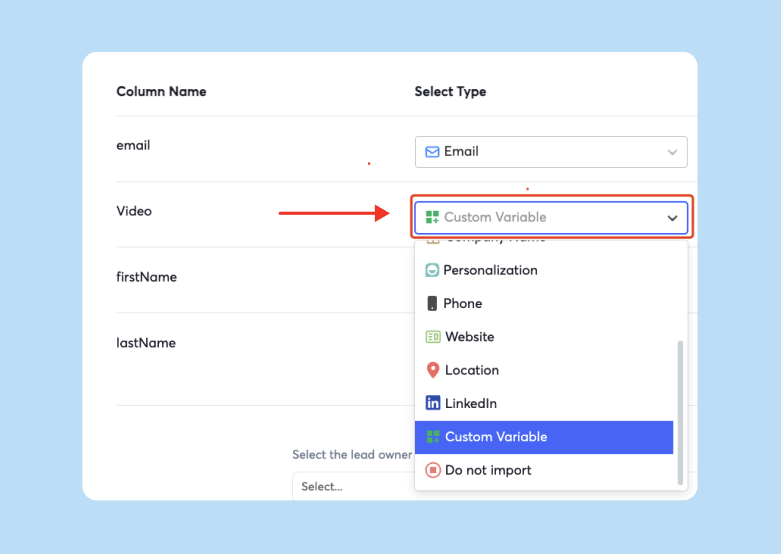
Emails with static thumbnail links remain lightweight, load quickly, and are less likely to be blocked by spam filters. Static thumbnails are universally supported by all email clients. You maintain full control over tracking and analytics.
Here is the comparison:
| Method | Pros | Cons | Best For |
|---|---|---|---|
| Cloud storage | Simple, high file limits | Generic links hurt trust, manual | One-off sends to existing clients |
| Compression + zip | Single email, no links | Quality loss, security filters | Internal team communication only |
| Thumbnail + hosted video | Lightweight, high deliverability, scalable | Requires setup | Cold outreach campaigns over 100 sends/day |
The thumbnail method is the only approach that combines deliverability, professionalism, and automation. Campaigns featuring a single image or video experience higher CTRs, and the static thumbnail strategy is the safest path to that result.
For deeper guidance on email authentication, review our email deliverability best practices and watch out deliverability masterclass below:

For a complete framework on tracking these metrics at the step level, bounce rate trends, CTR attribution, and reply rate by sequence step, see this email metrics tracking guide.
The 30-day video deliverability plan
Sending video links in cold emails without preparation is a fast way to burn your domains. This 30-day plan builds sender reputation step by step so your video campaigns land in the primary inbox.
Days 1-14: Domain setup and automated warmup
Do not send any production emails yet. This phase is about proving to ISPs that your domains are legitimate.
Step 1: Configure authentication (Day 1-2)
Set up SPF, DKIM, and DMARC records for every sending domain. These authentication protocols can improve deliverability by proving to ISPs that you are a legitimate sender. Use online validation tools or Instantly's setup guides to confirm your records are correct.
Step 2: Activate automated warmup (Day 1-14)
Connect your email accounts to an automated warmup service. Instantly includes unlimited warmup across all plans and operates a deliverability network of 4.2M+ accounts. The system ramps your sending from 5 to 30 emails per day over 14 days.
"The warmup feature helps emails land directly in the inbox..." - Verified Instantly User
Step 3: Monitor inbox placement (Days 7-14)
Run automated inbox placement tests weekly to check whether your emails land in the primary inbox across Gmail, Outlook, and other providers. If placement drops below 80%, pause sends immediately. Check your bounce rate and spam complaint rate, re-verify your list, and restart at half your previous daily volume.
For new domains, a 14-day warmup is the minimum. For brand-new domains, plan for at least 4 weeks. Watch our Ultimate Guide to Cold Email Deliverability in 2025 for a complete walkthrough of this phase.
Days 15-20: Text-only ramp
Start sending production emails, but do not include video links yet. This phase establishes a clean engagement history.
Step 4: Send text-only sequences (Days 15-20)
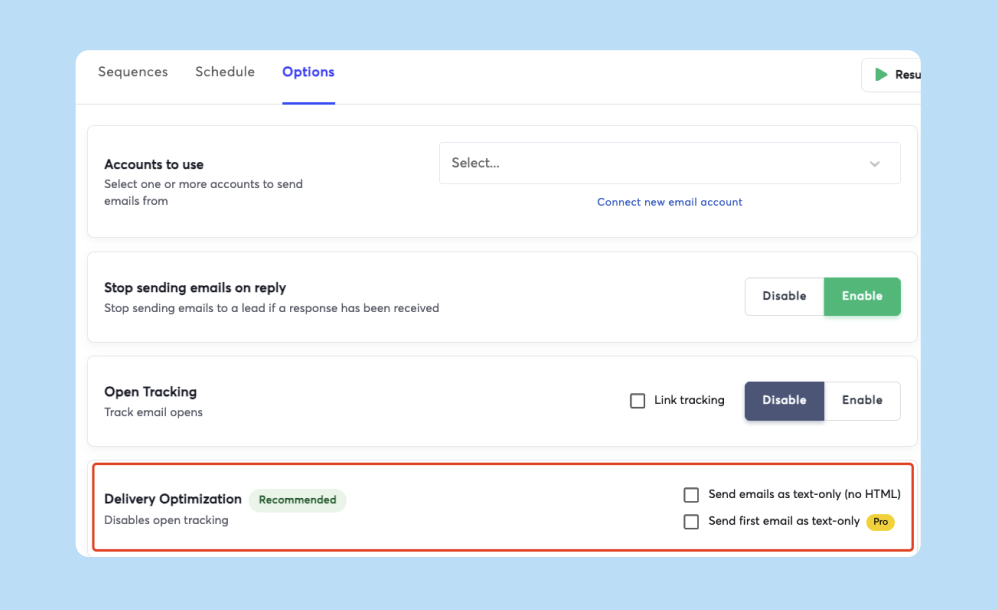
Launch simple, personalized text emails to a small, highly targeted segment of your list. Start with 15 emails per domain per day. Increase to 25 after three days if metrics hold steady, then 30 by day 20. Keep the copy short (50-100 words), include one clear CTA, and avoid spam trigger words like "free," "guaranteed," or excessive urgency phrases.
Track your open rate (target 40%+) and reply rate (target 5%+). If bounce or spam complaint rates spike, pause and clean your list.
Our slow ramp plan for new cold email domains provides a detailed schedule and checklist for this phase.
Days 21-30: Video thumbnail rollout
You have built a positive sender reputation. Now introduce video.
Step 5: Host videos on a custom subdomain (Days 21-22)
Do not link to YouTube or Vimeo in your first cold email. Custom domains build trust and improve deliverability because the link matches your sending domain. Set up a subdomain like video.yourdomain.com or play.yourdomain.com. Create a CNAME record in your DNS settings pointing to your video hosting provider. Watch this custom subdomain setup guide for step-by-step instructions.
Step 6: Create static thumbnails (Day 23)
Generate a high-quality thumbnail image from each video. Add a play button overlay. Keep the file size small to avoid slow loading times. Avoid using personalized details in the thumbnail file name, as this can appear spammy. Hyperlink the thumbnail to your video's landing page.
Step 7: Send video emails to a small test segment (Days 24-27)
Send your first video emails to a small group (50-100 recipients per domain per day). Include 15-50 words of text above and below the thumbnail. Emails that are image-only trigger spam filters. Mention "video" in your subject line to boost open rates.
Monitor your inbox placement tests and engagement metrics daily. If placement remains strong (above 80%) and CTR is healthy (5%+), scale volume by 20% every two days.
Step 8: Scale and optimize (Days 28-30)
By day 30, you should be sending 30 video emails per domain per day. To send more volume, spin up additional domains rather than increasing sends per inbox. Run A/B tests on thumbnail design, CTA copy, and subject lines. Track which videos drive the most replies and booked meetings.Watch how A/Z testing works in practice with Instantly at scale:
Learn more about scaling safely in our guide on how AI boosts cold email deliverability and sender reputation.
For data-backed formats and structural patterns behind subject lines that get replies in cold outreach contexts, see the full cold email subject line research guide.
Checklist: Best practices for business video outreach
Use this checklist to ensure every video email follows deliverability best practices.
Before you send:
- Authenticate your domain: Verify SPF, DKIM, and DMARC records are configured and passing.
- Warm up for at least 14 days: Ramp from 5 to 30 sends per day over two weeks. Four weeks is safer for brand-new domains.
- Host on a custom subdomain: Use video.yourdomain.com instead of public platforms.
- Create a lightweight thumbnail: Use a static image with a play button, optimized for fast loading.
- Test inbox placement: Run placement tests weekly. Pause if primary inbox rate drops below 80%.
In your email:
- Include supporting text: Write 15-50 words above and below the video thumbnail. Image-only emails get filtered.
- Mention video in the subject line: Subject lines with "video" see higher open rates.
- Keep videos under 60 seconds: Shorter videos drive 42% more engagement than longer ones.
- Use a clear CTA: Make it obvious what action the recipient should take after watching.
- Avoid spam trigger words: Remove phrases like "100% guaranteed," "act now," or excessive exclamation points.
After you send:
- Monitor bounce rates: Stay under 1%. Higher rates signal list quality issues.
- Track spam complaints: High complaint rates destroy sender reputation.
- A/B test thumbnails and CTAs: Test static images vs. short GIFs. Test different CTA text.
- Scale gradually: Increase volume by 10-20% every few days, not overnight.
- Clean your list regularly: Remove unengaged and invalid addresses every month.
Check out our DMARC guide for a deeper dive into authentication standards, and watch The Best Cold Email Strategy in 2025 for additional tactics.
How Instantly helps you scale video email outreach safely
Video outreach requires a robust sending infrastructure. Instantly provides the tools to send video emails at scale without burning domains.
- Unlimited email accounts and automated warmup: Instantly offers unlimited email accounts on all plans, starting at $37/month for the Growth tier. Every account includes automated warmup powered by a deliverability network of 4.2M+ accounts. You can spin up 10, 20, or 50 domains for video campaigns and warm them simultaneously.
- Inbox placement testing: Automated inbox placement tests run scheduled checks across Gmail, Outlook, Yahoo, and other providers. You see exactly where your emails land and can adjust before deliverability collapses. This feature is available through the API for advanced workflows.
- Lead generation with SuperSearch: Instantly's SuperSearch provides access to 450M+ verified B2B contacts with waterfall enrichment from 5+ providers. You can find, enrich, and export leads directly into campaigns.
"I find Instantly incredibly beneficial for sorting all my email issues, especially with client outreach. Previously, when I used other software, my emails often ended up in the spam box, which was a major hassle. However, since I started using Instantly, everything works smoothly." - Ubed K. on G2
For agencies, Instantly's flat-fee pricing eliminates the per-seat tax that makes video campaigns expensive on legacy platforms. Hyper CRM adds calling, SMS, and advanced reporting for $97/month.
Start your 30-day video outreach ramp with a free trial at Instantly and use the warmup and placement tools to protect your domains from day one. For a complete tutorial, watch the Full Instantly.ai Tutorial 2025.
FAQs
How do I send a YouTube video in an email without hurting deliverability?
Do not paste a raw YouTube link in your first cold email. Host a static thumbnail in your email that links to a custom landing page where the YouTube video is embedded.
Can I embed a video directly in Gmail or Outlook?
No. Gmail, Outlook, and most email clients do not support inline video playback. You must use a thumbnail image linked to a hosted video.
Does sending video links hurt deliverability?
Linking to a custom subdomain you own and have authenticated is safe. Public platforms like YouTube can trigger spam filters if link reputation is poor, so always warm up your domains and test inbox placement.
How long should my video be for cold outreach?
Keep videos under 60 seconds. Shorter videos receive higher engagement than longer ones in email.
What is the best way to track video engagement in email?
Use a video hosting platform that tracks plays, watch time, and drop-off points. Instantly provides analytics on email opens, clicks, and replies.
Key terms glossary
Mail Drop: Apple's feature for sending large files up to 5GB by automatically uploading attachments to iCloud and inserting a download link in the email.
Sender reputation: A score assigned to your sending domain and IP address by ISPs based on engagement rates, spam complaints, bounce rates, and authentication.
Thumbnail link: A static image in an email, often with a play button overlay, that hyperlinks to a hosted video. This method keeps the email lightweight and compatible with all email clients.
DKIM (DomainKeys Identified Mail): An email authentication protocol that adds a digital signature to your emails to confirm the email has not been tampered with in transit.
SPF (Sender Policy Framework): A DNS record that lists the IP addresses authorized to send email on behalf of your domain.
DMARC (Domain-based Message Authentication, Reporting & Conformance): A policy that tells receiving servers what to do with emails that fail SPF or DKIM checks.
Inbox placement rate: The percentage of your emails that land in the recipient's primary inbox rather than the promotions tab or spam folder.



