


Updated March 26, 2026
TL;DR: Native Outlook read receipts require recipient opt-in and capture no click, reply-time, or engagement data for sales use cases. External tracking tools carry real deliverability risk when they use shared tracking domains or poorly configured pixels, pushing campaigns to spam. Admin-grade controls, custom tracking domains, and warmup infrastructure are required at team scale, not optional upgrades. Flat-fee platforms with built-in deliverability systems starting at $47/month for unlimited accounts cost significantly less per inbox than per-seat extensions as teams grow.
Most sales teams obsess over open rates while their emails sit in spam folders. The culprit is not their copy or their list. It is their tracking tool. Outlook read receipts require recipients to click "accept," provide no click or reply-time data, and tell you nothing about whether your message reached the primary inbox. For a team running sequences across dozens of accounts, that is not a data problem. It is a pipeline problem that costs deals.
Sales teams relying on native Office 365 tracking lose forecast accuracy to incomplete data, while the wrong third-party tools quietly destroy sender reputation. This guide covers how to integrate compliant email tracking in Office 365, protect deliverability while doing it, and sync clean data to your CRM.

Reliable tracking for Outlook sales data
Microsoft designed native Outlook tracking to confirm message delivery for IT administrators, not to give sales reps actionable engagement signals. At team scale, this gap means reps follow up blind, prioritizing by gut feel instead of verified opens, clicks, or reply timing. Pipeline reviews become guesswork, and managers cannot distinguish between a cold prospect and a warm one who opened three times but never replied.
Accuracy gaps in Outlook tracking
The recipient sees a prompt asking whether to send a read receipt back, and they can decline. While Outlook mobile now supports requesting read receipts, the feature remains limited compared to desktop. Beyond the opt-in problem, read receipts only confirm an open. They provide no data on:
- Which links a prospect clicked
- How many times they re-opened the message
- Time-to-open from the send window
- Whether internal forwarding occurred (unusual open patterns can suggest this, but direct forward tracking is not available)
The Instantly help article on tracking failures explains how image blocking, email client settings, and Office 365 security configurations suppress open tracking entirely, even from external tools. Worth reviewing before any campaign launch.
Tracking risks to deliverability and domain health
Tracking pixels routed through shared domains damage sender reputation fast. If any sender on the same shared tracking domain gets flagged for spam, your emails absorb that reputation penalty. Shared tracking domain infrastructure exposes your reputation to other senders' behavior, while a custom tracking domain (e.g., track.yourdomain.com) isolates your signals entirely and keeps your reputation separate from shared infrastructure.
Beyond tracking domains, keep bounces at or below 1 percent. If bounces climb past that threshold, major providers including Gmail and Outlook apply reputation penalties to your sending domain, compounding the problem quickly.
Instantly's private deliverability network of 4.2 million accounts supports warmup for connected inboxes, building sender reputation gradually before high-volume sends begin. The cold email deliverability guide from Instantly's channel walks through how warmup interacts with sending infrastructure in practice.
"I appreciate Instantly for its intelligent handling of domain and mailbox rotation as well as provider matching, which is critical for ensuring that my emails land directly in the primary inbox instead of getting caught in spam filters." - Richard E. on G2
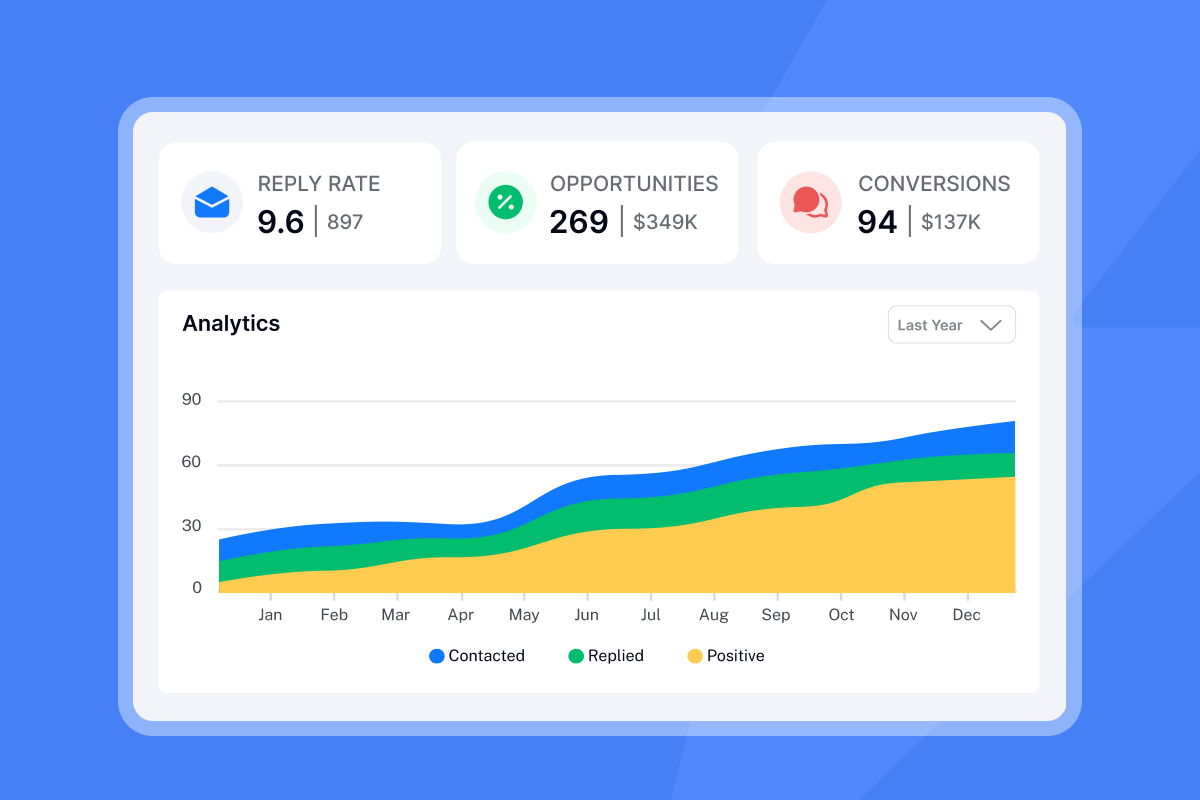
Native Outlook tracking: sales team limitations
Microsoft built Office 365 tracking for mail flow auditing, not sales execution. The two systems solve different problems, and confusing them creates gaps that hurt pipeline data.
Outlook's native read and delivery reports
Delivery reports in Office 365 confirm whether a message reached the recipient's mailbox and whether an Outlook client opened it. For a team running multi-step sequences at volume, the system breaks down fast. Delivery receipts typically only work when both sender and recipient use Exchange or Office 365, which means cross-platform sends to Gmail recipients often provide limited delivery data. There is also no per-campaign aggregation, no A/Z test comparison, and no rep-level performance dashboard.
Auditing email compliance in O365
Message Trace in the Exchange Admin Center is the right tool for diagnosing delivery failures, investigating suspected phishing, and validating mail flow rules. It shows whether Office 365 received, rejected, deferred, or delivered a message, along with spam filter outcomes.
What Message Trace does not show: individual open rates, click-through data, reply times, rep-level engagement, or campaign-level performance. It is an IT diagnostic tool. Sales teams that treat it as a tracking solution operate blind on the metrics that move pipeline. The specific data points that matter for sales, including reply detection, time-to-open, link-specific click tracking, and composite engagement scoring across opens, clicks, and replies by lead, all require an external platform.
Connecting external tracking to Office 365
The shift from native Office 365 tracking to an external platform is a one-time configuration that pays back through more accurate pipeline data and fewer deliverability incidents.
SMTP, API, and add-in options
Browser extensions and Outlook add-ins like Mailtrack and Mailsuite are popular starting points. Mailsuite has been featured by Forbes, Mashable, and Inc. and has built a user base of over 8 million registered users with a 4.5-star rating from more than 10,000 reviews, proving strong adoption for individuals and small teams.
For a solo rep, a free extension works. The limitations appear at team scale: extensions break when browsers update or Outlook clients change, tracking data stays in the extension rather than syncing to your CRM, and many provide limited bounce management or domain health monitoring. Per-user pricing compounds as the team grows.
SMTP and IMAP (Internet Message Access Protocol) connections are a reliable method for connecting Microsoft 365 accounts to an external platform. The Instantly Office 365 SMTP guide explains how to enable SMTP AUTH in the Microsoft 365 admin center and how to resolve the most common disconnection issues. For authentication setup, the SPF, DMARC, and DKIM setup guide for Office 365 covers the DNS records needed before any tracking configuration makes sense.
Once connected via SMTP/IMAP, all campaign replies route into Instantly's Unibox, where the team manages responses from every account in a single stream without logging into individual inboxes.
"I also appreciate the UniBox feature, which is like an inbox sorting all my campaign responses in one spot, so I don't have to log into each individual email." - Saral S. on G2
Extension vs. centralized platform
Factor | Browser extension | Centralized platform |
|---|---|---|
Setup stability | Breaks on browser/client updates | Stable SMTP/IMAP connection |
Data location | Extension silo | CRM-synced dashboard |
Deliverability tools | Limited | Warmup, bounce detection, health monitoring |
Admin controls | Typically per-user | Team workspace controls |
Pricing model | Typically per-user | Flat-fee, unlimited accounts |
Admin controls for audit and compliance
RevOps managers need centralized controls over how reps track, what data is collected, and how reporting holds up under CFO or legal review.
GDPR/CCPA consent for Outlook tracking
Email tracking pixels collect IP address data, which qualifies as PII under GDPR. Outreach targeting EU-based prospects requires a lawful basis, typically Legitimate Interest for B2B cold outreach, and your privacy policy must explicitly state that tracking pixels are in use.
For Office 365 specifically, third-party app access is managed through the Microsoft 365 admin center. Any tracking integration using OAuth requires tenant-level approval, which means IT and RevOps need to align before reps connect accounts. Review Instantly's Data Processing Agreement to confirm data handling practices, including the data categories that must not be uploaded, before a full team rollout.
Sales team tracking configuration and audit logs
Standardization across reps prevents data quality issues and makes reporting defensible. At the team level, this means shared templates with pre-approved tracking links, consistent send windows (8:30 to 10:30 a.m. local time works well for cold outreach), and warmup filters configured at the account level so warmup emails do not appear in rep inboxes or CRM timelines. The warmup filter guide for Gmail and Outlook covers the exact setup steps.
For CFO or legal reviews, the platform must provide per-rep send volumes, open rates, and reply rates over defined periods, plus campaign-level performance reports and data export for CRM reconciliation. Instantly's analytics dashboard covers opens, replies, and meetings booked per campaign. The Hyper CRM plan at $97/month adds advanced team reporting with calling and SMS data on top of the base analytics.
"I appreciate that Instantly is our go-to sales tool for outreach, list building, lead management, and sales activities... I also like how we don't miss emails anymore as we can track our sequences in one place, which helps with optimizing spam, bounce rates, and open rates." - Sohaib I. on G2
Evaluating tracking solutions for Outlook environments
Key features for sales leaders
Feature | Native Outlook | Basic extension | Deliverability platform |
|---|---|---|---|
Open tracking | Limited | Yes | Yes |
Click tracking | Limited | Typically limited | Yes |
Reply detection | Manual | Limited | Automated |
Warmup and health | No (Pending Update) | Typically no | Yes |
Bounce management | Manual | Limited | Automated |
Team-level reporting | Limited | Limited | Yes |
CRM sync | Manual | Varies | Integrated |
The core argument for a deliverability platform over a basic extension is infrastructure. A tool that tracks opens while increasing your spam rate is worse than no tracking at all, because it corrupts both your data and your domain reputation.
Instantly's automated Inbox Placement tests run checks across major Internet Service Providers (ISPs) including Gmail, Yahoo, AOL, and Office 365 to measure what percentage of sends reach the primary inbox versus spam. Results split into three categories: inbox placement percentage, spam folder percentage, and missing percentage. The higher your inbox placement score across tested ISPs, the better your sending infrastructure is performing. Run this check before and after any configuration change to verify your setup is working before a campaign goes live.
"the fact that emails actually land in main inboxes as well as the unibox with its alerts that allow my team to focus only on positive replies - this saves so much time and human labor." - Idan S. on G2
Accurate CRM data for sales reporting
If CRM open rates and tracking tool open rates do not reconcile, check that the integration writes to the correct contact record and that open events map to the right activity type before assuming a tracking failure.
For sustained accuracy, the integration needs to write opens, clicks, and replies back to the contact record as they happen. Instantly supports connections to HubSpot and Salesforce via OutboundSync, plus Zapier and Make for other CRMs. When configured correctly, every open, click, and reply logs to the contact timeline so Account Executives (AEs) see full engagement history before the first call. For teams using HubSpot and Salesforce together, OutboundSync enables activity logging across both systems for a unified view.
Cost-effective email tracking plans
Pricing model comparison
Model | Example | Monthly cost at 10 reps | Includes warmup |
|---|---|---|---|
Per-seat extension | Mailsuite Pro | $50–$100/month | Typically no |
Flat-fee platform (entry) | Instantly Growth | $47/month | Yes |
Flat-fee platform (scale) | Instantly Hypergrowth | $97/month | Yes |
Mailsuite Pro costs between $4.99 and $9.99 per user per month, which at ten reps runs $50 to $100 a month before any deliverability infrastructure is added. Instantly's flat-fee model covers unlimited sending accounts and warmup on every plan, so adding reps or inboxes does not increase the software bill.
Following a recent pricing update, the Growth plan at $47/month now includes A/Z testing, AI Sequence Writer, and advanced warmup options. On monthly billing, a team running the starter stack (Outreach at $47 + SuperSearch at $47 + CRM at $47) operates at $141/month with full tracking, warmup, Unibox, and lead enrichment included. The Instantly AI Email Review walks through what each plan tier covers in practice.
Your playbook for Outlook email tracking
Onboard reps for compliant tracking
Follow these steps to roll out tracking across your Office 365 environment:
- Configure SMTP/IMAP in O365 admin. Enable SMTP AUTH for each sending account in the Microsoft 365 admin center before connecting to any external platform.
- Set up SPF, DKIM, and DMARC records. Use the GoDaddy Office 365 DNS guide to configure authentication records before the first send.
- Warm new inboxes for 30 days. Ramp from 5 to 15 to 30 daily sends per inbox and keep bounces at or below 1 percent throughout the ramp period. The email warmup setup video covers the configuration steps for Office 365 accounts.
- Set a custom tracking domain. Route pixels through a subdomain you control to isolate your sender reputation from shared infrastructure.
- Lock tracking configuration at the workspace level. Reps should not alter domain settings or disable tracking independently.
- Connect your CRM. Map open, click, and reply events to the correct contact record and activity type before launching any sequence.
Monitor domain health and sender reputation
Run automated Inbox Placement tests before launching a new campaign and after any significant change to sending volume or domain configuration. If bounce rates climb above 1 percent, pause the campaign, re-verify the list, check DNS records, review recent bounce codes, and restart at a reduced send cap (commonly 50 percent or lower of the previous volume) for several days before ramping back.
The fixing emails going to spam tutorial covers diagnostic steps for common deliverability failures. Instantly's Secure Email Gateway detection article explains how corporate email security layers suppress tracking data at the recipient's end without filtering your email to spam, which is useful context when open rates look unexpectedly low on enterprise accounts.
Identify and resolve email tracking failures
Fixing Outlook tracking add-in errors
When an Outlook add-in stops logging opens or clicks, work through these fixes:
- SMTP AUTH disabled at the tenant level: re-enable in the Microsoft 365 admin center under Settings > Mail > POP and IMAP.
- OAuth token expired: disconnect and reconnect the account with fresh credentials.
- Corporate firewall blocking the tracking pixel domain: switch to a custom tracking domain or use text-only sends via the Delivery Optimization Tool.
- Extension conflict: disable other Outlook add-ins and test tracking in isolation.
Tracking pixels blocked by recipients
When pixels are blocked, you lose open data but not the opportunity. Three follow-up strategies that work without relying on pixel confirmation:
- Reply rate as the primary signal. Shift rep prioritization from opens to replies. A prospect who clicks but does not reply gets a short follow-up with a direct question. After three emails with no activity, reclassify the lead and adjust cadence.
- CTA click tracking as the fallback. Even when pixels are blocked, link-click tracking in the email body often fires because it routes through a redirect rather than an embedded image. Map CTA clicks as the primary engagement signal when open rates look suppressed.
- Pattern by account type. Enterprise accounts with Mimecast, Proofpoint, or Barracuda gateways frequently block tracking pixels as policy. For these accounts, treat delivery confirmation plus no bounce as a positive signal and follow up on schedule regardless of open data.
The fingerprinting and deliverability guide explains how certain Office 365 security configurations pre-scan emails before they reach the recipient, inflating open rates and making pixel data unreliable for high-security accounts.
Your tracking data is only as good as your delivery rate. A tool that captures opens while quietly pushing your campaigns toward spam is not a tracking solution, it is a liability. Build the deliverability foundation first: warmup, custom tracking domain, authenticated DNS, bounce monitoring. The tracking data that comes back will reflect real prospect behavior rather than security gateway scans.
Try Instantly free and run the warmup and inbox placement checks before your next campaign goes out.
Frequently asked questions
Does email tracking affect deliverability in Outlook?
Yes. Poorly configured tracking pixels routed through shared domains increase spam risk because your reputation ties to other senders on that domain. Use a custom tracking subdomain to isolate your sender reputation, keep bounce rates below 1 percent, and run inbox placement tests before each new campaign.
Can admins disable tracking for specific users?
Yes, at two levels. Within Office 365, admins restrict which third-party apps receive OAuth access via the Microsoft 365 admin center under Settings > Integrated apps. Within Instantly, workspace admins control tracking settings at the account and campaign level so individual reps cannot alter tracking configuration without manager-level access.
How do I validate Office 365 open rate metrics?
Cross-reference open rate data against reply rate and click rate for the same campaign. If open rates are above 40 percent but reply rates are below 2 percent, the open data likely includes spam filter pre-scans or security gateway reads rather than genuine prospect engagement. A reply rate above 5 percent is a more reliable indicator of actual inbox placement.
Where do admins approve third-party tracking apps in Microsoft 365?
Go to the Microsoft 365 admin center, navigate to Settings > Integrated apps, and review apps with OAuth permissions. Any tracking tool using SMTP/IMAP rather than OAuth manages access at the account-credential level instead, which requires SMTP AUTH enabled per mailbox.
Key terms glossary
SMTP AUTH: The setting in Microsoft 365 that allows external applications to send email through an Office 365 account using a username and password. Must be enabled per mailbox for non-OAuth integrations.
Custom tracking domain: A subdomain (e.g., track.yourdomain.com) that routes pixel and link tracking through infrastructure you control, isolating your sender reputation from shared tracking services.
Inbox placement rate: The percentage of sent emails that land in the primary inbox versus spam or junk folders, measured by sending to a seed list of monitored addresses across major Internet Service Providers (ISPs).
Warmup: The process of gradually increasing daily send volume from a new inbox over 30 or more days to build sender reputation with major email providers before scaling outreach.
Message Trace: An admin tool in the Exchange Admin Center that tracks the delivery path of messages through the Microsoft 365 infrastructure. It is an IT diagnostic tool, not a sales tracking feature.
Unibox: Instantly's centralized reply management interface that aggregates responses from all connected email accounts into a single stream, organized by campaign.
Bounce rate: The percentage of sent emails that fail to deliver. A rate above 1 percent signals list quality issues and triggers deliverability penalties from major providers.
Seed list: A monitored set of email addresses across multiple Internet Service Providers (ISPs) used to test inbox placement before a campaign launches. Results show the real-world split between inbox, spam, and missing delivery.
Read Next
How to improve email open rates with domain warmup and inbox placement
Learn the warmup process and sender reputation tactics that keep your emails out of spam folders.
Instantly vs Apollo for agencies: which platform scales cold email without per-seat penalties
Compare deliverability features, pricing models, and account limits for agency workflows.
Cold email deliverability checklist: 7 steps to inbox placement
Follow the domain setup, verification, and monitoring steps that protect sender reputation and improve campaign performance.


