


Updated January 31, 2026
TL;DR: Manual follow-ups create a math problem your team can't solve. 80% of sales require at least 5 follow-ups, yet 44% of sales reps give up after one attempt. We built automated CRM workflows to reclaim hours of selling time each week while protecting deliverability and preventing pipeline leaks. Set up triggers in Salesforce, HubSpot, Pipedrive, Zoho, or Close, then connect a specialized sending engine like Instantly to handle warmup, reputation management, and unified reply handling so your emails land in the primary inbox.
Your CRM holds 3,000 leads marked "interested." Half are stalled because no one sent the fourth email. That's not a motivation problem. It's a systems problem.
I'll show you the technical setup for automated follow-up workflows, the triggers you need, and how to protect your domain reputation while scaling sends across your team.
What is CRM follow-up automation?
You build CRM follow-up automation by programming workflows that send timed, conditional email sequences based on specific triggers in your system of record. When a lead enters your CRM from a form submission or opens an email, the automation acts as a relay, handing the contact from one step to the next without rep intervention.
Your workflow includes predefined steps that fire when the trigger occurs:
- Send emails: Deliver the next message in the sequence
- Assign tasks: Alert reps to call or research the lead
- Update records: Change lead status from "New" to "Contacted"
- Generate reports: Log activity for your dashboard
You set delays between each step to control cadence. This differs from newsletter blasts because sales sequences are conditional. The next email only sends if the prospect hasn't replied, booked a meeting, or changed status. Your CRM tracks activity logs to ensure the right message reaches the right person at the right interval.
"I love how simple Instantly is to use, which allows me to effortlessly manage my tasks without any steep learning curve. The ability to schedule emails at specific times and zones is incredibly convenient, especially for cold outreach in multiple regions." - Verified user review on G2
Why manual follow-ups fail at scale
Manual follow-ups collapse under basic math. 95% of converted leads are reached by the sixth call attempt, but 92% of reps quit after just 4 attempts. The gap between what works and what your team can sustain creates pipeline leakage.
You can measure the time drain precisely. Sales teams using automation save an average of 12 hours every week. For a team of 5 reps, that's 60 hours reclaimed monthly. Yesware users save an average of 4-6 hours every week through automated campaigns and pre-built templates, freeing them to focus on qualified conversations instead of busywork.
Pipeline health suffers when 48% of salespeople never make any follow-up attempts. For a team targeting 30 meetings per month, that gap costs you 15 booked slots and the pipeline coverage you need to hit plan. Meetings set and conversion to SQL depend on persistent, timely outreach that automation delivers consistently.
"Instantly.ai has really changed the way I handle email outreach. The platform makes it easy to set up and run automated email sequences, saving a lot of time and effort." - Outreach on Trustpilot
Core components of an automated workflow
You build every effective CRM workflow on four foundational elements: triggers, delays, actions, and stopping rules.
Triggers: Your trigger determines when the workflow starts and which CRM object (Lead, Contact, Opportunity) enters the sequence. You fire triggers manually or automatically when a defined event occurs.
Common trigger examples:
- Form submission: Prospect fills your contact form, creating a new lead. Workflow fires within 5 minutes.
- Email open: Lead opens your outreach. System waits 3 days, then sends a follow-up.
- Stage change: Deal moves to "Proposal Sent." Workflow assigns a task to call within 24 hours.
Delays: You control timing by adding delays from minutes to days between steps. Waiting three days results in a 31% increase in replies. Use 3-4 day intervals for early follow-ups, 7 days for theme changes.
Actions: You configure steps to send emails, assign tasks, update contact records, or generate reports. A typical sequence runs: Send Email 1 → Wait 3 days → Check for reply → Send Email 2 → Wait 4 days → Update status.
Stopping rules: Configure your workflow to stop when specific events occur, like an incoming reply, a meeting booked, or status change to "Opportunity." This prevents sending follow-ups after someone already responded.
"I love that Instantly just works and does the basics exceptionally well... The easy integration with tools like HubSpot, Clay, Airtable, and n8n enhances our workflow significantly." - Verified user review of Instantly
For a visual walkthrough, watch this Instantly campaign tutorial below:
Step-by-step: How to set up your follow-up sequence
Building an automated workflow follows a repeatable process.
1. Define the goal
Be precise. "Increase reply rates" is vague. "Book 3 meetings per week from 400 cold leads using a 5-email sequence" is measurable. Your goal shapes every decision downstream.
2. Select the trigger
You choose the event that initiates the workflow. Popular CRM triggers include:
- Salesforce: Process Builder or Flow on Contact creation, Opportunity stage change
- HubSpot: Workflow enrollment on form submission, list membership, property change (HubSpot automation integration)
- Pipedrive: Automation when deal enters a stage or person added to filter (Pipedrive connection)
- Zoho CRM: Workflow rules on record creation, field updates, time-based criteria
- Close: Manual or automatic triggers on lead creation
Each CRM offers native automation, but deliverability often suffers when you send high-volume cold outreach from your primary domain. Instantly's pricing page shows how a dedicated sending engine isolates cold outreach from transactional email.
3. Outline the steps and actions
A standard 3-email sequence follows this pattern:
Email 1 (Day 1): Initial value proposition
- Subject: Problem-focused or personalized reference
- Body: 3x3 structure - personalization + problem + one-sentence solution + interest-based CTA
- Length: 3-5 sentences
Email 2 (Day 3-4): Bubble-up
- Subject: "Re:" to original subject
- Body: "Avoid over-selling. Point back to the 1st email with 'any thoughts?'"
- Add: One resource or case study
Email 3 (Day 12-14): Breakup
- Subject: "Can I close your file?"
- Body: "I haven't heard back regarding [product/service], so I'm assuming your priorities shifted."
- Impact: Breakup emails see a 33% response rate
Customize each step with Personalized lines in Instantly using merge tags and dynamic content.
4. Test the workflow
Send test emails to yourself and teammates. Check that links render correctly, merge tags populate with real data, delays fire on schedule, and stopping rules work. Campaign options in Instantly include test mode.
5. Monitor and optimize
Track meetings booked, pipeline generated, and lead-to-SQL conversion. Sales managers improve team performance by monitoring activity metrics like meetings booked alongside conversion metrics like win rates.
For a step-by-step tutorial, watch this cold email system with Make + Instantly guide:
Ensuring deliverability and primary inbox placement
Automation is worthless if your emails land in spam. Sales leaders should treat email authentication as a revenue project: authenticated senders are up to 2.7x more likely to reach the inbox.
Email authentication: SPF, DKIM, DMARC
Before sending emails, configure your domain authentication records in this order:
- SPF: Add your mailbox provider and sending platform to your SPF record
- DKIM: Enable with a 2048-bit key and verify the selector is active
- DMARC: Start at p=none with reporting, then gradually tighten to quarantine after 30 days
Never jump to p=reject before you've fully tested all sending sources. Instantly's SPF, DMARC and DKIM setup guide for GoDaddy + Google Workspace walks through technical configuration.
Email warmup
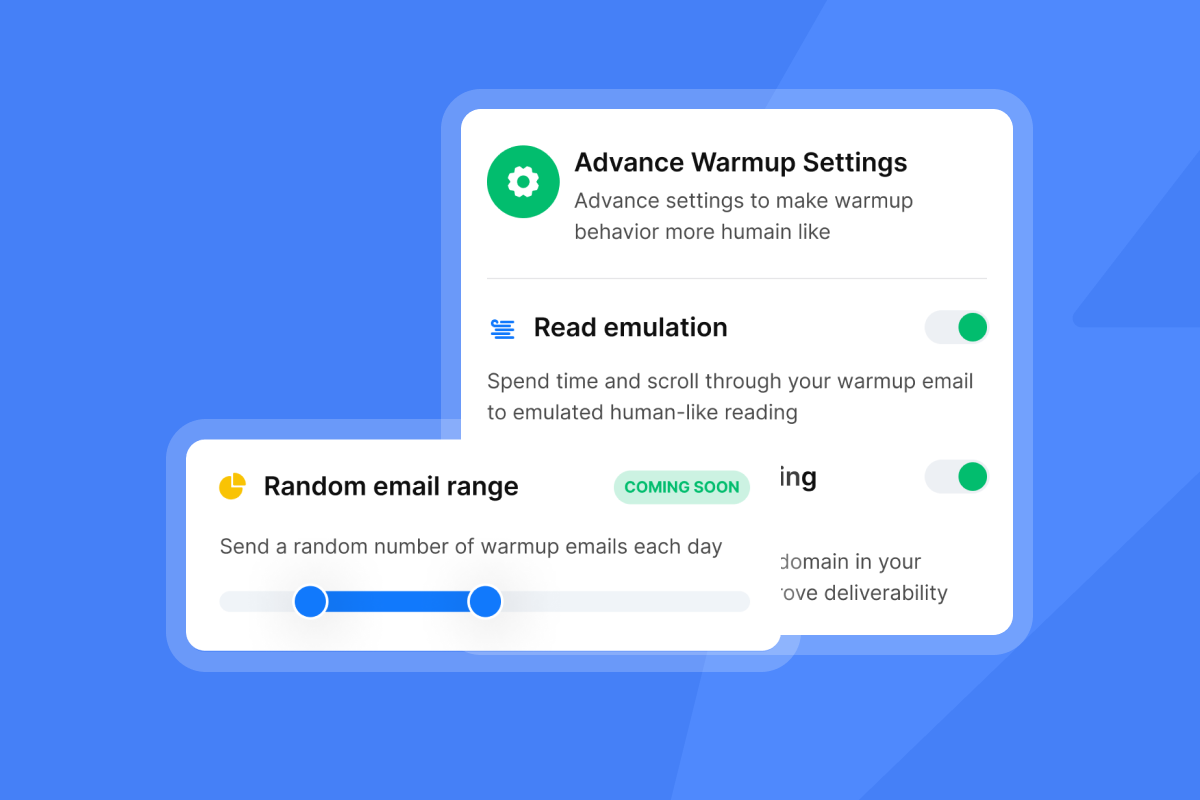
The warming process takes 30 days but varies based on volume, send frequency, and list quality. You start by sending small volumes to engaged segments, then gradually increase. Proper warmup builds sender reputation through positive, human-like exchanges.
Instantly includes unlimited email warmup on all plans and operates a deliverability network of 4.2 million+ accounts for warmup engagement. Enable warmup before launching outreach, and keep it running alongside campaigns.
Use secondary domains for cold outreach
[Never send cold emails from your company's primary domain].
If you get spam-blocked, the whole company loses email access. Choose a domain that relates to your primary domain, like heyapollo.io instead of apollo.io.
Instantly's guide on scaling campaigns with secondary sending domains covers implementation. Domain forwarding for Namecheap and GoDaddy ensure secondary domains redirect to your main site.
For technical guidance, watch or this warmup setup tutorial.
Advanced tactics: AI personalization and dynamic triggers
Moving beyond {{first_name}} opens meaningful engagement opportunities. AI-powered personalization analyzes prospect data and adapts content dynamically.
Industry-specific content insertion
AI tools analyze a prospect's LinkedIn profile to identify job changes, then automatically update templates to reference their new role. Autobound scans your website to learn products and personas, then combines 350+ real-time signals (SEC filings, social activity, funding) to generate hyper-personalized content. Personalized emails have open rates 26% higher and response rates 29% higher than generic emails.
Instantly's AI features let you prompt AI to craft personalization variables and entire sequences. OOO Resume - AI Smart Pause automatically pauses sequences when prospects send out-of-office replies.
"The AI reply agent is a standout feature for me; it efficiently drafts responses based on client replies, saving me valuable time by simply requiring a review before sending." - Sachin J on G2
Conditional branching
IF a prospect clicks the case study link, THEN send a follow-up about that use case. IF NOT, send the standard follow-up. HTML in email sequences allows richer formatting and tracking.
For implementation guidance, watch how AI reads cold email replies and writes personalized proposals.
Measuring success: Metrics that matter
Traditional email marketing prioritizes open rates. Sales-focused automation demands different scorecards.
Meetings booked: Track calendar conversions by creating a custom CRM field that captures the source campaign. When a rep converts a replied lead into a calendar invite, the meeting record tags back to the originating sequence.
Pipeline generated: Track campaign performance with reporting on Opportunities, Pipeline, Conversions, and Revenue. A sequence generating 200 opens but zero opportunities is broken. A sequence generating 40 opens and 8 opportunities worth $160K in pipeline is working.
Lead-to-SQL conversion: The percentage of replied leads that convert to Sales Qualified Leads tracks engagement quality. Analyze open, click, and response rates, meetings booked from campaigns, and new opportunity creation to gauge revenue impact.
Your sending tool (Instantly) tracks replies and engagement. Your CRM tracks when a rep converts that replied lead into a qualified opportunity. Integration between systems is essential for attribution. Salesforce and HubSpot integration via OutboundSync enables bidirectional sync.
"What really stands out is how stable it's been even at scale, we manage multiple sender domains, sequences, and integrations (Google Sheets + Zapier) without issues." - Abdulrahman Nashaat Abdulrahma on Trustpilot
How Instantly streamlines CRM follow-ups
Your CRM serves as the system of record. We built Instantly as the sending engine. This division solves core pain points: deliverability crashes, billing traps, and reply chaos.
Unified inbox for centralized reply handling
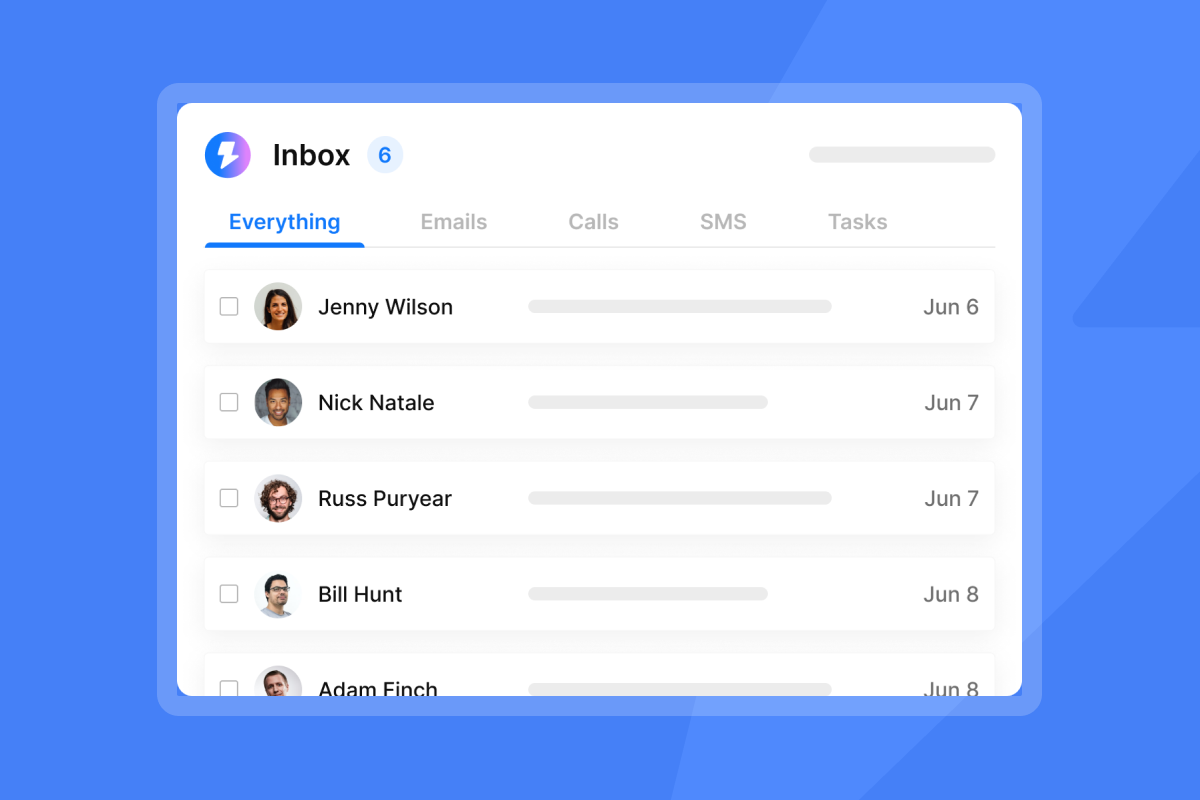
Manage conversations across inboxes in Unibox. AI Custom Reply Labels automatically categorize responses so you focus on moving pipeline forward. Email threading keeps conversation history intact. Reply to emails via API enables programmatic handling.
Integration with your ops stack
We support API, webhooks, and integrations to sync lead status automatically:
- HubSpot integration in automations
- Salesforce and HubSpot via OutboundSync
- Pipedrive connection with lead import
- Make.com automation for Pipedrive or HubSpot
- Close CRM via Zapier
Flat-fee pricing that scales
We charge a flat monthly fee per workspace with unlimited sending accounts. Growth at $47/month, Hypergrowth at $97/month.
For a 10-rep team sending 30 emails per day per rep (300 daily sends):
- Instantly Hypergrowth: $97/month, unlimited accounts and warmup included
- Typical per-seat CRM add-on: $50-150/user/month = $500-1,500/month for 10 users
The math favors specialized tools at scale.
"I really appreciate how Instantly saves me a significant amount of time, particularly in sending emails to my clients without them ending up in spam." - adnan k. on G2
SuperSearch provides 450M+ B2B leads with waterfall enrichment, eliminating separate data vendors.
Conclusion
Automated CRM follow-ups convert a manual time drain into a reliable pipeline engine. The setup is repeatable: define your goal, select the trigger, outline the sequence, test thoroughly, and monitor performance. Protect deliverability by using secondary domains, enabling SPF/DKIM/DMARC, and running warmup before ramping volume. Measure what matters (meetings booked, pipeline generated, SQL conversion) and integrate a specialized sending engine like Instantly to handle warmup, reputation management, and unified reply handling while your CRM manages the system of record.
Try Instantly free to automate your follow-ups while protecting your domain reputation.
Frequently asked questions
How many follow-up emails should I send before stopping?
Breakup emails see a 33% response rate, making 3-4 emails optimal. Stop at the breakup email unless you have a specific re-engagement reason.
Does automation hurt deliverability compared to manual sending?
No, if you warm up properly, authenticate your domain (SPF/DKIM/DMARC), use secondary domains for cold outreach, and ramp volume gradually. Authenticated senders are up to 2.7x more likely to reach the inbox.
Can I connect Instantly to Salesforce or HubSpot?
Yes, through OutboundSync for bidirectional sync or Zapier for workflow automation. You can also use HubSpot integration in automations for enrollment triggers.
What's the difference between a trigger and an action?
A trigger defines when the workflow starts. Actions are the individual steps that execute, like sending an email or updating lead status.
How long should I wait between follow-up emails?
Waiting three days results in a 31% increase in replies. Use 3-4 day intervals for the first two follow-ups, 7 days for theme change, and 12-14 days for breakup.
Key terms glossary
Trigger: An event or condition that initiates the workflow, like a new lead entering your CRM or a form submission. You configure triggers to fire manually or automatically.
Sequence: A series of predefined steps (emails, delays, conditional checks) that execute automatically when triggered. Each step can include actions like sending messages or updating records.
Hard Bounce: A permanent email delivery failure because the email address is invalid or doesn't exist. Hard bounces require removing the contact from your list.
API (Application Programming Interface): A set of rules that allows different software applications to communicate and share data. APIs enable your CRM to sync data with email tools automatically.
Throttling: The practice of intentionally limiting emails sent over a period to protect sender reputation and avoid spam filters. Set sending limits for each mailbox to look more like a real person.


