.svg)
%20(1).svg)


Updated December 09, 2025
TL;DR: Stop attaching video files to cold emails. Gmail caps attachments at 25 MB and Outlook at 20-25 MB, but even smaller files trigger spam filters. The solution is the Host, Thumbnail, Link system. Upload your video to a hosting platform, create a clickable GIF thumbnail, embed it in your email, and send through a rotation system like Instantly with unlimited accounts and built-in warmup to protect deliverability.
In cold email outreach, video is a powerful engagement tool when deployed correctly, but attachment-based delivery destroys the deliverability foundation that every successful campaign depends on. Instantly was built to execute video outreach at scale, unlimited email accounts, built-in warmup, and automated inbox placement testing let you send thumbnail-linked video campaigns without burning domains.
Why you must never attach video files to cold email
Attach a video file to a cold email and you destroy your deliverability. The technical constraints alone make it impractical, but the real damage happens to your sender reputation.
The hard technical limits
Every major email provider enforces strict attachment caps. Gmail limits attachments to 25 MB, while Outlook restricts standard accounts to 20 MB and Microsoft 365 users to 25 MB. A 60-second video recorded at decent quality easily exceeds these limits. Even if you compress the file to squeeze under the cap, you are creating new problems.
The deliverability tax
Heavy emails trigger spam filters. Internet service providers (ISPs) flag large attachments as potential threats because malware often hides in video files. Your email might technically send, but it lands in the spam folder or gets blocked entirely.
When your domain reputation drops, all future emails suffer. Bounces above 1 percent signal poor list hygiene. Spam complaints stack up. Recovery takes weeks of careful warmup and reduced send volume.
The user experience problem
No prospect downloads a random MP4 file from a stranger. Even if your email arrives, the attachment creates friction. Mobile users cannot easily preview large files. Corporate firewalls block video attachments. The prospect must trust you enough to download and open an unknown file, which almost never happens in cold outreach.
The math is simple. Attachments destroy deliverability, hurt sender reputation, and create a terrible experience for prospects. The solution is not compression. The solution is to stop attaching files entirely.
For a deep dive on deliverability checkout our masterclass below:
For the complete infrastructure checklist on authentication, warmup ramp schedules, and inbox placement monitoring that protects your domains throughout any video campaign, see this email deliverability guide.
The 5-step system to send large videos that convert
The Host, Thumbnail, Link system bypasses every limitation of email attachments while improving engagement and tracking.
Step 1: Record with intent (keep it under 60 seconds)
Record a video designed for cold outreach, not a product demo. The ideal length is 30 to 60 seconds. Shorter videos respect the prospect's time and maintain attention throughout.
Use one of three proven opening hooks that are in my toolkit:
- The personalized prop hook involves holding up a physical item relevant to the prospect's business. A candle company rep might hold up wax. This visual pattern interrupt shows you did your research.
- The LinkedIn profile hover starts with a screen recording of the prospect's LinkedIn profile while saying, "Hi [Name], I can see from your LinkedIn profile that you're responsible for [role] at [company]." This immediately personalizes the message by putting their digital presence front and center.
- The customer story hook references a success with a similar client: "Hi [Name], I know this isn't YOUR LinkedIn profile up here. This is [customer name] who is also a [role]. I'm working with them to [value prop]." Social proof builds credibility fast.
Structure your script into four concise parts:
- Hook (0 to 5 seconds)
- Value proposition (5 to 25 seconds)
- Call-to-action (25 to 45 seconds)
- Sign-off (45 to 60 seconds)
Keep each section tight and focused on one message.
Step 2: Host the video (cloud vs. platform)
After recording, upload your video to a hosting platform. Do not keep it on your local drive. Hosting platforms solve the file size problem by storing the video on their servers and generating shareable links.
Video hosting platforms built for sales teams offer CRM integrations for tracking engagement in Salesforce and HubSpot. Some focus on marketers with in-video lead capture. Others offer easy recording and sharing. Some specialize in AI-powered personalization at scale, recording once and dynamically adding each recipient's name. Generic cloud storage like Google Drive lacks sales analytics.
For a tutorial on using Loom with Instantly, watch this cold email tutorial that shows how to embed Loom videos in campaigns.
Step 3: Create the "click magnet" thumbnail
The thumbnail determines whether your prospect clicks. Animated GIFs in emails can increase CTR by up to 42% compared to static images, and video thumbnails can boost clicks by 50% or more when they show a human face or familiar element.
Most hosting platforms auto-generate a thumbnail from your video's first frame. For better results, create a custom thumbnail. An animated GIF showing the first two to three seconds of your video works well. Include a visible play button overlay so the recipient knows it is a video.
Your thumbnail should show your face if the video is face-to-camera. A smiling, engaged expression builds trust. If you used a prop or showed the prospect's LinkedIn profile, capture that moment in the thumbnail. The visual attention from motion draws the eye in a text-heavy inbox.
Keep the thumbnail file size under 2 MB. Larger images slow email load times and can trigger spam filters. Most platforms automatically optimize thumbnails for email delivery.
Step 4: Hyperlink the thumbnail
The technical execution takes three clicks. You are not embedding the video file in the email. You are embedding an image that links to the hosted video.
Here is how it works. Upload your thumbnail image to your email platform. Highlight the image and click the "Insert Link" or "Add Hyperlink" option. Paste the URL of your hosted video. When the recipient clicks the thumbnail, their browser opens the video landing page.
This method completely bypasses email attachment size limits. The email itself only contains a small image file (the thumbnail) and a text link. The large video file stays on the hosting platform's servers.
Most modern video platforms automatically generate a shareable link with a GIF preview. You copy the link, and the platform handles the thumbnail generation and embedding.
Step 5: Send via a rotation system
Sending one-off video emails is useful for high-value prospects, but scaling to hundreds or thousands of recipients requires automation and inbox rotation.
We built Instantly to execute this at scale. Unlimited email accounts on all plans let you distribute send volume across multiple inboxes, protecting each domain's reputation. Built-in warmup ensures new accounts earn trust with ISPs before you launch campaigns. Automated inbox placement testing tells you whether your emails land in the primary inbox or spam.
Set your send window to 8:30 to 10:30 a.m. local time. Cap daily sends at 30 per inbox to stay under provider limits. Use two to three copy variants per step to test which messaging resonates.

"I love Instantly's deliverability tools, which are the best I've encountered. Having used Salesloft, Apollo, and other tools, Instantly gives me the highest reply rate by far. The ability to send emails as text only, without HTML, significantly boosts deliverability." - G2 review
For a complete setup guide, check out this full Instantly tutorial covering campaign creation and deliverability best practices.
"Incredible Tool & Amazing Support... The platform is super intuitive, easy to set up, and makes it simple to manage deliverability." - Trustpilot review
Methods for sending large videos: a comparison
Different methods solve the file size problem in different ways. Here is how they stack up for sales outreach.
| Method | Max Size | Deliverability Risk | User Experience | Best For |
|---|---|---|---|---|
| Direct attachment | 20-25 MB | High (spam filters, bounces) | Poor (downloads, firewall blocks) | Never use for cold outreach |
| Cloud link (Drive, Dropbox) | No limit | Medium (link scanning, trust issues) | Fair (extra login, no preview) | Internal file sharing |
| Transfer service (WeTransfer, Mail Drop) | 5 GB (Mail Drop) | Low to medium | Fair (temporary links, no analytics) | One-time large file delivery |
| Video platform | No limit | Low (lightweight thumbnail) | Excellent (instant play, mobile-friendly, tracking) | Sales outreach at scale |
WeTransfer and similar services work for delivering finished work to clients but lack engagement tracking and expire after a set time. Video hosting platforms built for business offer the best combination of deliverability, user experience, and tracking for sales outreach.
How to execute the "Thumbnail Strategy" in Instantly
We make it simple to add video thumbnails to your cold email campaigns without switching tools or writing custom code.
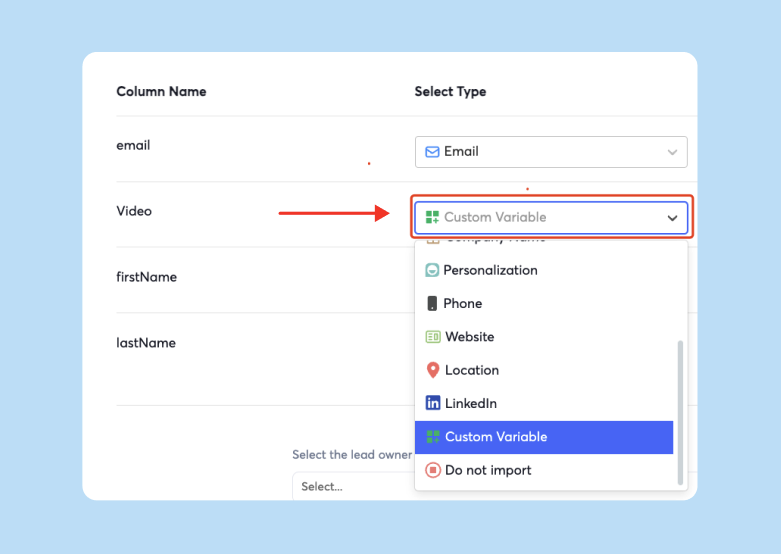
Step 1: Upload your lead list to Instantly using CSV import or pull contacts directly from SuperSearch, our integrated database with 450 million verified B2B contacts.
Step 2: Navigate to the Sequence Editor. Create a new campaign or edit an existing one.
Step 3: Position your cursor where you want the video thumbnail to appear, typically after a short intro line like "I recorded a quick video for you."
Step 4: Click the "Insert Image" icon in the editor toolbar. Upload your thumbnail image or GIF. Keep the file under 2 MB for optimal load times.
Step 5: Highlight the inserted image. Click the "Insert Link" icon. Paste the URL of your hosted video from your chosen platform.
For data-backed formats and structural patterns behind subject lines that get replies in cold outreach, including video-specific subject line variants, see the full cold email subject line research guide.
Step 6: Launch your campaign with standard warmup protocols. Start with 5 to 10 emails per day per inbox, ramp to 15 after three days, and reach 30 after a week. Monitor bounce rates and spam placement through the Inbox Placement dashboard.
"Instantly.ai is honestly one of the best outreach tools I've used. Setup is quick, the interface is super clean, and it just works. Emails send smoothly, deliverability stays high, and the analytics make it easy to tweak campaigns." - Trustpilot review
For advanced bulk upload techniques with Loom videos, this bulk upload tutorial demonstrates automation workflows.
For a complete framework on tracking bounce rate trends, inbox placement rates, and reply rate by sequence step, see this email metrics tracking guide.
Best practices for business users and agencies
Protecting sender reputation while scaling video outreach requires systematic process and quality control.
The video launch checklist
Before you hit send on a video campaign, verify these three items:
- Link works: Click the thumbnail and confirm it opens the correct video on multiple devices.
- Thumbnail size: Keep under 2 MB to avoid triggering spam filters.
- Warmup complete: Run at least a 30-day warmup before launching campaigns.
Why links are safer than attachments for sender reputation
Using a link protects your domain in three ways. First, the email stays lightweight. A 50 KB thumbnail is invisible to spam filters compared to a 25 MB attachment. Second, ISPs cannot scan the video file itself, which eliminates false positives. Third, forwarded emails share a link, not a large file that could bounce. Our warmup network includes over 4.2 million accounts participating in warmup exchanges, so your emails benefit from positive engagement signals across a massive pool.
Advice for managing client assets
If you run an agency, organize assets by creating separate folders per client with clear naming conventions like "ClientName_Campaign_2025-11.mp4." Track AI Reply Agent credit consumption (5 credits per response) and set governance rules for who can launch campaigns and approve content.
"The platform is super intuitive, easy to set up, and makes it simple to manage multiple domains and inboxes at scale. Deliverability is great and the analytics give us exactly what we need to optimize campaigns quickly." - G2 review
For strategic insights on high-performing campaigns, this video on cold email strategy shares proven frameworks for 2025.
Stop fighting file limits and start using links
Email attachment limits will not change. Gmail and Outlook will not raise their caps for video files. Spam filters will keep flagging heavy emails. Stop compressing videos into lower quality or searching for workarounds. Build a system that works with email as it operates today.
Host your video on a dedicated platform. Create a clickable thumbnail. Embed that thumbnail in your email with a hyperlink to the full video. Send through a rotation system that protects sender reputation. Track engagement through the hosting platform's analytics. Iterate based on what your prospects actually watch and respond to.
This system scales. You can send one video or ten thousand. You can personalize at the individual level or use dynamic variables for bulk campaigns. You can run A/B tests on subject lines, email copy, and video content to find what drives the highest reply rates. Learn more about A/B testing cold emails to optimize every variable.
Start your free trial and scale your video outreach today. Connect unlimited email accounts, run built-in warmup, test inbox placement automatically, launch personalized video campaigns, and let automated deliverability handle the heavy lifting while you focus on closing deals.
FAQs
How do I send a YouTube video in an email?
Copy the YouTube URL, type a sentence like "Watch this quick video," highlight it, and insert the link. Alternatively, screenshot the video's first frame, insert the image, and hyperlink it to the YouTube URL.
Can I embed video directly in Gmail or Outlook?
No, most email clients disable embedded video to protect users from malicious content. Use the thumbnail method: embed a clickable image that links to your hosted video.
How do GIF thumbnails improve email engagement?
Animated GIFs capture attention in a static inbox because the movement draws the eye more effectively than a static image, increasing clickthrough rates significantly.
Do video emails work on mobile devices?
Yes, when you use the thumbnail method, clicking opens the video in the mobile browser where hosting platforms deliver optimized viewing. Attachments fail on mobile because users cannot preview large files without downloading.
For a deep dive into writing high-converting cold emails that pair well with video, watch this cold email masterclass covering structure and messaging.
Key terms glossary
Email attachment size limit: The maximum file size an email provider allows you to attach to a single message, typically 20 to 25 MB depending on the provider.
Video hosting platform: A service designed to store and deliver video content via shareable links, offering features like engagement tracking, custom thumbnails, and CRM integrations.
GIF thumbnail: An animated image file that loops the first few seconds of a video, used as a clickable preview in emails to boost engagement through motion and visual interest.
Sender reputation: A score assigned by internet service providers based on your email sending behavior, which determines whether your messages land in the primary inbox or spam.
Deliverability: The ability of your emails to reach the recipient's primary inbox rather than being filtered into spam or blocked entirely.
Warmup: The process of gradually increasing send volume from a new email account while exchanging positive engagement signals to build sender reputation before launching cold campaigns.
Inbox placement: The metric measuring what percentage of your emails reach the primary inbox versus being filtered or blocked, tracked through automated testing tools.



