.svg)
%20(1).svg)


Updated March 30, 2026
TL;DR: Deliverability is not a one-time DNS setting. It is a four-part system that determines whether your cold email sequences generate pipeline or disappear into spam folders. First, authenticate your domains with SPF, DKIM, and DMARC to prove you are who you say you are. Second, run a 30-day warmup protocol to build sender reputation before pitching. Third, keep bounce rates under 2 percent by verifying contacts before every send. Fourth, monitor health daily and scale horizontally (more inboxes, not more volume per inbox). Miss any step and your domain reputation tanks, your sequences fail, and your quota slips. Use the checklist below to audit your setup today.
Cold email sequences work only if they land in the primary inbox. Authentication, warmup, list hygiene, and monitoring must run together, continuously. This guide walks you through the exact protocols that protect your sender reputation and keep your sequences visible to buyers.
Why deliverability is a revenue function
Sender reputation is your domain's credit score. Google, Outlook, and every major inbox provider track how recipients interact with your emails. Opens, replies, and moving emails out of spam build reputation. High bounces, spam complaints, and low engagement destroy it.
According to research from Focus Digital, the average B2B cold email open rate sits around 39 percent, with top performers reaching 60 percent or higher. If your open rates consistently fall below 20 percent, you likely face a placement issue that requires immediate attention to authentication and warmup protocols.
When domains land on blacklists, your entire outbound engine stops. No emails reach buyers. Meetings evaporate. The cost is immediate and measurable in lost pipeline. Sales leaders who treat deliverability as an IT ticket instead of a revenue function lose weeks recovering from preventable domain damage.
Step 1: Authenticate your domains with SPF, DKIM, and DMARC
Authentication proves you are who you say you are. ISPs (Google, Microsoft, Yahoo) require SPF, DKIM, and DMARC records to verify your emails are legitimate. Without these, your messages are invisible or automatically flagged as spam. Setting up DNS records is non-negotiable for cold outreach.
SPF (Sender Policy Framework)
SPF is a TXT record in your DNS that lists which mail servers can send email on behalf of your domain. When an inbox provider receives your email, it checks the SPF record to confirm the sending server is authorized.
How to set it up:
- Log into your domain registrar (GoDaddy, Namecheap, Cloudflare).
- Navigate to DNS settings.
- Add the SPF TXT record provided by your email host.
- For Google Workspace:
v=spf1 include:_spf.google.com ~all - For Microsoft 365: Check your admin panel for the exact string.
- For Google Workspace:
- Save and wait 24-48 hours for propagation.
For detailed walkthroughs, review the SPF, DMARC and DKIM setup guide.
Common mistake: Sending from a server not listed in your SPF record causes automatic failures. Always update SPF when you add a new sending tool.
DKIM (DomainKeys Identified Mail)
DKIM adds a cryptographic signature to your email headers. It proves the message was not altered in transit. ISPs check this signature against a public key stored in your DNS.
How to set it up:
- In your email provider's admin panel (Google Workspace, Microsoft 365), generate a DKIM key pair.
- Copy the public key provided by your host.
- Add it as a CNAME record in your DNS settings.
- Enable DKIM in your email admin panel.
- Wait 24-48 hours for the record to propagate.
Why it matters: DKIM failures signal tampering or spoofing. ISPs treat unsigned emails with suspicion, reducing inbox placement.
DMARC (Domain-based Message Authentication, Reporting, and Conformance)
DMARC tells ISPs what to do when SPF or DKIM checks fail. It also sends you reports on authentication activity, helping you spot issues before they damage reputation.
How to set it up:
- Add a DMARC TXT record to your DNS.
- Start with monitoring mode:
v=DMARC1; p=none; rua=mailto:dmarc@yourdomain.com - Review the aggregate reports you receive.
- Once stable (no failures for 30 days), move to
p=quarantineorp=rejectto enforce authentication.
Pro tip: Use a secondary sending domain (e.g., getcompany.com instead of company.com) to protect your primary business email from deliverability damage during cold outreach. The secondary sending domains strategy guide explains how to scale safely across multiple domains.
DNS record cheat sheet
Record Type | Purpose | Example Value |
|---|---|---|
SPF (TXT) | Lists authorized mail servers |
|
DKIM (CNAME) | Adds cryptographic signature |
|
DMARC (TXT) | Policy for failed authentication |
|
Copy these formats and replace placeholder values with your host-provided strings.
"What sets Instantly apart is the Easy DFY Mailbox Setup. It's incredibly straightforward to get mailboxes up and running with the correct settings like DMARC, DKIM, and SPF applied automatically." - Robert B. on G2
Step 2: Execute a 30-day domain warmup protocol
Warmup is the process of gradually increasing send volume while generating positive engagement signals (opens, replies, removal from spam). ISPs track new domains closely. Sending high volumes immediately from a cold domain triggers spam filters and creates long-lasting reputation damage.
The warmup schedule
Run your warmup for a minimum of 30 days. The table below shows the daily volume ramp per inbox:
Week | Daily emails per inbox | Focus |
|---|---|---|
1 | 5-10 | High engagement (manual replies to warmup pool) |
2 | 15-20 | Gradual volume increase |
3 | 20-30 | Sustained engagement signals |
4+ | 30 (max) | Full production volume |
Critical rule: According to Instantly's guidance, do not exceed 30 emails per inbox per day for cold outreach. To scale volume, add more inboxes (horizontal scaling) instead of increasing sends per inbox (vertical scaling).
Manual warmup vs. automated warmup
Manual warmup requires you to send emails to friends, colleagues, or secondary accounts you control, then open them, reply, and move them out of spam. This approach is time-intensive and breaks down at scale.
Automated warmup uses a network of real inboxes to exchange engagement signals. Instantly's warmup network includes over 4.2 million accounts that automatically open, reply to, and rescue your emails from spam folders. Unlimited email warmup is included with all plans, which removes the need for a separate warmup tool.
To enable warmup in Instantly, follow the warmup setup guide and configure advanced filters for Google and Microsoft to match real human behavior.
"The warm-up feature works well, the interface is easy to use, and it helps protect inbox deliverability across multiple domains." - Bobur Dada on Trustpilot
Why engagement-based warmup matters
Volume alone does not build reputation. ISPs measure engagement rates: opens, replies, and time spent reading. A warmup system that only sends fake emails without realistic interaction patterns fails under modern spam filters. For a detailed walkthrough of warmup mechanics, watch The Ultimate Guide to Cold Email Deliverability from the Instantly channel.
Mistake to avoid: Turning off warmup after your first campaign launches. Warmup must run continuously, even during active campaigns, to maintain positive signals. As one user noted, Instantly's warmup runs in the background while campaigns send, which keeps reputation stable over time.

Step 3: Implement a list hygiene feedback loop
Bad data damages deliverability faster than weak copy or poor timing. Invalid email addresses cause hard bounces, which signal to ISPs that you purchased a list or scraped contacts without verification. According to industry research from Mailtrap, bounce rates between 2 percent and 5 percent indicate a warning level, while rates above 5 percent are critical and can trigger blacklisting.
Hard bounces vs. soft bounces
Hard bounce: Permanent delivery failure. The email address does not exist or the domain is invalid. Remove these contacts immediately.
Soft bounce: Temporary failure. The inbox is full, the server is down, or the recipient is on vacation. Retry once after 48 hours, then remove if the bounce repeats.
Your platform should categorize bounces automatically. If it does not, you are flying blind.
The 2 percent rule
Keep total bounce rates (hard plus soft) under 2 percent. According to Microsoft's deliverability guidelines, anything below 2 percent is considered normal, while rates above 5 percent require immediate intervention. If a campaign exceeds 2 percent, investigate the source. Re-verify your list. Remove invalid contacts. Resume at a lower daily volume to rebuild trust.
How to verify contacts:
- Use a verification tool before uploading to your campaign.
- Remove catch-all addresses that accept all emails regardless of validity.
- Check for typos, invalid domains, and role-based addresses.
- Re-verify your list every 90 days as contacts decay over time.
Instantly includes built-in email verification. For catch-all addresses (domains that accept all emails regardless of validity), review Instantly's catch-all verification guide to understand the risks.
"I appreciate the amount of control I have over the warm-ups and the customization of emails with Instantly. It's useful to have a single source of truth to find all the data I need regarding campaigns." - Yacine H. on Trustpilot
Daily hygiene checks
Set a calendar reminder to review bounce and spam complaint rates every morning. If you notice a spike, investigate the source: unverified list imports, invalid domains, or sudden inbox changes. Treat each anomaly as a threat to your sender reputation.
Step 4: Monitor domain health and adjust throughput
Deliverability is a moving target. ISPs adjust algorithms, recipient behavior shifts, and your own send patterns evolve. Continuous monitoring catches issues before they compound.
Daily health metrics
Track these four indicators every day:
- Open rate: Aim for 40-60 percent. Consistently below 20 percent signals a placement problem.
- Bounce rate: Keep under 2 percent. Above 5 percent requires immediate action.
- Spam complaint rate: Should be near zero. Above 0.1 percent damages reputation fast.
- Reply rate: For cold email, 5 percent is strong. Below 2 percent may indicate poor targeting or low engagement.
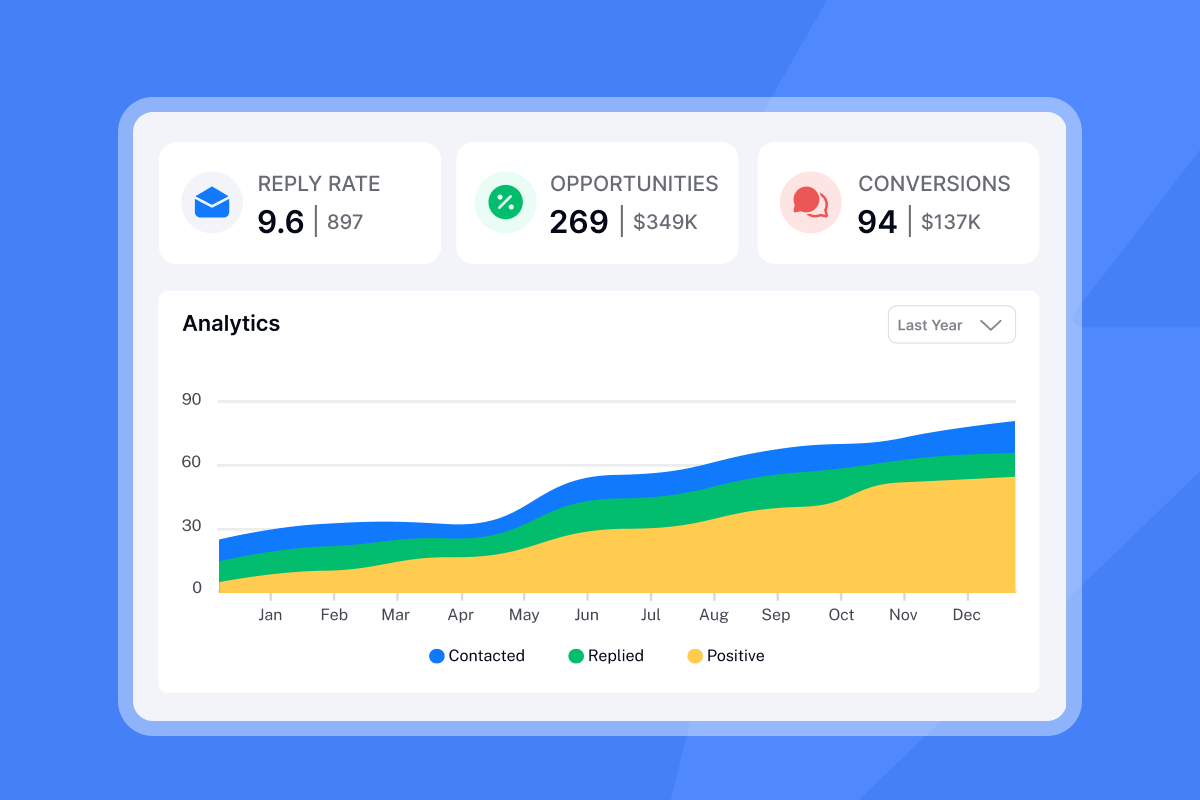
Tool to use: Google Postmaster Tools is the authoritative source for Gmail reputation. It shows domain reputation, spam rate, and feedback loops. Set it up for every sending domain. Instantly also provides inbox placement testing to check where your emails land (primary, promotions, or spam) across major providers. You can run one-time inbox placement tests or automate placement monitoring for ongoing campaigns.
Throughput limits and horizontal scaling
Per inbox: According to email deliverability experts at MailReach, the safe recommended limit is around 100 cold emails per day per inbox after proper warmup. However, conservative best practices suggest staying at 30-50 emails per day to minimize spam filter triggers and ensure better inbox placement.
Per domain: Limit each domain to 3-5 connected inboxes.
Scaling strategy: Add more domains and more inboxes instead of increasing volume per inbox. This is horizontal scaling. It protects each individual sender reputation and spreads risk. Instantly offers unlimited email accounts on flat-fee pricing, which makes horizontal scaling economical without per-seat penalties.
"Instantly allows me to scale my cold email efforts without having to struggle with the tool itself. Setting up new domains and inboxes, as well as rotating them, is incredibly straightforward, which helps me increase my sending volume while maintaining good deliverability." - Verified user on G2
When to pause an inbox
If an inbox shows declining open rates, rising bounces, or spam complaints, pause it immediately. Let warmup continue running while the inbox rests. Do not force sends from a damaged inbox. It only accelerates blacklist risk. Rotate to healthy inboxes in your pool instead.
Instantly's platform allows you to monitor the health of dozens or hundreds of inboxes from a unified dashboard. One user highlighted that domain rotation and inbox tracking make multi-sender workflows manageable at scale.
How Instantly automates deliverability at scale
You cannot manage deliverability manually when you run more than five inboxes. You need a system that handles authentication checks, warmup, health monitoring, and inbox rotation automatically.
Automated warmup across unlimited accounts
Instantly includes unlimited warmup for every account you connect. The system runs engagement loops in the background while your campaigns send. You do not need to toggle warmup on and off or manage separate tools.
Unified inbox and campaign analytics
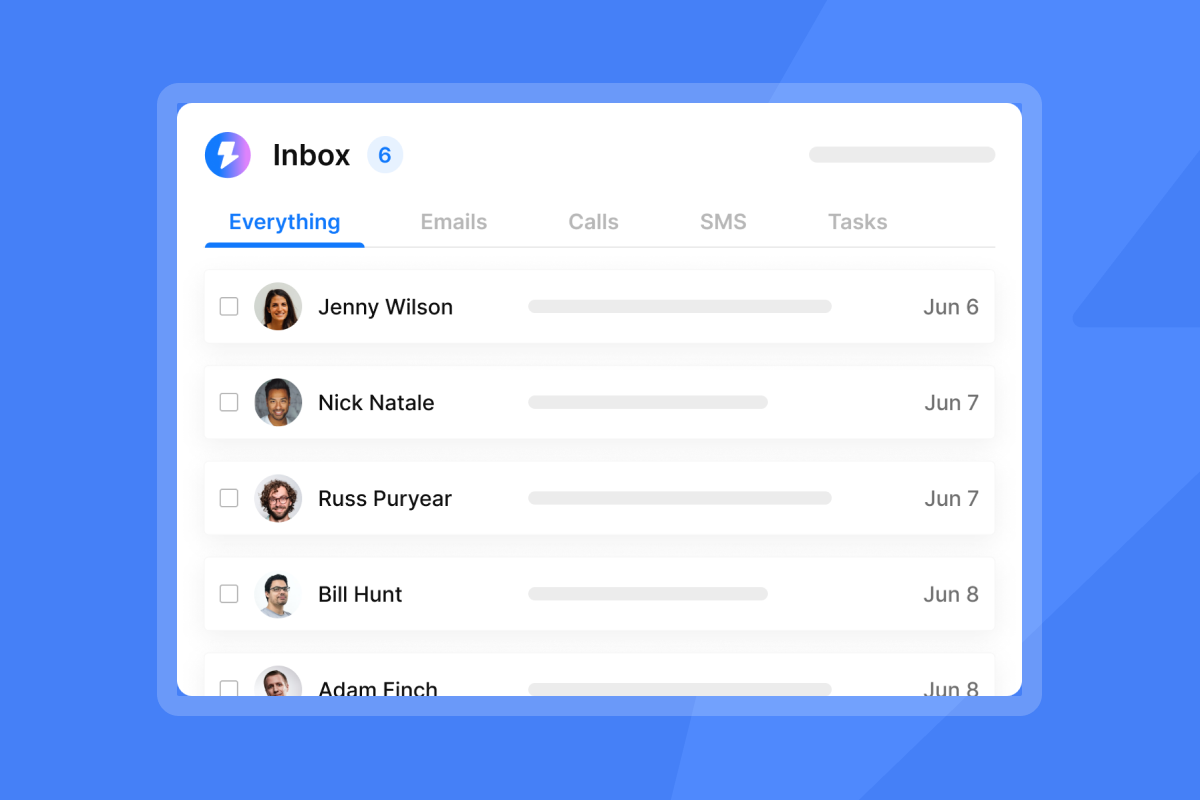
Instantly's Unibox consolidates replies from hundreds of inboxes into one interface. You see engagement, bounces, and health scores in real time. If an inbox's performance drops, the platform surfaces the alert immediately so you can pause sends before reputation damage spreads.
"Deliverability tools that actually move the needle: warmup, inbox rotation, and smart sending windows help us land in Primary instead of Promotions/Spam." - Anthony V. on G2
The campaign builder includes A/Z testing for email variants, AI-powered spam word detection, and send-time optimization, all of which improve engagement rates and protect sender reputation.
Domain and inbox setup
Instantly's DFY (Done-For-You) mailbox setup applies SPF, DKIM, and DMARC automatically. You do not need to navigate DNS panels manually. For custom domains, the platform provides step-by-step guides for GoDaddy and Namecheap domain forwarding and authentication records.
"What stands out most is the deliverability and domain health performance — it's noticeably better than other tools we tested. Warmup, domain rotation, inbox tracking, and campaign logic all feel like they're designed by operators who actually run outbound at scale." - Luisa R. on G2
Support and troubleshooting
When deliverability issues arise, response time matters. Users report that Instantly's support team handles domain replacements, warmup restoration, and troubleshooting with proactive, human assistance rather than automated responses. For common issues, the Help Center includes runbooks on inbox placement testing outside Instantly to validate your setup independently.
Deliverability is a system, not a setting. Authentication, warmup, hygiene, and monitoring must run continuously. Instantly automates the entire loop so you can focus on messaging, targeting, and converting replies into meetings.
Ready to protect your sender reputation and stop losing pipeline to spam folders? Try Instantly free and access the automated warmup network and deliverability dashboard from day one.
Frequently asked questions about sequence deliverability
How long does domain warmup take?
Minimum 14 days, ideally 30 before heavy sending. According to MailReach research, rushing warmup can take more than six months to recover if recovery is even possible.
What is a good open rate for cold email?
Aim for 40-60 percent. Research from Martal Group shows that by 2025, a 15-25 percent open rate is acceptable for cold B2B campaigns, while top performers achieve 60 percent or higher.
Can I use my primary company domain for cold outreach?
No. Always use a secondary domain like getcompany.com to protect your main business email from cold sending risks.
Does plain text perform better than HTML for cold email?
Yes. Plain text mimics human behavior and triggers fewer spam filters than heavily formatted HTML.
What bounce rate triggers blacklisting?
Above 5 percent is critical. Keep bounces under 2 percent by verifying contacts before every campaign. ISPs blacklist domains with sustained high bounce rates, blocking all future sends.
Key terms glossary
SPF (Sender Policy Framework): A DNS TXT record that lists authorized mail servers for your domain. ISPs check SPF to verify sending legitimacy.
DKIM (DomainKeys Identified Mail): A cryptographic signature added to email headers to prove the message was not tampered with in transit.
DMARC (Domain-based Message Authentication, Reporting, and Conformance): A policy that tells ISPs what to do when SPF or DKIM checks fail. Start with p=none to monitor, then move to p=quarantine or p=reject.
Bounce rate: The percentage of emails rejected by recipient servers. Hard bounces are permanent failures (invalid addresses). Soft bounces are temporary (full inboxes or server downtime).
Sender reputation: A score ISPs assign to your domain based on engagement, bounces, and spam complaints. High reputation increases inbox placement. Low reputation triggers spam filters.
Throughput: The number of emails sent per hour or day from a single inbox. Keep cold email throughput at 30-50 per day per inbox to maintain deliverability.
Warmup: The process of gradually increasing send volume while generating positive engagement signals (opens, replies, removal from spam) to build sender reputation.
Blacklist: A database of domains or IP addresses flagged for spam or abuse. Being blacklisted blocks your emails from reaching inboxes entirely.
Horizontal scaling: Adding more inboxes and domains to increase total volume instead of raising volume per inbox. Safer and more sustainable than vertical scaling.



