


Using AI in Gmail comes down to understanding its role. Gmail’s AI helps with everyday productivity: drafting emails, summarizing threads, nudging follow-ups, and searching your inbox using natural language.
Paid Gemini features go further but remain limited to one-to-one workflows. Gmail isn’t designed for personalization at scale, automated follow-ups, or deliverability management, which is where dedicated outreach tools (like Instantly) become necessary.
The average professional spends nearly 3 hours a day on email. That adds up to more than 520 hours a year reading, writing, and organizing messages. Gmail's AI features promise to reduce that friction, but many people still aren’t sure how to actually use them in real workflows.
Yes, Gmail has AI. There's a mix of free and paid features, and they work well for everyday email tasks. With a bit of setup, you can draft emails faster, summarize long conversations, and search your inbox using natural language.
However, Gmail's AI is more limited than dedicated outreach tools, and for good reason. Gmail is designed for individual productivity, not cold email campaigns or sales prospecting at scale.
This guide breaks down what Gmail’s AI can realistically help with, which features are worth enabling, and when you’ll need something more purpose-built for outreach and scale.
What AI Features Does Gmail Have?
Gmail has been adding AI features gradually over the past few years, with Gemini integration being the most significant recent update. The features are categorized into two groups: those accessible to everyone, and those that require a paid plan.
Gmail AI Features at a Glance
Gmail AI Features at a Glance
| Feature | What It Does | Availability |
|---|---|---|
| Smart Compose | Predicts and suggests text as you type | Free (all Gmail users) |
| Smart Reply | Offers short pre-written responses | Free (all Gmail users) |
| Nudging | Reminds you to follow up on emails | Free (all Gmail users) |
| Help Me Write | Generates full email drafts from prompts | Paid (Workspace / Google AI Pro) |
| Summarize This Email | Condenses long threads into key points | Paid (Workspace / Google AI Pro) |
| Gmail Q&A | Search your inbox using natural language | Paid (Workspace / Google AI Pro) |
| Gemini Side Panel | Chat interface for questions, summaries, drafts | Paid (Workspace / Google AI Pro) |
| Enhanced Smart Reply | Context-aware responses based on the full thread | Paid (Workspace only) |
| Contextual Smart Reply | Suggests replies that match the conversation tone | Paid (rolling out) |
Free Features Available to All Gmail Users
The AI features you can use in Gmail depend on your account type. Free Gmail users get access to three main tools that work automatically once you turn them on. These aren't as powerful as the paid features, but they can still save you time on everyday tasks.
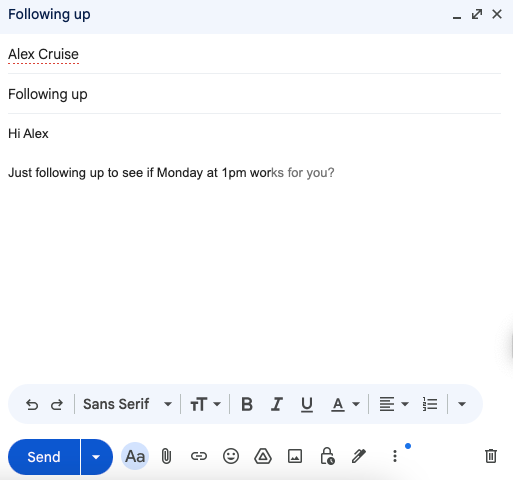
Smart Compose predicts what you're about to type and suggests completions as you write. You'll see gray text appear as you compose, and you can press Tab to accept the suggestion. It learns from your writing style over time, so the predictions get better the more you use it.
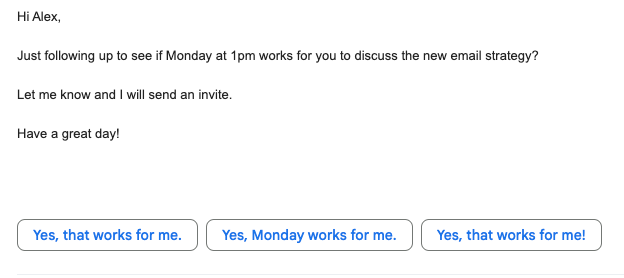
Smart Reply offers short pre-written responses at the bottom of emails. You'll see basic suggestions like "Thanks!" or "Sounds good" for quick acknowledgments.
Nudging resurfaces emails you might have forgotten to respond to. After a few days, Gmail moves these back to the top with a reminder like "Received 3 days ago. Reply?"
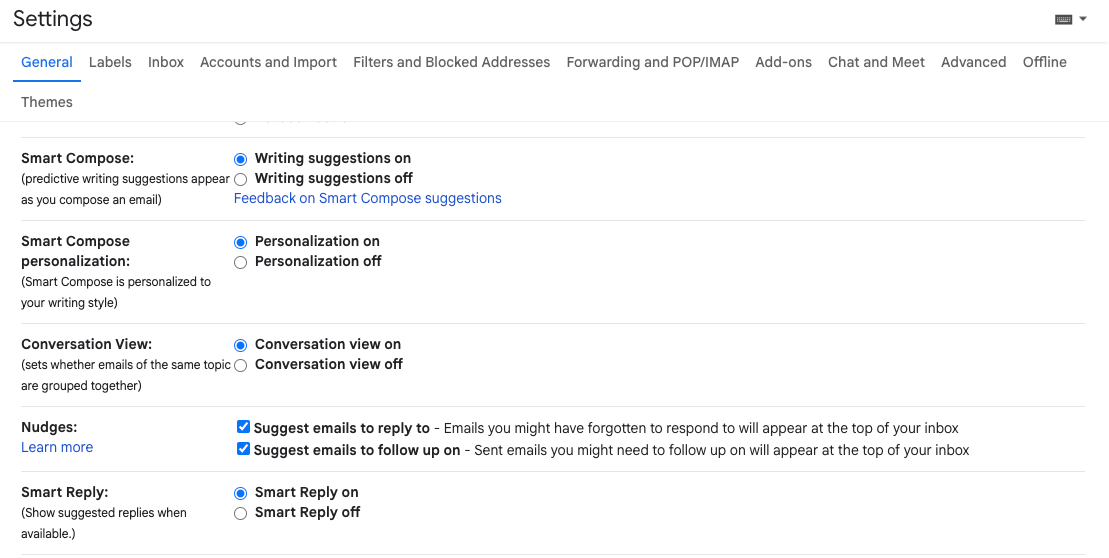
You don't need to use all three features to benefit from Gmail's AI; you can simply turn on the ones that fit your workflow. The nice thing about Gmail's free AI features is that they work passively in the background; there’s no need to learn complex prompts or commands.
To enable them:
- Click the Settings gear in Gmail
- Select See All Settings
- Under the General tab, find Smart Compose, Smart Reply, and Nudging
- Toggle each one on and save your changes
Paid Features for Google Workspace and Google AI Subscribers
Once you upgrade to a paid plan, you unlock Gmail's more powerful AI features. These require either a Google Workspace Business plan (starting at $7/month per user on annual billing, or $8.40/month on flexible billing) or a Google AI Pro subscription ($19.99/month).
As of January 2025, Gemini AI features are included by default in Workspace Business and Enterprise plans. Here are the main AI features you get with a paid plan:
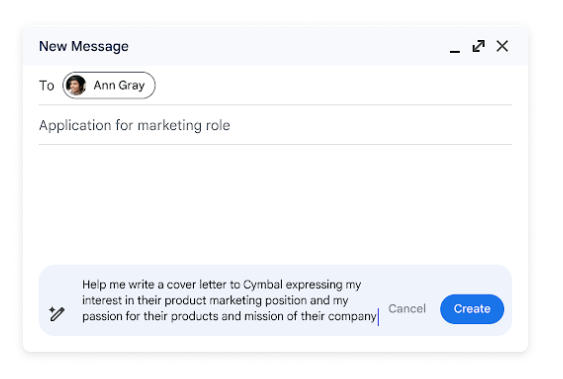
Help Me Write generates entire emails from a short prompt. Describe what you want to say, and Gmail drafts it for you. For example, you could type "Write an email to reschedule our 2 PM meeting due to a conflict and suggest alternative times." You can also use it to refine existing drafts by making them shorter, more formal, or clearer.
To use it, start a new email, look for the Help Me Write button in the compose window, type your prompt, click Generate, then review and choose Insert or Refine.
Summarize This Email: This appears at the top of long email threads. On mobile (iOS and Android), summary cards now appear automatically at the top of long email threads.
On desktop, you’ll need to click "Summarize this email" or use the Gemini side panel to trigger it manually. Either way, you get a condensed version of the conversation, including key points and action items. Useful when you're added to an ongoing thread and need to catch up quickly.
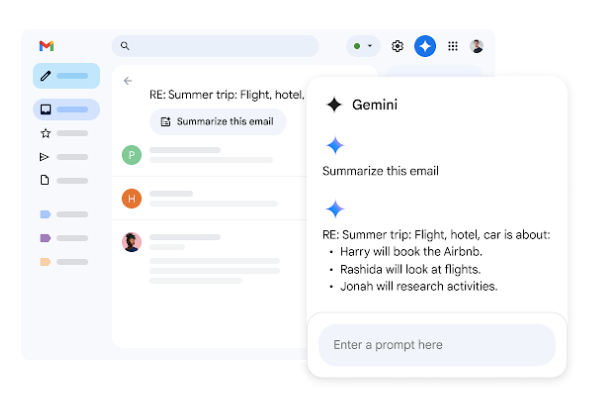
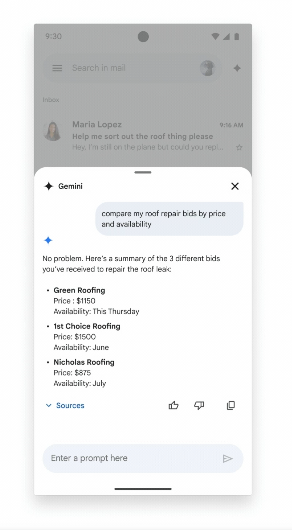
Gemini Side Panel: This is a chat interface inside Gmail where you can ask questions about your emails, get summaries, draft replies, and even pull information from files in your Google Drive using @ mentions.
On desktop, it appears as a side panel when you click "Ask Gemini" in the top right. On mobile, tap the Gemini sparkle icon to bring up the same functionality.
You can ask things like "What did Sarah say about the project deadline?" or "Show unread emails from this week," and follow up with questions like "Explain this in bullet points."
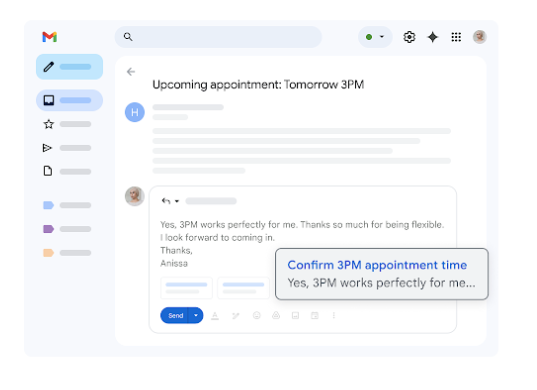
Contextual Smart Reply: This feature analyzes the full email thread and generates longer, more detailed response suggestions compared to the basic Smart Reply available to free users.
Instead of generic one-liners, you get replies that reference what was discussed in the conversation. This feature is included in Google Workspace Business and Enterprise plans as of January 2025.
Note: Google announced an even more advanced "Personalized Smart Reply" at I/O 2025 that will learn your writing style and tone from past emails, but it's not yet widely available.
How to Get Better Results from Gmail's AI
The good news is that Gmail's AI features work right out of the box. That said, there's always room to get better outputs. Just because Gmail generates a draft doesn't mean it captured your tone or included the right details. The quality you get usually depends on how you prompt the AI.
This is why you should treat prompts like instructions. The more context you provide, the better the output. Instead of "Write a follow-up email," try:
"Write a follow-up email to the client about the Q3 proposal, mentioning that we're still waiting on their budget approval and asking if they need any additional information."
You'll get much better results when you include these details in your prompts:
- Who you're writing to: Mention the recipient's name or role (like "the hiring manager" or "our development team").
- What you need: Be specific about the purpose: are you requesting information, providing an update, or scheduling a meeting?
- The tone you want: Do you need this to sound formal, casual, apologetic, or enthusiastic?
- Key details to include: Reference specific projects, dates, numbers, or previous conversations that should appear in the email.
Gmail's AI also gives you “Refine” options after it generates a draft. You can make the email more formal, elaborate on certain points, or shorten it. These options help you adjust the output without starting over.
The best part? You can regenerate drafts if the first attempt misses the mark. Click "Recreate," and Gmail will give you a new version. You can try this multiple times until you get something close to what you need.
The best way to use Gmail's AI is to start with detailed prompts and then refine from there. After all, the AI is working with whatever information you give it.
When Gmail's AI Falls Short
Gmail's AI works well for day-to-day email management like writing one-off messages or catching up on threads. But certain use cases reveal its limitations pretty quickly. Users running email outreach campaigns have noticed these gaps firsthand:
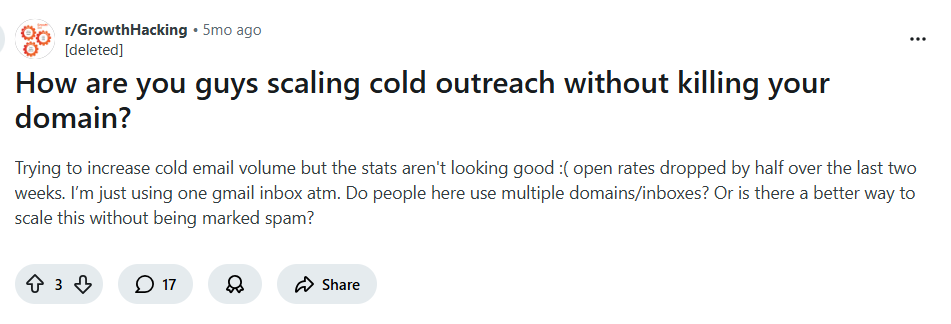
If you're sending emails at scale, Gmail's AI wasn't built for that work. While Gmail offers basic mail merge for personalization, it doesn't support automated follow-up sequences based on recipient behavior, detailed tracking across campaigns, or the infrastructure needed for cold outreach at scale.
Deliverability is another gap you'll notice. Gmail doesn't offer tools to warm up new email accounts, check if your copy triggers spam filters, or rotate sending across multiple addresses. Without these, your emails might never reach the inbox in the first place.
And while Help Me Write can draft a decent email, it doesn't learn from what's actually working. You may also need features like A/B testing for subject lines, response rate tracking to see which messages perform best, or automatic optimization based on performance data.
What to Use for Email Outreach at Scale
If your workflow involves sending personalized emails to prospects, following up automatically, and tracking results, you'll need a platform that's built for that work instead of adapting a personal email tool.
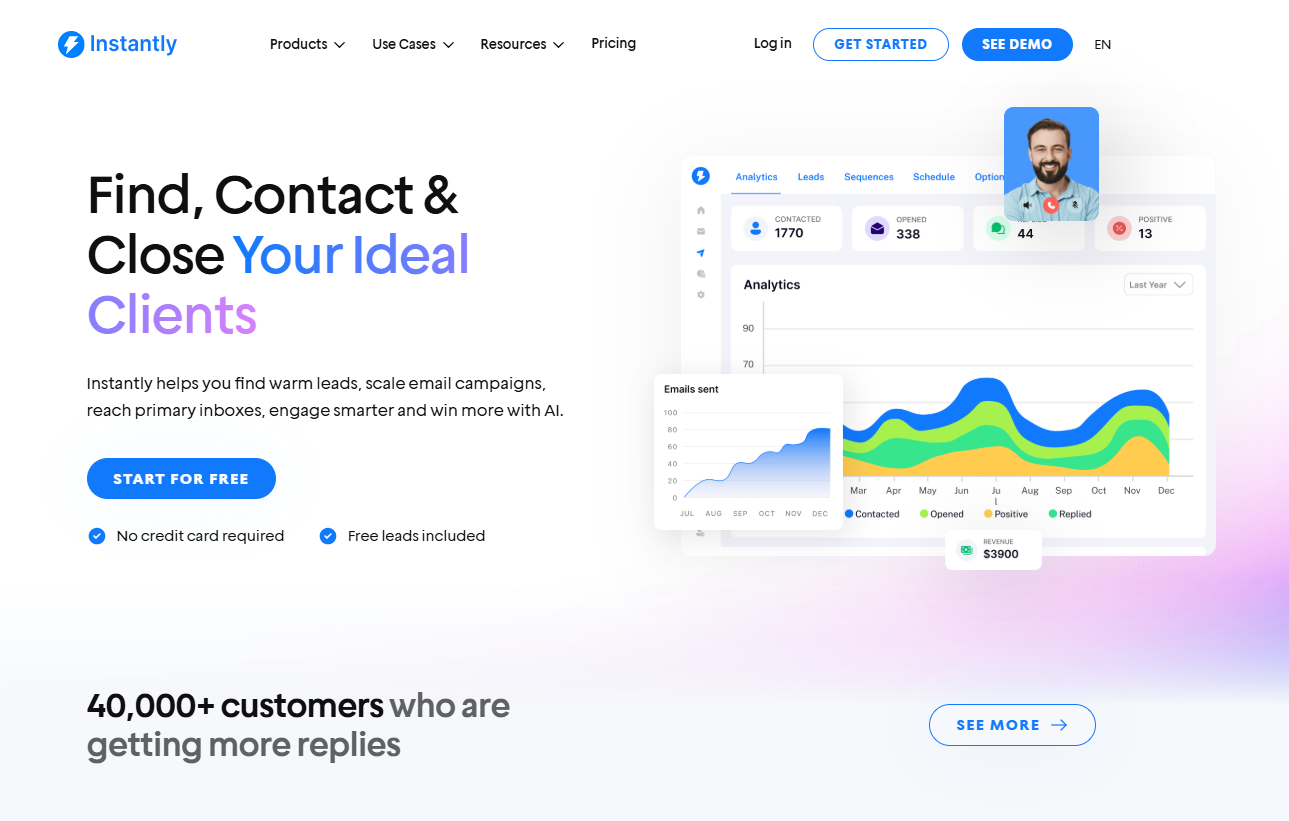
Instantly.ai is designed specifically for cold email campaigns. It combines AI-powered email writing with the infrastructure you need for high-volume outreach without hitting the walls Gmail runs into.
AI Copilot acts as a research assistant inside the platform. It helps you find leads that match your ideal customer profile by pulling verified contacts from Instantly's database of 450M+ contacts.
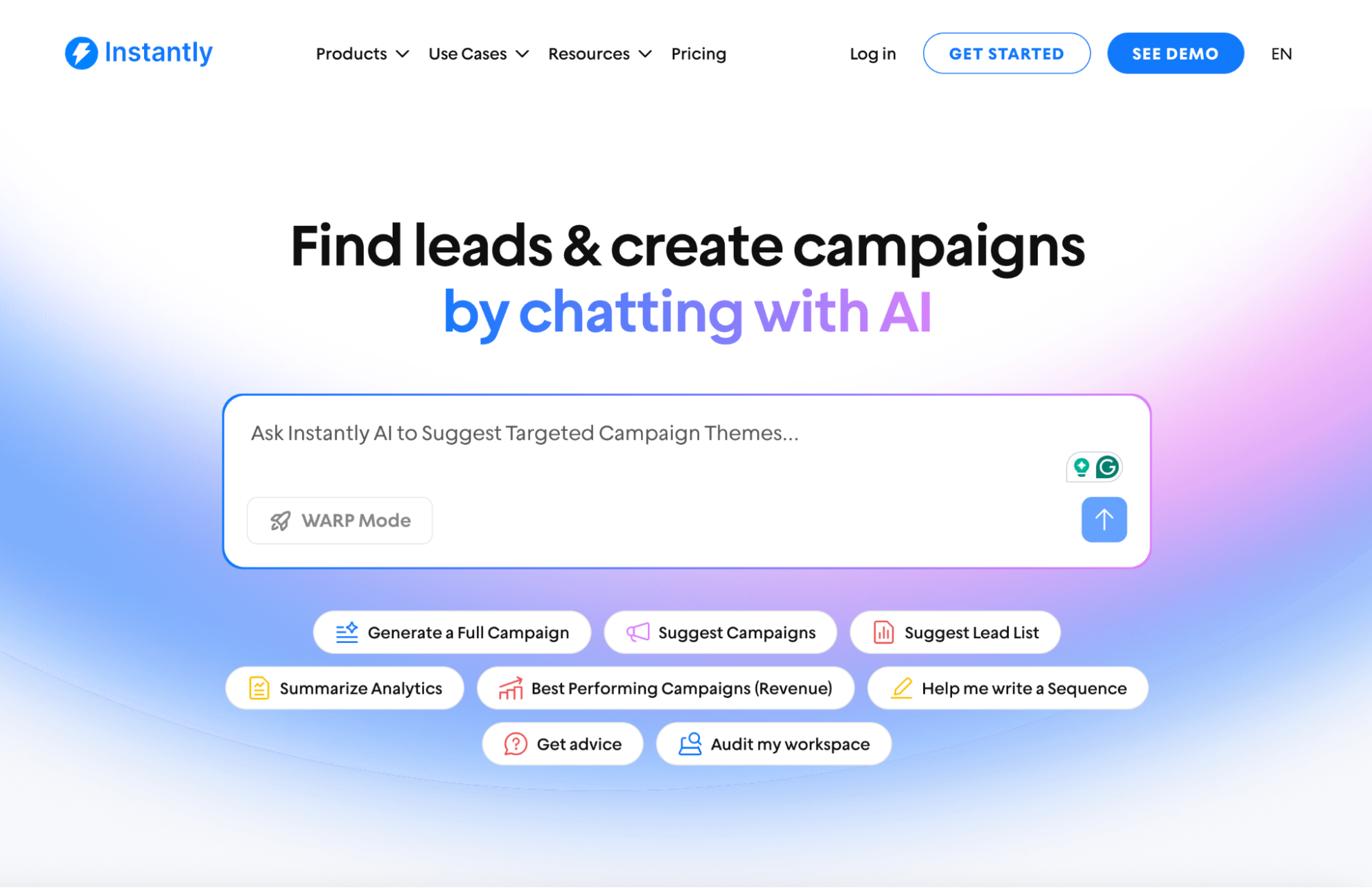
It also generates full email sequences based on your offer, target audience, and case studies. You describe your campaign and get a multi-step sequence with personalized variables for each prospect. That's the kind of personalization Gmail can't handle at scale.
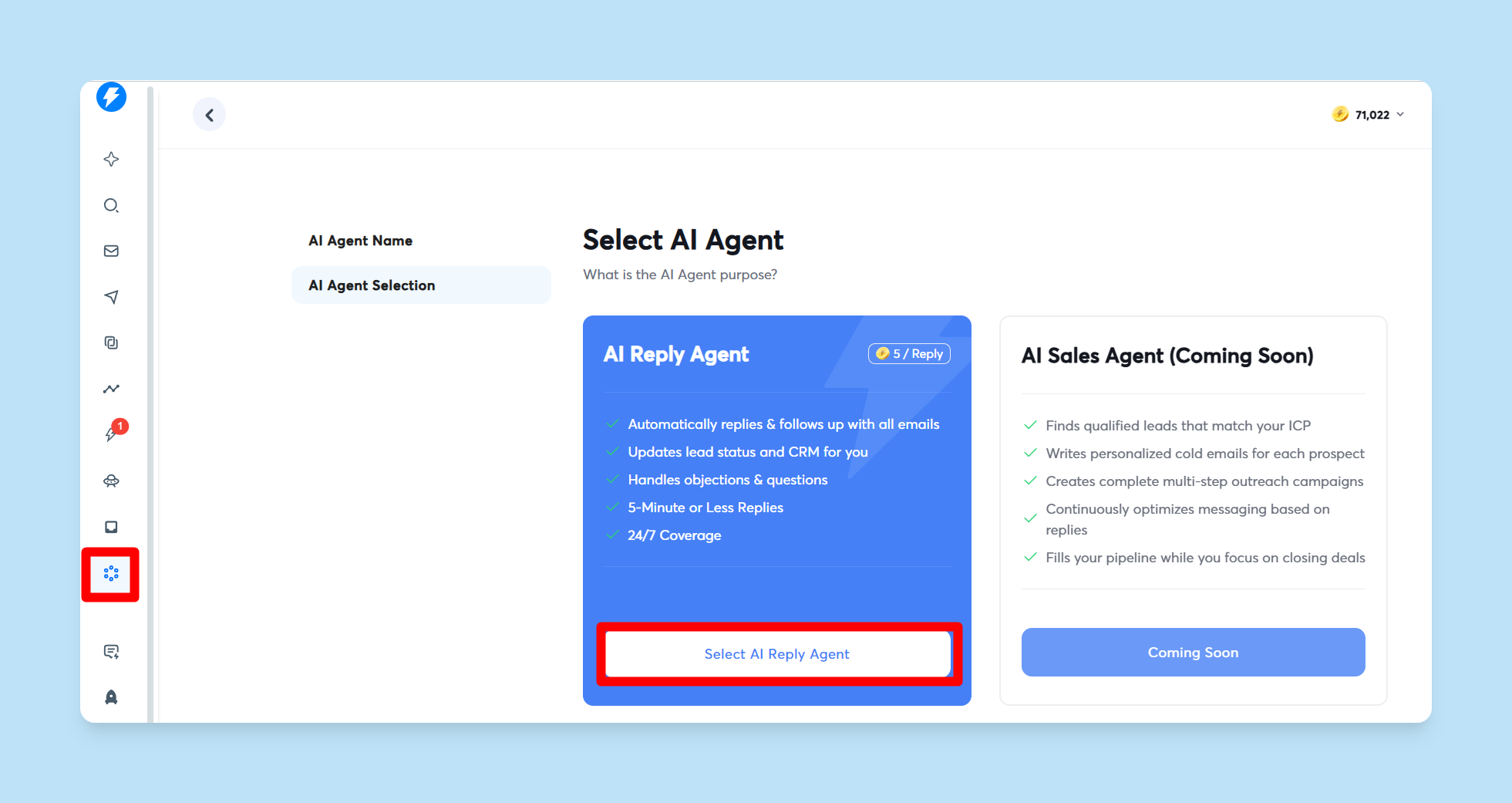
For managing replies, the AI Reply Agent responds to prospects in your tone, handles out-of-office messages automatically, and flags hot leads for your team.
Instantly's Unibox with AI Custom Reply Labels automatically categorizes responses (Interested, Not Interested, Meeting Booked, Out of Office) so you can focus on the conversations that actually matter instead of sorting through every reply manually.
On the deliverability side, Instantly includes email warmup that runs automatically, a spam checker that analyzes your copy before you send, and the ability to rotate sending across unlimited email accounts.
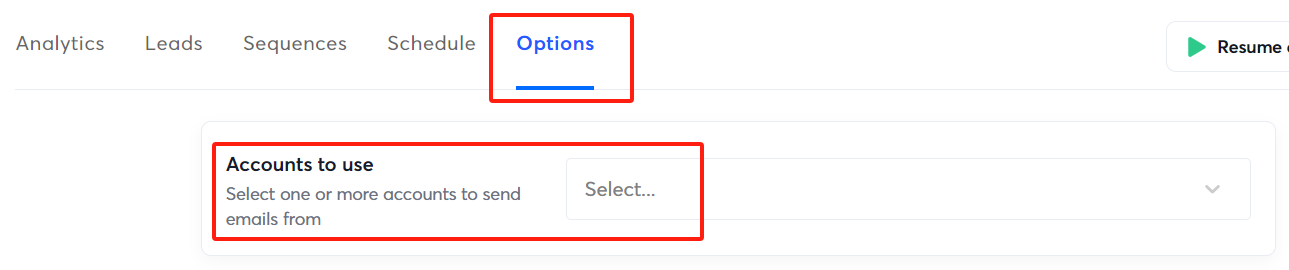
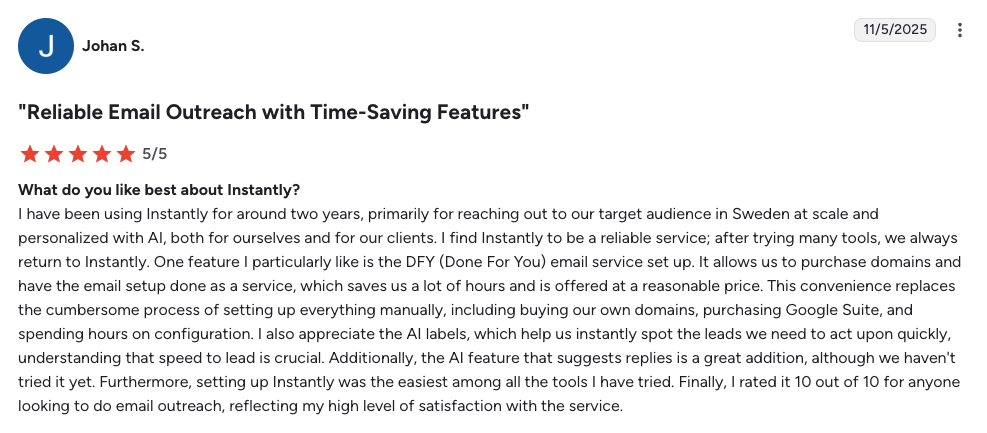
You also get A/B testing with AI optimization. Run multiple variations of your emails and let the platform scale the ones that perform best, so you're not guessing which approach works. Here's what one user had to say about the difference:
Key Takeaways
Gmail's AI can write your emails, but it can't build your outreach strategy. You still need the right infrastructure, deliverability setup, and campaign management to turn sends into replies. Here's what to remember:
- Free features like Smart Compose, Smart Reply, and Nudging help with everyday email tasks, no paid plan required.
- Paid features like Help Me Write and Summarize This Email require Google Workspace Business ($7/month) or Google AI Pro ($19.99/month).
- Gmail can't handle scale: No automated sequences, personalization variables, deliverability tools, or campaign tracking.
- Better prompts equal better outputs: Include recipient details, tone, and context when using Help Me Write.
Instantly.ai handles what Gmail can't: automated sequences, personalization at scale, deliverability monitoring, and behavioral follow-ups. Start your free trial today and launch your first automated campaign in minutes.


