.svg)
%20(1).svg)


Updated February 23, 2026
TL;DR: Most email API failures are not code problems. They are sender reputation drift, authentication mismatches, or rate limit confusion that standard logs never show. One in six emails never reach the inbox, keeping global placement around 84%. This guide walks through a three-step diagnostic: verify authentication (SPF, DKIM, DMARC), check rate limits vs. greylisting, and test inbox placement instead of waiting for bounce spikes. Proactive warmup and daily monitoring catch problems before they damage sender reputation.
API logs show 99% delivery rates while reply rates drop to zero. I see this disconnect constantly. Growth teams rewrite payloads and debug functional integrations for days, missing the real problem. Most email API failures are not code issues. They are sender reputation drift, authentication mismatches, or rate limit confusion that standard logs never surface. Understanding cold email deliverability fundamentals, authentication, warmup, and inbox placement, is the prerequisite for meaningful API troubleshooting.
Silent failures are the worst offenders. Your ESP reports hard bounces, soft bounces, and blocks. But when emails get filtered to spam after delivery, you see nothing. The system appears perfect while your prospects never see your message.
The hidden cost of email API failures
Damaged sender reputation costs you pipeline. When emails miss the inbox, you burn ad spend on leads who never see your message, lose deals that took weeks to build, and risk permanent domain blacklisting that takes months to fix. The best cold email tools surface these silent failures through inbox placement testing and daily monitoring dashboards rather than waiting for bounce rate spikes to appear in your logs.
EmailToolTester research shows that 17% of emails never reach subscribers' inboxes. In the US and Canada, more than 15% of commercial emails fail to reach their destination. One user on G2 captured the operational reality:
"I like that instantly can handle large scale email campaigns without worrying about deliverability. the automation for inbox rotation, warm up and sending limits makes outreach very smooth and saves a lot of manual work. The most helpful part is the detailed reporting." - Anjali T. on G2
When your API monitoring stops at "200 OK" responses, you miss the signal that matters most: where the email actually landed.
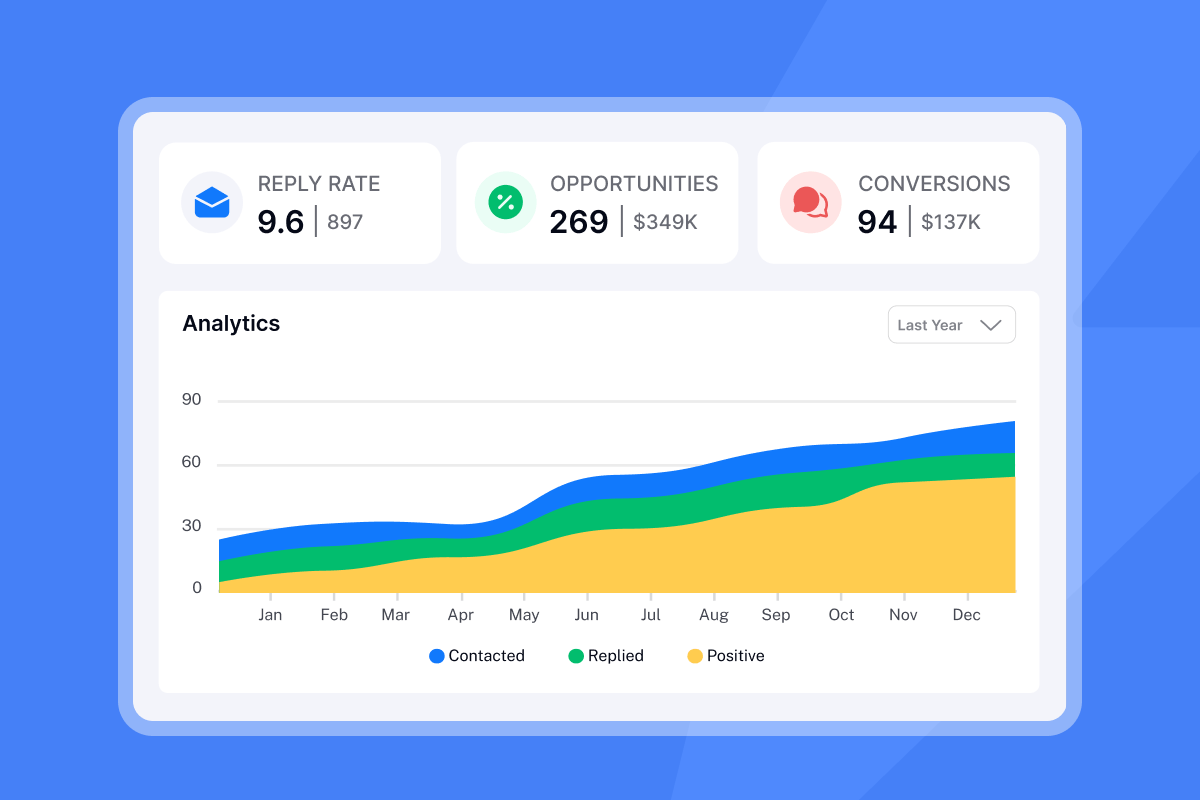
Troubleshooting checklist: Diagnosing API delivery issues
I diagnose email API issues with a systematic check of authentication, throughput, and reputation. Start with these three fundamental areas before diving into code or infrastructure changes. Each represents a different failure mode, and fixing them in order saves time.
1. Authentication errors (SPF, DKIM, DMARC)
I see authentication errors cause most deliverability problems, yet standard API logs never show them. SPF, DKIM, and DMARC verify that emails came from the domain they claim. When these checks fail, receiving servers reject messages immediately or route them to spam.
SPF (Sender Policy Framework) tells receiving servers which mail servers can send email on behalf of your domain. If the sending IP address aligns with the authorized list, SPF authentication succeeds. Verify your SPF record at MXToolbox.
DKIM (DomainKeys Identified Mail) uses cryptography to verify that the email came from your domain and was not tampered with in transit. Test your DKIM record with MXToolbox's DKIM Check tool.
DMARC (Domain-based Message Authentication, Reporting and Conformance) tells receiving servers what to do when messages fail SPF or DKIM authentication. Action options are reject, quarantine, or deliver.
For setup instructions, check Instantly's guides on SPF, DMARC and DKIM for GoDaddy & Google Workspace and Namecheap & Google Workspace. Free tools like Google Admin Toolbox can verify your records are properly configured. Beyond authentication records, your full email API security posture, including encryption, key rotation, and access controls, determines whether you can scale outreach without compliance or infrastructure risk.
2. Rate limiting and throughput caps
Rate limiting in email APIs controls how many calls an organization can make during a set period. Two separate limits matter: sending platform limits and receiving ISP limits. Confusing them causes most throughput problems.
Sending platform limits control how fast you can call the API. An API rate limit refers to the number of calls the client can make in a second, typically measured in requests per second (RPS). A typical limit might be 20 requests per second. When you exceed these limits, you'll see 429 error codes.
Receiving ISP limits are different. Gmail enforces limits on total requests and per-user quotas. When exceeded, servers return error code 429 "User-rate limit exceeded." Microsoft sets limits where you can submit up to 150 unique emails every 15 minutes per tenant.
Greylisting adds complexity. The first delivery attempt is deliberately rejected and later attempts are accepted to filter spammers who do not retry. This looks like a delivery failure in your logs but actually signals that retry logic should be implemented.
Reduce your sending rate and implement exponential backoff in your retry logic. When a rate limit is detected, wait and retry after a progressively increasing delay. For a visual walkthrough, watch how to set up Instantly AI email warm up.
3. Silent failures and API timeouts
Silent failures occur when an API returns a 2xx success code while the email is blocked by the receiving server or filtered to spam without notification. Issues with email infrastructure cause some failures, including problems with your email server or unstable network connections.
DNS resolution issues cause many silent failures. DNS Failure indicates there was some issue with the Domain Name System, and a message couldn't be delivered at the time. The recipient's email server was likely temporarily offline or misconfigured.
Network latency creates another pattern. Whenever the system interprets a failure as temporary, the email is deferred and the system will re-attempt delivery. By default, systems attempt delivery with an initial retry interval of 900 seconds (15 minutes), then progressively longer delays.
Firewall blocking can obstruct email delivery without generating clear error messages. The API sees the connection as successful, but the email never reaches the receiving server.
One G2 reviewer highlighted how proper infrastructure eliminates these issues:
"I love Instantly's deliverability tools, which are the best I've encountered. Having used Salesloft, Apollo, and other tools, Instantly gives me the highest reply rate by far. The ability to send emails as text only, without HTML, significantly boosts deliverability." - Josh G on G2
Common SMTP error codes and how to fix them
The first digit indicates severity: 4xx codes are temporary issues (soft bounce), while 5xx codes are permanent failures (hard bounce). For 4xx codes, implement retry logic with exponential backoff. For 5xx codes, remove the address immediately.
Code | Type | Meaning | Fix |
|---|---|---|---|
421 | Temporary | Service unavailable | |
450 | Temporary | Mailbox unavailable or full | |
451 | Temporary | Local processing error | Wait and retry, usually resolves quickly |
452 | Temporary | Insufficient storage (greylisting) | |
550 | Permanent | User unknown or policy block | |
551 | Permanent | User not local, account moved | |
552 | Permanent | Mailbox full (permanent) | Contact via alternate method |
553 | Permanent | Invalid mailbox name | Remove from list immediately |
554 | Permanent | Transaction failed, likely blocklist | Check domain blocklist status, review content for spam signals |
Some servers use enhanced codes like 5.1.1 or 4.3.2. The first digit still indicates severity (4 = temporary, 5 = permanent). For more troubleshooting, watch Instantly's guide on fixing cold email campaigns.

Bounce rates vs. deliverability metrics: What matters?
Bounce rate is a lagging indicator. By the time bounces spike, your sender reputation has already declined. Open rates above 25% signal high inbox placement and positive sender reputation. Reply rate is the metric I trust most. It proves emails reached the inbox and recipients engaged. Healthy cold outreach campaigns average 3-5% reply rates, with top performers exceeding 5.5%. Keep bounce rates below 2%.
Hard bounces vs. soft bounces
A hard bounce is a permanent failure where the recipient's email address is invalid or does not exist. Causes include typos (like @gmial.com), nonexistent domains, or deactivated accounts. Remove hard bounces immediately. Keep bounce rates under 2% for cold email. Higher rates damage sender reputation and campaign performance.
A soft bounce is a temporary failure caused by a full inbox, server downtime, or message size limits. Implement retry logic with delays. If an address soft bounces repeatedly without engagement, platforms typically convert it to a hard bounce.
The benchmarks differ by use case. Cold email should stay under 2%, while transactional email should target below 1%. Permission-based lists should stay under 2%. For help diagnosing bounces, check Instantly's article on why emails bounce.
Beyond the bounce: Tracking placement and reputation
Complaint rates above 0.3% quickly reduce inbox placement. According to Gmail's deliverability requirements, spam complaint rates should not exceed 0.3% as displayed in Google Postmaster Tools.
Inbox placement rate tells you exactly where emails land (Inbox, Spam, Promotions). Don't assume your emails reach the primary inbox. Use inbox placement monitoring by sending to test accounts across Gmail, Outlook, and other providers. Catching deliverability drops early prevents compounding damage.
"What really stands out is how stable it's been even at scale, we manage multiple sender domains, sequences, and integrations (Google Sheets + Zapier) without issues. It's made our outreach process 10x more efficient." - Abdulrahman Nashaat Abdulrahma on Trustpilot
How to manage reputation across multiple domains
For agencies managing 50+ client domains, reputation management becomes exponentially more complex. You can't transfer reputation from one domain to another or from previously used IPs to current ones. Mailbox providers like Gmail use the reputation of the domain coupled with the reputation of the IP, so you must follow the warmup process for each new domain. For agencies evaluating whether dedicated IP infrastructure justifies the added cost, see the email API pricing guide comparing total cost of ownership across the major providers.
On a shared IP, one client's bad practices can affect everyone. Many ISPs now filter based on domain reputation, not just IP address reputation. Filters look at all data associated with the sender's domain.
Solution 1: Use sub-accounts and separate domains. For email services not under your direct control, use a subdomain (marketing.contoso.com) instead of your main email domain (contoso.com). This prevents issues with one service from affecting the reputation of your main domain.
Solution 2: Dedicated IPs for high-volume clients. Using a dedicated IP for each high-volume client fully isolates their sending reputation. This prevents one client's poor list hygiene from damaging others.
Solution 3: Implement domain segmentation. Have separate domains or subdomains for marketing, transactional, and corporate mail. Subdomain segmentation is especially important for large-volume senders.
Instantly addresses this with their Light Speed plan, which includes SISR (Server & IP Sharding & Rotation) with dedicated and private IP pools. This architectural choice prevents cross-contamination between client domains. Learn more in their video on starting to send 1000 emails a day. For a complete roadmap of how agencies implement these controls at volume, see the infrastructure breakdown behind scaling email sending to 10,000 daily emails with horizontal account distribution and SISR.
Proactive deliverability management: The long-term fix
Reactive debugging is expensive. By the time you notice problems in your API logs, sender reputation has already declined. Shift from reactive fixing to proactive prevention by implementing consistent warmup and daily monitoring.
Step 1: Implement consistent warmup
IP and domain warming gradually add email volume over several weeks to build sender reputation with mailbox providers. Start with 5-10 emails per day, then increase over 4-6 weeks. Warm up with your most engaged subscribers first, then add older segments in 15% increments.
Achieving maximum deliverability takes four to eight weeks, depending on volume and engagement. Skipping warmup is like sprinting cold. You might move fast once, then you are out for a week.
Instantly automates this with their warmup feature, including weekday-only sending, read emulation, and open rate targeting. For setup instructions, watch how to set up Instantly AI email warm up.
Step 2: Monitor deliverability dashboards daily
Daily monitoring catches problems when they're still fixable. Track primary inbox placement percentage, bounce rate (target: <2%), reply rate (target: >5%), and spam complaint rate (target: <0.3%).
Key metrics to watch:
- Inbox placement rate: Use inbox placement monitoring by sending to test accounts across Gmail, Outlook, etc. to verify actual placement. Catching deliverability drops early prevents compounding damage.
- Complaint rate: Gmail requires spam complaint rates below 0.3% as shown in Google Postmaster Tools. A sudden increase means inbox placement is dropping fast.
- Bounce rate trends: Keep bounce rates below 2%. Any increase signals list quality degradation or domain reputation issues.
Instantly's Inbox Placement feature automates this monitoring. The system sends test emails to seed accounts across major providers and tracks whether they land in the primary inbox, promotions folder, or spam. You receive automated alerts when placement rates drop below acceptable thresholds.
When a test reveals poor placement, Instantly's system can automatically pause affected campaigns, preventing further damage to your sender reputation. For instructions, check inbox placement one-time tests and automated tests. Watch their comprehensive guide on cold email deliverability.
"I love how Instantly has revolutionized my email marketing efforts... I also appreciate the inbox placement test that gives insights into how many emails land in the inbox versus the spam folder, which helps in fine-tuning email strategies." - Sachin J on G2
Conclusion
Email API failures are rarely just bad code. Most delivery problems stem from reputation drift, authentication mismatches, or rate limit confusion that standard API logs never reveal. The three-step fix is simple: verify authentication (SPF, DKIM, DMARC), implement consistent warmup with gradual volume ramps, and monitor inbox placement daily using seed tests rather than waiting for bounce rate spikes.
Proactive monitoring beats reactive debugging every time. By the time bounces appear in your logs, sender reputation has already declined. Catch problems early by tracking inbox placement rate, complaint rate, and engagement metrics daily. Systems beat quick fixes. Build the infrastructure, monitoring, and processes that prevent fires rather than fighting them after they start.
Ready to catch delivery issues before they damage your sender reputation? Try Instantly free and use the Inbox Placement tester to see where your emails actually land. Start by auditing your current SMTP error logs with the checklist above, then set up daily placement monitoring to prevent silent failures.

Frequently asked questions about email API troubleshooting
What is a good bounce rate for cold email?
A bounce rate under 2% is ideal for cold email campaigns. Higher rates signal list quality issues that require immediate attention.
How do I fix a 550 SMTP error code?
Error 550 means the recipient's email address does not exist on the server. Remove the address immediately from your list.
What is the difference between API rate limits and ISP rate limits?
API rate limits control how fast you can call the sending platform (requests per second), while ISP rate limits control how many emails receiving servers accept from your domain per time period. Confusing them causes most throughput problems.
How long should email warmup take?
Achieving maximum deliverability takes four to eight weeks, depending on volume and engagement. Start with 5-10 emails per day and gradually increase.
Why does my API show "sent" but recipients aren't getting emails?
This is a silent failure where the API returns success codes while emails get filtered to spam or blocked by receiving servers. Use inbox placement testing to reveal where emails actually land.
What spam complaint rate is acceptable?
Keep complaint rates below 0.3% according to Gmail's deliverability requirements. Rates above this threshold quickly reduce inbox placement.
Key terminology
SPF (Sender Policy Framework): An email authentication standard that verifies the authenticity of sending servers by comparing the IP address against a list of authorized senders in DNS records. If the sending IP aligns with the authorized list, SPF authentication succeeds.
DKIM (DomainKeys Identified Mail): A digital signature that uses cryptography to verify that the email came from the domain and wasn't tampered with in transit. Test your DKIM record with MXToolbox's DKIM Check tool.
DMARC (Domain-based Message Authentication, Reporting and Conformance): Tells receiving email servers what action to take on messages that don't pass SPF or DKIM authentication. Action options are reject, quarantine, or deliver.
Hard Bounce: A permanent bounce indicating an email has been permanently rejected because the recipient's email address is invalid or does not exist. Remove these addresses immediately to protect sender reputation.
Soft Bounce: A temporary delivery issue such as a full inbox or server temporarily unavailable. Retry these, but remove after repeated failures.
Silent Failure: Occurs when an API returns a 2xx success code while the email is blocked by the receiving server or filtered to spam without notification. The system appears to work when emails never reach the inbox.
Greylisting: A spam-fighting technique where the first delivery attempt is deliberately rejected and later attempts are accepted. This filters out spammers who don't implement proper retry logic.
Rate Limiting: Controls on how many API calls an organization can make during a set period (API rate limits) or how many emails receiving servers accept from a domain per time period (ISP rate limits). Confusing the two causes most throughput problems.



