.svg)
%20(1).svg)


Updated on 08 May 2026
TL;DR: Basic email tracking logs activity. Real pipeline automation moves deals. The gap between the two costs sales teams hours every week in manual data entry and missed follow-ups. To close that gap, you need bi-directional CRM sync, custom tracking domains to protect deliverability, and a flat-fee pricing model that does not penalize you for growing your team. Instantly combines all three: unlimited sending accounts, deep CRM sync with HubSpot and Pipedrive, and a built-in Unibox that pushes reply status directly into your pipeline without per-seat taxes.
Most sales leaders treat email tracking as a "read receipt." High-performance revenue teams treat it as infrastructure. Every open, click, and reply should automatically advance a deal stage, create a task, or stop a sequence, with no rep intervention required.
This guide breaks down how to build that closed-loop system across Salesforce, HubSpot, and Pipedrive, what separates basic logging from true pipeline automation, and why the tracking tool you pick is as much a deliverability decision as a data decision.
Why most email tracking breaks deliverability (and how to fix it)
The shared domain problem
Every tracking pixel and redirect link in your email is a potential flag for spam filters. According to Glockapps, spam filters scrutinize redirect links closely and route emails with suspicious ones directly to the spam folder. The mechanics are straightforward. The risk comes from how those pixels and links are routed.
The bigger risk comes from shared tracking infrastructure. When many senders use the same automation tool's default domain, some of those senders will get marked as spam, which damages the shared domain's reputation and forces your emails to inherit that damage even when your own practices are clean. You cannot control how other users of the same platform behave, but your inbox placement rate pays the price when they do not.
Custom tracking domains as the fix
Use a custom tracking domain to isolate your tracking links from everyone else on the platform. If your tracking domain gets flagged, your sending domain stays clean. As Hunter's cold email guide explains, using a custom tracking domain ensures your deliverability depends solely on your own practices, not the behavior of other senders on the same tool. If you keep bounce rates at or below 1% and follow warmup protocols, your inbox placement holds even when other users on the platform do not.
Instantly reportedly includes custom tracking domains on paid plans, configured through a simple CNAME record. This matters for the comparison ahead. Platforms that lock custom tracking domains behind higher tiers are forcing a trade-off between tracking and deliverability at the exact moment you are scaling.
CRM sync vs. pipeline automation: What's the difference?
Understanding this distinction is the most important decision you will make when evaluating tracking tools. Most platforms offer Level 1. Few deliver Level 2 reliably.
Level 1 - Basic logging
This level records that an email was sent, opened, or clicked as a note in the contact's activity timeline. It is useful for historical context but not for action.
A rep can look at the timeline and see that a prospect opened an email three times on Tuesday. But if that fact does not trigger a task, move a deal stage, or notify the AE, the data sits dormant. The rep still has to manually decide what to do and log what they did.
Level 2 - Pipeline automation
This is where tracking becomes a revenue system, powered by real CRM automation. Engagement events trigger CRM object changes in real time, with no manual step:
- Reply received: Deal stage moves to "Conversation Started" and the sequence pauses automatically.
- Click detected: A task is created for the AE to call within 24 hours.
- Bounce returned: Contact marked "Invalid" and removed from active sends to protect list hygiene.
- Unibox label set to "Interested": New opportunity created in CRM with contact details, campaign name, and reply text populated automatically.
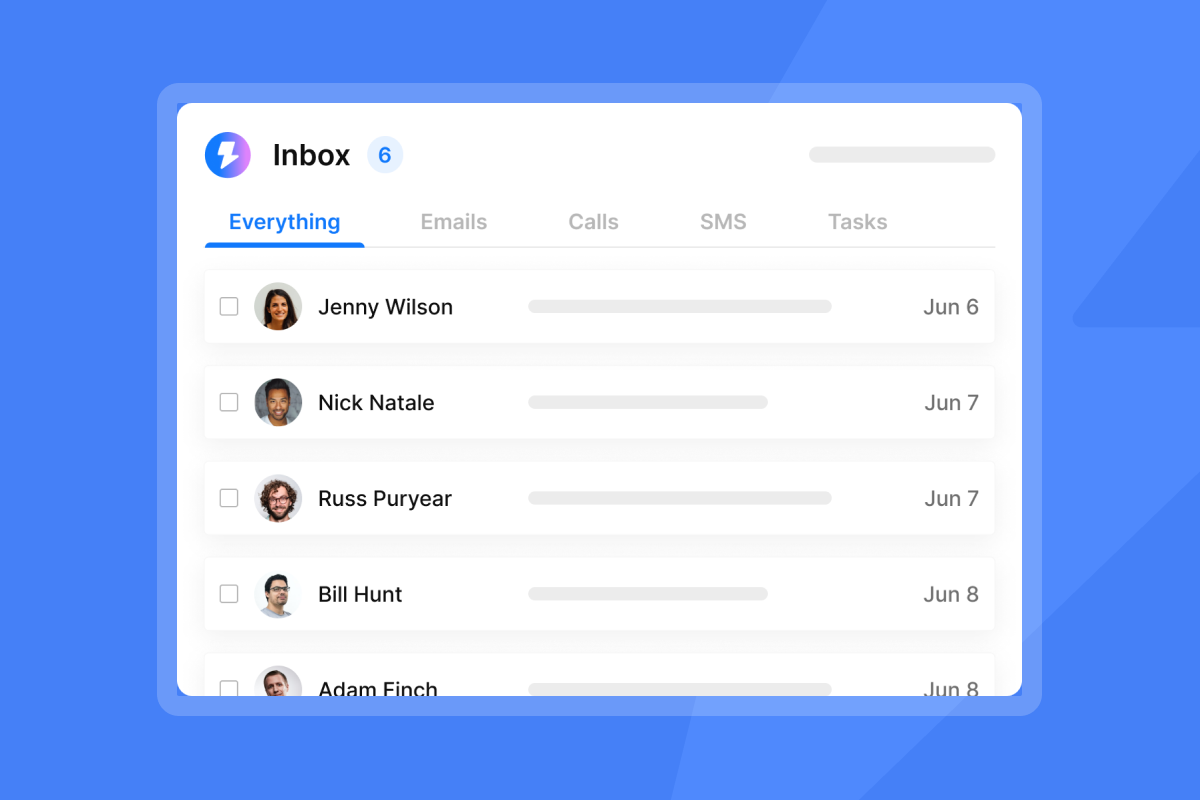
Instantly's CRM integration guide describes this directly: reps triage replies in Unibox using labels like "Interested," "Meeting Booked," and "Not Interested." When a status changes, the corresponding CRM fields update based on your rules, with no manual entry required. The HubSpot integration guide shows how a Zapier workflow fires on a new reply event in Instantly, updates lead status in HubSpot, and optionally creates a deal or task. The CRM for sales deliverability guide covers how to keep this pipeline accurate as sends scale.
Top email tracking software with deep CRM integrations
Here is how the main platforms compare on sync depth, pricing model, and deliverability features. These three variables determine whether your tracking integration holds up when you add reps or scale sends.
Tool | Pricing model | CRM sync depth | Warmup included | Custom tracking domain |
|---|---|---|---|---|
Instantly (Growth or above) | Flat-fee from $47/mo, unlimited users | Pipeline automation via Zapier and OutboundSync (requires separate CRM plan for native sync) | Yes, built-in | Yes, higher tier plans |
HubSpot Sales Hub Pro | Per-seat, ~$90/user/mo | Pipeline automation (native workflows) | No | Yes, Pro/Enterprise |
Salesforce Sales Cloud Enterprise | Per-seat, ~$175/user/mo | Pipeline automation (Flow/Process Builder) | No | Advanced tracking features available |
Apollo Professional | Per-seat, $79/user/mo (annual) | Basic logging native; automation via integrations | Yes, select plans | Yes, all paid plans |
Pipedrive | Per-seat, varies by plan | Basic logging | No | Yes, documented |
Note: Instantly's Outreach plans start at $47/mo (Growth) with unlimited users and built-in warmup. CRM activity sync and pipeline automation require either Zapier integration or Instantly's separate CRM plan. Full automation triggers via OutboundSync require the Hypergrowth Outreach plan ($97/mo).
The cost of scale. For a 25-person sales team, the per-seat math compounds fast. Apollo's Professional plan at $79/user/month adds up to $23,700 per year for 25 reps. HubSpot Sales Hub Professional at roughly $90/user reaches $27,000 annually. Salesforce Enterprise at $175/user reaches $52,500 annually for the same team. Instantly's Hypergrowth plan at $97/month flat covers unlimited users, bringing the annual cost for that same team to $1,164. That is a cost difference of 73–88% for a team focused on cold email outreach at scale.
The API limit risk. Per-seat enterprise platforms have daily API limits that high-volume tracking stresses. Salesforce Enterprise caps at 100,000 API calls daily plus 1,000 per user license. HubSpot Professional caps at 650,000 daily. High-volume campaigns and automations stack API consumption fast. Monitor your CRM's API usage dashboard weekly during ramp, and set an alert at 70% of your daily limit so you can adjust before send queues start failing silently.
"I use Instantly for Cold Outreach Emails for me and my clients. It pretty much covers everything I need like domains, emails, deliverability, AI Integration, and API." - Riccardo C. on G2

How to set up a bi-directional sync workflow
What you'll achieve
A working bi-directional sync means replies tagged in Instantly Unibox automatically create or update CRM records, the same kind of automation the best sales CRM platforms are built around. Sequence-active contacts in Instantly update when a deal moves in your CRM. Booked meetings mark leads as "Demo Booked" without a rep touching the CRM.
Prerequisites
Before setup, confirm you have:
- Instantly Growth plan or above (Hypergrowth recommended for full automation triggers)
- Admin access to your CRM (HubSpot Super Admin or Pipedrive Admin)
- Zapier account if using webhook-based automation (free tier covers basic flows)
- Custom tracking domain already configured in Instantly settings
Step 1: Map your fields
Most integrations break at field mapping. Mismatched field names create silent failures: Instantly marks a lead "Interested," but the CRM never updates because the label name does not match the expected field value.
Before you connect anything, list every Instantly label you use (Interested, Meeting Booked, Not Interested, Unsubscribe) and map each one to the exact CRM field and value it writes. For HubSpot, map to Lifecycle Stage or a custom Outbound Status property. For Salesforce, map to Lead Status or Opportunity Stage.
The Instantly CRM import guide covers how to pull existing contacts from HubSpot, Salesforce, and Pipedrive into campaigns, ensuring the field structure is consistent before you start sending.
Step 2: Connect your CRM
HubSpot: In Instantly, go to Settings, open Integrations, choose "Connect HubSpot," and authenticate via OAuth. If you only need activity logging, the HubSpot automation setup guide covers how to configure triggers so reply events in Instantly fire HubSpot workflows.
Salesforce: The setup path mirrors HubSpot via OutboundSync for deal stage automation. After authenticating, confirm in Salesforce that the activity timeline reflects sent, reply, and status events. Then verify that your workflow or Flow creates the expected task or deal on trigger.
Pipedrive: The Pipedrive connection guide walks through OAuth authentication. The Pipedrive automation setup covers how to import leads from Pipedrive and push status changes back on reply events. For deal creation on "Interested" labels, the Zapier-to-Pipedrive recipe fires when Instantly detects the label and creates a new deal automatically.
Step 3: Define your triggers
With fields mapped and CRM connected, set your automation rules:
- Reply received: Stop sequence, tag reply in Unibox, push status to CRM.
- Labeled "Interested": Create opportunity or deal in CRM, assign to AE, create follow-up task with 24-hour deadline.
- Labeled "Meeting Booked": Mark lead as "Demo Booked" in CRM, sync to calendar, confirm meeting invite sent.
- Bounce returned: Mark contact "Invalid" in CRM, remove from active sequences, flag for list hygiene review.
For Close CRM users, the Zapier integration recipe covers the same "Interested" trigger mapped to lead creation.
Step 4: Sync the calendar
Meeting booking is often the last mile that breaks. A rep gets a reply, the prospect books via a Calendly link, and that meeting never touches the CRM.
Set a trigger on the "Meeting Booked" label in Instantly Unibox. When it fires, your Zapier action creates the CRM deal, logs the meeting as an activity, and sends a calendar confirmation. The Instantly co-founder demo walkthrough shows how this connects end-to-end within a live campaign setup.
Common use cases
Use case 1 - SDR-to-AE handoff
An SDR runs sequences for 200 targets. A reply comes in and lands in Unibox. The SDR labels it "Interested." Instantly creates a HubSpot deal, assigns it to the responsible AE, and creates a 24-hour callback task, all before the SDR finishes reading the email. The AI reply agent can also draft the initial response within minutes, reducing the gap between reply and human engagement.
Use case 2 - Bounce-triggered hygiene
A campaign returns 25 bounces. Each bounce triggers a Salesforce status update to "Invalid," removes the contact from active sequences, and adds them to a suppression list. Your bounce rate stays under 1%, and your domain health stays clean.
Use case 3 - Multi-inbox team management
A five-rep team each runs separate email accounts for different verticals. All replies route to a shared Unibox. Labels applied by any rep sync to HubSpot with the rep's name attached, giving you a complete, auditable activity record that withstands CFO scrutiny without manual consolidation.
"The ability to have everything from email account purchasing to warming pools to webhook integrations for backend automation flows, its truly amazing." - Aaron on Trustpilot
Troubleshooting common issues
Status not syncing to CRM: Check that your Zapier trigger filters on the correct Instantly label name (exact match, case-sensitive). Then verify that your daily API limit in the CRM has not been reached. If your CRM's API requests in the last 24 hours are at or near the org limit, sync events queue and delay. The Salesforce API rate limits documentation covers how to monitor usage.
Duplicate contacts created: This usually means the field you are matching on (typically email address) is not mapped consistently between Instantly and the CRM. Set a deduplication rule in HubSpot or Salesforce to merge on email address before the automation writes a new record.
Calendar sync missing from CRM: Confirm the "Meeting Booked" label fires a separate Zapier step from the "Interested" step. If both actions are in the same Zap, a logic error in one can suppress the other.
Open tracking not reflecting in CRM: If you use a shared tracking domain instead of a custom one, pixel blocking by email clients (common in Outlook and Apple Mail) suppresses open events. Switch to a custom tracking domain to improve pixel delivery. A custom tracking domain routes tracking requests through your own infrastructure rather than a shared platform domain, which reduces the chance that spam filters block the pixel before it loads.
Data privacy, security, and audit logs
GDPR and CCPA compliance
Tracking pixels interact directly with privacy law. Both GDPR and CCPA require clear disclosure of tracking practices in your privacy notice. For cold outreach, this creates a concrete compliance obligation: if a prospect is in the EU, pixel-based open tracking without an opt-in mechanism creates compliance exposure under GDPR Article 6, which requires a lawful basis for processing personal data. You must disclose tracking practices in your privacy notice and provide an opt-out mechanism.
The practical safeguard is keeping tracking optional and documented. Use click tracking (which requires an active action) as your primary engagement signal for EU prospects, and configure sequences to exclude pixel-based open tracking for regions where implied consent does not apply.
Audit trails for RevOps
A clean audit log answers the question: "Was this deal stage changed by the rep or by the automation?" That distinction matters when pipeline reviews happen and CRM data needs to reconcile with quota attainment.
In Instantly, label changes in Unibox can be tracked through the system's audit features. When that change triggers a CRM update via Zapier or OutboundSync, the API call carries metadata about the trigger source. Configure your Salesforce Flow or HubSpot workflow to write the automation source (for example, "Instantly Unibox Automation") into a custom field such as "Trigger Source" or "Last Modified By (Automation)." This lets you distinguish automated updates from manual edits in reporting. The Instantly CRM features overview covers the custom label and status management options that feed into these audit workflows.
For a video overview of how deliverability and tracking work together as a system, the Ultimate Guide to Cold Email Deliverability from the Instantly channel covers warmup, send pacing, and tracking domain setup in detail. The Instantly co-founder demo walkthrough shows the integration and campaign setup flow end-to-end.
"Instantly makes it much easier to manage and run multiple campaigns simultaneously, allowing me to handle outreach at scale with ease... I find it particularly useful for keeping my outreach efforts organized without introducing unnecessary operational complexity." - Sachin M. on G2
Build the system, not just the connection
Email tracking integration is an infrastructure decision. A basic connection logs data. A properly configured system moves deals, protects deliverability, and removes the administrative tax that costs your highest-paid reps four hours a week in manual logging.
The variables that determine whether your integration holds up at scale: bi-directional sync depth, custom tracking domain availability, flat-fee pricing that does not penalize team growth, and audit-ready reporting that reconciles with your CRM under CFO review.
For teams evaluating at the RevOps level, the right question is not "does it integrate with HubSpot?" Every tool checks that box. The right question is: "Does a reply in my outreach tool automatically advance a deal stage, stop the sequence, and create an AE task, without a rep touching anything?"
If the answer is no, you have a data silo. If the answer is yes but it requires a $175/user enterprise plan to get there, you have a scale trap.
Try Instantly free and run the CRM sync setup against your current HubSpot or Salesforce instance. You can validate the Unibox-to-pipeline workflow with a live campaign in under an hour and confirm the system holds before any budget decision.
Frequently asked questions about email tracking integrations
How does email tracking affect deliverability?
Tracking pixels and redirect links can trigger spam filters if routed through a shared domain. Using a custom tracking domain isolates your sender reputation so that only your own sending behavior affects your inbox placement rate.
What's the difference between email sync and pipeline sync?
Email sync logs activity (sent, opened, clicked) in the CRM timeline. Pipeline sync changes deal stages, creates tasks, and assigns owners based on engagement triggers, with no manual rep action required.
What happens to my tracking data if I cancel mid-month?
You retain access to all tracking and reply data through the end of your billing period. Fees are non-refundable, so you pay for the full month. After your billing period ends, Instantly may provide a limited window to download your data before permanent deletion, but this is at their discretion.
How many API calls does email tracking generate per day?
Each email tracking event (sent, open, click, reply) requires at least one API call to sync to your CRM. Salesforce Enterprise Edition caps at 100,000 daily API calls plus 1,000 per user license, and HubSpot Professional caps at 650,000 daily, so high-volume campaigns can stress these limits faster than teams expect.
Can I audit which CRM changes were made by automation vs. by a rep?
Yes, if you configure your Salesforce Flow or HubSpot workflow to write the trigger source into a custom field. Instantly timestamps every Unibox label change so you can trace the origin of each CRM update.
What plan do I need for full CRM pipeline automation in Instantly?
The Hypergrowth plan at $97/month (or $77.60/month billed annually) supports full automation triggers via OutboundSync and Zapier. The Growth plan at $47/month covers activity logging and basic sync, but may have limitations on automatically pushing lead status changes to your CRM on reply.
Key terms glossary
Bi-directional sync: Data flows both ways between your email tool and CRM. A reply in Instantly updates HubSpot. A stage change in HubSpot can pause an active Instantly sequence.
Custom tracking domain (CTD): A unique subdomain (e.g., track.yourdomain.com) used for open and click tracking links. It routes all tracking events through your domain rather than a shared platform domain, protecting your sender reputation.
API call: A request sent between two software systems to read or write data. Every email event (sent, opened, clicked, replied) that syncs to your CRM consumes one or more API calls against your daily limit.
Pipeline automation: Engagement-triggered changes to CRM objects (deal stages, task creation, owner assignment) that happen automatically based on rules, without manual rep input.
Unibox: Instantly's unified inbox that aggregates replies from all sending accounts in one view, with label-based triage that feeds directly into CRM automation workflows.
Throughput: The volume of emails sent per day across all inboxes. Ramp throughput gradually to build sender reputation before pushing volume. Rushing this ramp is the leading cause of deliverability crashes that kneecap monthly targets.
Sender reputation: A score used by email providers to determine inbox placement. It is shaped by bounce rates, spam complaints, engagement rates, and domain age, and it is separate from your tracking domain reputation.



