.svg)
%20(1).svg)


Updated May 15, 2026
TL;DR
Manually exporting CEO emails from a finder tool and pasting them into your CRM creates duplicate records, stale data, and deliverability risk. An automated email data pipeline connects your email finder to your CRM and cold email platform using real-time APIs, Zapier workflows, or native integrations. For sales teams that want data sourcing, outreach, and CRM in one place, Instantly.ai brings SuperSearch (450M+ verified B2B leads), unlimited sending accounts, and a built-in CRM into one platform so the pipeline runs end to end on a flat monthly fee with no per-seat penalties.
B2B contact data decays at 22.5% annually, according to Marketing Sherpa research, via SaaStr, and email addresses go stale faster than most other contact fields, at up to 3.6% per month. Without CEO email finder integrations that sync automatically with your CRM, your reps are already working with outdated contact data before they send a single email.
A CEO email data pipeline is the automated chain connecting three systems: your email finder (the source of verified contacts), your CRM (the system of record), and your cold email platform (the execution layer). When these three systems exchange data in real time, reps stop doing manual entry, bounce rates drop, and your domain reputation holds.
Hit pipeline targets with verified leads
Manual workflows break pipeline. When reps copy CEO email addresses from a finder tool into Salesforce or HubSpot by hand, they introduce errors, skip fields, and create duplicate records that make reporting unreliable. Automated sync removes that variable entirely.
The return on fixing this is concrete. Sales reps spend approximately 5.5 to 6 hours per week on manual data entry, which is close to 300 hours per year per rep. Multiply that across a five-person SDR team and you lose roughly 1,500 hours annually to a task that automation handles in seconds.
Operational drag of manual CRM updates
Every minute a rep spends copying an email address from a finder tool to a CRM contact record is a minute they are not selling. Beyond the time cost, manual entry produces inconsistent data quality. One rep formats the company name as "Acme Corp," another types "Acme Corporation," and your deduplication rules fail because the string comparison does not match.
Event-driven enrichment is a general integration pattern where a data refresh is triggered by a specific action, such as a rep clicking "Find Email," rather than running on a fixed schedule. Whether your specific finder tool or CRM supports this depends on the platform's API capabilities and available trigger types. When supported, the verified contact pushes directly to the CRM as a new Lead or Contact object, with every field populated according to a preset mapping. No copy-paste, no formatting errors. You can see a full walkthrough of this kind of automated setup in this Instantly.ai demo by the co-founder.
Sync errors cause CRM duplicates
Duplicate contact records are a CRM analytics and revenue problem, not just a hygiene issue. When the same CEO exists in your CRM twice, your sequences can fire twice, your AE gets two lead assignments, and your pipeline numbers double-count the same opportunity.
Automated sync prevents this by matching on a unique identifier (usually the verified email address) before creating a new record. If a match exists, the system updates the existing record instead of creating a duplicate. You configure this matching logic once at the integration layer, and it runs on every subsequent push without rep involvement. The email tracking integrations guide covers how to structure these patterns to prevent data silos.
Verified emails prevent deliverability drops
Unverified CEO email addresses are the leading cause of bounce spikes. A bounce rate above 2% starts damaging your sender reputation with Gmail and Microsoft. Email addresses decay faster than most other contact fields, at roughly 3.6% per month. At that rate, compound decay means a list built six months ago may have 20% or more invalid email addresses, per Instantly's analysis of B2B list decay.
Verify every email before it enters your CRM, not after. Use a finder tool that applies waterfall enrichment across multiple data providers, confirm the address passes syntax and domain checks, and only push contacts that clear both. For warmup and deliverability pacing once verified contacts are in your sequences, the guide on email deliverability for sequences walks through the ramp, health monitoring, and compliance checks that keep you in the primary inbox.
How CEO email finder integrations work
Moving a verified CEO email address from a finder tool to a CRM record sounds simple. In practice, the method you choose determines how fast the data arrives, how accurate it stays, and how much developer time the setup costs.
Real-time API vs. batch CSV
An API (Application Programming Interface) is a direct channel that lets two software systems exchange data immediately when an event occurs. A CSV batch upload is a file-based approach where you export a spreadsheet from one tool and import it into another on a schedule.
Factor | Real-time API | Batch CSV |
|---|---|---|
Data freshness | Immediate on trigger | Delayed by export/import schedule |
Error handling | Returns status codes, enables retry logic | Silent failures unless you audit the file |
Duplicate risk | Pre-write check runs on each call | Imports create duplicates if run multiple times |
Setup complexity | Requires API key config or OAuth | No technical setup, just file preparation |
Best for | Production pipelines at scale | One-time imports or initial testing |
CSV data is only as current as your last export, which means any contact changes between batch runs are invisible to your CRM until the next scheduled import. APIs enable trigger-based enrichment, meaning a new company record in your CRM can automatically fire an enrichment request without rep intervention.
For ongoing CEO prospecting, real-time API is the right default. Batch CSV works for a one-time list import to seed a new campaign.
Mapping email data to CRM fields
Field mapping is the configuration that tells your integration which data point from the finder tool writes to which field in the CRM, whether you're on an enterprise platform or one of the more affordable CRM options. Poor mapping is the most common cause of messy records after an integration goes live. These principles apply whether you are using a native app, a Zapier workflow, or a custom API call.
For CEO email data, map at minimum: the verified email address to the primary email field, first and last names to their respective separate name fields (not a combined "Full Name" field, which breaks personalization tokens). Confirm the exact property names for first and last name in your CRM and integration tool before configuring, as field names vary by platform and account configuration. Map job title to a dedicated title field, and company name to the Account or Company object using a lookup relationship rather than a free-text string. Add a custom field for verification status so you can filter sequences by data quality. Confirm the exact field names available in your specific CRM and integration tool before configuring the mapping, as property names vary across platforms.
Prevent bounces: pre-integration checks
Before any contact enters your CRM, run three checks at the integration layer: confirm the email address passes format validation, verify the domain has working MX records (meaning it actively accepts email), and check the address against your global suppression list.
For EU contacts, GDPR's legitimate interest basis under Article 6(1)(f) requires a documented Legitimate Interest Assessment for each campaign and a clear opt-out in every message. CCPA requires opt-out mechanisms and a signed Data Processing Addendum with data vendors. The Instantly GDPR and CCPA compliance guide covers the operational steps.
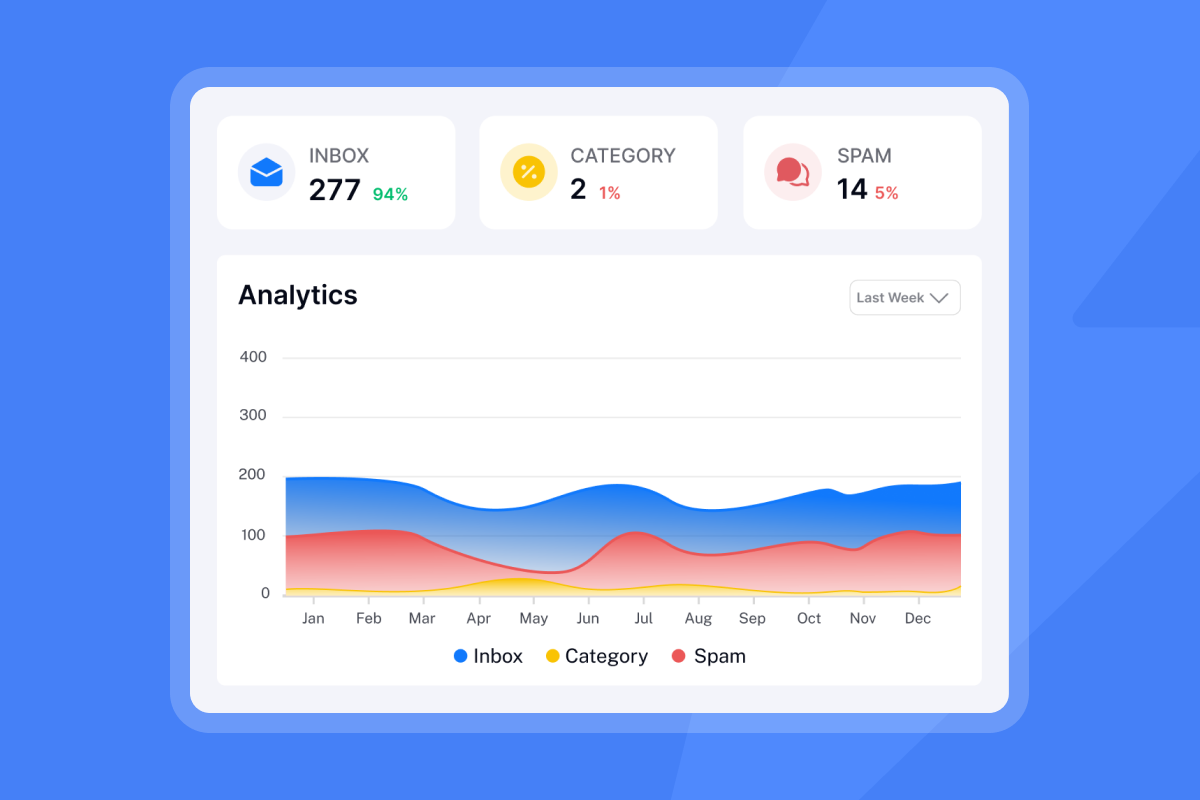
Populating Salesforce with verified emails
Salesforce's flexible object model makes it well-suited for automated email data pipelines. The setup decisions you make upfront determine whether the data stays clean long-term.
Direct vs. automated CRM setup
Three integration paths exist for pushing CEO emails into Salesforce:
Approach | Pros | Cons | Best for |
|---|---|---|---|
Native app (AppExchange) | Pre-built mapping, no code, fast setup | Limited customization, vendor-dependent | Teams needing plug-and-play with standard fields |
Zapier or Make | Connects 2,000+ apps, no-code, flexible | Per-action costs at scale, potential latency | Mid-market teams without dev resources |
Custom API | Fully customizable, real-time, handles complex logic | Requires developer resources, ongoing maintenance | Enterprise teams with internal dev capacity |
Zapier's guide to CRM integration options notes that you can connect your CRM to over 2,000 apps and services without writing code. Custom API options add control beyond what out-of-the-box connectors allow, but require developer expertise to maintain.
Map email finder data to Salesforce
In Salesforce, CEO contacts typically live on the Lead object until qualified, then convert to a Contact linked to an Account. This Lead-to-Contact conversion is Salesforce-specific. In HubSpot and some other CRMs, all records are stored as Contacts from creation, with no separate Lead object or conversion step. Map your finder tool's verified email to the standard Email field, first and last names to their respective fields, and company name to the relevant company or account field in your CRM. Check your specific tool's documentation for whether this triggers an Account lookup automatically or requires a manual relationship configuration to avoid orphaned Lead records. Create a custom Picklist field for verification status on the Lead object so you can filter campaign enrollment by data quality.
For deduplication, configure a Matching Rule that compares incoming records on the primary email field with an exact match. Set the Duplicate Rule to "Block" on exact email matches, which prevents identical addresses from creating two Lead records, but configure an Alert action for name-based matching rules so reps see a warning and can manually review potential duplicates before saving. When a new verified CEO lead arrives, the integration queries Salesforce for an existing record with that email, creates a new Lead if none exists, or updates the existing record's verification status if one is found. A Salesforce Flow then adds the new Lead to the relevant campaign automatically.

Sync verified contacts to HubSpot CRM
HubSpot's workflow automation is more accessible than Salesforce for teams without a dedicated RevOps engineer, and its API handles high-volume pipelines well. HubSpot Professional plans support 650,000 API requests per day, with Enterprise plans reaching 1,000,000 requests daily.
HubSpot integration paths: apps vs. custom
HubSpot's App Marketplace offers pre-built connectors that handle OAuth authentication and standard field mapping. For tools without a native HubSpot app, custom webhooks or Zapier provide the connection. The Zapier-HubSpot integration supports triggers like "New Contact in List" or "Contact Property Updated," which you can chain to actions in your email finder or sending platform.
For Instantly specifically, the HubSpot integration in Automations connects directly inside the platform. Note that the native integration is primarily one-way for lead import. Syncing activity such as reply events, sequence completions, and lead status changes back to HubSpot contact records in real time requires a custom solution. The Instantly CRM integration guide for two-way data flow with Salesforce and HubSpot covers current implementation approaches.
Email finder data in HubSpot records
Map these properties for every CEO contact pushed into HubSpot:
- Email: Standard
emailproperty - First and last name: Separate
firstnameandlastnameproperties (not a combined name field). Confirm the exact property names in your HubSpot instance under Settings > Properties, as field names can vary by account configuration - Job title:
jobtitleproperty - Company name: Associated Company object, triggered by the HubSpot company domain
- Lead source: A custom source property for attribution tracking
- Verification status: A custom Picklist property to filter enrollment by data quality
HubSpot workflow for new contacts and sequences
HubSpot Workflows automate the handoff from data enrichment to sequence enrollment. The setup:
- Go to Automation > Workflows in HubSpot.
- Create a Contact-based workflow.
- Set the enrollment trigger to a contact property change on your custom verification status field.
- Add an Enroll in sequence action and select the CEO cold email sequence from the dropdown.
- Add an Assign owner action to route the contact to the relevant SDR.
- Add a Set contact property action to update "Lifecycle Stage" to "Lead."
Note that sequence enrollment via workflows is an Enterprise-tier capability. Professional tier does not include it, so confirm your plan level before building this step into your process. Marketing Ops sets the enrollment trigger criteria, and Sales owns the sequence configuration and reply classification rules. The workflow logic connects both teams without requiring manual coordination between them.
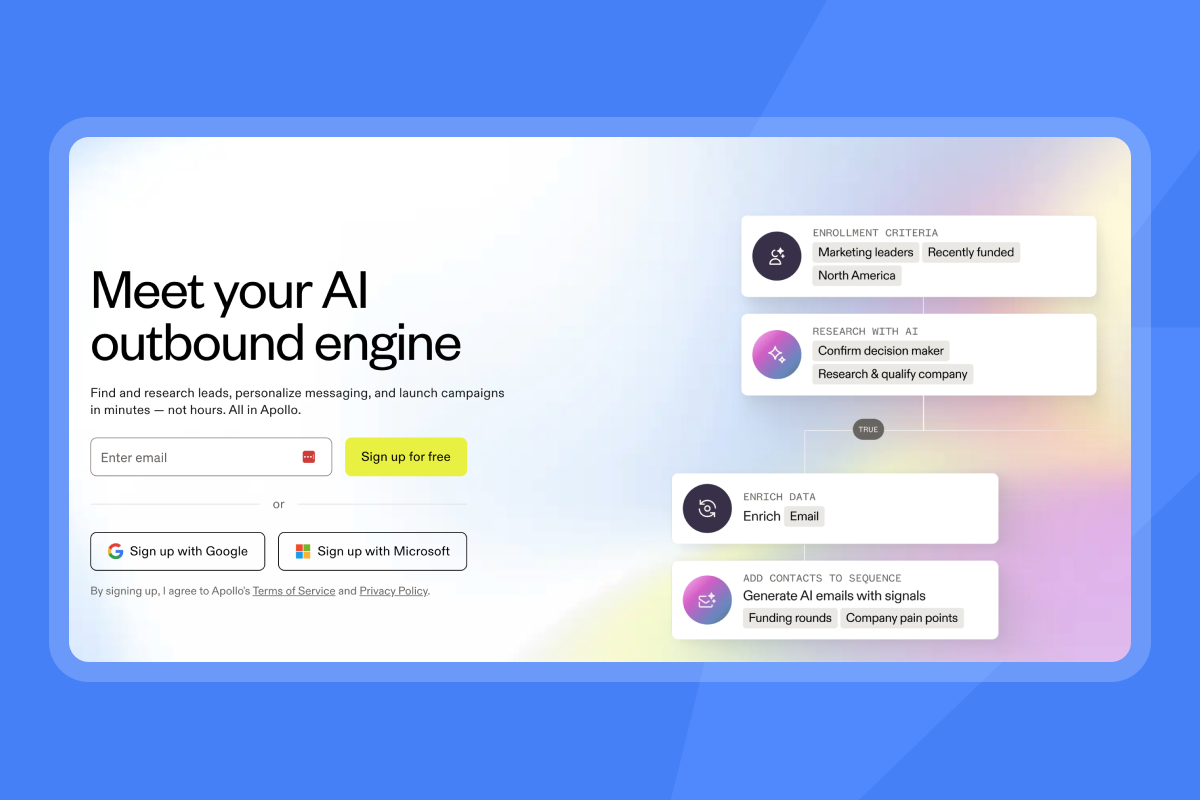
Ensuring clean data for Instantly campaigns
Instantly addresses the multi-tool sync problem by combining the lead database, outreach engine, and CRM in one platform. The Instantly integrations collection covers all current connection options.
Configuring direct API links
Instantly's API v2 includes endpoints for lead management, campaign assignment, and inbox placement tests. To connect an external tool directly, generate your API key from Instantly Settings > Integrations, then use the leads endpoint to push a verified contact with the email address, name fields, company name, and the target campaign ID. Setting the campaign ID ensures the contact enters the sequence immediately on creation without a manual assignment step.
Importing verified contacts to campaigns
Unlike the external finder tools covered elsewhere in this guide, SuperSearch is Instantly's native built-in lead database, putting 450M+ verified B2B contacts directly inside the platform with no third-party connection required. To find and push CEO contacts to a campaign without leaving the app:
- Open SuperSearch and type a natural language description of your target (for example, "CEOs of SaaS companies in North America with 50 to 200 employees").
- Apply manual filters on the left panel: job title, industry, location, revenue range, and tech stack.
- Click Find Email to trigger waterfall enrichment across multiple providers.
- Select verified contacts and click Add to Campaign, then choose the active sequence.
The result is a pipeline that runs from prospecting to sequence enrollment in a single interface, with no CSV export or CRM import step in between. As one G2 reviewer described it:
"Being able to connect as many inboxes as you need without a per-user fee is a game-changer. And the Unibox makes managing all those accounts effortless." - Alla L. on G2
Watch the complete cold email system setup to see how SuperSearch, campaign creation, and deliverability monitoring work together in one flow.
Automated list integration via Zapier
For teams that source CEO emails outside Instantly and want to push them into campaigns automatically, a Zapier workflow is the fastest no-code option. A typical recipe connects HubSpot to Instantly using triggers like contact property updates or new contact creation, then maps the verified email, name fields, and company data to create the lead in Instantly.
Trigger app: HubSpot - New Contact (fires when a new contact is created) or Contact Property Updated (fires when a property such as your verification status field changes).
Action app: Instantly - Add Lead to Campaign
Map the HubSpot contact's email, first name, last name, and company to the corresponding Instantly fields, then specify the campaign ID.
This recipe fires every time Marketing Ops updates a contact in the HubSpot list, pushing the contact into the designated Instantly campaign within minutes. You can see a similar automation pattern in the Instantly and N8N walkthrough.
Protecting deliverability at scale
Clean data protects sender reputation, but deliverability requires active monitoring beyond list hygiene. Instantly's deliverability network of 4.2M+ accounts and Inbox Placement feature runs automated tests showing whether your emails land in Primary, Promotions, or Spam across major providers before your live campaign reaches real prospects. You catch issues during the test phase, not after a bounce spike kills your monthly target.
"Warmup actually works. Connected two domains, let them run, and deliverability held once campaigns went live." - Vatsalya B. on G2
Automate data sync for always-current CRM
A pipeline built once does not stay accurate. CEO contact data decays at 3.6% per month, so a contact you verified in January is statistically at risk of going stale by June. The maintenance layer of your pipeline handles re-verification and error recovery.
Configure automated email re-verification
Automated data refresh patterns keep your contact list current without manual intervention. Two approaches work reliably for CEO contact data:
- New company added: In CRM tools that support record-creation triggers (such as Salesforce Flows or HubSpot Workflows), you can configure a workflow to kick off contact verification when a new Account is created. Check your specific CRM's automation documentation to confirm whether this trigger is available and how to connect it to your verification tool.
- Inactive contacts: Re-verify contacts that have had no sequence engagement for an extended period, preventing stale addresses from entering active campaigns.
Configure these triggers in your CRM's workflow tool (Salesforce Flows or HubSpot Workflows) with an API call to your finder tool as the action. The email tracking integrations guide covers the CRM sync patterns in detail.
Automating routine CRM data refreshes
Most dedicated email verification tools offer a bulk verification API endpoint that processes a contact list and returns a status for each address. Connect the verification tool's output to your CRM workflow to update the verification status field automatically. Check your specific verification provider's API documentation to confirm bulk endpoint availability and the status codes returned. Contacts returning a bounced or invalid status get their sequence enrollment paused before the next send window.
Running re-verification and pausing invalid contacts before sends supports the goal of keeping bounce rates at or below 1%. Industry standards have long treated under 2% as the acceptable ceiling, but filtering updates from major inbox providers since late 2025 have raised that bar. Sub-1% is now the minimum expectation, not an aspirational target. Treat 1% as your operational floor, not a safe upper limit. It also removes the manual audit step that typically falls off when a team is under pipeline pressure. Results depend on list age, data sources, and how frequently re-verification runs.
Setting up fallback and retry logic
Configure your integration layer to retry transient failures (timeouts and rate limit responses) automatically, and log permanent failures for your ops team to resolve before resubmitting.
Any contact that fails after retries should write to a manual review queue in your CRM so nothing drops out of the pipeline silently.
Preventing duplicate leads and data errors
Data governance for a CEO email pipeline requires clear rules, automated checks, and audit-ready reporting so your RevOps and compliance teams can verify the pipeline is running correctly.
Syncing verification status to CRM
Bounce codes from your sending platform carry more information than a simple "invalid" flag. Map specific bounce types to your CRM's verification status field:
- Hard bounce (5xx SMTP code): Address does not exist. Set status to Invalid, remove from all active sequences immediately.
- Soft bounce (4xx SMTP code): Temporary delivery failure. Set status to Soft Bounce and retry 3 to 5 times over a 24 to 72 hour window using exponential backoff. If the address continues to fail after that window, escalate the status to Invalid and remove from active sequences.
- Spam complaint: Set status to Do Not Contact, add to the global suppression list immediately.
Instantly sends bounce events via webhook, which you can route to your CRM workflow to trigger the status update automatically.
Preventing duplicate contact records
System-agnostic deduplication rules:
- Email as unique ID: Email address is a common deduplication field because name formatting varies across reps and tools. Note that email-based deduplication can produce unintended results if the same person has multiple addresses in your system. Some CRM configurations use a system-generated Contact ID as the primary unique identifier instead. Check your CRM's deduplication documentation before deciding which field to use as your match key.
- Run pre-write checks: Query the CRM for an existing contact with the same email before creating any new record. Update if found, create if not.
- Normalize company names: Convert to lowercase before comparison so "Acme Corp" and "acme corp" match rather than generate two Account records.
- Schedule monthly audits: Use your CRM's native deduplication tool (Salesforce has a built-in Duplicate Management module, HubSpot has a Duplicates tool under Contacts) to catch records that slip through.
Audit logs for compliance tracking
Every pipeline action, lead created, field updated, sequence enrolled, and bounce processed should write to an audit log. In Salesforce, Field History Tracking records changes to specific fields with timestamps and user attribution. In HubSpot, the Activity Timeline on each Contact record displays communications such as calls, emails, meetings, notes, and tasks. Automation execution is tracked in audit logs, which are separate from the contact timeline. Check audit logs, not the Activity Timeline, when tracing automation actions for compliance purposes.
For compliance-sensitive organizations, this audit trail answers questions about when a contact was added, who approved their inclusion, and when they were removed after an opt-out request. Instantly's DPA with Foo Monk LLC covers data processing terms and sub-processor transparency for enterprise buyers who need documented data lineage. The email tracking pricing models walks through the total cost of ownership math for flat-fee versus per-seat models when you're evaluating stack consolidation.
Build this pipeline once, instrument it with proper logging, and your RevOps team can defend every contact record in a CFO review or compliance audit. Try Instantly free to access SuperSearch, connect unlimited sending accounts on a flat fee, and run a CEO email data pipeline from lead sourcing to sequence enrollment without manual data entry. Start your free trial at Instantly.ai.
FAQs
Can you integrate multiple email finder tools into one CRM?
Yes, if each tool writes to the same unique identifier field (typically the email address) and you have deduplication rules configured in your CRM. Route all finder tools through a single integration layer (Zapier, Make, or custom API) to enforce consistent field mapping. One step is often missed: different finder tools use different verification status labels and confidence score scales. Tool A may return "Valid" while Tool B returns "Deliverable." Before any status value writes to your CRM, normalize it to a shared controlled vocabulary. Define your Picklist values once (for example: Verified, Unverified, Soft Bounce, Invalid, Do Not Contact) and map each tool's output to that list before the CRM write. This prevents false duplicates from mismatched status strings and keeps sequence enrollment filters reliable regardless of which tool sourced the contact.
How often should you re-verify CEO email addresses in your CRM?
Run a full re-verification pass on your CEO contact list every 90 days. Email addresses decay at 3.6% monthly, making older lists statistically unreliable, and a 90-day cycle is a widely recommended interval for keeping bounce rates in check. A scheduled workflow that targets contacts older than 90 days handles this automatically without a manual export step. You can also use sequence engagement as an additional signal to flag contacts for earlier re-verification, but the 90-day calendar interval is the baseline.
What bounce rate signals a deliverability problem in verified email campaigns?
Two thresholds matter. A hard bounce rate above 1% signals a data quality problem and should prompt immediate list hygiene action. A rate above 2% is when major inbox providers including Gmail and Microsoft begin throttling or blocking your sends. Keep bounces at or below 1% by verifying all contacts before they enter any sequence and removing hard bounces from your CRM immediately after each send.
How do you set up custom CRM field mapping for CEO email data?
Create a custom Picklist field for "Verification Status" on your Contact or Lead object and map your finder tool's output to it. In HubSpot use Settings > Properties, in Salesforce use Setup > Object Manager > Fields and Relationships on the Lead or Contact object.
Key terms glossary
API (Application Programming Interface): A set of rules that lets two software systems exchange data programmatically without a human copying information between them. In a CEO email pipeline, an API call pushes a verified contact from your finder tool to your CRM the moment the email is confirmed.
Bi-directional sync: A data connection where updates flow both ways between two systems, so a bounce recorded in your sending platform automatically updates the contact's status in your CRM, and a contact deletion in the CRM removes the lead from your active sequences. One-way sync only pushes data in a single direction, which creates gaps in your records over time.
Data decay: The rate at which contact records become inaccurate due to job changes, company closures, or email address updates. B2B contact data decays at 22.5% annually on average, which makes automated re-verification an operational requirement, not an optional maintenance task.
Read next
- How to Build a Verified B2B Email List for Cold Outreach: The Complete Playbook: Covers sourcing methods, verification steps, and list hygiene practices for building a contact list that holds up at send time.
- Cold Email: Ultimate Guide To Email Outreach in 2026: A full walkthrough of cold email strategy, sequence structure, subject line testing, and reply rate benchmarks for outbound teams.
- 15 Best Ways to Find B2B Sales Leads in 2026: Breaks down the top lead sourcing channels, from intent data and lead databases to LinkedIn and referral networks, with guidance on which methods work best by team size and target segment.



