


Updated February 24, 2026
TL;DR: The average webinar attendance rate hovers around 40-50% of registrants, which means half your marketing budget evaporates before the session begins. The fix is a structured reminder sequence with precise timing (1 week, 24 hours, 15 minutes), friction-free "Add to Calendar" links, and inbox placement that avoids spam. This guide gives you 7 copy-paste templates, A/B testing tactics, spin syntax examples, and the deliverability protocols that turn registrations into actual attendance.
A registration is just an expression of interest. A reminder email converts that interest into action. The same cold email methodology that drives replies in outbound sales applies here, timing, personalization, and deliverability all determine whether your message gets seen. This guide covers the exact timing, templates, and deliverability protocols you need to turn registrants into attendees using data-backed strategies.
Why event reminder emails determine your attendance rate
Event reminder emails are automated messages you send to registered attendees before and after an event to confirm details, build anticipation, and reduce no-shows. You use them as tactical nudges that resell the value of attending and remove every barrier to entry.
The gap between registrations and actual attendance is substantial. Webinar attendance rates hover around 40% to 50%, with some sources reporting rates as low as 30% according to this B2B Webinar Benchmark Report.
The financial impact is direct. If you spent $5,000 on ads to generate 500 registrations, a 30% attendance rate means you wasted $3,500. Raising attendance to 50% through better reminders cuts that waste nearly in half.
"I really enjoy the email warm-up feature in Instantly. It allows me to warm up all of my valuable emails at the same time, which saves me a lot of time, especially when I'm sending multiple cold emails." - anas a. on G2
Reminders work because they address three core problems. First, people forget. Second, they lose the join link. Third, they fail to protect the time on their calendar. A well-timed reminder sequence solves all three, but only if the email lands in the primary inbox, which is where a dedicated cold email automation tool makes all the difference.
The highest-leverage emails in any sequence are the 24-hour warning and the 15-minute alert. Research shows that sending reminders 1 day before and 1 hour before virtual events can significantly boost attendance.
The anatomy of a high-converting reminder email
A high-converting event reminder contains six essential components that work together to reduce friction and increase urgency.
Subject line: Urgency without clickbait
The subject line must communicate both urgency and relevance. Effective patterns include countdown timers ("Tomorrow: [Event Name]"), time-specific alerts ("Starting in 1 hour"), and benefit reinforcement ("Don't miss [Specific Value]").
Small tweaks like personalizing the subject line with the recipient's name can increase open rates. Testing subject lines is one of the highest-impact A/B test variables because it directly controls open rates.
The magic link: One-click access
A magic link is a unique URL that gives attendees one-click access to the event without requiring login credentials or confirmation steps. For webinars, this is the direct join link. For physical events, this might be a QR code or map link.
The key is removing every obstacle between clicking and arriving. If your join process requires attendees to hunt for passwords or navigate multiple pages, you lose them.
Add to calendar: The highest-impact CTA
Research shows that when people add an event to their calendar, they're much more likely to attend. The button must support all major calendar formats (Google, Outlook, Apple) and pre-fill the event title, time, location, and join link.
Calendar functionality transforms intention into a locked-in commitment. For implementation inside Instantly campaigns, you can use HTML in email sequences to embed calendar buttons with proper formatting.
Value reinforcement: Remind them why they registered
Each reminder should include a brief value statement that resells the event. This might be a speaker bio, an agenda teaser, or a specific outcome attendees will gain. Adding a sneak peek of the agenda or highlighting industry leaders can excite attendees and reinforce their decision to register.
Personalization: Name and context
Personalization goes beyond first names. Segment by registration source, VIP status, or geographic location to make each reminder contextually relevant. Instantly's Campaign Options allow you to manage variables and create personalized sequences at scale.
Essential event details block
Every reminder must include the event name, date, time (with time zone), and access instructions. For physical events, add parking details, dress code, and maps. For virtual events, include the platform name (Zoom, Teams, etc.), meeting ID if needed, and a backup contact method if technical issues arise.
Best timing sequences for webinars and conferences
The ideal reminder sequence varies by event type, but the core principle is the same. Increase frequency and urgency as the event approaches.
Virtual events: Webinar and online conference sequences
For webinars, send reminders at 1 week, 1 day, and 1 hour before the session starts:
1. Immediate confirmation (0 minutes): Send this the moment someone registers. Include the event details, an "Add to Calendar" button, and a thank-you message. This is your chance to set expectations and provide early value.
2. The hype email (1 week out): Build anticipation by highlighting speakers, sharing the agenda, or previewing key takeaways. This email keeps the event top-of-mind without being pushy. According to our sequence guide, this is when you introduce social proof like attendee counts or testimonials from past events.
3. The logistics email (24 hours out): This is a friendly reminder that focuses on practical details. Include the join link prominently, remind them to add the event to their calendar if they haven't, and confirm the time zone.
4. The final nudge (1 hour before): Send this 60 minutes before start time. Keep it short. Lead with the join link, confirm the time, and add a single-sentence value statement.
5. The "starting now" alert (15 minutes or at start time): This is your last chance to capture late arrivals. Send it exactly when the event begins with nothing but the join link and "We're live."
For a step-by-step walkthrough of setting up time-based sequences, watch The Best Cold Email Follow Up Strategy which covers campaign timing mechanics that apply directly to event sequences.
Physical events: Conference and in-person sequences
In-person events require longer lead times because attendees need to arrange travel, childcare, or work schedules. Send reminders at 2 weeks, 3 days, and the morning of the event.
1. Two weeks out: Send travel logistics. Include hotel recommendations, parking maps, public transit options, and any dress code requirements. This email should answer every logistical question to remove barriers to attendance.
2. Three days out: Send a final confirmation with a checklist. What to bring, where to park, what time doors open, and who to contact if they're running late. Include a weather forecast if relevant.
3. Morning-of reminder: Send this 24 hours before the event. Include a map link, parking details, and a phone number for last-minute questions. Keep it extremely short because recipients are likely on mobile and in motion.
For both virtual and physical events, Livestorm's template library provides examples of timing and formatting that work across industries.
7 Event reminder email templates you can copy
These templates use placeholder variables like {{FirstName}} and {{EventName}}. Replace them with your actual merge fields. Instantly supports personalized lines and variable insertion across all campaign types. For early-bird pricing deadlines, adapt Template 6 by emphasizing the discount expiration instead of RSVP capacity limits. Tone and format should shift depending on who you're addressing, see these reminder email templates for different recipients to match your messaging style to your audience.
Template 1: Immediate confirmation (sent within 60 seconds of registration)
Subject: You're registered for {{EventName}}
Body:
Hi {{FirstName}},
You're confirmed for {{EventName}} on {{EventDate}} at {{EventTime}} {{TimeZone}}.
Join link: {{MagicLink}}
Add to your calendar: {{CalendarButton}}
What to expect: {{BriefAgendaOrValue}}
See you there,
{{YourName}}
Template 2: The webinar teaser (1 week out)
Subject: One week until {{EventName}}
Body:
Hi {{FirstName}},
{{EventName}} is one week away. We will cover:{{AgendaPoint1}}{{AgendaPoint2}}{{AgendaPoint3}}
Speaker spotlight: {{SpeakerName}}, {{SpeakerTitle}} at {{SpeakerCompany}}. {{OneSentenceBio}}
When: {{EventDate}} at {{EventTime}} {{TimeZone}}
Join link: {{MagicLink}}
{{YourName}}
Template 3: The "tomorrow" nudge (24 hours before)
Subject: Tomorrow: {{EventName}} at {{EventTime}}
Body:
Hi {{FirstName}},
{{EventName}} starts tomorrow at {{EventTime}} {{TimeZone}}.
Join link: {{MagicLink}}
Add to calendar: {{CalendarButton}}
Quick reminder: {{OneSentenceValue}}
See you tomorrow,
{{YourName}}
Template 4: The "starting now" alert (15 minutes or at start time)
Subject: We're live: {{EventName}}
Body:
Hi {{FirstName}},
{{EventName}} is starting now.
Join here: {{MagicLink}}
{{YourName}}
Template 5: Physical conference logistics (3 days before)
Subject: Conference checklist: {{EventName}} is 3 days away
Body:
Hi {{FirstName}},
{{EventName}} is this {{DayOfWeek}} at {{Venue}}.
Checklist:Parking: {{ParkingInstructions}}Check-in: Opens at {{CheckInTime}}What to bring: {{BadgeOrIDRequirements}}Dress code: {{DressCode}}
Venue address: {{FullAddress}}
Map link: {{MapLink}}
Questions? Reply to this email or text {{PhoneNumber}}.
See you {{DayOfWeek}},
{{YourName}}
Template 6: RSVP deadline reminder
Subject: RSVP by {{DeadlineDate}} for {{EventName}}
Body:
Hi {{FirstName}},
Space is limited for {{EventName}} on {{EventDate}}.
RSVP deadline: {{DeadlineDate}} at {{DeadlineTime}}
Confirm your spot: {{RSVPLink}}
What you'll gain: {{ValueStatement}}
{{YourName}}
Template 7: The "sorry we missed you" replay email (sent 24/48 hours after event ends)
Subject: Missed {{EventName}}? Here's the replay
Body:
Hi {{FirstName}},
We missed you at {{EventName}} today. Here's the full replay: {{ReplayLink}}
Key takeaways:{{Takeaway1}}{{Takeaway2}}{{Takeaway3}}
Resources mentioned: {{ResourceLinks}}
Want to chat about what we covered? Reply to this email.
{{YourName}}
For more template ideas, check Instantly's library of 600 templates to use for your cold emails, many of which adapt directly to event contexts. Also, if your event has a fundraising component, adapt these formats using dedicated email templates for fundraising events built specifically for that context.

Advanced tactics: A/B testing, segmentation, and AI
Growth marketers treat event reminders like a sales sequence. For proven copy frameworks, explore these reminder email templates that drive replies and adapt them to your event context.
Spin syntax: Prevent spam filters from flagging bulk sends
Spintax is a formatting technique that creates randomized variations of words or phrases to avoid spam filters. It works by adding options inside curly brackets like {Hi|Hello|Hey} and the system randomly selects one option each time the email is sent.
Subject line example:
{{RANDOM |Should I send more information? | Open to talking or chatting? | Are you interested? | Interested to know more?}}
Greeting example:
{Hi|Hello|Hey there} {{FirstName}},
When you're sending a 15-minute reminder to 2,000 registrants, even small variations prevent Gmail and Outlook from clustering your messages as spam. Instantly's AI Spintax Writer generates and validates email variations automatically, integrating with unlimited sending accounts, automated warmup, and A/B testing.
For a detailed explanation, watch this spintax implementation guide which demonstrates the feature inside Instantly's campaign builder.
A/B testing: What to test and when
Choose a reporting metric based on the test variable. For subject lines, measure open rate. For CTA copy or layout, measure click rate.
High-impact test variables for event reminders:
- Subject line variations: Test urgency ("Tomorrow: Event Name" vs. "Don't forget: Event Name") and personalization (with vs. without first name). Personalizing the subject line can increase open rates by 50%.
- Send time optimization: Test morning vs. afternoon sends. Schedule emails to land when your audience is most likely to read them, typically mid-morning (9-11 AM) or mid-afternoon (2-4 PM) on weekdays.
- CTA button copy: Test "Join Now" vs. "Reserve Your Seat" vs. "Add to Calendar." Testing CTAs can reveal which phrasing drives more conversions.
- Sender name: When HubSpot tested personalized sender names vs. generic company names, the personalized version performed better with higher open and click-through rates.
Only test one variable at a time. If you change both the subject line and send time, you cannot isolate which one caused the performance shift.
Instantly's built-in A/B testing features let you test variants across unlimited sending accounts while tracking opens, clicks, and replies in real time.
Segmentation: VIP vs. general admission
Segmenting your email list based on engagement levels helps you tailor content to varying audience interests. The DMA reports that segmented campaigns generate a 760% increase in revenue compared to non-segmented sends.
Effective segmentation strategies for event reminders:
- VIP or sponsor tier: Send exclusive pre-event access, backstage links, or networking lounge invitations.
- Geographic location: For physical events, segment by location to send region-specific logistics like parking maps or local hotel deals.
- Registration source: If you ran multiple ad campaigns or partner promotions, segment by source to tailor messaging.
- Calendar add status: Create a segment for those who opened the confirmation but did not click "Add to Calendar." Send them a targeted follow-up emphasizing the calendar button.
Instantly's SuperSearch provides 450M+ B2B leads with filtering by title, location, and industry, making it easy to build segmented lists before launching reminder campaigns.
AI assistance: Rewrite generic copy at scale
Instantly's AI features help you move faster without sacrificing quality. Use the platform's AI to rewrite generic reminder copy into engaging, on-brand messages that feel personal rather than automated. For example, instead of "Don't forget our webinar tomorrow," the AI suggests "Tomorrow at 2 PM: How to cut your sales cycle by 30% (live demo included)."
Watch this AI personalization tutorial to see how AI-powered personalization works at scale.
Deliverability: Warmup and list hygiene
If your reminder lands in spam, your attendance rate drops to zero. Deliverability is the foundation of every successful event sequence.
Critical deliverability steps:
1. Warm up sending accounts: Before sending high-volume reminders, warm up your domains and email accounts for at least 30 days. Instantly's warmup feature uses a private deliverability network of 4.2M+ accounts to build sender reputation gradually.
"I really like the warm-up email and the setup they offer you." - Djiby S. on G2
2. Verify your list: Bounces kill sender reputation. Before uploading registrants, verify email addresses to remove invalid or temporary addresses. Instantly's global block list and verification features help maintain list hygiene.
3. Monitor inbox placement: Use preview and send a test email to check how your reminders render across Gmail, Outlook, and Apple Mail before launching the full sequence.
4. Avoid spam triggers: Remove excessive exclamation points, all-caps subject lines, and phrases like "ACT NOW!!!"
For troubleshooting low open rates, follow the steps in What to Do If Your Open Rate Is Low.
How to automate reminder sequences at scale
Manual reminder sends break down fast. If you're running weekly webinars or multi-city conference tours, automation is mandatory.
Step 1: Clean and verify your registrant list
Before uploading contacts, dedupe and verify. Remove duplicates, invalid addresses, and role-based emails (info@, support@). Data integrity is non-negotiable because bad data inflates bounce rates and damages sender reputation.
Use Instantly's waterfall enrichment with 5+ providers to fill missing fields like first name, company, or title. This makes personalization possible even when registration forms only captured email addresses.
Step 2: Build the campaign with time-based triggers
Inside Instantly's campaign builder, create a sequence with time-based delays. For a webinar:
- Step 1: Immediate confirmation (delay: 0 hours)
- Step 2: Hype email (delay: event date minus 7 days)
- Step 3: Logistics email (delay: event date minus 1 day)
- Step 4: Final nudge (delay: event date minus 1 hour)
- Step 5: Replay email (delay: event date plus 2 hours)
Instantly's campaign options allow you to set precise send windows, prioritize new leads over follow-ups, and pause sequences based on replies.
For a visual walkthrough, watch this campaign setup walkthrough which covers campaign setup mechanics.
Step 3: Integrate with your CRM
Connect Instantly to HubSpot, Salesforce, or your event platform to sync registrations automatically. When someone registers, they're added to the reminder sequence without manual CSV uploads. Instantly supports integrations via native connectors, Zapier, Make, and API.
Step 4: Manage replies in a unified inbox
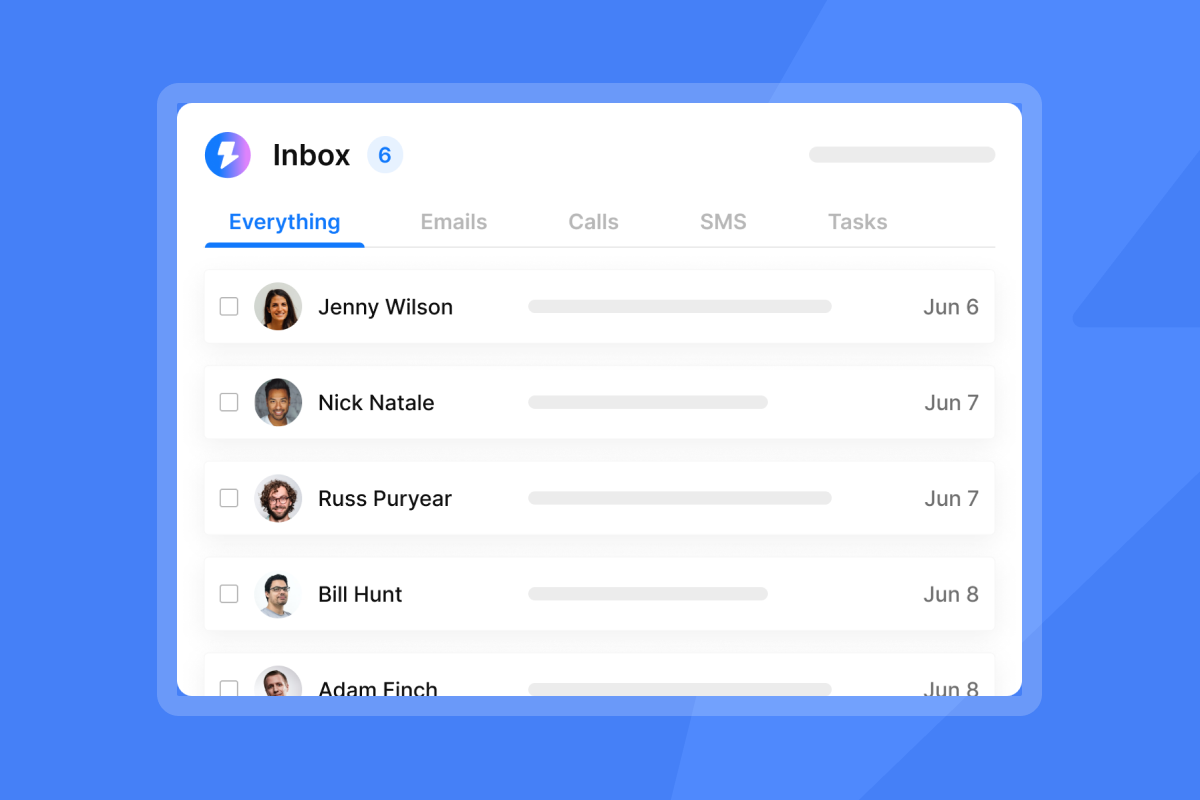
Registrants will reply with questions, cancellations, or requests for different time slots. Instantly's Unibox centralizes all replies so you can set reminders, tag conversations, and schedule replies without switching between multiple inboxes.
"I love how Instantly is super easy to use with great functionality. Setting up campaigns is quick and straightforward, which allows us to run multiple campaigns simultaneously." - Ben D on G2
For complex multi-campaign setups, watch this reply management masterclass to see how experts manage reply volume at scale.
Step 5: Monitor and optimize based on analytics
Track open rates, click rates, and calendar-add rates for each step in your sequence. If the 24-hour reminder has a low open rate, test a different subject line or send time. Instantly's analytics dashboard shows performance by campaign, sending account, and sequence step.
For a detailed breakdown of metrics that matter, review Instantly's Cold Email Copywriting Framework which covers how to turn data into actionable improvements.
Top tools for sending event reminders
Choosing the right platform depends on your event volume, deliverability requirements, and existing tech stack.
Platform | Best For | Key Feature | Pricing Model |
|---|---|---|---|
Instantly | High-volume senders who need deliverability at scale | Unlimited sending accounts, built-in warmup, spintax, A/B testing | Flat-fee starting at $47/mo (Growth plan) |
Other platforms like Luma (community events), HubSpot (CRM integration), and AddEvent (calendar links) serve specific niches, but Instantly's unlimited accounts and deliverability focus make it the best choice for high-volume, high-stakes reminders.
Why Instantly solves the rate-limit problem
Standard Gmail accounts have a daily limit of 500 emails, and Google Workspace caps at 2,000 per day. Outlook.com limits personal accounts to 300 emails per day. If you're sending a 15-minute reminder to 3,000 webinar registrants, you need multiple sending accounts or you hit rate limits and your reminders arrive late or not at all.
Instantly's unlimited email accounts on a flat fee remove this constraint. You can distribute sends across multiple warmed domains to stay under provider limits while maintaining deliverability. The platform's SISR feature (dedicated server and IP rotation, available on Light Speed plan) further improves inbox placement for high-volume sends.
"Instantly is extremely user-friendly. We use it regularly to contact physicians about our opportunities, and it simplifies the process of creating email campaigns from our physician lists. Additionally, we have been seeing excellent response rates." - Theo S on G2
For a comparison of Instantly's features and pricing, watch this Instantly feature comparison.
Measuring success: Metrics that matter
Track these KPIs for every reminder sequence:
- Attendance rate: Actual attendees divided by total registrants. Industry benchmark is 40-50% for webinars.
- Open rate by sequence step: The 24-hour email typically has the highest opens. If your 1-week email wins, your audience might be early planners.
- Calendar-add rate: Track how many recipients click "Add to Calendar." This is a leading indicator because calendar functionality significantly improves attendance.
- Bounce rate: Keep this below 2%. The industry standard for email bounce rate is 2%, though maintaining 1% or lower for hard bounces is ideal.
Five mistakes that kill attendance (and how to fix them)
Pitfall 1: Sending too many reminders. Industry best practices recommend 3-5 emails as the sweet spot for most campaigns. Stick to 1 week, 24 hours, 1 hour, and start time.
Pitfall 2: Burying the join link. Put the magic link in the first paragraph of every reminder. Do not make recipients scroll.
Pitfall 3: Ignoring time zones. Always include the time zone and consider segmenting by geography to send reminders at optimal local times. Instantly's scheduling options support time-zone-based sends.
Pitfall 4: No mobile optimization. Over 50% of emails are opened on mobile. Test how your reminders render on phones. Keep paragraphs short and CTAs thumb-friendly.
Pitfall 5: Forgetting the replay email. Sending a replay 2-4 hours after the event recovers value from no-shows and gives attendees a sharable asset.
Start building your reminder sequence
Ready to apply this framework? Try Instantly free and use the campaign builder to set up your first automated reminder sequence. The platform includes templates, spintax, warmup, and analytics so you can launch in minutes instead of days.
Frequently asked questions about event reminders
How many reminders should you send for an event?
Send at least three reminders: one week before, one day before, and on the day of the event. This cadence maintains awareness without causing unsubscribe fatigue.
When is the best time of day to send a reminder email?
Mid-morning (9-11 AM) or mid-afternoon (2-4 PM) on weekdays typically yield the highest open rates. Test both windows for your audience and use Instantly's send-time optimization to land emails when recipients are most active.
What is a polite reminder email for an event?
A polite reminder is friendly and includes essential details without being sales-focused since recipients already registered. Lead with the event name and time, include the join link or logistics, and add a brief value statement. Keep tone conversational and avoid urgency tactics like all-caps or excessive exclamation points.
Key terms glossary
Magic Link: A unique URL that gives one-click access to an event without requiring login credentials, commonly used for webinar join links.
Spin Syntax (Spintax): A formatting technique that creates randomized text variations to avoid spam filters by making each email unique.
Deliverability: The measure of how successfully emails land in recipients' primary inboxes rather than spam or promotions folders.
Show-up Rate (Attendance Rate): The percentage of registered attendees who actually attend. Average webinar attendance rates hover around 40% of registrants.
Warmup: The process of gradually increasing email send volume from a new domain or account to build sender reputation and avoid spam filters.



