.svg)
%20(1).svg)


Updated July 23, 2026
TL;DR: If your outbound sales team is struggling with emails hitting the spam folder, the fix requires structural changes, not just copy edits. Protect your sender reputation by keeping daily sends under 30 emails per inbox, verifying your SPF, DKIM, and DMARC records, and maintaining a hard bounce rate below 1%. Instantly helps you scale this process safely with unlimited sending accounts, a private warmup network of 4.2M+ accounts, and automated Deliverability AI Agent monitoring so you can focus on booking meetings instead of managing infrastructure.
When outbound reply rates drop, most sales leaders blame the copy. The actual culprit is almost always technical.
Your domains may be flagged, your bounce rates may have spiked, and your emails may be landing directly in the spam folder.
If you're a sales leader or RevOps manager who owns outbound pipeline targets and domain health, this guide is for you.
Identify the root cause of sending failures
Instantly's 2026 Cold Email Benchmark Report found that consistent, stable sending patterns produce 15% to 20% higher reply rates. Most teams destroy that advantage by blasting volume from a single domain.
Deliverability failures fall into three distinct categories, and treating them as one problem leads to the wrong fix. This guide gives you the step-by-step troubleshooting runbook to diagnose the failure, fix your sender reputation, and build a system that holds up at scale.
Treat deliverability as a measurable system.
Verify your primary inbox placement
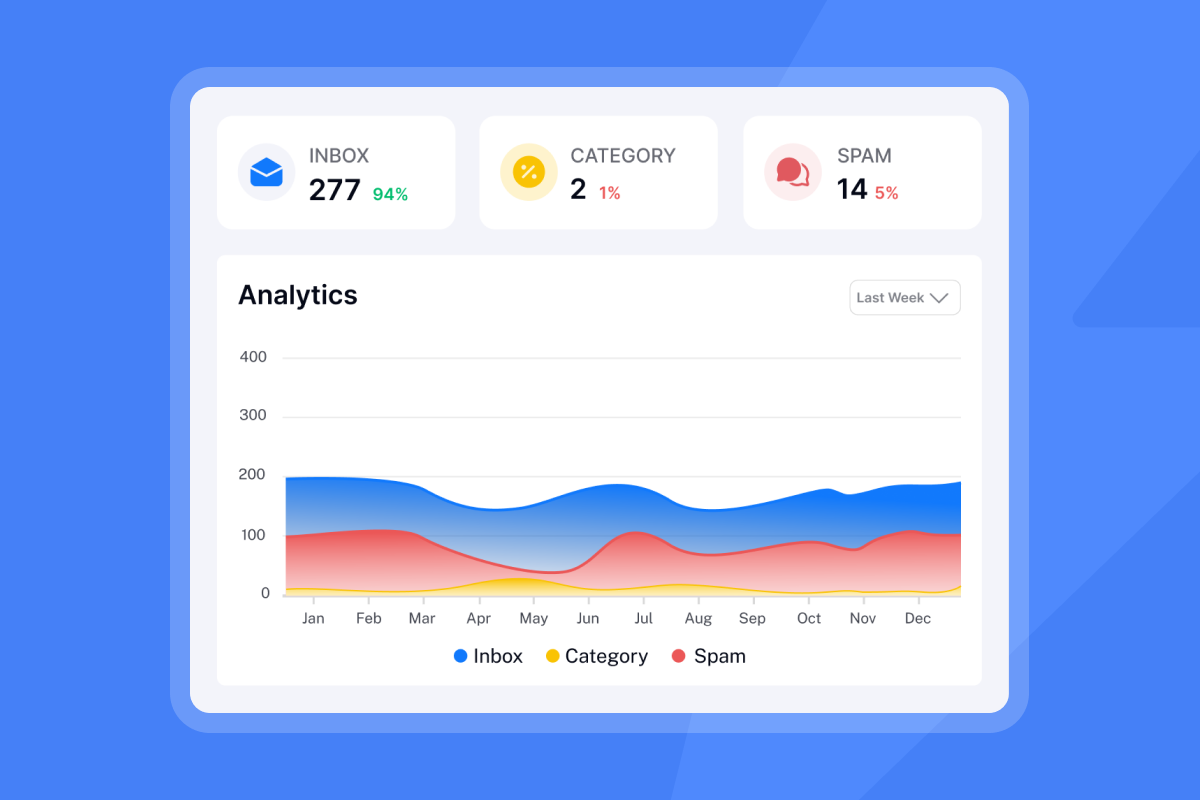
Run automated inbox placement tests before every major campaign launch. Instantly's Inbox Placement testing tool monitors delivery across Google, Microsoft, and Yahoo inboxes simultaneously, so you know whether your emails are hitting the primary tab, the promotions folder, or spam. You can schedule the automated inbox placement tests to run continuously, sending alerts the moment placement degrades. If your inbox placement test shows a measurable drop in primary inbox delivery, pause sends on that domain and work through the steps below to identify the cause before resuming.
The first is silent spam placement, where emails send without error but land in the spam or promotions folder. The second is hard bounces, where the address is permanently unreachable.
Interpret email bounce rate spikes
The third is domain-level blocks, where an ESP (email service provider, such as Google or Microsoft) has assigned your sending domain a low reputation score that causes consistent rejection or spam placement across that provider's network.
A sudden spike in bounces signals one of two problems. Soft bounces are temporary failures caused by a full mailbox or a server outage, and these are retriable. Hard bounces are permanent failures, meaning the address does not exist or the server has permanently rejected your domain. Calculate your rate using this formula: (Total Bounces / Total Emails Sent) x 100. A rate above 1% means you need to stop sending from that account and identify the source before resuming. Instantly's bounce troubleshooting guide maps specific error codes to the correct suppression actions.
Audit your email sending reputation
Your warmup health score is your first diagnostic signal. Instantly's warmup dashboard shows the percentage of warmup emails landing in the inbox versus spam over the last seven days. The platform assigns each domain a warmup health score based on the ratio of inbox placements to spam placements. Instantly's warmup guide defines how this score is calculated and what thresholds indicate healthy domain standing before cold campaigns begin.
Your inputs are domain health, list quality, and sending volume. Your outputs are inbox placement rates, reply rates, and bounce rates, and you track these manually or through your platform dashboards.
The Domain Health status check identifies blacklisted sending domains and flags authentication failures across SPF, DKIM, and DMARC in one view. Check this dashboard weekly for every domain your team uses, and if the score has dropped, cross-reference with campaigns that ran during that period. The warmup troubleshooting guide gives step-by-step fixes when warmup activity stalls.
If any output degrades, trace it back to a specific input before changing anything else.
Spot sudden sending volume spikes
Inbox providers use consistency as a trust signal. When a domain sends 10 emails on Monday and 400 on Thursday, automated spam filters treat that spike as a potential abuse pattern. Set hard volume caps at the account level and monitor daily send logs every week, because consistency in sending behavior, not just total volume, is what builds long-term deliverability.
Steps to stop cold emails from hitting spam
These four steps cover the most common causes of spam folder placement. Work through them in order before adjusting copy or changing platforms.
Audit your sender reputation
According to the 2026 benchmark report, top-quartile senders achieve a 5.5%+ reply rate and the top 10% reach 10.7%+, and those performance levels require a clean sender reputation as a consistent baseline.
"I appreciate Instantly for its intelligent handling of domain and mailbox rotation as well as provider matching, which is critical for ensuring that my emails land directly in the primary inbox instead of getting caught in spam filters." - Richard E. on G2
Refine email copy for inbox placement
Spam filters analyze copy density, link count, and common trigger phrases. The Instantly 2026 benchmark report found that elite performers keep emails under 80 words. Every Growth plan includes the AI Spam Words Checker, which scans copy before you send and flags phrases that commonly trigger filters. Use it on every sequence before activation, not just the first email.
Verify SPF, DKIM, and DMARC records
These three DNS records are the technical foundation of deliverability. Major email providers mandate that domains sending high volumes must have all three configured, and in 2026, non-compliant messages are increasingly rejected at the SMTP level.
- SPF (Sender Policy Framework): Specifies which mail servers are authorized to send email on behalf of your domain.
- DKIM (DomainKeys Identified Mail): Adds a digital signature to each outgoing email, proving the message was not altered in transit.
- DMARC (Domain-based Message Authentication, Reporting and Conformance): Ties SPF and DKIM together and instructs receiving servers how to handle emails that fail either check. Start with
p=noneto collect authentication reports without affecting delivery. Once you have confirmed that all legitimate sending sources are passing SPF and DKIM alignment, move top=quarantineorp=rejectfor stronger protection.
Instantly's SPF, DKIM, and DMARC guide walks through how to read DMARC reports and determine when your authentication alignment is ready for a stricter policy. Check all three for every sending domain using a third-party DNS lookup tool before your first send.
Optimize daily send limits and cadence
The golden rule: never scale past 30 emails per single inbox per day. Exceeding this threshold is the fastest path to spam folder placement that compounds over time. Set your send windows to a consistent daily block, such as 8:00 a.m. to 5:00 p.m. local time, and avoid scheduling sends at exact uniform intervals to reduce the chance of triggering automated abuse filters.
Execute a phased inbox warmup strategy
Warmup is pre-race stretching. Skip it and you risk a permanent strain, specifically a domain block. A new domain requires 4 to 6 weeks of warmup before any cold outreach begins. A recommended ramp might look like this:
- Week one: Start with a low daily send volume and follow the ramp schedule in Instantly's warmup guide for exact numbers. Monitor bounce rates closely.
- Week two: Gradually increase volume. Verify inbox placement remains strong.
- Week three onward: Continue increasing volume in line with the ramp schedule in Instantly's warmup guide.
Monitor warmup health scores daily before activating cold campaigns. Instantly's warmup network covers 4.2M+ accounts and automates this entire process without manual warmup scripts or third-party tools. The warmup guide explains the mechanism and how health scores are calculated.
"Strong email warm-up and deliverability features that help emails avoid spam folders" - Anvi Anvi on Trustpilot

Purge invalid leads to boost campaign health
List quality degrades faster than most teams expect. These steps walk you through bounce classification, suppression timing, and verification to protect your domain health.
Distinguish hard vs. soft bounces
Every bounce type requires a different action, and getting them confused leads to either over-suppressing valid prospects or letting bad data erode your domain health.
- Hard bounce: A permanent delivery failure caused by an invalid or non-existent email address. Suppress immediately, with no retry.
- Soft bounce: A temporary failure caused by a full mailbox or a temporary server issue. Retry up to three times before suppressing.
Calculate your soft bounce threshold using this formula: (Total Soft Bounces / Total Emails Sent) x 100. Keep total bounce rates below 1%. A rate approaching 2% places your account under review at major ESPs and risks sending suspension.
Purge bounced addresses from lists
Remove bounced addresses from active lists within 24 hours of a campaign run. For HubSpot users, configure contact property updates to auto-suppress on hard bounce codes. The table below maps the most common bounce codes to the required CRM action.
Sales leader troubleshooting runbook
Bounce code / category | Technical meaning | Required CRM action (HubSpot) |
|---|---|---|
550 User Unknown | The email address does not exist. | Auto-suppress immediately. |
554 Delivery Error | The recipient's mail server rejected the message. | Flag for review. Pause active sequences if recurring. |
421 Service Unavailable | Temporary server issue on the recipient's side. | Retry up to 3 times. If failure persists, suppress. |
Improve lead accuracy for deliverability
Bad data is the root cause of most bounce spikes. Importing an unverified list of 10,000 contacts can destroy a domain's reputation in a single campaign run. Instantly's SuperSearch database contains 450M+ B2B leads with waterfall enrichment with 5+ providers, reducing the chance of invalid addresses reaching your sequences. For leads sourced externally, run them through a verification tool before import.
Set up bounce monitoring alerts
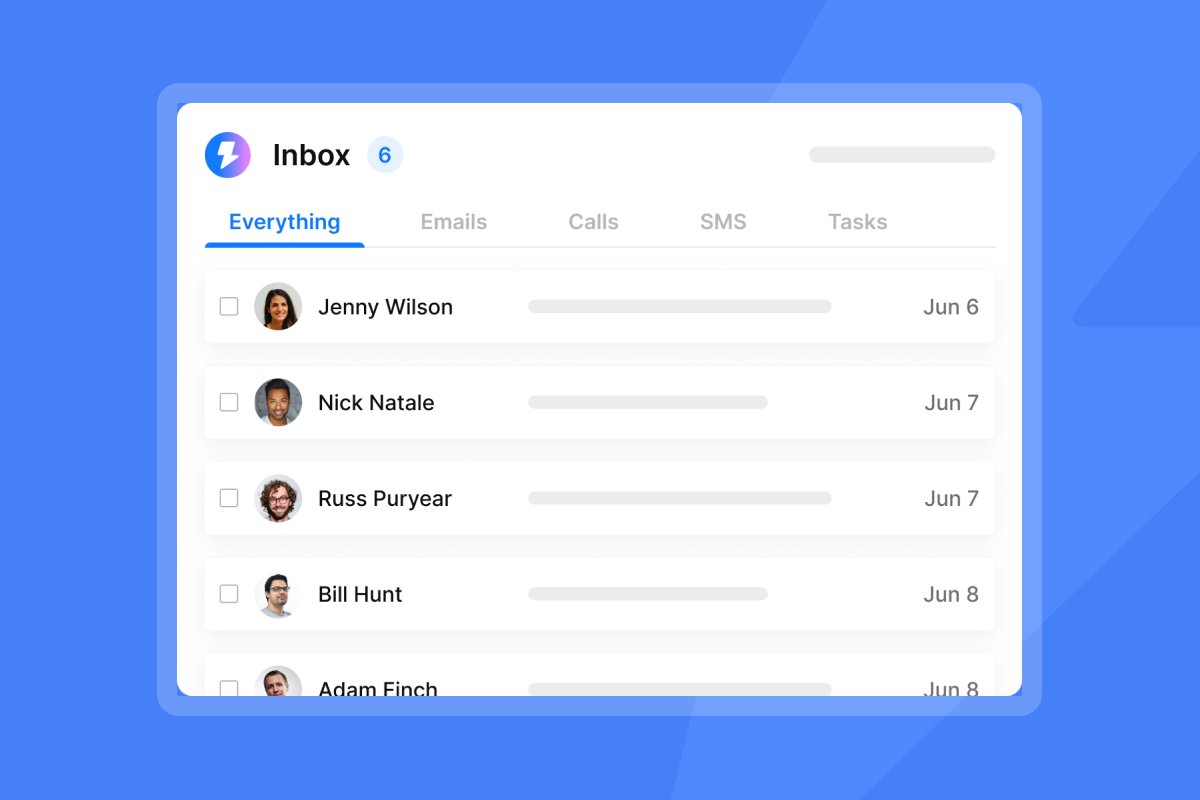
The platform automatically pauses campaigns when the bounce rate exceeds 5% after a minimum of 200 sent emails, as documented in Instantly's High Bounce Auto-Pause feature guide. This threshold is set by the system and cannot be adjusted. Monitor bounce rates manually after every campaign run and pause any account approaching 1% yourself before the auto-pause threshold is reached. Instantly's deliverability monitoring features (available on Hypergrowth and above) track bounce rates continuously, giving your ops team visibility without waiting until the next morning's pipeline review.
Steps to delist flagged sending domains
A blacklist flag does not mean permanent damage. Follow these steps in order to confirm the listing, fix the root cause, and restore sending safely.
Identify active domain blacklist flags
Run every sending domain and IP through Instantly's Domain Health status check to identify active blacklist flags across major blocklists. The Domain Health status check surfaces blacklist flags directly inside the platform, alongside DNS authentication failures and warmup score trends, so you can see the full picture without switching between tools.
Submit blacklist removal requests
Submit a delisting request only after you fix the root cause. Spamhaus does not remove a listing until you resolve the underlying issue, and requesting removal without fixing the problem results in immediate relisting. Follow these steps:
- Confirm the listing using the blacklist provider's own lookup tool to identify which specific list you are on and the stated reason.
- Fix the root cause first, whether that means removing invalid addresses, stopping a high spam complaint rate campaign, or correcting DNS misconfigurations.
- Submit the removal request using the official form on the blacklist's website. Each blacklist provider publishes estimated processing times on their respective removal request pages. Check each service's form directly for current timelines, as processing speed varies depending on listing type and request volume.
Audit and repair sender reputation
After delisting, do not resume cold campaigns immediately. Run warmup-only traffic for 2 to 4 weeks on the affected domain before reactivating any sequences. Verify all DNS records pass validation using a third-party DNS lookup tool, and confirm your warmup health score has recovered before sending cold outreach. Treat this recovery window as mandatory, not optional.
Diversify your active sending domains
Relying on a single domain is a single point of failure. If your primary domain is company.com, register alternatives such as getcompany.com or companylabs.com and distribute your sending volume across all of them. A flagged alternative domain does not touch your primary brand domain when you keep them isolated.
Manage your daily sending volume limits
Volume management is as important as list hygiene. Use these steps to spot throttling early, pace sends correctly, and scale throughput without burning your domain.
Identify and respond to throttling signals
ESPs throttle your emails when they begin delaying delivery rather than rejecting messages outright. Signs include slow delivery times, emails sitting in the "sent" state for hours, and consistent 421 deferral codes appearing across multiple accounts on the same domain. When you see these signals, reduce the affected domain's daily send volume and monitor for 48 hours before scaling back up.
When domain health dips, reduce the affected domain's daily send volume before adding more domains. Cutting your send rate while warmup recovers is far less damaging than burning a domain by pushing volume through a compromised reputation. In the platform, adjust the per-account daily send cap directly in campaign settings.
Pacing emails for inbox consistency
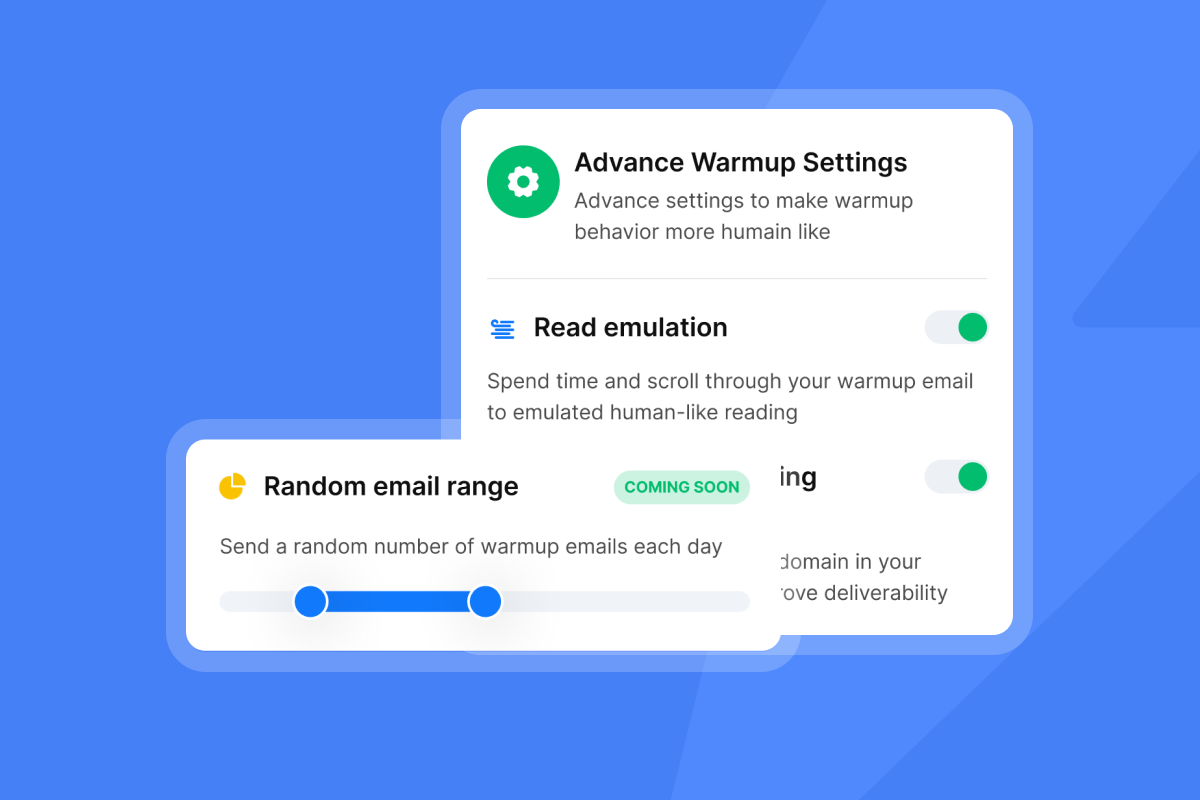
Sending too many emails too quickly triggers automated abuse detection at major ESPs. Space sends randomly across your send window and use staggered start times across accounts so they do not all fire at the same second. Instantly's sending algorithm handles this automatically, but if you manage custom infrastructure, build in randomized delays at the account level to stay within these thresholds.
Scale throughput with additional domains
If your team needs to send several hundred emails per day, do not send them from one account. Cap each inbox at 30 sends per day and distribute total volume across multiple inboxes on separate domains. This horizontal scaling approach distributes reputation risk so one bad list does not burn your entire outreach infrastructure. Instantly's flat-fee pricing model includes unlimited email accounts and warmup on every plan, making horizontal scaling economically viable without per-seat penalties.
Implement proactive sender account defense
Most deliverability failures start at the rep level. These steps give you the admin controls and audit processes to catch problems before they compound.
Define baseline rep sending protocols
Individual reps must not operate outside approved sequence parameters. Use the checklist below to audit rep activity weekly and catch problems before they compound into domain-level damage.
Deliverability health checklist
Audit item | Target metric / standard | Frequency | Manager action if failed |
|---|---|---|---|
Daily send volume | Max 30 emails per inbox per day | Daily | Reduce send limits in campaign settings. |
Sequence length | 4 to 7 steps | Weekly | Pause sequence and archive excess steps. |
Email length | Under 80 words | Weekly | Edit copy and remove fluff and links. |
Hard bounce rate | Under 1% | Daily | Pause campaign and run list through verification. |
The 2026 benchmark report confirms the optimal sequence length is 4 to 7 steps. It also found that Monday is the ideal day to launch new sequences and Wednesday consistently delivers the highest engagement metrics. Build these standards into every template your team uses.
Audit sender reputation every week
Block one hour each Monday to review domain health scores, warmup status, and bounce rates across every account in your workspace. Flag any account where the warmup health score has dropped below 90% or where the hard bounce rate is approaching 1%, and do this before campaigns launch, not after. The fingerprinting and deliverability guide covers additional technical patterns that degrade reputation over time, including email template fingerprinting at scale.
Formalize SDR ramp protocols
New reps using new domains must complete a 4 to 6-week warmup period before sending a single cold email. Do not allow any rep to shortcut this process, even if they have existing relationships on the target list. New domains carry no reputation history, and ESPs treat zero-history domains with maximum suspicion. Build the ramp schedule into your onboarding checklist and require manager sign-off before any new domain goes live with cold outreach.
Configure real-time deliverability alerts
Set up three admin-level controls to protect your shared domain health from rep-level mistakes.
- Global block lists: Use Instantly's AI Blocklist Triggers (available on Hypergrowth and above) to prevent reps from emailing contacts who should be excluded from outreach workspace-wide.
- Domain sending caps: Set hard limits on the number of emails any single domain can send per day, regardless of individual rep settings.
- Automated campaign pausing: The platform pauses campaigns automatically when bounce rates exceed safe thresholds after a minimum of 200 sent emails.
For teams that need always-on protection, the Hypergrowth plan at $97/month includes advanced deliverability monitoring covering automated inbox placement tests, DNS health checks, blocklist monitoring, and campaign copy health analysis. It applies rules to pause at-risk accounts or trigger re-warm sequences when issues are detected, without requiring manager intervention. The Deliverability AI Agent help doc details every monitoring check and the specific actions taken on each finding.
"Deliverability tools that actually move the needle: warmup, inbox rotation, and smart sending windows help us land in Primary instead of Promotions/Spam." - Anthony V. on G2
Troubleshooting guide for sales inbox placement
Use this section when something has already gone wrong. It covers recovery timelines, criteria for halting sends, and how to present domain health to leadership.
Expected timelines for email recovery
Recovery timelines depend on how far reputation has degraded. Use these as planning benchmarks, not guarantees.
- Minor warmup score drop (80% to 90%): Recovery time varies depending on how long the score has been degraded, your list quality, and your sending history. Reduce volume, switch to warmup-only traffic, and monitor your health score daily until it returns above 90% before resuming cold sends.
- Active blacklist flag: 2 to 4 weeks of warmup-only activity after delisting before cold campaigns resume.
- Multiple blacklist flags or sustained high bounce rates: 30+ days. Some domains do not recover.
When to halt sends for deliverability
Stop all sends from a domain immediately if any of the following conditions are true:
- Hard bounce rate exceeds 5%.
- Open rate drops noticeably below your established baseline over a 7-day window and cannot be explained by send timing or list segment changes. This is a warning signal that warrants investigation, not an automatic halt trigger. Cross-reference with bounce rates and inbox placement data before pausing.
- The domain appears on a major blocklist, which may indicate a spam trap hit. Check Instantly's Domain Health status check to confirm the specific listing.
- Warmup health score drops below 60%. Instantly's deliverability monitoring features flag these signals quickly. If you are not on Hypergrowth or above, run manual daily checks using a third-party blacklist checker until you can automate this monitoring.
Criteria for retiring damaged domains
A domain is too damaged to recover when it meets any of these criteria:
- Permanent listing on a major blocklist after multiple removal attempts.
- Inbox placement rates remain below 50% after 30 days of warmup-only activity.
- Spam complaint rate consistently above 0.5% across multiple campaigns.
- Major providers have flagged the domain with persistent rejections. When a domain hits this threshold, stop all sending and replace it with a fresh alternative. Instantly offers pre-warmed domains at $15/year, which means a new domain enters your stack with existing reputation history rather than starting from zero. Archive all campaigns associated with the retired domain and update your suppression lists so it is never accidentally reactivated.
How to present health metrics to leadership
CFOs and CEOs need a cost-benefit frame, not deliverability jargon. The table below gives you the comparison to use in a budget conversation.
Managed vs. in-house cost-benefit analysis (15+ reps)
Metric / feature | In-house infrastructure (custom servers) | Managed platform (Instantly's Light Speed plan) |
|---|---|---|
Setup time | 2 to 4 weeks (requires IT/DevOps) | Under 2 hours (self-serve) |
Monthly cost (15+ reps) | $1,500+/mo (illustrative estimate: dedicated servers, IP leases, and ongoing maintenance) | $358/mo (Light Speed plan with SISR) |
Warmup management | Manual scripts, high risk of errors | Automated via 4.2M+ accounts |
IP reputation | Shared or expensive dedicated IPs | Dedicated private IP pools with SISR rotation |
SISR (Server and IP Sharding and Rotation), exclusive to Instantly's Light Speed plan at $358/month, automatically assigns dedicated private servers and IP blocks to your sending accounts. When an IP is flagged, SISR rotates it out and assigns a replacement from a dedicated private pool. The SISR technical doc covers how the rotation system works under the hood.
Deliverability is a revenue protection investment, not a technology expense. When primary inbox placement drops across your sales team, every email that misses the inbox is a conversation that never starts, a meeting that never gets booked, and pipeline that never materializes.
How many meetings did your team miss last month because emails never reached the primary inbox?
If your team is currently experiencing placement failures, start with the DNS audit and volume reduction today. Purge bounced addresses, reduce your per-inbox daily send cap in campaign settings, and let the warmup network rebuild reputation before your next campaign launches. If you want the monitoring, alerts, and automated remediation handled by the platform rather than manually by your ops team, try Instantly free for 14 days (no credit card required) and let the Deliverability AI Agent audit your existing domains. Read Instantly's 2026 Cold Email Benchmark Report to align your team's performance targets with real-world outbound data from billions of email interactions.
FAQs
What is a safe daily sending limit per email account?
Keep your daily sending volume at or below 30 emails per single inbox to protect your sender reputation. If you need higher total volume, add more accounts across multiple domains rather than increasing sends per account.
What is an acceptable hard bounce rate for outbound campaigns?
Your hard bounce rate must remain below 1% to protect your sender reputation. A rate above 2% places your account under review at major ESPs and risks sending suspension.
How long does it take to warm up a new sending domain?
A new domain requires 4 to 6 weeks of automated warmup before you begin sending cold outreach campaigns. Confirm your warmup health score is above 90% before activating any sequences, and run an inbox placement test to verify primary inbox rates are healthy across Google, Microsoft, and Yahoo.
What DNS records are required for outbound email deliverability?
You must configure SPF, DKIM, and DMARC records for every sending domain to verify your sender identity. As of 2026, Google rejects at the SMTP level any domain sending 5,000+ daily messages that lacks all three records.
When should I retire a damaged sending domain instead of attempting recovery?
Retire a domain when it remains on a major blacklist after multiple delisting attempts, or when inbox placement stays below 50% after 30 days of warmup-only activity. Replace it with a fresh domain and use Instantly's pre-warmed domains ($15/year) to avoid starting from zero reputation.
Key terms glossary
Primary inbox: The main folder where a recipient receives important, personal, or expected emails, as opposed to the spam or promotions folders.
Sender reputation: A score assigned by email service providers to your sending domain and IP address, determining whether your emails land in the inbox or spam folder.
Warmup: The process of gradually increasing email sending volume on a new account to build trust with email service providers over 4 to 6 weeks.
SISR: Server and IP Sharding and Rotation, a technology on Instantly's Light Speed plan that distributes sending across dedicated private servers and IP pools and automatically rotates flagged IPs.
SuperSearch: Instantly's B2B lead database containing 450M+ B2B leads with waterfall enrichment with 5+ providers.
SPF: Sender Policy Framework, a DNS record that specifies which mail servers are authorized to send email on behalf of your domain.
DKIM: DomainKeys Identified Mail, a digital signature added to outgoing emails that proves the message was not altered in transit.
DMARC: Domain-based Message Authentication, Reporting and Conformance, a DNS record that ties SPF and DKIM together and instructs receiving servers how to handle authentication failures.
Read next
- From 1% to 5%: improve your cold email reply rates: A step-by-step breakdown of the copy, timing, and sequence changes that move reply rates from average to top-quartile performance.
- Cold email subject lines that get replies: What the 2026 benchmark data says about subject line length, personalization, and the patterns that consistently earn opens from cold prospects.
- Best cold email sequence templates to win replies in 2026: Ready-to-use sequence frameworks covering step count, follow-up timing, and copy angles proven to generate meetings across common B2B verticals.


