.svg)

.svg)
.avif)
This certificate would look great on you.
Complete a short quiz and it’s all yours.
Managing Lead Lists
Lists are the organizational units of your prospecting operation. How you create, maintain, and use lists directly affects campaign effectiveness and operational efficiency. Good list management seems mundane but separates sophisticated operations from chaotic ones.
List Creation Sources
Leads enter your lists from multiple sources. Understanding these sources helps you build comprehensive lists without duplication or gaps.
Direct search through SuperSearch generates leads matching specific criteria. These searches create net-new lists based on your targeting parameters. Most net-new prospecting starts with SuperSearch-generated lists.
Imports bring leads from external sources into Instantly. CSV uploads from purchased data, exported segments from other tools, and manually curated lists all enter through import. Standardizing import processes ensures data quality and field mapping consistency.
Integrations with other tools automatically flow leads into Instantly. CRM integrations, marketing automation connections, and webhook-based transfers all create ongoing lead flow. Automation reduces manual work but requires monitoring to ensure quality.
Manual additions happen one at a time. Individual leads identified through personal research, referrals, or inbound interest get added directly. While not scalable, manual additions often include your most qualified opportunities.
Organization and Structure
List organization should serve your operational needs. Different campaigns, segments, and stages of work require different lists. A structure that makes sense prevents confusion and enables effective campaign management.
Campaign-oriented lists group leads for specific outreach efforts. Each campaign sends to its own list, and list management includes moving leads between campaigns as appropriate.
Segment-oriented lists group leads by characteristics regardless of current campaign status. Industry segments, company size segments, and role segments enable targeted campaigns and analysis.
Status-oriented lists track where leads are in your process. New leads, contacted leads, engaged leads, and disqualified leads might have separate lists that leads move between as they progress.
The right structure depends on how you work. Some operations prefer simple campaign lists. Others need elaborate hierarchies. Start simple and add complexity only when current structure creates problems.
Filtering and Segmentation
Large lists benefit from filtering and segmentation that creates focused subgroups without duplicating data.
Filters let you view subsets of a list based on criteria. Show me leads from this list who are in the technology industry creates a filtered view without creating a separate list. Filters enable targeted work within larger lists.
Segments save filtered views for repeated use. A segment combining multiple filter criteria can be applied whenever needed without rebuilding the filter each time. Segments improve efficiency for common views.
Dynamic segments update automatically as lead data changes. If you segment by engagement status, leads automatically move between segments as they engage or go cold. Dynamic segmentation reduces manual maintenance.
Assignment and Movement
Leads often need assignment to team members or movement between lists as their status changes. Managing these flows keeps your operation organized.
Assignment rules automatically route leads to appropriate team members. New leads might be assigned round-robin, by territory, or by other criteria. Automatic assignment ensures immediate ownership and prevents leads sitting unattended.
Movement rules shift leads between lists based on triggers. A lead who responds might automatically move from the prospecting list to the engaged list. Rules-based movement maintains list accuracy without manual intervention.
Manual movement handles exceptions and judgment calls. When rules do not cover a situation, or when you need to override automatic behavior, manual movement provides control. Make manual movement easy but encourage process adherence.
Exporting and Syncing
Leads need to flow out of Instantly as well as in. Export and sync capabilities connect your prospecting to downstream processes.
Export to CSV creates files for use in other tools or for sharing. Campaign results, qualified leads, and research outputs all might need export for analysis or handoff.
CRM sync pushes lead data and activity to your customer relationship management system. This integration ensures your CRM reflects prospecting activity and keeps the single source of truth current.
Integration sync connects with other tools in your stack. Marketing automation, sales engagement platforms, and communication tools might all need lead data from Instantly. Proper integration prevents manual re-entry and data inconsistency.
Maintenance and Hygiene
Lists degrade over time. People change jobs, companies go out of business, and email addresses become invalid. Ongoing maintenance keeps lists healthy.
Regular verification identifies leads with invalid contact information. Removing or updating bad records before campaigns prevents bounces that damage deliverability.
Duplicate detection and merging keeps lists clean. As leads enter from multiple sources, duplicates accumulate. Regular deduplication maintains list accuracy and prevents embarrassing duplicate outreach.
Archiving removes outdated leads from active lists. Leads who have been thoroughly contacted without engagement clutter lists without value. Archiving keeps active lists focused on real opportunities.
Video transcript
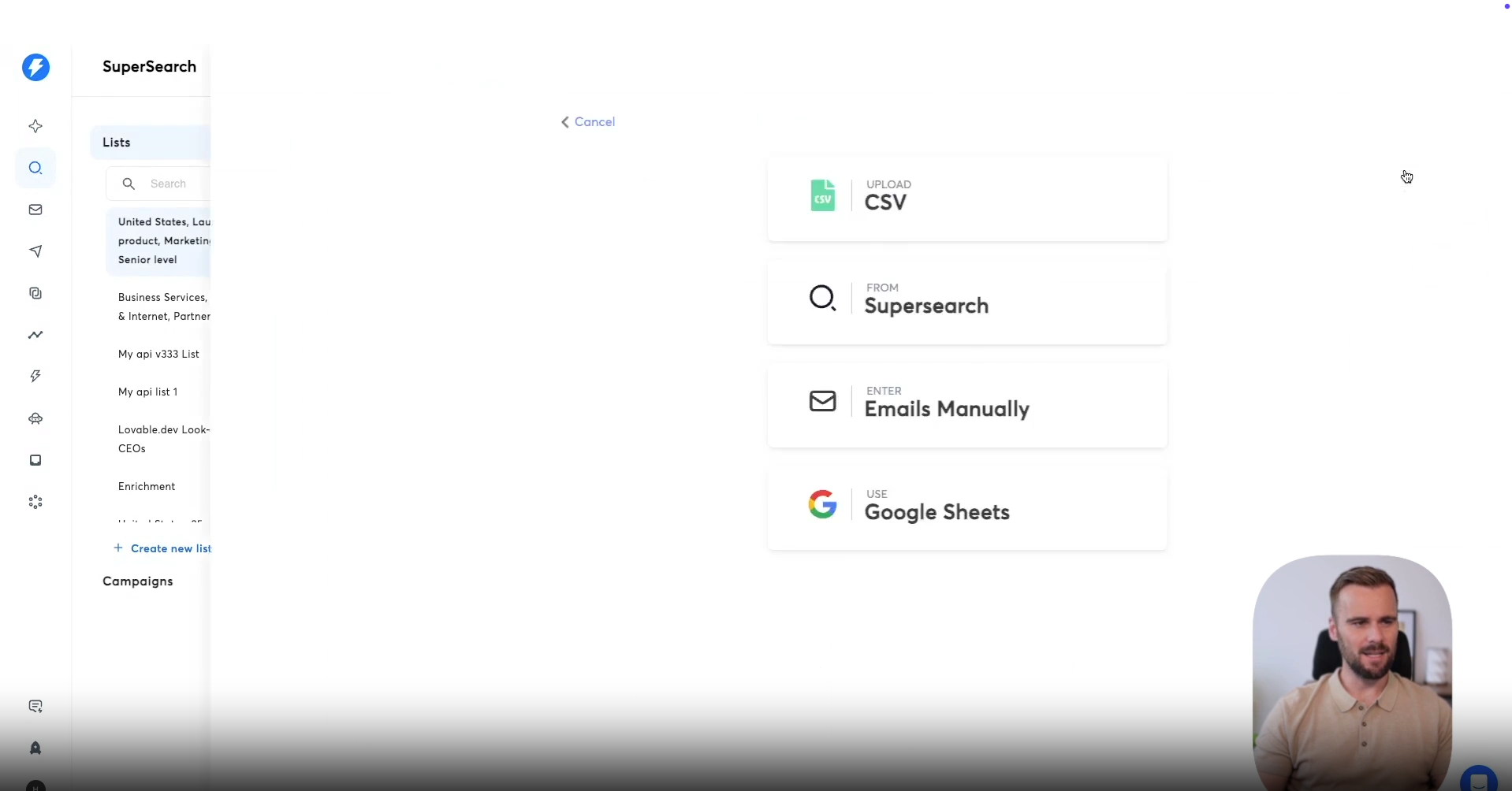
And lastly, there are different actions you can take on the leads that you've enriched the different lists that you have. First, when you have a lead list right here, you can click the action button and you can add new leads. When you click add leads, you can find the different sources that you have available. You can upload a CSV. You can get more leads from SuperSearch, enter leads manually, or connect directly to Google Sheets.
When you click add changes again, there's the export option straightforward. You can export the different leads that you have in here, but you can select a source you want to export them to depending on whether or you have a CRM connected or a different sequencer connected that you can export these leads to. And you can sync them with your CRM, keep your CRM enriched updated that way, or use a different sequencer if that's what you prefer.
Then there's a filters option. Maybe this is a list that you've already worked on. This is a list that you've already reached out to, and then you want to filter for different statuses. You want to look at people who've replied, who've clicked the link, who maybe unsubscribed, maybe they didn't open, maybe they haven't been contacted yet, maybe they're in a subsequence, a specific category.
Whatever it is that you're looking for, you can filter for it here. The ones you add that filter, you can add another condition. So you can add different conditions under here and then create these different lists, these different sub lists within your big list using these filters or maybe assign leads based on that or add them to different campaigns based on these different conditions and filters that you've created. Below that, you can look at the history of that list.
There's the edit list option, allows you to edit the owner of the list or the name of the list and the auto update option. We already talked about it a few times. Once you enable that, new leads added to this list will automatically go through all the different enrichments that you've set up, whether that is email enrichment, additional enrichment, or AI enrichment. It will run through all of that.
When we start selecting leads, here you can select all the people in this list or specific number. You will see additional buttons come up right here. You can, again, view the history of these specific leads. You can also perform specific row actions.
You can run all the rows, and by that, we mean run the enrichments. So maybe you've had auto update off, and you've added some enrichment, maybe AI enrichments, what have you. You can select a specific amount of rows and actually run those. You can download this selected list or you can assign leads to maybe someone else within your company, a specific salesperson that maybe should go after these leads.
That's where you can do that. Or you can move them. So you can move them to a specific campaign. You can select the target campaign.
You can copy the leads there, or you can uncheck that, and they'll just fully move there and not stay in the original list. And check for duplicates across all campaigns. I always recommend keeping that turned on to make sure you're not reaching out to the same lead twice. Then lastly, you can move into a different list.
Maybe you're keeping things organized that way. You can select all the people in here or a few people in here and move them to a different list. Those are different actions, role actions, and other options that you have available right here within super search within your lead list.
Resources


Courses

.svg)








Prompts
%20(1).svg)
Unlock the power of AI
with

Get started now to access exclusive templates and elevate your projects to the next level.
Stop letting poor deliverability kill your pipeline. Join 50,000+ sales teams who've made the switch to Instantly for better inbox placement, higher response rates, and more closed deals.
No credit card required.