.svg)
%20(1).svg)


Updated July 15, 2026
TL;DR: Successfully onboarding an AI BDR is an operational discipline, not a plug-and-play event. Build the foundation on secondary sending domains, a 4-to-6-week warmup period capped at 30 emails per inbox per day, and native CRM field mapping to prevent duplicate leads. Teams that standardize governance through dedicated workspaces and approved copy libraries produce reply rates reaching 5.5%+ in the top quartile. This checklist walks through every phase, from domain setup and CRM integration to team training and 30-day performance reviews, so your program moves from pilot to predictable pipeline.
If you are a Head of Sales or RevOps lead setting up an AI sales agent program for the first time, this checklist is for you.
Most AI BDR pilots stall before reaching production, often because teams never learn how an AI BDR works before rolling one out. The breakdown rarely happens because the AI writes poor copy. It happens because the underlying sending infrastructure was never built to handle scale, CRM fields were never mapped correctly, and reps never received clear governance rules. This AI BDR onboarding checklist gives your RevOps or sales ops team a structured, 3-phase implementation plan covering domain setup, lead data hygiene, copy governance, and a 4-week ramp timeline to protect domain health while building pipeline, the same rollout discipline that keeps Instantly's ai agents performing predictably from day one.
Setting your pre-launch benchmarks
Before your first email sends, set quantified targets that your team can measure against, whichever of the leading AI BDR tools you run. The 4-to-6-week warmup period gives your domains time to build reputation and your sequences enough data to optimize before your AI BDR agent for cold outreach begins scaling send volume.
Instantly.ai's 2026 Cold Email Benchmark Report, which analyzed billions of cold email interactions across thousands of active workspaces from January 1 through December 18, 2025, sets clear reference points:
- Platform average reply rate: 3.43%
- Top-quartile performers: 5.5%+
- Top 10% of senders: 10.7%+
- Consistent senders produce 15% to 20% higher reply rates than irregular senders
These rates are not guaranteed. They are the outcomes disciplined teams achieve when they control deliverability, pacing, and list quality. Use them as floor targets when you evaluate AI BDR platforms, not ceilings.
Before automated sending begins, run a small test batch through your full AI BDR CRM integration and verify that contact records create correctly, reply statuses update, and bounce flags propagate. Broken data plumbing discovered mid-campaign causes more pipeline failures than poor copy does. Any mismapped field at this stage creates duplicates at scale.
Top-performing teams treat daily Unibox triage as non-negotiable. They monitor bounce rates regularly and pause campaigns immediately if bounces exceed 1%. They don't rely on set-and-forget automation because active oversight during the first weeks helps catch edge cases early.
Pre-launch: domain setup and warmup configuration
Never send cold outbound from your primary company domain. A single deliverability incident on your main domain can damage brand email, transactional messages, and inbound response rates simultaneously. Secondary sending domains create a firewall between your outbound program and your brand reputation. Instantly's help center guide on scaling with secondary sending domains covers the full strategy.
Configure sending domains and DNS records
Set up DNS authentication in two stages on each secondary domain before you send a single campaign email:
- Stage 1 (Day one): Configure SPF and DKIM authentication.
- SPF record: Add a TXT record at your root domain authorizing your sending service to send on your behalf.
- DKIM record: Generate a public/private key pair and publish the public key at
selector._domainkey.yourdomain.com.
- Stage 2 (After 48 hours minimum): Add DMARC after SPF and DKIM have been authenticating successfully for at least 48 hours.
- DMARC record: Add a TXT record at
_dmarc.yourdomain.comwith ap=nonepolicy to start, which meets Gmail's bulk sender requirements while you accumulate reputation data.
- DMARC record: Add a TXT record at
Gmail's bulk sender rules (effective February 1, 2024) require all three records. Instantly's DNS setup guide for SPF, DKIM, and DMARC walks through the exact record syntax for each major domain provider.
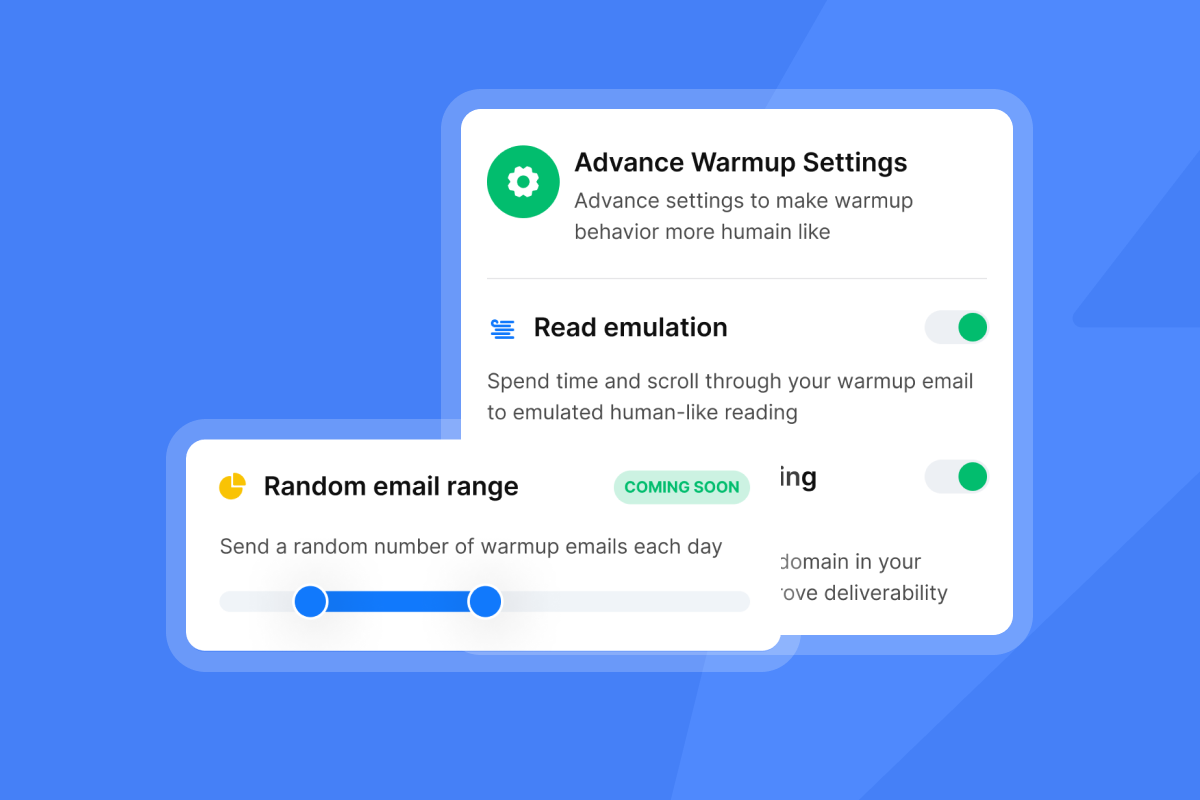
Connect your domains to Instantly's built-in warmup network before sending a single campaign email. The platform's private deliverability network of 4.2M+ accounts generates authentic open and reply signals that build domain reputation with Gmail and Outlook. Shortcutting warmup is the single most common reason pilots fail. Allow 4 to 6 weeks. You can also order pre-warmed domains directly through Instantly at $15/year per domain to reduce lead time, and use the warmup filter guide to keep warmup emails out of your monitored inboxes.
For a deeper look at how sending infrastructure affects deliverability at scale, review Instantly's comparison of email warmup tools and strategies and the guide on optimizing cold email reply rates.
Configure safe sending thresholds
Cap your sending at safe daily limits. Do not scale past 30 emails per inbox per day. Ramp gradually using this schedule:
Week | Daily sends per inbox | Status |
|---|---|---|
Week 1 | 5 (warmup only) | No campaign sends |
Week 2 | 10-15 (warmup only) | Continue warmup. No campaign sends. Prepare sequences for Day 15 launch. |
Week 3 | 5-10 (campaign sends begin Day 15) | Launch first campaign sends at low volume. Pause immediately if bounce rate reaches 1%. |
Week 4 | 30 | Hold at this limit. Monitor bounce rates and inbox placement before deciding whether to scale further. |
If bounce rates exceed 1% at any stage, pause sends, re-verify the affected list segment, and resume at a lower threshold after confirming list quality.
Turn on automated alerts for domain blocklist flags before campaigns go live. Instantly's Deliverability AI Agent, available on Hypergrowth and above, monitors DNS health, blocklist status, warmup scores, and bounce rates on a regular automated schedule, surfacing exactly what is affected and what to fix first. If a domain gets flagged, pause all sends from that domain immediately, audit recent copy using Instantly's AI Spam Words Checker, and check that bounce rates are under 1% before resuming.

Ensuring lead accuracy and database health
Dirty data damages deliverability. Every unverified contact you load into a campaign adds bounce risk, so verify your AI BDR data sources before import. Treat your lead list like a water filter: contaminated input damages sending reputation over time.
Configure CRM fields for AI workflows
Connect Instantly's native HubSpot integration under Settings and Integrations. During the lead import step, map each column explicitly and keep Email as the unique key to prevent duplicate contact records.
Create custom HubSpot properties to track AI BDR activity separately from your human-rep pipeline. These properties let you segment AI-sourced pipeline from AE-worked pipeline in your reporting and keep CRM records clean as volume scales.
After connecting the integration, review which CRM fields your sync is permitted to write to. Identify any fields that require a human judgment call and ensure those are not writable by automated sequences. Instantly's HubSpot integration setup guide covers the full field mapping process.
Validate contact data and load leads gradually
Load leads gradually in manageable batches rather than importing your full list at once. Gradual list-loading lets you catch data quality issues, such as high bounce rates from a specific list segment, before they damage domain reputation across the entire campaign.
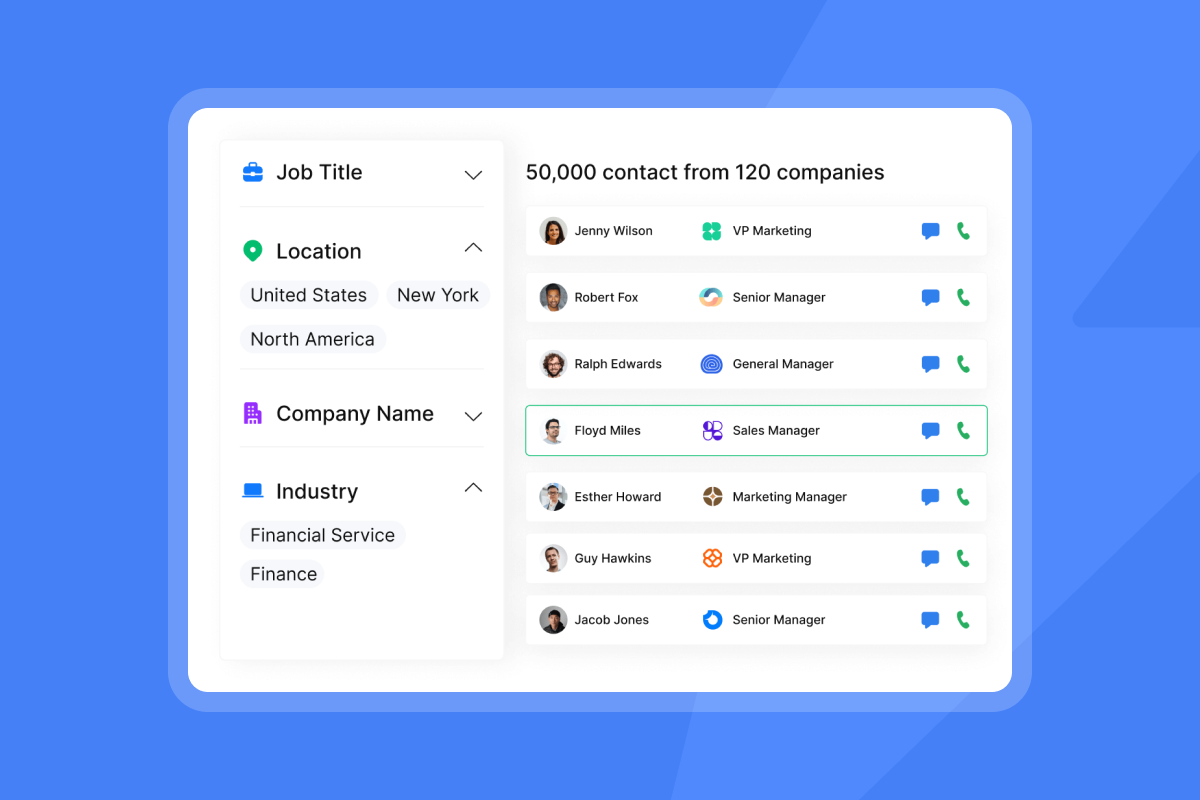
Use Instantly's Lead Finder with its 450M+ B2B leads database and built-in waterfall enrichment from 5+ providers to verify contacts before import. For lists sourced externally, run them through a third-party verification tool and reject any contact with an "unknown" or "risky" status before importing.
Set up reply sync and meeting workflows
Connect Unibox to HubSpot so that inbound replies can update contact records and create CRM activity entries. Lifecycle stage updates do not happen automatically from reply events. To move a contact forward in HubSpot, you need to build a dedicated HubSpot workflow that listens for the reply status written by Instantly and then sets the lifecycle stage property. Note that HubSpot's lifecycle stage property can only move forward using HubSpot's own tools (import, form submission, API, or workflow). If you need to set an earlier stage value, you must clear the field manually before the workflow can apply the new value.
Instantly's Out-of-Office Resume feature uses natural language processing to detect OOO auto-replies, extract the stated return date, and pause the lead until that date automatically. To activate it, disable "Stop on auto-reply" in your campaign settings and enable "Automatically tag interest status in replies." Both conditions must be on for OOO Resume to function correctly. It is included on all plans at no additional cost.
Configure AI Custom Reply Labels in Unibox to classify inbound replies across more than 50 languages. Standard categories include Interested, Not Interested, Out of Office, Referral, and Neutral. Map each label to the appropriate CRM action and routing rule before your first campaign goes live. Custom label selection is available on Hypergrowth and Light Speed plans.
Governance protocols for compliant AI messaging
The biggest governance risk is a rep or one of your ai agents sending off-brand, legally non-compliant, or misclassified messages at scale. Governance is the structural answer.
Curate approved email copy assets
Build a centralized asset library before sequences go live. Include:
- Value propositions: Approved positioning statements that connect your offer directly to a specific ICP pain point. Each statement should name the pain, state the outcome you deliver, and be reviewed by marketing or legal before it enters the library.
- Case study references: Measurable outcomes with specific metrics.
- CTAs: Approved call-to-action variants reviewed for compliance and brand voice. Your AI Sales Agent Software pulls from this library rather than generating copy from scratch, keeping messaging on-brand and legally reviewed.
Define sequence length, cadence, and copy limits
Instantly's 2026 benchmark report identifies the optimal sequence length as 4 to 7 steps. Space steps several days apart and widen the gap progressively as the sequence advances. This graduated pacing reduces velocity load on your domain and signals to mailbox providers that you are a patient, legitimate sender. Keep every email under 80 words. The benchmark data confirms that shorter emails produce the highest engagement across the platform.
Configure send windows from 8:30 AM to 10:30 AM in the recipient's local time zone. This timing aligns with peak open windows and mimics human sending behavior. Cap sends at 30 per inbox per day and enforce this limit through Instantly's account-level settings so individual reps cannot override it.
Establish A/B testing protocols
Use Instantly's A/Z testing (up to 26 variants on Hypergrowth and above) to test subject lines and opening lines across your first 4 sequences. Run each variant against a large enough contact pool to produce reliable results. At typical cold email reply rates, smaller samples produce inconclusive data, so give each variant enough volume before declaring a winner. The Instantly blog's A/B testing guide covers how to calculate the sample size you need for your baseline reply rate and target minimum detectable effect.
Structuring your AI BDR onboarding roadmap
The following 4-week timeline maps every critical deliverable to the right week.
Week | Focus |
|---|---|
Week 1 | Admin and inbox prep |
Week 2 | CRM integration and QA |
Week 3 | Reply automation |
Week 4 | Scale and audit |
Week 1: essential admin and inbox prep
Complete these actions in Week 1:
- Purchase secondary domains (pre-warmed domains available at $15/year through Instantly).
- Configure SPF and DKIM records on day one, then wait 48 hours before enabling DMARC to allow authentication to propagate.
- Connect every account to Instantly and activate the warmup network on all inboxes.
- Set sending windows to 8:30 AM to 10:30 AM local time.
- Do not send campaign emails this week. Let warmup signals accumulate.
Week 2: drafting flows and audit QA
Complete these actions in Week 2:
Do not send campaign emails this week. Use this week to build your CRM integration, verify lead data, and draft sequences so you are ready to launch on Day 15.
- Map HubSpot CRM fields and create your custom AI BDR tracking properties.
- Run a small test batch of 20 to 50 contacts through your full CRM integration to confirm that contact records create correctly, reply statuses update, and bounce flags propagate before campaign sends begin.
- Draft your initial 4-to-7-step sequences with copy under 80 words per email.
- Set up team workspaces in Instantly.
The workspace management guide covers how to create workspaces, invite team members, and assign permission tiers. Note that team member invitations require a Hypergrowth or Light Speed plan. Workspaces let you manage rep access under a single login while keeping campaign data isolated. Assign Owner permissions to admins and Editor permissions to anyone managing campaigns. Reps who handle Unibox replies only should receive View access.
Week 3: automating reply classification
Complete these actions in Week 3:
- Import your first verified lead batch in small increments, pausing to check bounce rates before loading more.
- Enable AI Custom Reply Labels in Unibox and configure routing rules for each category.
- Activate Slack notifications for all live replies so ops can monitor AI classifications in real time.
- Set the AI Reply Agent to Human-in-the-Loop mode so every AI-drafted response requires rep approval before sending.
HITL mode costs 5 Instantly Credits per reply and is available through the separate Instantly Credits subscription, starting at $9/month. Running HITL for the first 30 days lets you catch misclassifications before they reach prospects at scale.
Week 4: scaling sends and CRM audits
Complete these actions in Week 4:
- Begin gradual list-loading, holding sends at 30 per inbox per day.
- Audit HubSpot contact records to confirm AI BDR tracking fields are populating correctly on every record.
- Open the Deliverability AI Agent dashboard and check DNS health, warmup scores, bounce rates, and campaign copy flags.
- Review inbox placement results across Gmail and Outlook before adding new inboxes.
Establishing admin visibility and audit trails
Your CFO and your reps need reports that reconcile. Build reporting from the metrics that actually matter rather than vanity opens.
Verify inbox placement and rep compliance
Run automated Inbox Placement tests at least once per week during the first 30 days. These tests confirm whether emails land in the primary inbox, the promotions tab, or spam for each major mailbox provider. If placement drops on any domain, pause sends on that domain, diagnose whether the issue is copy, list quality, or DNS configuration, and resolve before resuming.
Configure AI Blocklist Triggers, available on Hypergrowth and above, to automatically add unsubscribed contacts to the Global Blocklist. You activate this by going to Account Settings, then Blocklist, then AI Blocklist Triggers, and enabling the toggle. Once enabled, the system handles suppression without manual intervention on each reply.
Track meetings set and SQL conversion
Build a unified dashboard tracking bounce rate (target below 1%), reply rate (target at or above 3.43% per the platform benchmark), meetings booked, and SQLs created. Every metric should reconcile against HubSpot records. If the numbers diverge, trace the gap to field mapping or a sync delay before reporting upward.
Review Instantly's Data Processing Agreement to confirm your data upload practices align with the restricted data categories listed in the DPA. Audit every active campaign for a functioning opt-out link at the same time.
Scaling performance: metrics and health monitoring
Once your domains are warmed, your CRM fields are mapped, and your first campaigns are live, the next 30 days determine whether your program scales or stalls. This section walks through the day-30 scorecard, the formula for planning inbox capacity, and the upgrade path that top-quartile teams follow once reply rates cross 5.5%.
30-day performance review and capacity planning
At day 30, pull these four numbers:
- Bounce rate at or below 1%
- Reply rate at or above 3.43%
- Zero domain blocklist flags
- Primary inbox placement confirmed in the primary tab (not promotions or spam) across Gmail and Outlook, verified via Instantly's automated inbox placement tests
If any metric falls below target, fix the root cause before you add new inboxes or new contacts. Adding volume on top of a deliverability or data problem, one of the most common AI BDR mistakes, compounds damage rather than improving output.
Use this formula to plan inbox counts: divide your target monthly send volume by 30 (the maximum daily send per inbox), then by 20 working days per month. To send 9,000 emails per month at 30 per inbox per day, you need 15 active inboxes (9,000 / 30 / 20 = 15).
At 30 days, pull A/Z test results and double down on subject lines and opening lines that outperform your baseline. Keep all copy under 80 words. Wednesday sends produce the highest reply rates while Monday is the best day to launch new sequences.
Once your reply rate consistently clears 5.5%, you are in the top quartile. At that point, upgrading to Light Speed ($358/month) adds SISR (Server and IP Sharding and Rotation), which automatically rotates sends across dedicated private IP pools. According to Instantly's guide on rotating IPs and sending algorithms, flagged IPs are swapped immediately without manual intervention, keeping deliverability steady even at volume.
Teams managing intensive outbound programs report that the unlimited-account model removes the per-seat friction that limits how far they can scale:
"We're able to scale our outreach without sacrificing personalization or risking our sender reputation." - Natalie on Trustpilot
Follow this checklist and you will have built a protected sending infrastructure that separates cold outbound from your primary domain, clean CRM data that prevents duplicates at scale, governed copy assets that keep messaging compliant and on-brand, and a measurable ramp to top-quartile reply rates. Teams that treat onboarding as an operational discipline rather than a plug-and-play event move from pilot to predictable pipeline in 90 days.
Start your 14-day free trial of Instantly to set up unlimited sending accounts, activate the warmup network, and access the Deliverability AI Agent, all with no credit card required. Then align your team's targets against Instantly's 2026 Cold Email Benchmark Report before your first campaign goes live.
FAQs
How long does a standard AI BDR rollout take?
A standard rollout takes 4 to 6 weeks. Domain warmup, CRM field mapping, sequence drafting, and team workspace configuration all run in parallel across the same window. For teams of 5 to 20 users, plan to concentrate CRM data prep and field mapping in Weeks 1 and 2, so sequences are ready to launch when warmup completes at Day 15.
What should I do if inbox placement drops mid-campaign?
Pause all sends from the affected domain immediately, audit recent copy for spam trigger words using Instantly's AI Spam Words Checker, and verify that bounce rates are under 1% before resuming sends.
How do I prevent reps from running unsafe automations?
Use Instantly Workspaces to assign each rep the minimum permission tier required for their role: Editors manage campaigns but cannot alter integration settings, while View access limits reps to Unibox reply handling only, the kind of control enterprise sales teams running an AI BDR depend on. Block unauthorized browser extensions through your MDM policy, since native LinkedIn messaging is not supported in Instantly.
What are the key KPIs for a weekly AI BDR performance review?
Track bounce rate (target below 1%), reply rate (target above 3.43%), and meetings booked for the week. If metrics decline week over week, pause new list loads and run a hygiene audit before adding volume.
How many inboxes do I need to send 10,000 emails per month?
You need 17 active inboxes (10,000 / 30 sends per inbox per day / 20 working days = 16.67, rounded up). Instantly's Outreach plans include unlimited accounts at a flat monthly fee, so inbox count does not change your billing.
Key terms glossary
Warmup: The process of gradually increasing sending volume from a new domain or inbox over 4 to 6 weeks to build sender reputation with mailbox providers before full campaign sends begin.
DMARC: Domain-based Message Authentication, Reporting, and Conformance. A DNS policy record that tells receiving servers how to handle email that fails SPF or DKIM checks. A p=none policy meets Gmail bulk sender requirements at launch.
SISR: Server and IP Sharding and Rotation. Instantly's dedicated IP pool system, available on Light Speed plans, that automatically rotates sends across private IP infrastructure to prevent a flagged IP from affecting overall deliverability.
Unibox: Instantly's centralized reply inbox that aggregates all inbound responses across all connected email accounts into a single interface for rep triage and AI classification.
AI Custom Reply Labels: Instantly's NLP classification system that automatically tags inbound replies into categories (Interested, Not Interested, OOO, Referral, Neutral) across 50+ languages. Custom label selection requires a Hypergrowth or Light Speed plan.
HITL (Human-in-the-Loop): An operating mode for the AI Reply Agent in which every AI-drafted reply requires human approval before sending. Run HITL until your reply classification accuracy is consistently high enough that misclassified replies are rare. Review AI-drafted responses regularly and only reduce oversight once you have confirmed the agent is routing and responding correctly across your main reply categories.
Bounce rate: The percentage of sent emails that return a delivery failure. Keep this at or below 1% at all times. Exceeding 1% signals list quality or domain health problems that require immediate action.
SQL (Sales Qualified Lead): A prospect who has replied positively or taken a qualifying action that indicates readiness for a sales conversation. AI BDR workflows typically route positively tagged replies to sales qualification steps in your CRM.
Read next
- Cold email subject lines that get replies: how to write and test subject lines that improve open rates and feed your A/Z testing workflow.
- Best lead prospecting strategies for cold email campaigns: how to build, verify, and load prospect lists that keep bounce rates below 1%.
- Cold email deliverability: 14 key checks before you hit send: the full pre-send audit covering DNS records, warmup scores, and inbox placement.



