.svg)
%20(1).svg)


Updated July 13, 2026
TL;DR: A broken AI BDR and CRM integration turns automated outreach into a machine that emails active opportunities, ignores opted-out contacts, and fills your CRM with duplicate records. A reliable setup requires three things done before your first campaign: strict field mapping to every relevant CRM object, duplicate-handling rules that check by email before creating any record, and deliverability guardrails that cap sends at 30 emails per single inbox per day. Instantly's AI agents, with native CRM connections, centralized reply inboxes, and AI classification, handle this as a system, not three separate problems.
Most sales leaders focus on AI copywriting when evaluating an AI sales agent. The real bottleneck is the AI BDR and CRM integration. When that sync breaks, your AI BDR has no way to check whether a prospect is already a customer, whether a contact opted out last week, or whether a rep is mid-negotiation on that account. That gap often determines whether an AI BDR can replace a full-time BDR or only support one.
This guide covers exactly what data must sync between your AI BDR and your CRM, how to configure it, and how to fix it when something breaks, the same integration discipline that applies to other AI agents.
Why AI BDR and CRM integration matters
Disconnected sales tools do not just create inconvenience. They create conflicting records, compliance risks, and pipeline inaccuracies that show up in your CRM before anyone flags them. When an AI BDR operates without a live, bidirectional CRM connection, it cannot check whether a prospect is already a customer, whether a contact opted out last week, or whether an AE is mid-negotiation with that account, the kind of context a sales CRM built for cold outreach keeps in sync automatically.
The result is a system that automates mistakes at the speed of code, the outcome plenty of real CRM software examples are built specifically to avoid. Getting that sync right is a core requirement for any AI BDR solution.
Mapping AI workflows to CRM data
Every action an AI BDR takes, including sourcing a lead, enrolling them in a sequence, logging an open, and routing a reply, must map to a specific CRM object. For most B2B teams, that means contacts, activities, and deal records.
The AI SDR integration guide breaks this down into the essential field-level mappings your CRM needs before campaigns launch. Role/Title, Phone, Lead Source, and any custom routing properties must exist as CRM fields before you map them. If a field does not exist, the data has nowhere to go and gets silently dropped during sync.
Why syncing CRM data drives accuracy
Real-time sync prevents your AI BDR from messaging active opportunities or opted-out contacts. One-way sync creates data silos where your AI tool sends emails to prospects who already became customers because it never received the "closed" signal from the CRM. Bidirectional flows close this gap. When a status changes in HubSpot, the corresponding Instantly campaign pauses automatically. The two-way sync guide walks through the full configuration.
Key data points for CRM sync success
The following categories of data must flow between your AI BDR and CRM to maintain a single source of truth:
- Contact hygiene records
- Sequence activity logs (sends, opens, clicks, bounces)
- Reply intent classifications
- Meeting bookings
- Inbox health signals
Miss any one of them and your CRM analytics diverge from reality before the end of your first campaign.
Syncing contact data and sequence activity to CRM
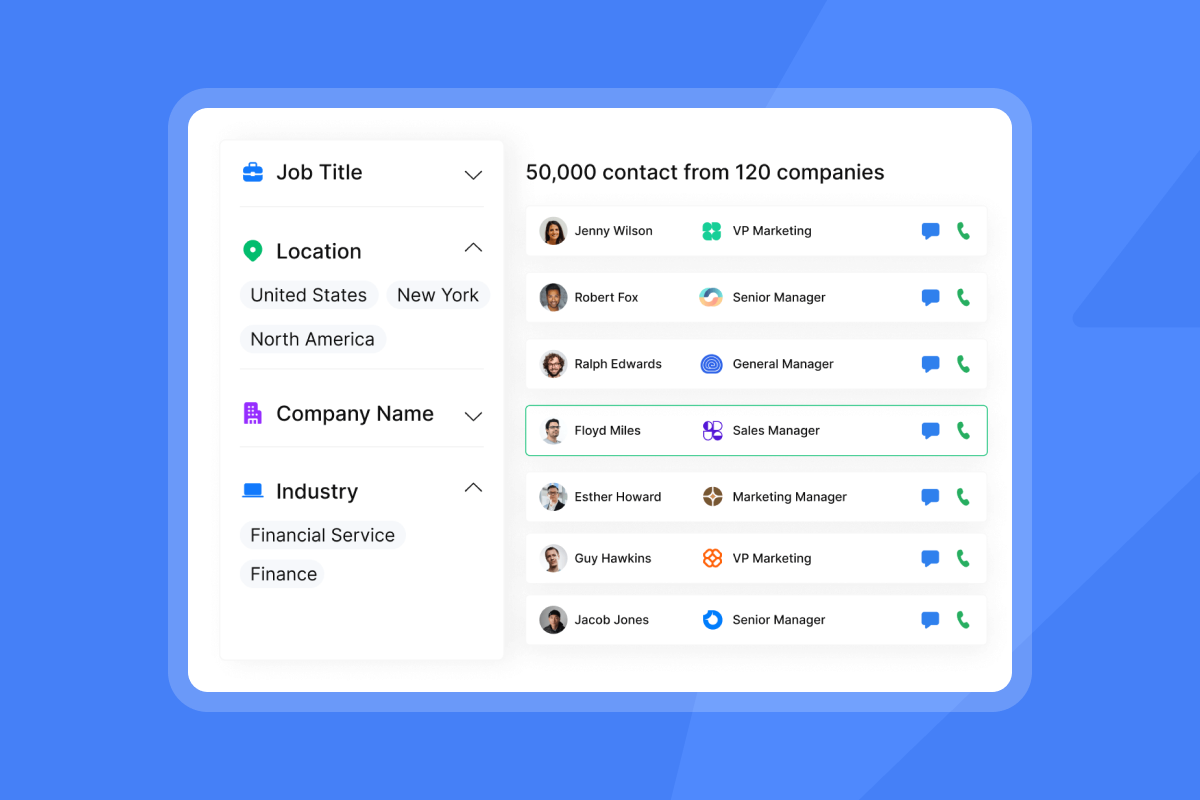
Contact quality determines campaign outcomes before a single email is sent. Even a verified list degrades over time. Job changes, domain migrations, and company closures mean contacts that were accurate at import may already be stale by the time your first sequence runs. Instantly's Lead Finder provides waterfall enrichment across 5+ providers and pulls from a database of 450M+ B2B leads, reducing the risk of launching a campaign on stale data.
Every sent email, open, click, bounce, and reply must also log in the CRM on the contact's activity timeline. Without this, your AEs have no visibility into how warm a prospect is before they pick up the phone, and you lose the ability to suppress contacts who have already replied but whose status has not yet updated.
Instantly's HubSpot webhook integration creates this full activity log by streaming campaign events directly into HubSpot contact records. Configure the webhook in Instantly under Settings > Integrations and select "All Campaigns" to capture sends, replies, bounces, opens, and status changes in a single stream.
Syncing prospect intent and replies
Reply classification is where most AI BDR integrations break down. A reply that says "Yes, let's talk Thursday" is different from one that says "Please remove me," but a poorly configured system treats both as a generic "reply" in the CRM.
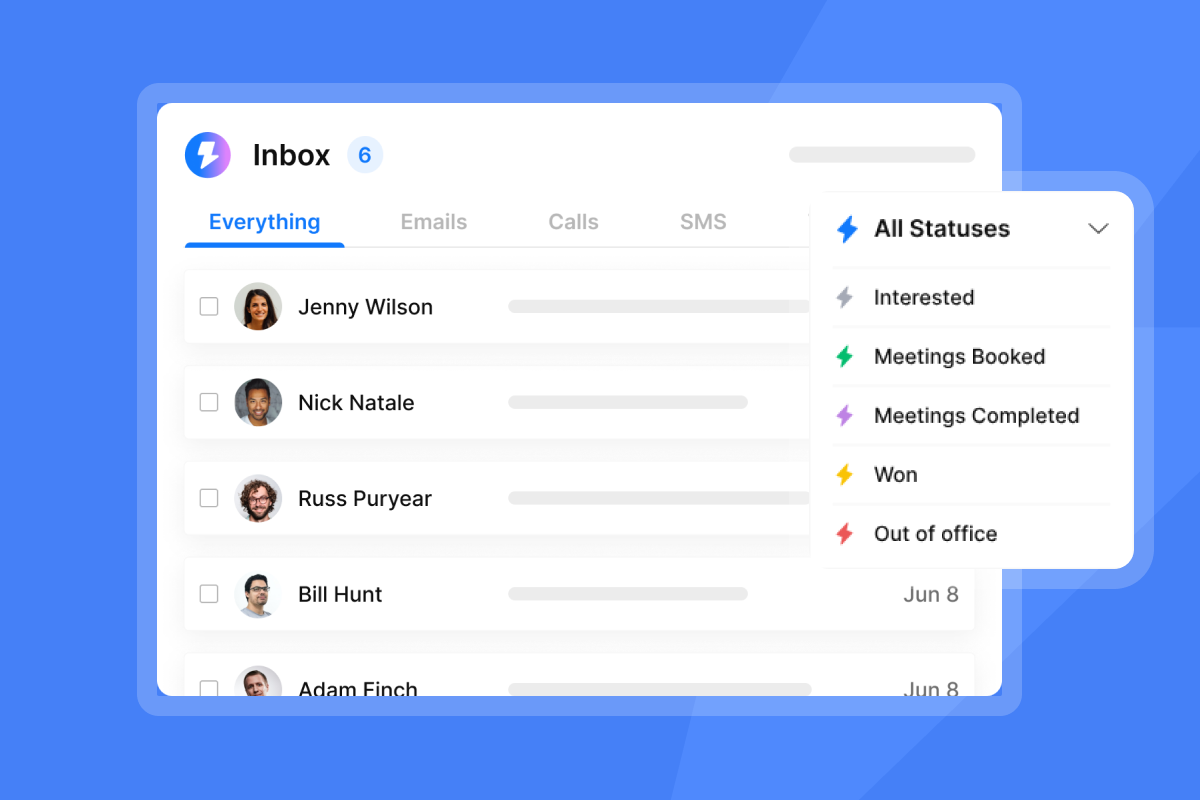
Instantly's AI Reply Agent reads inbound replies, responds to leads, handles objections, sends follow-ups, and shares calendar links, all without constant oversight. It replies in under 5 minutes, 24/7, and updates CRM lead status automatically so contacts move through the pipeline without manual triage. It runs in Human-in-the-Loop mode for teams who want to approve replies before they send, or Autopilot mode for fully automated handling at volume. Each reply costs 5 Instantly Credits once generated.
The Unibox centralizes all replies across every sending account into one dashboard. Your team reviews intent-classified replies from one place, not 10 separate inboxes. For a sales team managing multiple reps and domains, this matters for both efficiency and compliance - our AI BDR onboarding checklist covers the team-wide setup steps.
Automating CRM meeting handoffs
When a lead replies with intent, the handoff to an AE calendar must be automatic. A manual step here creates a gap where an interested prospect goes cold while waiting for a rep to see the reply and send a booking link.
Configure your CRM to create a new deal record automatically when Instantly's AI Reply Agent classifies a reply as "interested." Assign the deal to the owning AE, attach a calendar task, and trigger a notification via the Slack integration. This flow removes the human step between "lead replied" and "meeting booked," which is where most pipeline slippage happens.
Syncing inbox safety and deliverability
Deliverability is not a feature. It is a system. Every inbox you add to a campaign must follow these rules:
- Warmup for at least 30 days: Ramp from 5 sends per day up to a maximum of 30 sends per day per single inbox.
- Do not scale past 30 emails per single inbox per day. If you need higher volume, add more inboxes and distribute sends across them using Instantly's inbox rotation.
- Monitor inbox health continuously: Use automated placement tests to catch deliverability drops before they affect live campaigns.
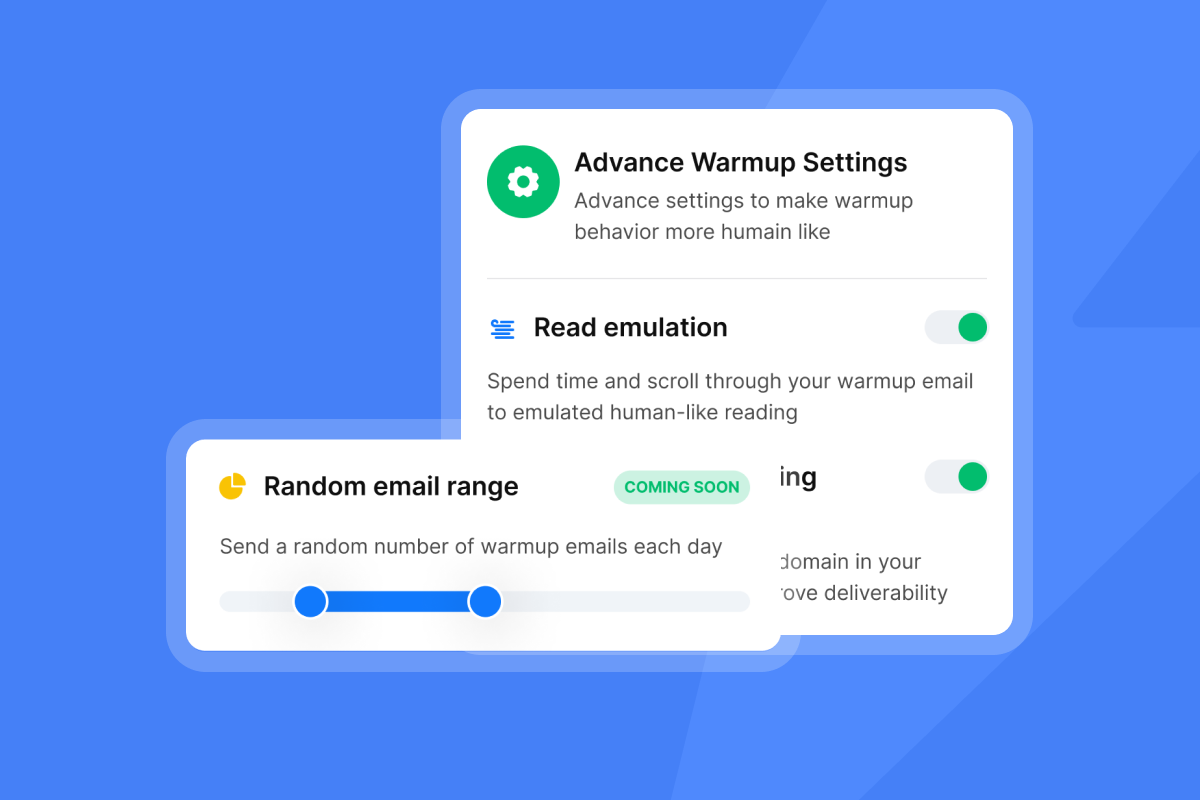
Instantly's private deliverability network of 4.2M+ accounts simulates real engagement patterns during warmup, building sender reputation before your campaigns start. The Inbox Placement tool runs automated tests and alerts you when deliverability drops. Major inbox providers enforce spam complaint rate thresholds of 0.3%, so your deliverability system must catch problems before those thresholds are breached, not after.
"Instantly makes cold outreach operationally simple at scale. The interface is straightforward, setting up campaigns with multiple inboxes is fast, and the warm-up system helps maintain deliverability when sending higher volumes." - Ivar S. on G2

Proven frameworks for AI BDR data pipelines
There are three architectural approaches to connecting your AI BDR to a CRM, a key decision when you implement an AI BDR. The right one depends on your CRM, your team's technical capacity, and how much customization your pipeline requires.
Direct CRM sync for HubSpot
For HubSpot, Instantly offers native, OAuth-based authentication that requires no manual API key handling. Connect it in Settings > Integrations, authorize through HubSpot, and Instantly can import HubSpot contacts and lists directly into campaigns without CSV exports.
For full bidirectional activity sync, configure Instantly's webhook integration to stream sends, replies, bounces, and status changes into HubSpot contact timelines. This is the cleanest setup for teams running Instantly as their primary outbound engine alongside HubSpot as their CRM of record, one of several options covered in our best sales CRM roundup.
Native CRM AI vs. third-party AI BDR: the integration mandate
Feature | Native CRM AI tools | Third-party AI BDR (Instantly) | Strategic impact |
|---|---|---|---|
Deliverability network | Not included | 4.2M+ account warmup network | Protects primary inbox placement at scale |
Inbox rotation | Not included | Unlimited accounts, all plans | Scale without per-inbox domain risk |
Automated warmup | Not included | Built-in, all tiers | Protects sender reputation from day one |
IP rotation (SISR) | Not included | Light Speed plan and above | Advanced placement control at volume |
Flat-fee pricing | Per-seat model | Unlimited accounts, flat fee | Control costs as team grows from 3 to 15 reps |
CRM data source | Locked to CRM data | Lead Finder (450M+B2B leads) | Outbound to net-new prospects |
Native CRM AI tools draw from the data already in your CRM, which limits outbound reach to prospects your team has already captured, a gap covered in more depth in our best AI BDR tools comparison. As the table above shows, deliverability network, inbox rotation, automated warmup, and IP rotation are not included in native CRM AI tooling. Without multi-inbox rotation, automated warmup, and domain health monitoring, cold campaigns risk domain blacklisting regardless of how well the AI writes copy.
Middleware and custom sync workflows
If you are connecting Instantly to a CRM without a native connector, Zapier, Make, and Pabbly cover most use cases. Instantly's Zapier integration supports triggers like "lead marked as Interested" and actions like "create contact in HubSpot" or "create lead in Pipedrive." For the Pipedrive-specific flow, the same logic applies.
For deeper enrichment, Clay integrates natively with Instantly, as confirmed by the integration guide, and sits upstream of your CRM in the data pipeline. Use Clay to enrich a contact with firmographic data, intent signals, or technographic details before that contact enters Instantly as a lead. Our guide to where AI BDR lead data comes from covers which inputs to verify. Once enriched and qualified, push them into an Instantly campaign and let activity data flow back to the CRM through your chosen integration method. This three-stage flow (Clay enrichment → Instantly campaign → CRM activity log) produces cleaner CRM data because every record arrives pre-qualified rather than raw.
Automating CRM updates via webhooks
Webhooks deliver CRM updates in near real time, compared to scheduled syncs that run on fixed intervals. When a lead replies or changes status in Instantly, that event fires immediately to your CRM or middleware without waiting for a sync cycle. For high-velocity sales teams, this speed difference determines whether an AE follows up while a prospect is still engaged or hours later when interest has cooled.
API V1 was deprecated on January 19, 2026. If your team built custom integrations on V1, migrate to Instantly API v2 before those connections break silently. V2 supports event-driven webhooks for sent emails, replies, bounces, and lead status changes. Set up the webhook in Instantly under Settings > Integrations > Webhooks, paste your receiving endpoint URL, name it, and select specific campaign events or "All Campaigns."
Step-by-step AI BDR and CRM sync setup
Work through these four steps in order. Skipping field mapping to get to launch faster is the most common cause of CRM pollution, a pattern covered in our guide to avoiding AI BDR mistakes.
- Matching custom fields for clean data
- Configuring sync intervals and direction
- Defining duplicate-handling rules
- Verifying AI BDR sync functionality
Matching custom fields for clean data
Create your custom CRM fields before you configure the integration. If your Instantly campaign tracks "Pain Point," "Lead Source," or "Sequence Step," those properties must exist in HubSpot first. Recommended fields to map include:
- Email: Text (primary unique identifier)
- First Name / Last Name: Text
- Company: Text
- Phone: Text
- Lead Source: Match the field type already configured in your CRM
- Campaign Name: Text (custom outbound field)
Campaign Name must be created as a custom property in HubSpot before mapping. If it does not exist, the data is silently dropped during sync. This validation step is documented in the CRM import guide in the Instantly Help Center.
Configuring sync intervals and direction
Bidirectional sync is the standard for most sales teams. Instantly pushes campaign activity (sends, opens, replies, bounces) to the CRM, and the CRM pushes contact status updates (won, lost, opted out, active opportunity) back to Instantly to suppress active records from future outbound sequences.
Webhook-based sync is near real-time. Scheduled sync via Zapier or Make runs on intervals you define. Prioritize faster intervals for reply routing where speed matters for conversion, and use longer intervals for bulk contact hygiene updates where some latency is acceptable.
Watch API rate limits. HubSpot enforces rate caps per portal per second. If you sync high-volume campaign events, use batched webhook payloads rather than individual per-event calls to stay within limits.
Defining duplicate-handling rules
Duplicate contacts most often appear when a CRM receives multiple inbound records for the same prospect without a prior lookup step. The fix is the same regardless of how the duplicate was created.
Use email address as your primary unique identifier in HubSpot. In your Zapier or Make flow, always search by email first, update if found, and create only if no match exists. Never skip the lookup step.
For HubSpot specifically: HubSpot deduplicates contacts by email address during imports and updates automatically, but native deduplication does not catch every scenario. Contacts without an email address are not deduplicated automatically, and imports where multiple existing records share the same address will error out rather than merge cleanly. The explicit Find Contact step in your Zapier or Make flow covers these gaps for API-driven syncs.
Verifying AI BDR sync functionality
Run a full test before activating live campaigns:
- Import test contacts: Use a small batch of contacts from your CRM that you can easily identify and clean up after testing.
- Launch a short sequence: A single-step send is enough to verify that sync is working.
- Trigger a status change: Mark one contact as "Interested" in Instantly.
- Verify CRM update: Check that the contact's status updated in HubSpot within your configured sync interval.
- Check activity logging: Confirm the sent email, open, and status change appear on the HubSpot contact timeline.
- Test bounce handling: Use a known invalid address to confirm bounces log correctly and do not reenter future sequences. Test with a small batch first. Catching a mapping error early means less cleanup work. Resolve all errors before moving to a full campaign launch.
Preventing CRM errors in your sales stack
Most CRM errors from AI BDR integrations fall into a predictable set of categories. Each has a specific root cause and a fix you can apply before or after go-live.
Troubleshooting and escalation runbook
Issue | Root cause | Immediate action | Prevention |
|---|---|---|---|
Duplicate contacts in CRM | Missing lookup step in sync flow | Merge duplicates by email in HubSpot | Add "Find Contact" step before create in Zapier/Make |
Missing activity logs | Webhook not firing or misconfigured | Check webhook status in Instantly Settings | Select "All Campaigns" events, test with seed contact |
Misclassified replies | AI Reply Agent confidence below threshold | Review flagged replies in Unibox, reclassify manually | Enable HITL mode for new campaigns until classification stabilizes |
Calendar double-bookings | No buffer time set in booking tool | Add buffer slots between bookings in calendar settings | Set minimum notice and slot buffers in calendar app settings |
CRM/BDR report discrepancies | Different attribution windows or event definitions | Align CRM and Instantly on what counts as an "open" or "reply" | Document definitions in your integration runbook, audit regularly |
Preventing CRM record duplication
In HubSpot, go to Contacts > Actions > Manage Duplicates to run a manual deduplication sweep after any large import. For ongoing prevention, Instantly's HubSpot webhook receiver updates existing contacts instead of creating new ones when an email match is found. Pair this with HubSpot's native deduplication by email to cover both inbound webhook events and manual imports.
Resolving activity logging and reporting errors
If emails, opens, or replies are not logging in the CRM, check the webhook first. Send a test event from Instantly's webhook configuration and confirm delivery in your CRM or middleware logs. If the logs show the event was sent but nothing appeared in the CRM, the issue is in your field mapping or the CRM's inbound webhook handler. If the logs are empty, the webhook itself is not firing. Recheck event selection in Instantly and confirm the receiving URL is active.
Reporting differences between the Instantly dashboard and your CRM usually trace back to different definitions of the same event. Instantly counts an "open" when a tracking pixel fires. Your CRM may count a different signal. Designate Instantly as the source of truth for sequence activity (sends, opens, replies, bounces) and your CRM as the source of truth for pipeline stage and deal value. Document this split in your runbook and align every reporting review against those definitions.
Instantly's 2026 benchmark report puts the platform average reply rate at 3.43%, with top-quartile senders at 5.5%+ and the top 10% exceeding 10.7%. Use these as calibration points. If your CRM and your Instantly dashboard show reply rates that differ by more than a point or two for the same campaign, an attribution rule is broken, not your outreach.
Fixing reply classification and calendar workflows
When the AI Reply Agent misclassifies a reply, your CRM receives the wrong status update and the lead may receive a follow-up from a sequence it should have exited. The AI Reply Agent's HITL mode prevents this by requiring human approval before any classified reply triggers a downstream action. Run HITL mode for new campaigns while your team calibrates the AI's classification accuracy against your specific audience language, then move to Autopilot once you are confident in classification quality, the same trust curve we cover in AI BDR vs. human SDR.
Calendar double-bookings happen when the AI BDR's booking link and the AE's live calendar are not pulling from the same availability data. Add buffer slots between bookings in your calendar tool settings. If you are using a Zapier or Make flow to create calendar events from Instantly's "meeting booked" trigger, confirm the flow writes to the correct calendar and checks for existing events at that time slot before confirming.
Strategies for reliable CRM data hygiene
Long-term CRM hygiene requires scheduled audits, clear role boundaries, and a documented recovery protocol that any team member can follow without calling the person who built the integration.
Auditing sync health and recovering from failures
Run a regular sample audit. Pull a batch of contacts from your most recent completed campaign, check their CRM records manually, and verify that the correct activity logged, the status updated correctly, and no duplicates exist. Track the error rate over time and investigate any spike as a signal that a recent configuration change introduced a regression.
When a sync connection breaks, follow this recovery protocol:
- Check the status page: Confirm Instantly is operational at the Instantly status page before assuming a configuration error.
- Test the webhook: Send a test event from Instantly's webhook settings and check delivery logs.
- Re-authenticate: If the webhook is healthy but CRM data is not updating, reauthorize the OAuth connection in Settings > Integrations.
- Rotate API keys: Generate new keys and update all integration endpoints if you have not rotated recently or if you detect unexpected errors.
- Verify field mappings: After any CRM property change (renamed field, deleted dropdown value), recheck every mapped field in Instantly for broken references.
- Run a test campaign: After re-establishing the connection, use a small test batch to confirm data flows correctly before resuming live campaigns.
Managing user permissions and roles
Assign a single system admin role with exclusive permission to manage CRM integrations, API key rotation, and webhook configuration, a core control in AI BDR security and compliance reviews. When multiple team members have integration access, accidental sync overrides are common, especially after onboarding new reps who may explore settings without understanding downstream consequences.
For HubSpot, Super Admin access is required to authorize the OAuth connection. Document who holds that role, when the token was last rotated, and the escalation path if that person leaves the team. Keep this in a shared runbook to reduce ramp time for new RevOps hires.
Building reliable AI BDR runbooks
A runbook for your agentic sales agent and CRM integration should document six things:
- All configured field mappings with source and destination field names
- All active webhooks with their event triggers and receiving URLs
- API key rotation schedule and the person responsible
- The deduplication logic in each Zapier or Make flow
- The escalation path for platform outages, including the Instantly support contact
- Your audit schedule and what constitutes a healthy vs. failing integration
Store this in a shared location that survives individual team member turnover. For real-world setup examples, see the Instantly demo co-founder walkthrough and the AI Sales Agent setup webinar available in the Instantly resource library.
Your AI BDR integration is a data pipeline. Teams that run clean CRM data alongside high-volume outbound treat field mapping, deduplication, and deliverability guardrails as setup requirements, not optional extras. Instantly's 2026 benchmark report found that consistent, stable sending patterns produce 15 to 20% higher reply rates than irregular ones. That consistency starts with a sync that works every time.
Try Instantly free for 14 days, no credit card required. Test native HubSpot sync with zero duplicate records, the Unibox for centralized reply management, and the AI Reply Agent with your own domain before committing to a full rollout.
FAQs
How long does a native HubSpot sync setup take?
A native HubSpot connection in Instantly takes under 10 minutes using OAuth authentication in Settings > Integrations, with no manual API key handling required. Adding full bidirectional activity sync takes an additional 30 to 60 minutes to configure webhooks, map fields, and test with a seed batch.
Which CRMs does Instantly sync with natively?
Instantly's native direct connectors cover HubSpot, with Pipedrive also supported via the Pipedrive integration and CRM import tools. For other CRMs, use Zapier, Make, Pabbly, or Instantly's API v2 to build custom sync workflows.
What happens to campaign data if my CRM API goes down?
Check your middleware (Zapier or Make) retry settings to confirm failed events are held in a queue rather than dropped after a single failed attempt. For extended outages, monitor the Instantly status page to distinguish between a platform issue and a configuration error on your end.
How do I prevent duplicate contacts in an AI BDR and CRM sync?
In HubSpot, set email address as the unique identifier. In your Zapier or Make flow, add a Find Contact step before any Create Contact step and configure the action to update the existing record when an email match is found. For multi-sender campaigns specifically, add a "Find Contact" lookup step before any "Create Contact" step in your automation flow, update if found, and create only if no match exists.
Key terms glossary
Unibox: Instantly's centralized reply management interface that consolidates replies from all connected sending accounts into one dashboard, allowing your team to review, classify, and route replies without logging into individual inboxes.
AI Reply Agent: An Instantly agent that reads inbound replies, classifies intent using NLP into categories (interested, not interested, out of office, requesting more info), and routes each reply to the appropriate CRM workflow in under 5 minutes. It runs on Instantly Credits, a separate subscription starting at $9/mo, and supports Human-in-the-Loop and Autopilot modes.
SISR: Server and IP Sharding and Rotation, a feature available on Instantly's Light Speed plan and above that distributes sends across dedicated private IP pools to protect sender reputation at high sending volumes.
SMTP verification: A real-time check that confirms an email address exists and can receive mail before it enters a campaign. Running SMTP verification as part of your list hygiene process reduces bounce risk and protects domain health.
Read next:
- Email warmup guide: clean sending, stronger inbox placement: how to ramp new inboxes safely, build sender reputation, and protect domain health before your campaigns go live.
- How to build a verified B2B email list for cold outreach: the complete playbook: covers sourcing methods, verification tools, and list hygiene practices that keep bounce rates at or below 1%.
- Best cold email sequence templates to win replies in 2026: step-count recommendations, send timing, and copy frameworks that move prospects from first touch to booked meeting.



